when in preview mode, there are some images that are hard to read. I would like to be able to view an enlarged version.
Proposed solution
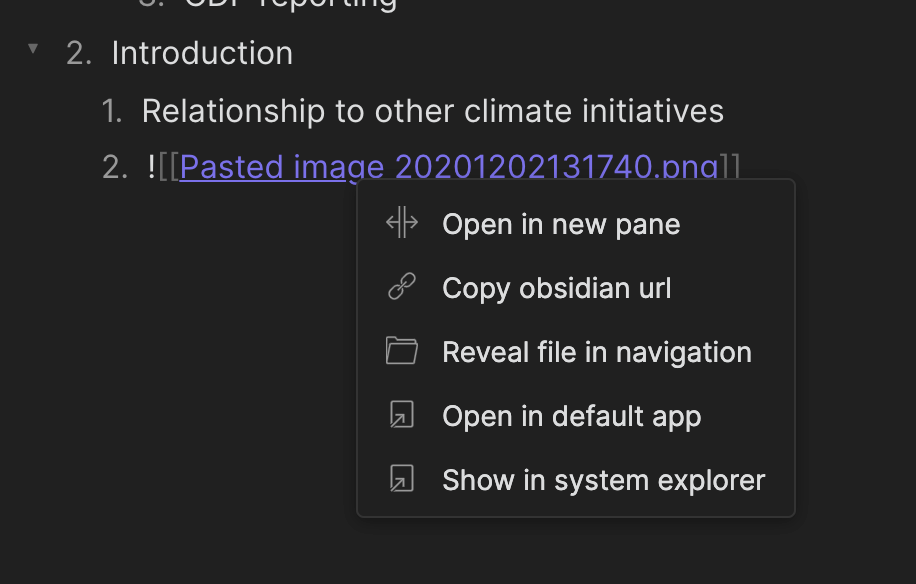
If you click on an image. It should give you the option to view the image file in your file explorer so you can view it in Apple preview or any other image viewer.
Thanks @ryanjamurphy However the functionality is quite limited. My image files are photos from pen on paper mindmap and hence contain a lot of detail. I would like to be able to zoom in an pan (like in Mac Preview). The option is available while in edit mode, but not in Preview mode.
I’d like to have this too, and to me it feels like a core feature - images should be viewable in full detail. When there are multiple panes open in Obsidian, it’s understandable that images need to be scaled down a lot for them to fit.
I’d suggest that when a small image is clicked, open a modal that shows it as big as the Obsidian Window size allows. At the bottom of the modal, there could be two buttons: Open in default app and Show in system explorer.
Thanks, but I still see this feature being something that could be included in the core (of course it’s just my opinion). I’m not so keen on installing plugins for small things like this. That particular plugin is good in that it offers even more features than what are requested here, but personally I do not need those features, only the ability to click an image to get it larger.
In the mobile client we have an image viewer where we can tap an embedded image to view it at full size. Could the same functionality be made available on desktop so we can left-click an embedded image to view it at full size as well?
As stated in this thread, there are various CSS snippets around that do something similar but I think it would be nice to have this built-in and since it already exists in the mobile client it would be nice to have it in the desktop version just for consistency.
When adding an image into Obsidian (Desktop, Windows), if the Image is quite large it would be useful for me to click the image and have it open in a ‘lightbox’ (don’t know if this is the right term) so that I can see it in a zoomed in, full resolution form, being able to scroll left and right on the zoomed in image etc.
Currently, Obsidian Desktop does not let you do that.
As an example, if I have an image that has a lot of small writing on it, once I paste it into Obsidian, it becomes useless. I cannot zoom in or ‘open it up’ within the note to see the details.
This feature ironically works on mobile (iOS) with a much smaller screen, but doesn’t exist on the Windows Desktop application.
Proposed solution
On Obsidian Desktop (Windows), it would be good to click on an image to have it open in a popup window in full resolution where we can see all the details we need.
You can currently do it by left click to reveal source code then right click Open in default app. Left clicking an image already has a clear purpose: it reveals the image link. You can then right click the image link. Right clicking (local) image offers 6 useful functions: