Separate commands for moving/indenting a single list item vs. all of it's children (or add toggle to change the behavior)

Alternative title: Create separate Move Single Line keyboard shortcut

Alternative title 2: Remove new list line movement logic (but I know dev time already went into this and some people may like it so that’s unlikely)

The new line movement logic added to lists in the latest release actively hinders keyboard only edits of notes. Things that used to be easy are now either impossible or significantly harder to achieve without using the mouse or a combination of Selection + Copy/Paste.`

The keyboard shortcut is “Move Line” not “Move item, and it’s nested components, and don’t leave the list”. However the new logic expects you to break your current assumptions of what that shortcut does when specifically inside a list.

I will also throw out that the new behavior of “move an item and it’s nested children” already existed. You just had to select multiple lines and then perform the command. In this way it’s a conscious decision on the user’s part to move multiple things, not some hidden logic you have to learn the quirks of.

(for all examples I have Alt + Up bound to Move line Up and Alt + Down to Move line down, sorry if this causes confusion)

Example 1, un-nesting

Moving a nested item to a top level item. Commonly done when re-arranging priority on a task list for example

Starting with

* Item 1
    * Item 2
        * Item 3| <-- cursor
    * Item 4
* Item 5

Say you want to move Item 3 to the top level above Item 1

* Item 3| <-- cursor
* Item 1
    * Item 2
    * Item 4
* Item 5

Previously this was a combination of 2 Shift + Tab and 2 Alt + Up presses in any order. This could also be perfectly reversed by 2 Tab presses and 2 Atl + Down presses

With the new system you run into 2 major problems.

  1. Items can’t “leave” a nested list
  2. Nested items are “dragged” along with an item even if they didn’t start connected

From the starting position pressing Alt + Up does nothing because it’s nested under Item 2 and it can’t “escape”.
So instead we have to hit Shift + Tab first to get it into the parent tree.

* Item 1
    * Item 2
    * Item 3| <-- cursor
    * Item 4
* Item 5

From here there’s 2 sequences we can take
Shift + Tab again then Alt + Up which results in:

* Item 3| <-- cursor
    * Item 4
* Item 1
    * Item 2
* Item 5

Or Alt + Up then Shift + Tab then Alt + Up again which results in

* Item 3| <-- cursor
    * Item 2
    * Item 4
* Item 1
* Item 5

Both have problems because they drag Item 4 and/or Item 2 with them as those items become “newly nested” under Item 3. This would require even more movements and editing to move 2 and 4 back into the right locations. Overall much more annoying and complicated than just “Move line” like previously possible.

On top of this route being longer and requiring remembering a much more specific sequence of key presses it’s not easily reversible. see next

Example 2, nesting an item

To place Item 3 back where it was from the top level starting like this you have a few options

* Item 3| <-- cursor
* Item 1
    * Item 2
    * Item 4
* Item 5

Tab x2 Alt + Down x2 - but this only works if you remembered to hit tab first
As of the 1.15.1 change “Smart lists prevents over-indenting list items more than one level deeper than the item above it.” This is no longer possible. You must use the “overshoot” methods below

        * Item 3| <-- cursor
* Item 1
    * Item 2
    * Item 4
* Item 5

---

* Item 1
    * Item 2
        * Item 3| <-- cursor
    * Item 4
* Item 5

Alt + Down ,Tabx2, Alt + Up

* Item 1
    * Item 2
    * Item 4
* Item 3| <-- cursor
* Item 5

---

* Item 1
    * Item 2
    * Item 4
        * Item 3| <-- cursor
* Item 5

---

* Item 1
    * Item 2
        * Item 3| <-- cursor
    * Item 4
* Item 5  

or Alt + Down, Tab, Alt + Up, Tab

* Item 1
    * Item 2
    * Item 4
* Item 3| <-- cursor
* Item 5

---

* Item 1
    * Item 2
    * Item 4
    * Item 3| <-- cursor
* Item 5

---

* Item 1
    * Item 2
    * Item 3| <-- cursor
    * Item 4
* Item 5

---

* Item 1
    * Item 2
        * Item 3| <-- cursor
    * Item 4
* Item 5

The second and third options feel very weird to have to hit Up because the first down “overshoots” the place you wanted it to land. If the 2nd level was longer you may have to be press Up many times just to get back to where you wanted it to be.

Again I will point out that the previous situation was very intuitive, move down twice and over twice, 2 Tab and 2 Alt + Down in any order

Example 3, combining/moving between lists

Starting with this, note the blank lines around the paragraphs.

Description of list 1

* Item 1
* Item 2
* Item 3

Description of list 2

* Item 4| <-- cursor here
* Item 5

If you use the “move line up” command in the latest version to move Item 4 up from the second to first lists you end up with this:

Description of list 1

* Item 1
* Item 2
* Item 4| <-- cursor here

* Item 3
Description of list 2

* Item 5

The instant Item 4 is above the description line it’s considered as part of the first list even though there is an empty line there. Then the next “move line up” command swaps it with Item 3 instead of just moving the line up to be “tight” with the first list as the last item. The first time I encountered this I was very confused.
This example is closely related to Move Line Up/Down should respect list structure and empty-line groups which also deals with the new logic “ignoring” or skipping blank lines. Very counter-intuitive to me.

Proposed solution

As stated in the title I strongly feel that the new movement logic should be split to a separate option from the general “Smart lists”. I still want the functionality of creating new bullets/checkboxes automatically and new lines to be indented but I really struggle with and have to fight the movement logic.

A potential alternative solution would be to separate the shortcut commands into 2 different options. A “Smart move line up/down” and a “Move single line up/down”. The first would have the new behavior and move whole items in lists and the second would be the old behavior of the more “code oriented” literally “move a single line”. This is how the Line Mover extension seems to split them.

Also related Moving items up or down does not work correctly and Did "Move line up/down" behavior change something and how to bring it back?

I originally tried to post this in Move Line Up/Down should respect list structure and empty-line groups - #3 as the solution is likely the same but was told I should open a separate thread
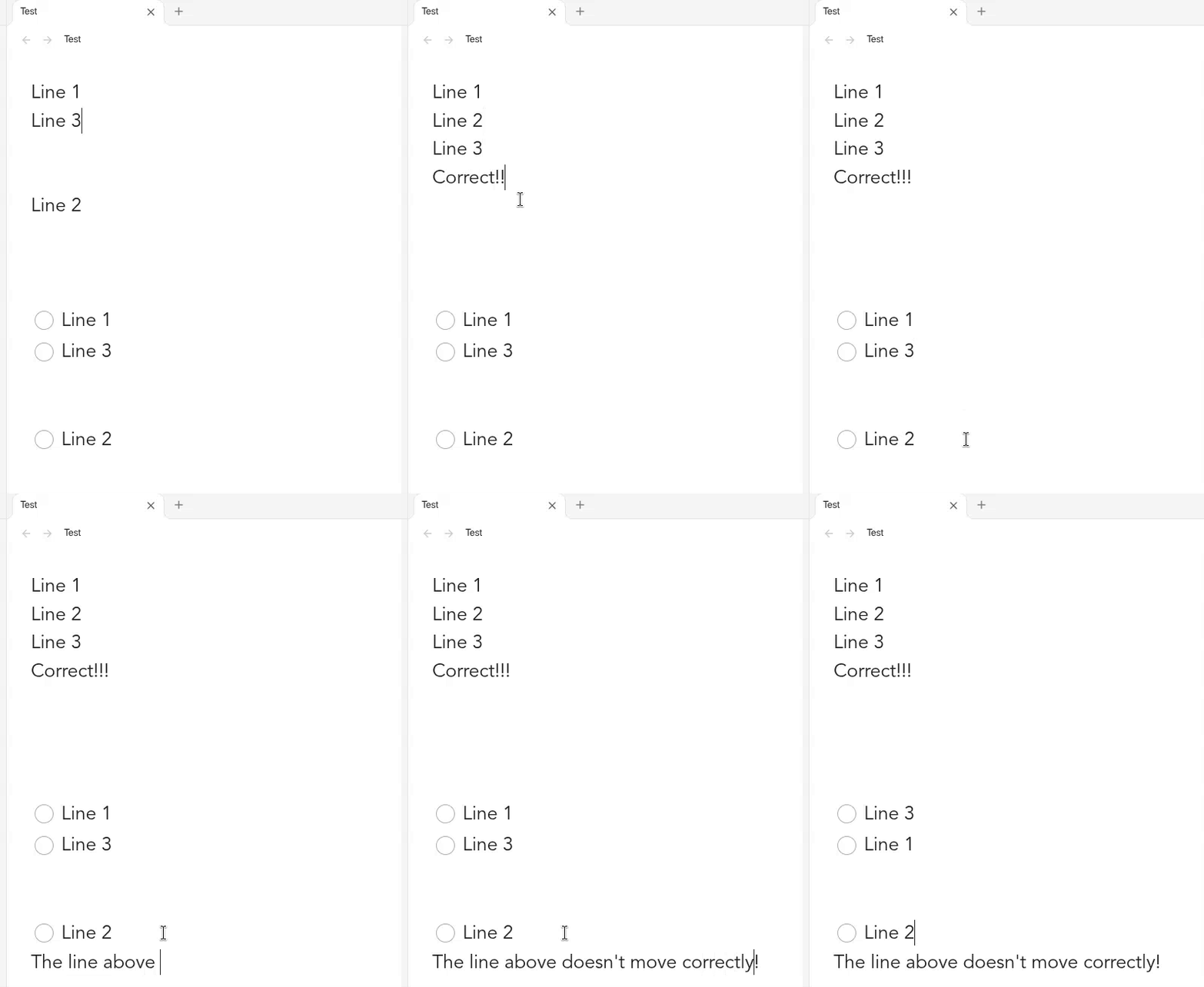
I completely agree with this idea! The new behavior should be optional and separate from the Smart Lists setting.

Moving lines should move one line at a time, not entire list items and their nested children.

Screencast From 2026-11-03 17-52-02 (5 FPS)

I agree with this write-up and think it captures the issue better than the other three related threads. To sum up what is important: The problem is not a bug, but a new (hidden and arguably counter-intuitive) logic that acts counter to expectations and makes easy tasks more complicated, going against established workflows.

A good solution would be to:

  1. either keep the “Move Line” and “move an item and it’s nested children” commands separate
  2. or have an additional toggle besides smart lists, responsible for this specific logic for moving list items.

The solution of disabling smart lists is not convincing, as then pressing ‘enter’ from a list item no longer creates a new one, making you have to explicitly declare each line as a list item. Why should not having unintuitive line-moving behavior have to imply not having the convenient list features?

Two possible workarounds at the moment are:

  1. Leave smart lists enabled, install the Line Mover plugin (linked above), and use it’s single-line movement command rather than the native one.
  2. Leave smart lists enabled and whenever you want to move a list item, run the ‘toggle bullet list’ command, move it, and run the command again. This is annoying though, as it requires more key presses, especially for task items.

An alternative to your workaround 2 is

  1. Disable Smart lists. Press enter, which does auto-add the indentation. Then use shortcuts to toggle the desired list type.

Info for those interested:

If you want to make a plugin with just the old behaviors of Smart lists, and even tweak some behaviors more to your liking, then @codemirror/lang-markdown already has functions that cover most of the list continuation and numbering features: insertNewlineContinueMarkup and deleteMarkupBackward. And you can get tips from how the Outliner plugin, which has an MIT license, handles indent and outdent in Live Preview.

I was on my way with that until realizing late in the game that Obsidian already continues the indentation even with Smart lists disabled. (I had always thought Smart lists was doing that.) So my use doesn’t need a new plugin.

For me, turning off Smart list and pressing a list-toggle command is as fast as before in many situations, about fast as before in most, and significantly faster in along with giving way more control over “complex” situations like properly including a markdown element in a list item.

Yeah this new behavior is infuriatingly obtuse. If I want to move multiple lines, I’ll just shift+down+down to select 3 lines then (in my case) CTRL+up/down to move the lines collectively. This is also the default behavior in most code editors and I just it all day, every day to move my lists around (along with tab/shift-tab for indents).

I have regrettably turned smart lists off until this is fixed.. Manually typing a dash before every single list item is somehow less obtuse than this weird new behavior. I hope we get a decoupling of ‘smart lists’ into its subcomponents soon.

This new behavior introduced by Smart Lists has been causing me so much frustration when editing Markdown files in Obsidian. It’s gotten to the point where this seemingly small change is adding to my personal problems and making me even more upset about things in my life.

I just want to edit my notes without having to fight the editor over something as basic as moving a single line.

I sincerely hope the developers provide a separate setting to restore the original Move Line Up/Down behavior.

Continuing the discussion from Separate new Move Line Up/Down logic from Smart Lists setting:

Use case or problem

Just like with the logic of how list items now behave when using the Move Line commands, I also take issue with the behavior in lists regarding the automatic indentation or moving of child items whenever the parent item is concert.

Say I have this list:

- a 
- b| <-- cursor
    - b1
    - b2
- c

And I want to move b up (using Move line up command):

- b| <-- cursor
- a 
    - b1
    - b2
- c

Or I want to indent it (using Indent list item command):

- a 
    - b| <-- cursor
    - b1
    - b2
- c

However, the children are now always taken with the line in question.

Move line up:

- b| <-- cursor
    - b1
    - b2
- a 
- c

Indent list item:

- a 
    - b| <-- cursor
        - b1
        - b2
- c

Proposed solution

I totally understand that this can be very practical behavior. However, there are many cases where I want to affect only the line, not all of it’s children. Therefore, the best solution seems to be to have two sets of commands:

  1. Move line up / Indent list item
  2. Move line and children up / Indent list item and children

Alternatively, there could be an extra toggle besides the Smart Lists option, to enable or disable the processing of children.

Disabling Smart Lists altogether is not an option, as I want to keep the automatic list continuation.

Current workaround (optional)

Before performing an operation on the intended line, first run a “toggle list” command. After performing the planned changes (moving/indenting), run it again. This however is two commands more to run and therefore inconvenient.

To fix only the moving, you can also install the Line Mover plugin and change your keybindings to execute it’s “single-line movement” commands.

Related feature requests (optional)

This FR developed out of reading discussions about wacky behavior when moving list items:

The best FR on this topic is the one linked at the beginning: Separate commands for moving/indenting a single list item vs. all of it's children (or add toggle) .

+1
breaks my workflow, this should be an option instead.

This is somewhat possible already in v1.15.1. If you have at least one character selected on a line, the commands will operate on that single line and not move the children with it.

Use case or problem

In my workflow, I keep checklist tasks in groups separated by a blank line, for example:

* [ ] Read
* [ ] Work| <- cursor is here

* [ ] Study 1. pom
* [ ] Study 2. pom

* [ ] Drink water

New behavior appears since Obsidian 1.15, with the setting Editor > Smart lists enabled.

When I want to move - [ ] Work into the lower group using the command Move line down (which works where you cursor is placed), it pulls Study 1. pom up into the upper group and leaves the blank line in the wrong place:

* [ ] Read
* [ ] Study 1. pom

* [ ] Work
* [ ] Study 2. pom

* [ ] Drink water

I expected this instead, with the blank line staying between the groups:

* [ ] Read

* [ ] Work
* [ ] Study 1. pom
* [ ] Study 2. pom

* [ ] Drink water

Turning off Smart Lists fixes the move, but it also disables continuing a checklist on Enter, which I need. So I have to choose between correct moves and list continuation.

Proposed solution

Either or both of the following:

Option A: split Smart Lists into independent settings. Smart Lists currently bundles several behaviors. Expose them separately, for example:

  1. Continue list on Enter (a new line after a checklist item starts a new checklist item).
  2. Move list items with their children.
  3. Blank-line handling when moving: treat blank lines as boundaries, or skip over them.

With this split, I could keep Enter-to-continue and turn off the move behavior that breaks my layout.

Option B: a list-aware move command. Add a variant (for example, “Move list item up/down”) that:

  • moves a single list item together with its nested child items, and
  • treats blank lines as part of the list structure

The button move line up/down would then do a simpler version

  • move a single line, even in a list
  • treats blank lines as group boundaries, so it never moves an item across one.

Preferably, these would also move nested child items too, but that would likely be confusing for the split of the features.

Current workaround (optional)

  • Turn off Smart Lists. The move then works as before, but checklist continuation on Enter stops working, as well as the moving of child items as the new changelog describes: Obsidian Changelog - Obsidian
  • Line Mover - Obsidian Plugin can be configured to replace the functionality with its ‘move line up (single line only)’ command.

Related feature requests (optional)

What you’re encountering here is a lesser known feature of Markdown called “loose lists”.

A list is loose if any of its constituent list items are separated by blank lines, or if any of its constituent list items directly contain two block-level elements with a blank line between them. Otherwise a list is tight. (The difference in HTML output is that paragraphs in a loose list are wrapped in

tags, while paragraphs in a tight list are not.) (CommonMark Spec)

So your lists separated by blank lines are actually a single list. You can see this in Reading View. (But the list doesn’t look “loose” because enough users were confused by why some list were more spaced out that by default Obsidian now suppresses the spacing of paragraphs in such lists.)

That’s why moving list lines is behaving the way you describe when Smart Lists is activated.

Workarounds

A way to trigger separate lists is to change the marker:

- first list
- still first

* second list
* still second 

+ third list
+ plus sign list markers are another little known feature of Markdown

This works for task lists too. (GitHub Flavored Markdown Spec)

- [ ] Read
- [ ] Work| <- cursor is here

* [ ] Study 1. pom
* [ ] Study 2. pom

+ [ ] Drink water

Unfortunately there isn’t a similar option for numbered lists.

Another option is to put something between the lists, like a thematic break (or horizontal line, as Obsidian calls it).

- [ ] Read
- [ ] Work| <- cursor is here
---
- [ ] Study 1. pom
- [ ] Study 2. pom
---
- [ ] Drink water

(None of this is meant to suggest the proposed changes don’t have value.)

+1
I agree with the idea of @gleam
(as I pointed out in https://forum.obsidian.md/t/moving-items-up-or-down-does-not-work-correctly)

Screencast From 2026-11-03 17-52-02 (5 FPS)

I have a different preference but suggest a similar solution.

Prior to Obsidian 1.15.0, (un)indenting a list line using (Shift) Tab only affected that line. Now with Obsidian 1.15.0, with “Smart Lists” enabled, it affects all children of this list. This could be useful for some workflows, but needs a toggle setting, if only because of what I would call transient/dynamic effects (there’s probably a better word, but let me explain…) Let’s say you have the following list:

- foo
	- bar
		- a
		- b
		- c

Then you unindent b, whether accidentally or on purpose. Now c is a child of b, and if you press Tab again on b to indent it back to where it was, now c (and any of its children) are now indented one tab further than they should be. Again, this behavior could be useful, but we already had a way to do this - just select the lines you want to indent. This can be done using mouse or keyboard so it’s nearly as efficient. At the very least, this should be separated into different hotkeys/keybinds, so that we can use one or the other (or better yet, both on different binds). Speaking of which, I tried assigning Tab and Shift+Tab to the “Indent list item” and “Unindent list item” hotkeys, but 1. I cannot assign Tab without a modifier to a hotkey; and 2. this did not change the behavior (I would perhaps expect it to exhibit the pre-1.15.0 behavior).

Now, this whole behavior can be disabled and returned to pre-1.15.0 functionality by simply disabling smart lists. The problem with this, as gleam pointed out, is that this also disables automatic insertion of a bullet (or other list element, etc.) at the appropriate indentation level on the next line when you press Enter. These two behaviors need to be separated, or at the very least explained more clearly in the settings menu.

As usual, Obsidian casually breaks a lot of existing workflows and muscle memory.

Too smart becomes impossible to reason about and thus less usable!

What I ran into just now:

Trying to get from

* Item1 - Item2
    * Item3
    * Item4

to

* Item1
    * Item2
    * Item3
    * Item4

Prior to the update - set cursor before Item2, enter the sequence:

Backspace Backspace Backspace Enter Tab and done.

After update this leads to:

* Item1
    * Item2
        * Item3
        * Item4

because after Enter Item2 is at the same indentation level and Tab takes other items along.

Now I have to think about how my actions affect wider context and what to do instead.

Naturally, I tried to disable Smart Lists - there is no granular settings. And from that I find out that pressing Enter from a list item keeps indentation but doesn’t create list item marker. So, it is also a downgrade from prior experience.

I’m not sure at the moment, which one I hate less.

In one case I’ll have to do Backspace Backspace Backspace Enter Shift+Right Tab

In the other I’ll have to do Backspace Backspace Backspace Enter Tab “Toggle bullet list”

Do we need even more plugins to restore usable behavior?

I was happy with prior behavior. Not because it was perfect but because it was easy to reason about. I value the cognitive load way more than questionable time saving.

I’m encountering a specific oddity with 1.15 that I haven’t seen anyone mention yet: how the command interacts with blank lines and ---/# boundaries. I like to include horizontal rules + blank lines in my lists:

- 1
- 2| <- cursor is here

---

- 3
- 4

When I use the Move Line Down command, this becomes,

- 1

- 2|
---

- 3
- 4

Repeating the command,

- 1

---
- 2|

- 3
- 4

And again,

- 1

---
- 3

- 2|
- 4

There’s now a list item ‘stuck’ to the divider. No matter how I move lines with the Up/Down commands, at least one line will be stuck to the horizontal rule. This applies to headings (#, ##…) as dividers, too.

I definitely want my blank lines to stay where they were! I would expect the command to either jump list items across the divider (as if it were another blank line) or simply move lines without jumping over blank lines at all, closer to the old behavior.

This is the case I tried to highlight in my Example 3 from the first post here. I track my to-do list under headings for the days of the month. Trying to move tasks between days constantly runs into this issue and I agree, it’s very frustrating.

I found two plugins that are trying to fix this:

None are made by me. Just sharing what I found.

I tested Smart-List-Tweaks and it works perfectly to restore the old behaviour. :slight_smile:

I support this.