What should I do to make importing my workspace from Notion to Obsidian more smoothly

First, search the help docs and this forum. Maybe your question has been answered! The debugging steps can help, too. Still stuck? Delete this line and proceed.

What I’m trying to do

Just now I tried to import my Notion workspace into Obsidian, but accidentally canceled the process after three hours in (and would need to do it all over again). Unfortune, but I still got to check out the things that have been imported, and everything is a mess. Though I’m am seeking any advice that would make this transition smoother, there three particular issues I hope to resolve:

  1. By default, Obsidian seemed to turn all of my callout (from the imported text) into [!note]. The good news is, in Notion I practically used one type of callout 90% of the time. Is there a way I can set the default callout (of choice) to my custom callout (this would save me a ton of work)?
  2. Images—I’ve already installed the plugin Image Convertor, and set it to send all of the images towards a specific folder. But while importing the images, they were not stored inside the designated folder. I have thousand of images, is there a faster way to store all of them, or will I have to do this manually?
  3. I’ve colored a lot of text in my notes, but inside the imported page, everything was white. Do I have to recolor everything again manually, or is there a better way?
1 Like

Update : I figured out the solution to issue 1: install Replace All plugin, and replaces all of “!note” into my custom callout.

3. Colors - Export your data from Notion

To prepare your data for import, you will need to export your entire workspace using Notion’s HTML export format. We recommend that you do not use Notion’s Markdown export as it omits important data.

If the html export works, your notes will probably have embedded html like <span style="color: #6C4939">colored text</span>. I occasionally use html or CSS for colors, but usually I stick to solution 2 below:

1. Use a plugin like Text coloring.
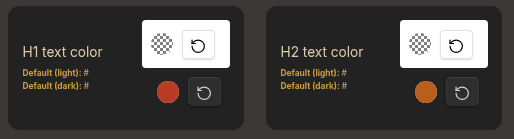
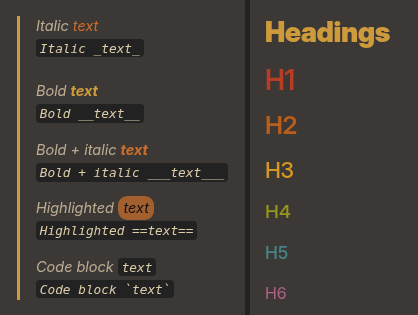
2. Use default markdown formatting and the Style Settings plugin.

For the images (issue 2) - Image Converter hooks into Obsidian’s file creation event, but the importer writes files directly and bypasses that.

Best plugin for this cleanup: Consistent Attachments and Links. Run its “Reorganize vault” command and it moves all attachments to wherever your attachment folder is set in Obsidian’s settings. Handles the whole vault at once, so thousands of images is no problem.

If you’d rather do it manually: move the image files to your target folder first, then run the plugin to update all the links in your notes automatically.