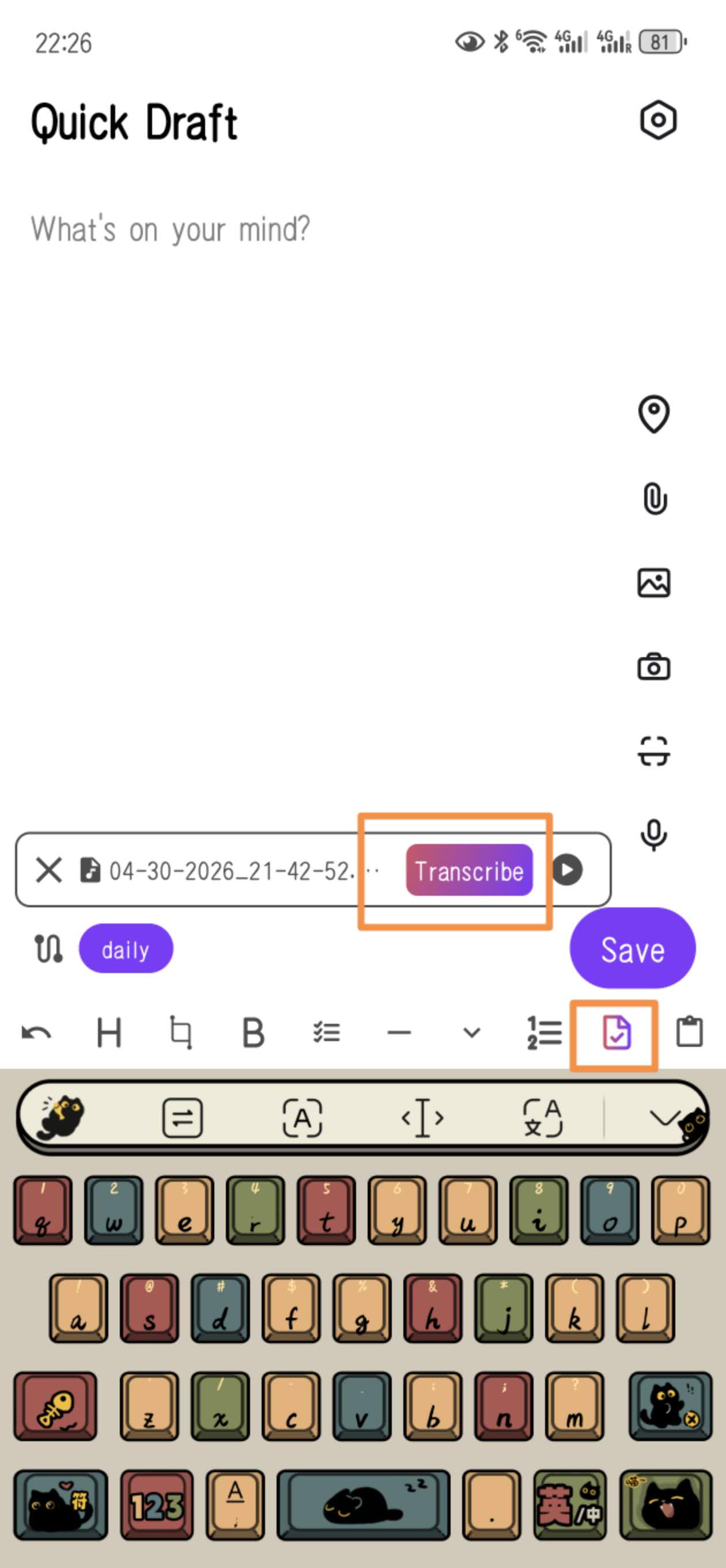
Over the last months, I’ve been building a small companion app for Obsidian that I originally made just to speed up my own quick-capture workflow. I kept refining it based on how I actually used it — text, voice notes, photos, attachments — until it finally felt stable and useful enough to share with the community. Since the early beta, I’ve been gathering feedback and improving the app based on what people reported or suggested.
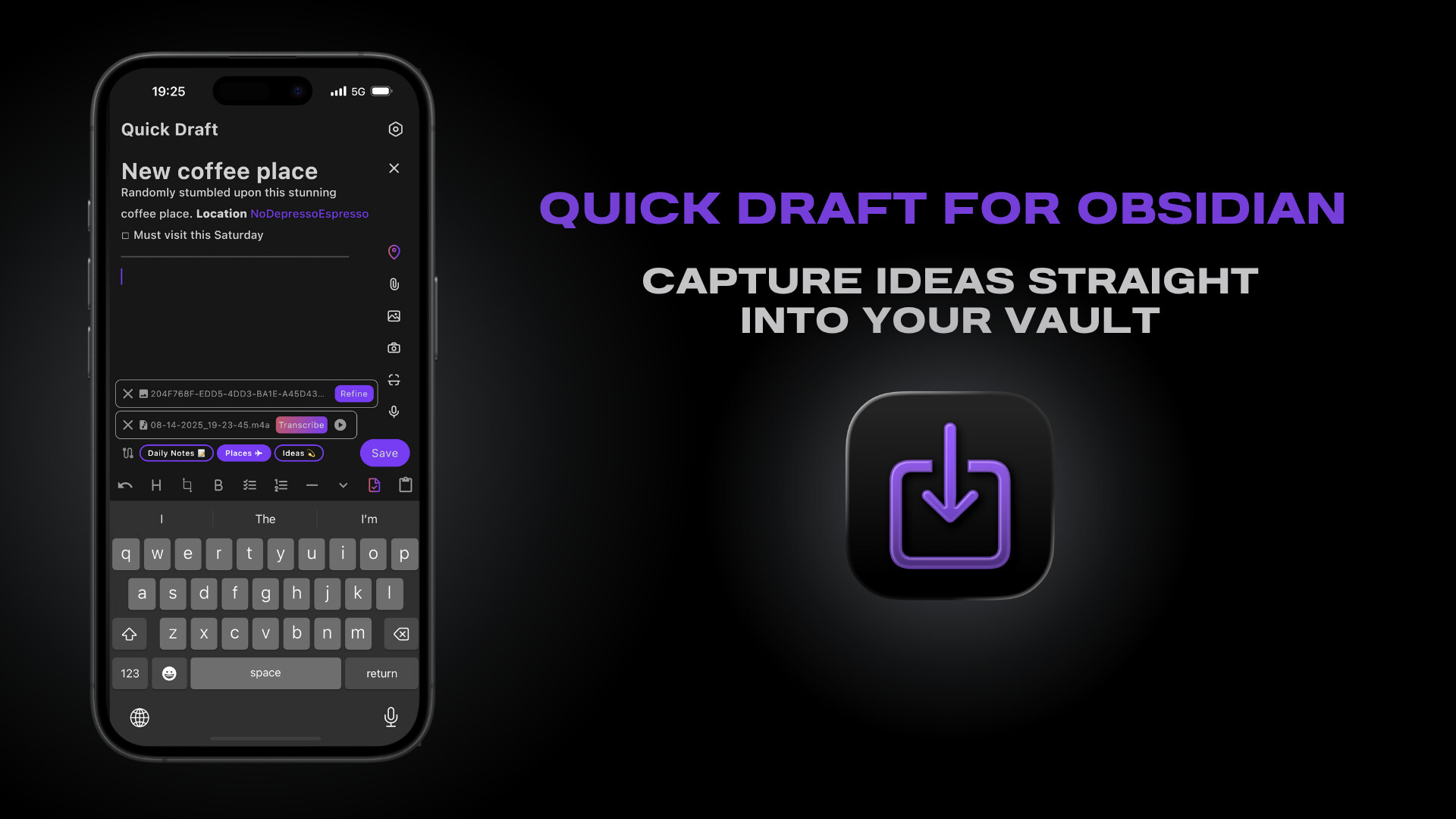
Quick Draft is a mobile quick-capture app that lets you create text, voice, or image-based notes on the fly and send them directly into your Vault, with optional formatting and routing rules.
Here’s a brief overview of what it currently supports:
Core features
Saving drafts to multiple notes and even multiple vaults
Flexible note paths like /YYYY/[W]-w/YYYY-MM-DD
Insert drafts before, after, or inside a specific section of a note
Wrap drafts into a predefined template before saving
Option to use the first line as the note title
AI-generated titles with customizable prompts
Attachments: images, videos, documents, files
Voice recording with high-quality transcription
Pause/resume recording and custom recording names
Text recognition (OCR) for images and handwriting
Attach current location or nearby places
Widgets & shortcuts for fast capture
Siri commands on iOS
Quick Sharing into a Vault
Light and dark themes
Drafts persist even after the app closes
There’s also a small wiki with setup examples and common workflows
If you have ideas, run into issues, or want to suggest improvements — I’m always happy to hear them.
You can download Quick Draft for Obsidian from the App Store or Google Play, or find the download links on the app’s website.
The app is completely free to use, except for the paid AI features.
Looks nice and feels good. Not sure if I’m willing to pay for the plans right now, since I already paid for Quick Capture (lifetime). But, … never say never
I couldn’t find the difference between the Pro Mini, Pro, and Pro Max. I guess the number of AI tokens, but what is this number and on what are they spent?
For now, I just miss that I can’t (or couldn’t find!) put all options as one widget (iOS), but only one by one.
Been using this app for quite a while and the author is very responsive to feedback. It makes those quick notes very easy, the ones that perhaps you might not bother adding otherwise. I’ve set up routes for logging to my daily note, adding a TaskNotes task, adding a fleeting note and a few others. There’s a small learning curve of how to set up destinations and routes but after that it’s simple.
Hah, the app is mostly free, so you can try it out without committing to anything. I really appreciate the feedback!
All subscription plans include the same features — the only difference is how much AI quota you get.
Most of the subscription cost goes toward covering your AI usage, with the rest going to taxes and fees. The quota isn’t based on a fixed number of tokens but on their cost. For example, transcription uses the highest-quality model, so it’s more expensive, while writing features cost less.
A widget that combines multiple options is definitely on the way — a lot of people have been asking for it.
It won’t be in the very next update, since I’m currently wrapping up some other exciting stuff . It should land in one of the following releases.
It is a great app! The one thing I miss is being able to add text to the last edited note instead of the daily note or specifically created route. Or maybe just some easier way to select the note for saving.
My use case: while I read a book I want to periodically take a picture of the text, add some comments and save it into the book note in Obsidian. Since Obsidian itself does not provide an easy way to add pictures, I am using this app. But currently in order to add pictures to the book note I need to create a separate route for every book or first save everything to the daily note and then manually copy and paste into a book note. I wish there were a more convenient way.
Thank you so much for taking the time to explain your use case in detail — that really helps.
I think in your situation, the most reliable approach would be to create a separate route for each book. It takes a bit of setup, but it usually beats having to manually sort photos out of the daily note afterward.
Also I know the current route picker can feel a bit cumbersome, especially when you have many routes with longer names. I’m already working on improvements for the next update to make switching routes easier.
You could also just have a destination for all book notes and use Note refactor or manually move notes on separate books to their own notes. That way at least you don’t muck up your daily notes.
It’s better then the other available quick capture apps, well done!
I’m missing one core feature though, using the iOS share sheet a lot to capture info to daily note and want the possibility to add text/comments before sending. Right now it goes directly to the selected Route. Would be great to have the option to add custom text before sending.
I’ve made some experiments with the Quick Draft. But I’m a bit confused.
I suppose the following use case:
I created a new note via QD. How to open that note in QD for the full text edit? I figured out how to add new text portion to the note end. But how to make possible full text edit of the existed note?
For example if I read a book and want to rearrange some of previously made citations or to define more precisely some of my previous thoughts.
I believe you need to open Obsidian from time to time to let it sync the notes between devices. Unfortunately, there is currently no way around it. Even Obsidian’s own share sheet on iOS currently requires the same thing.
There is some hope though — Obsidian recently introduced headless sync on desktop, so potentially something similar may come to mobile in the future. If that happens, I will definitely try to support it.


 . It should land in one of the following releases.