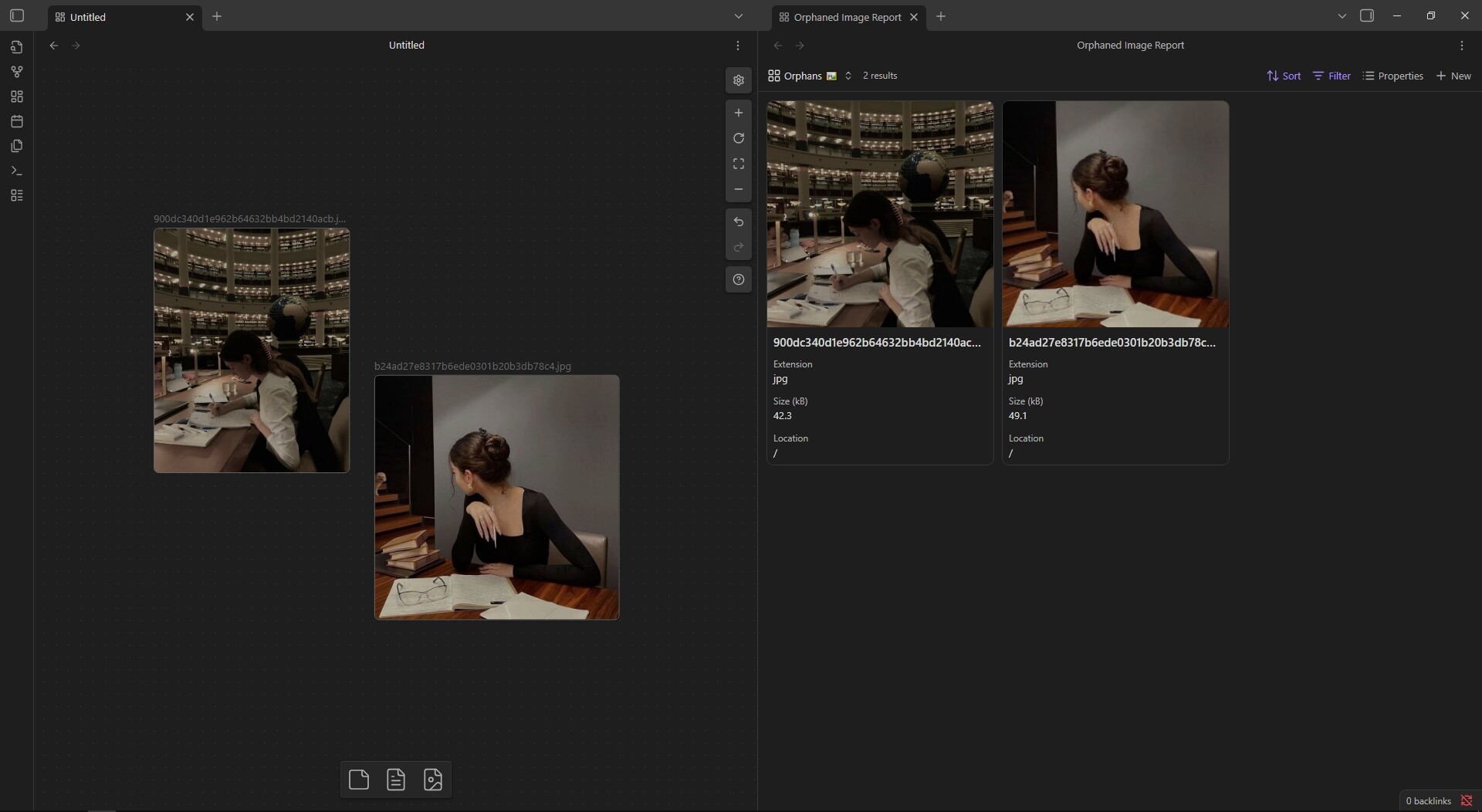
Maintaining a well-organized Obsidian vault is essential for efficient knowledge management and long-term peace of mind. Over time, as notes are created, edited, or deleted, image files can accumulate—some of which may no longer be referenced by any note. These “orphaned images” not only take up valuable storage space but can also clutter your vault,
Historically, Obsidian users have relied on community plugins like Dataview, Find Orphaned Images, or Nuke Orphans to identify and manage these unused files. While powerful, these solutions require additional setup and plugin management.
With the introduction of the new built-in Obsidian Bases feature, detecting and listing orphaned images is now easier than ever. No extra plugins required. The attached file Orphaned Image Report.zip (657 Bytes) contains an Obsidian Bases file Orphaned Images Report.base with two intuitive views:
Condensed Table View: See all orphaned images in a sortable, filterable table.
Cards View: Visualize orphaned images as cards, making it easy to preview/rename/delete images.
Simply download and unzip the attached file to your vault and start housekeeping.
You can modify the filter expression to tune the report to your specific needs.
Think I located the file named output, but the images it identifies are already in folders. is it possible that they are not linked to a markdown file?
@clarker You need the latest version of Obsidian. Just unpack the ZIP file and put it somewhere in our vault. Make sure the Obsidian ‘Bases’ Core plugin is enabled. Finally, click on the .bases file in the Obsidian file explorer and you should be good to go.
Thank you @WetHat, that’s simple! However, I wanted to ask something. I’m not sure the base is working correctly or I understand how to use it. By definition, an orphaned note/image is a note that has no incoming links (no other notes link to them) and no outgoing links (they do not link to any other notes). But I don’t think the base is filtering to only these correctly.
It outputs notes that obviously have outgoing links in them - so just wanted to check that this is right. For images, it outputs images that I know to have linked in properties to be used as covers and embedded in multiple notes.
In other words, the results for both images and folders do not fit my intuitive understand of “unused files” in my vault. So I think I’m just not understanding something about the process of cleaning up images/notes. It seems I actually need to have a link to an image in another note, that an embed doesn’t count, which is not how I typically use images. Do you have any pointers on how to think about this or could you perhaps share more about your process of keeping your images tidy using this base? I initially thought the process would be to go through the results and link them up where they are useful to remove them from this list or delete them if i no longer find them useful.
Also, if I wanted separate views with notes that have e.g. no incoming links, but they do have outgoing and then a separate view for notes with absolutely no links, do you know of an easy way to achieve this?
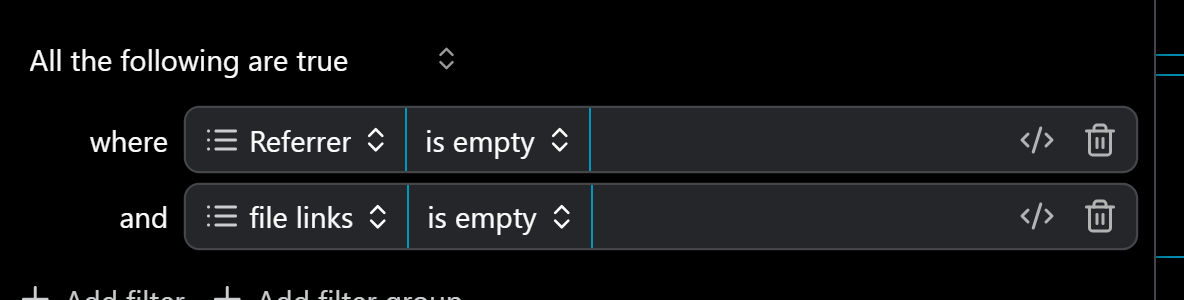
@Sia Currently the base filter checks only incoming links because it was originally designed for images (which have no outgoing links). To satisfy your definition, an additional check for outgoing links would be required. Your Filter would look like so:
It seems I actually need to have a link to an image in another note, that an embed doesn’t count, which is not how I typically use images.
Embeds do work (I just checked). However, if you embed an orphaned image in a note (e.g. with ![[image]] or ) while the Orphaned image report is open, the report does not update correctly. You would need to close and reopen the report to see the now linked image disappear from the report.
…share more about your process of keeping your images tidy using this base?
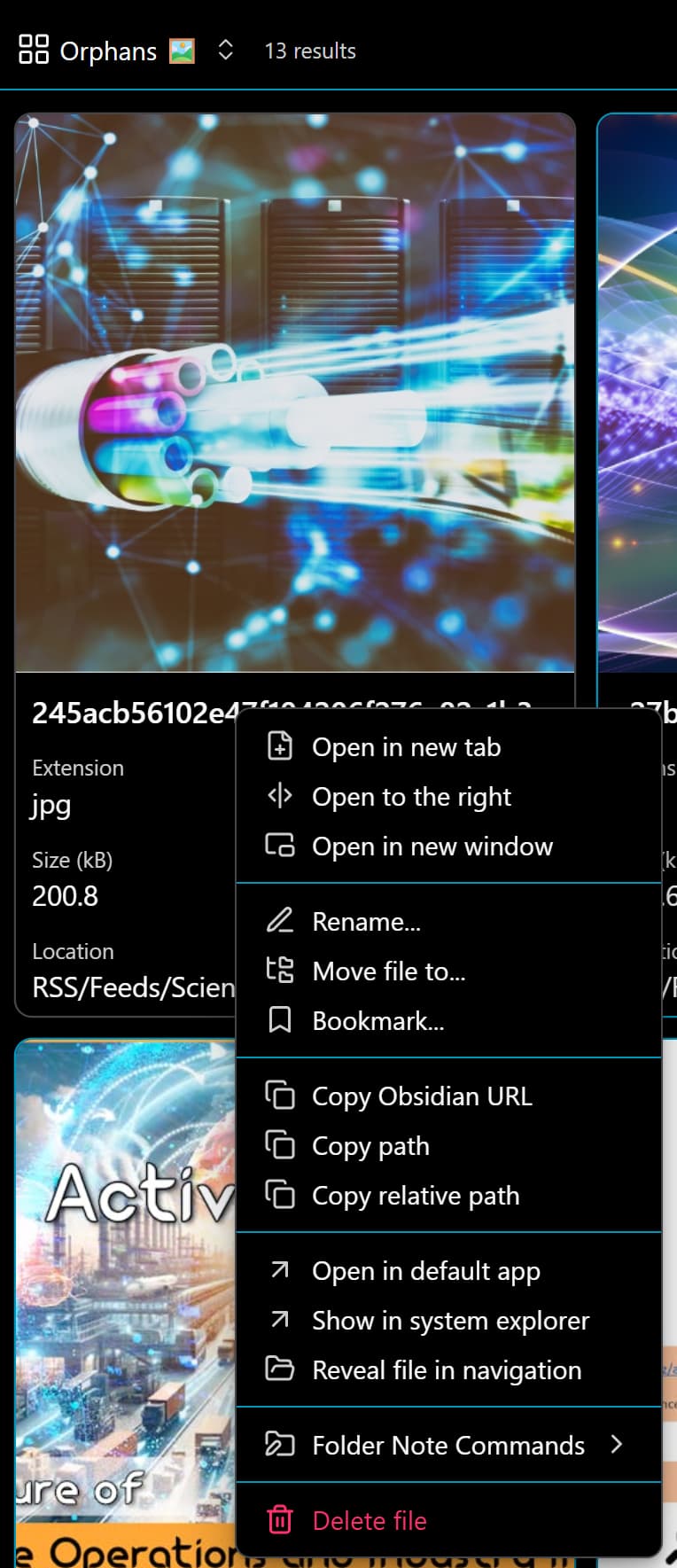
Every so often I open the report and inspect the image. Then I decide if I want to keep or delete and image image and right click it:
From the context menu I then choose either Move file to... or Delete file. To keep, images I move them to an image library folder that is explicitly excluded by a filter.
notes that have e.g. no incoming links, but they do have outgoing and then a separate view for notes with absolutely no links, do you know of an easy way to achieve this?
That should be very easy. Every view can have its own filters. Hence the solution would be to create 2 or 3 views with the filters, shown in the first image, adjusted accordingly.
Thank you for the detailed reply, that worked! That’s exactly the process I imagined, but I had messed up the filter for the images with the global/this view, as I made multiple views for images and notes on the same base - facepalm. After fixing that and incorporating the filter you suggested in the notes views, they both now work perfectly. So thank you so much!
That is strange. I use your base file and 1 image I am certain is linked to in a note…
So then it is not an orphaned file no?
I used your addition you mentioned to @Sia and still that image is shown.
I have your all views filter and the this view with the 2 filters.
Am I missing something here?
Thanks!


 Full Overview + Practical Use Cases - YouTube