Many vaults are organized primarily by folder — one folder per project, topic, game, or area of life. At the same time, it’s common to reuse the same tag name across folders for a cross-cutting concept that applies no matter where the note lives (e.g. #toread, #todo, #mods, #reference).
Right now there’s no good way to see both dimensions together in Graph View. A flat tag merges every folder’s notes into a single node, so you can’t tell at a glance which folder a given instance came from. A nested tag (#project/toread) preserves that context, but only if you remember to type the folder prefix by hand every time — and even then, Graph View won’t connect it back to a general #toread node without a third-party plugin, so “which folder” and “what kind of thing” end up as two disconnected systems.
Proposed solution
Give tags a second, folder-based identity automatically — no manual “/” nesting required.
The general tag node (e.g. #toread) keeps working exactly as it does today: one node per name, grouping every note with that tag across the whole vault.
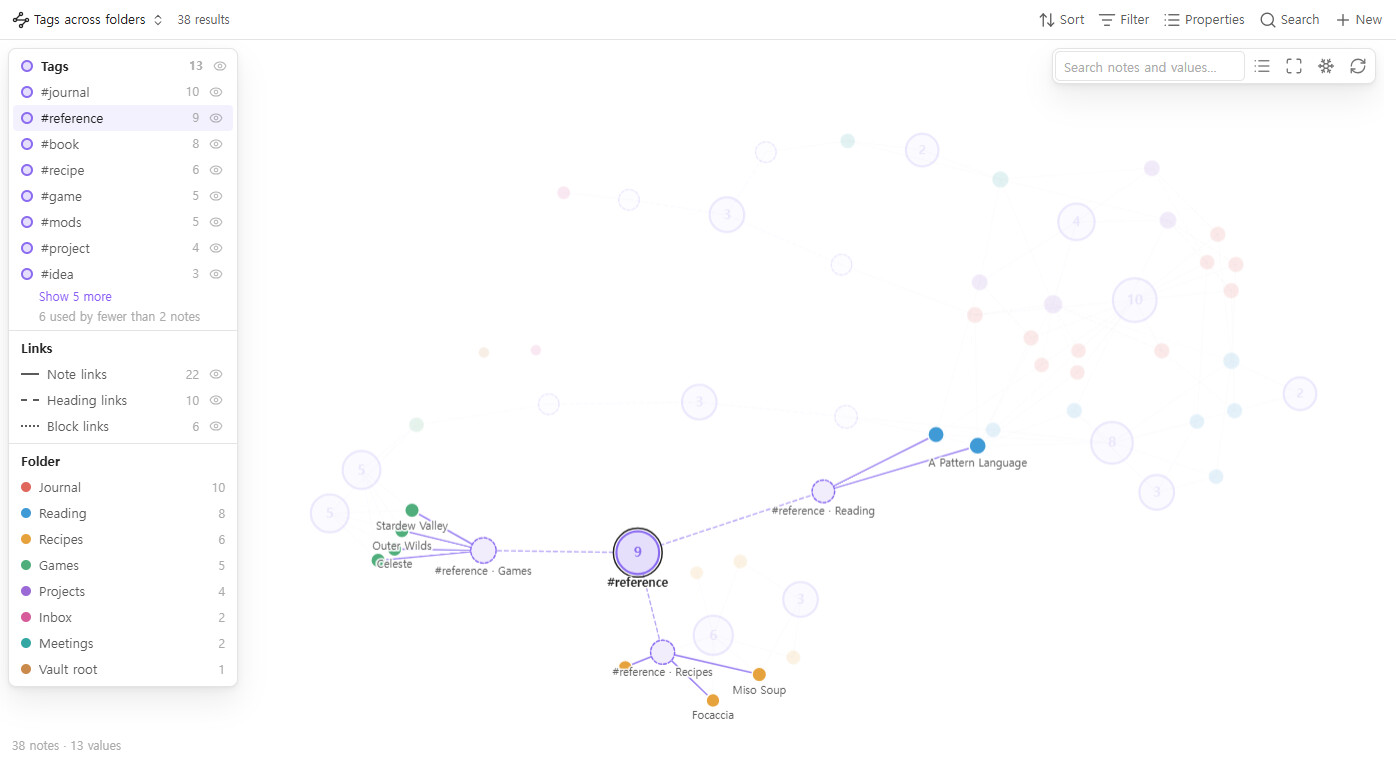
Additionally, for each folder that contains at least one note using that tag, show one small extra node with the same label — representing that tag as used specifically within that folder.
This folder-scoped node connects to exactly two things: the folder it belongs to, and the general tag node with the same name.
Folder-scoped nodes never link directly to each other, even when they share a name. #toread in /Projects/ and #toread in /Books/ only meet through the shared general #toread node — never through one another.
This keeps tags simple and flat to write everywhere, while making folder context visible in the graph automatically.
Current workaround (optional)
The closest workaround today is manually rewriting tags as nested paths (#folder/toread) plus installing a third-party plugin (e.g. graph-nested-tags) just to draw the parent-child edge. This means remembering the folder prefix every time, and folders still never appear in the graph as their own entity — folder structure and tag meaning stay two unrelated systems.
Related feature requests (optional)
Related but distinct: Enhanced Nested Tags and Search Functionality in Graph View — that thread asks for better visualization of tags you’ve already hand-written with “/” nesting. This request is about adding the folder as an automatic second identity, with no nested syntax required at all.
I wanted the same thing, so I built it into a plugin (disclosure: I’m the author). Tag Graph is a graph view for Bases, and its “Split values by folder” option gives a reused tag like #toread one hub, plus a sub-hub for each folder it’s used in. You can see where a tag was actually used without renaming it to #games/toread.
I have a question: in the graph, things are already visually organized, but have you considered (or do you already have) a way to group search results by the folder where the tag is actually used?
Right now, when searching for a tag, all notes linked to that global tag appear in a flat alphabetical list. You end up with a note from “Photos”, followed by one from “Project Car”, then another from somewhere else-meaning it isn’t really organized by context at all.
In the graph view, the structure is already clear. It would make sense if searching for a global tag displayed folder headers sorted alphabetically first:
Apple
Games
Notes
Photos
Reference
Under each folder header, you would see only the notes belonging to that specific folder. To match their subfolders, these headers could inherit icons, colors, or custom styling. It would also be great to have a toggle arrow to collapse or expand each folder group under the tag, keeping search results clean and easy to navigate
Checked out your plugin. For some reason it’s not opening on my end, the graph view is just completely blank and only the settings tab actually works.
Aside from that bug, I realized there’s a big problem neither of us mentioned in our posts.
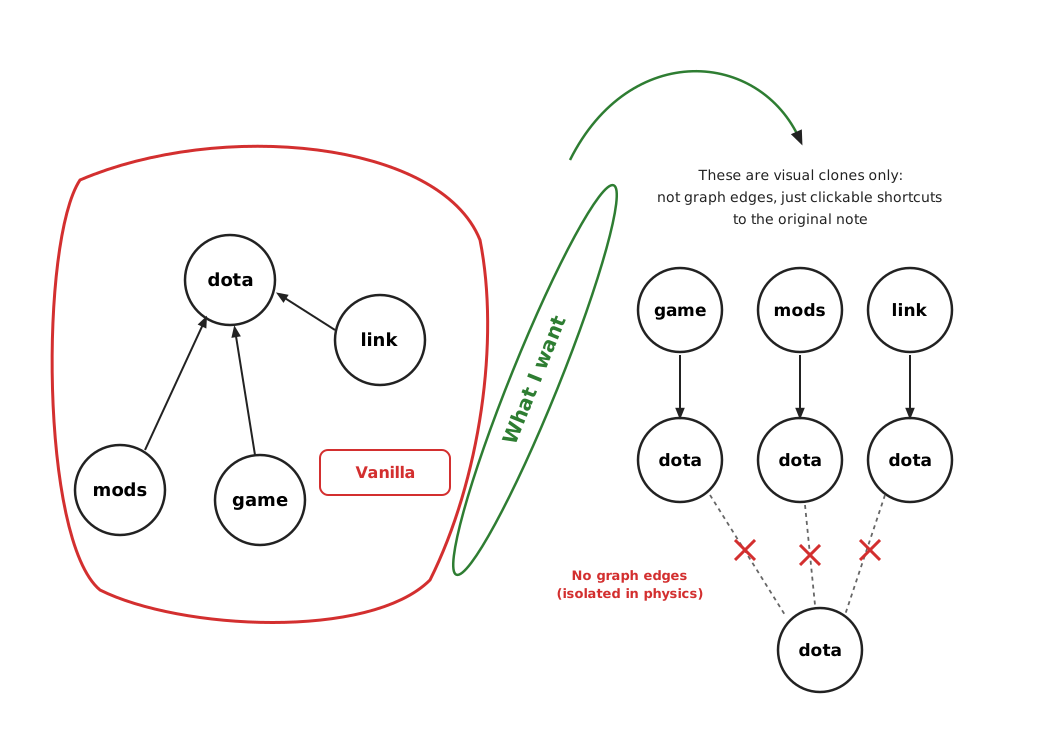
In vanilla, if a note has multiple tags, that single node connects to all of them at the same time. The physics engine then drags completely unrelated clusters toward each other, turning the graph into a tangled mess.
A simple way around this is using visual clones. Instead of having one note node pulled in five directions, the graph just creates a separate visual copy of that note under each tag or folder it belongs to. These copies have zero connections between each other in the physics engine, so your clusters stay cleanly separated. Clicking any copy still just opens the original note.
I sketched a quick drawing showing vanilla vs how this clone setup would look (attached).
Thanks @ddoter, both of these were useful, and sorry for the slow reply.
Blank graph: I could reproduce a blank tab when the Bases core plugin is turned off. Tag Graph is a view inside Bases, and with Bases off it opened an empty tab and said nothing. 1.7.0 now tells you when Bases is off, and after you turn it on the graph appears without restarting Obsidian. If Bases was already on for you, could you tell me your Obsidian version and how you opened the graph? I’d like to track it down.
Notes grouped by folder: done in 1.7.0. Click a tag, and in the details panel switch the notes list to Folder: one heading per folder in alphabetical order, each with its note count, its top-level folder’s colour and a fold arrow. The order you pick is remembered.
Visual clones: not planned, and I’d rather explain why than leave it hanging. Tag Graph is built on a note having one position: notes that share tags end up near each other, and dragging a note onto a tag changes that one note. Clones would break both, and the graph would grow by one node per tag. To untangle things, these already help: Split values by folder, hiding rare tags (minimum count), and clicking a tag, which fades everything that isn’t connected to it.
Update under Settings → Community plugins → Check for updates.