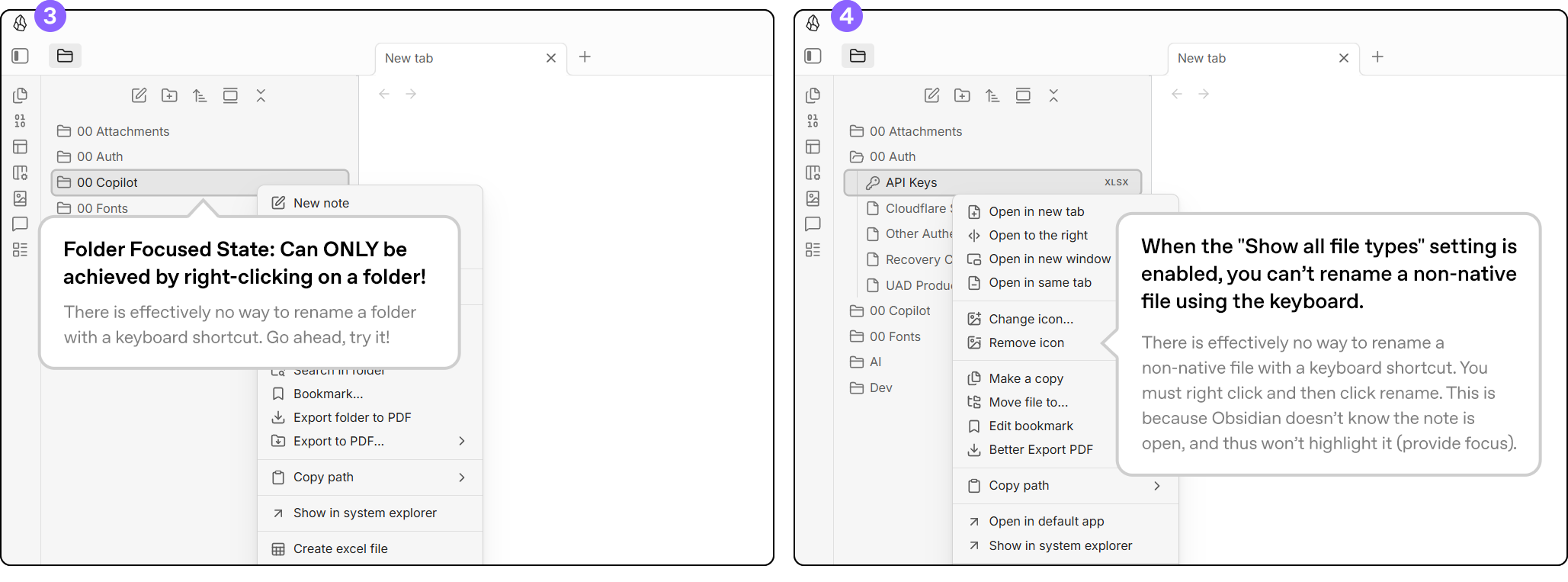
Focusing files and folders in the file tree is inconsistant and not useful. Mostly looking for a way to focus a note, markdown file, or non-native file and rename it with the keyboard (F2). Open to any plugin suggestions or tweaks

Overview

I am coming from another Markdown note-taking app and migrating everything over to obsidian because it has markdown improvements that are way better than what I was using.

But I am really frustrated with the files view when I want to manage my notes such as renaming a note or folder.

Core of the Problem

Obsidian effectively “forces” you to right click and then click on “Rename” for all notes that aren’t open, and all folders. If you want to rename an external file that opens with your system’s default app (“Show all file types” setting enabled), you also need to right click and then click on rename, because the file gets opened in an external app and will never receive focus in Obsidian.

Maybe I’m alone here, but I really like using the keyboard (F2) when renaming things. It’s what happens in Windows Explorer + many other apps, and I have muscle memory for this. It’s a lot quicker when you’re dealing with a lot of notes or files as well. Right now, you can only rename a note with F2 when it’s already open.

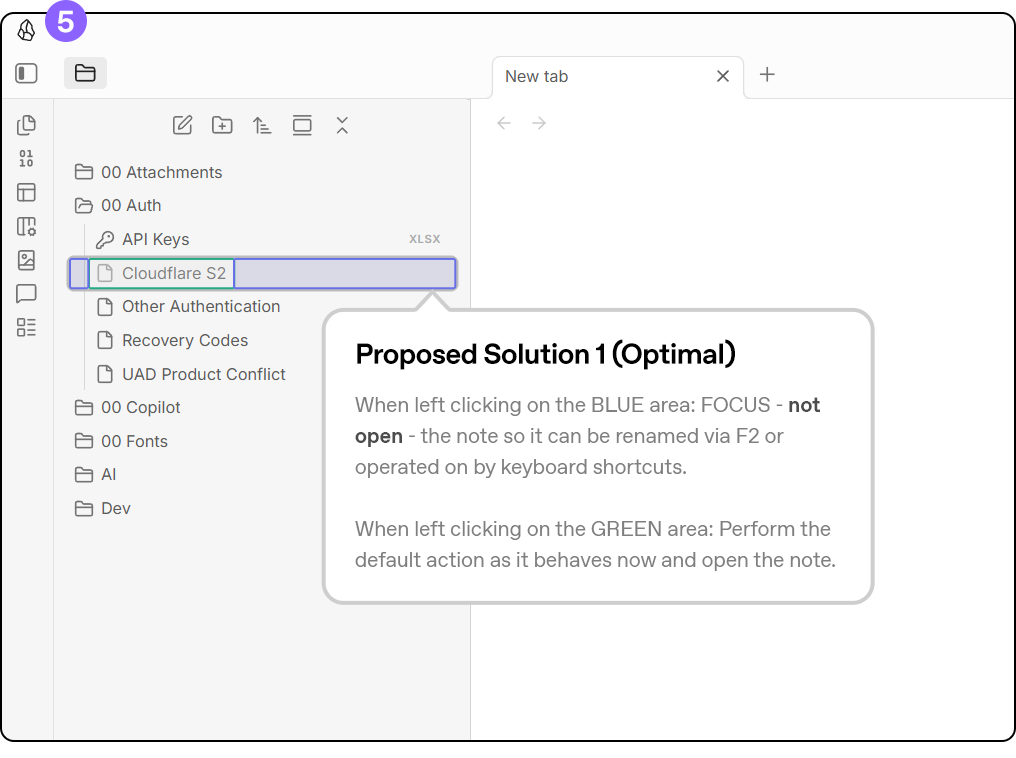
To the core of the problem: There is something very weird and inconsistent with the “focused” state for notes and folders in Obsidian. You can tell a note or folder has complete focus by looking for the 2-3px gray outline around the item in the file tree view sidebar. See image:
Why the current “fully focused” state is strange and not useful

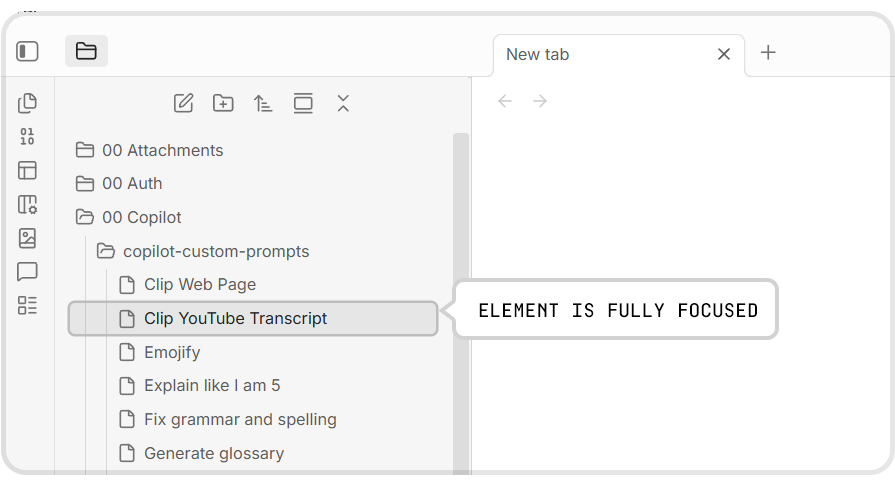
  1. You can only get to the completely focused state for any given note by clicking on a note twice or right clicking once (opening the context menu).

  2. If you want to focus a note without opening the context menu you first have to single click it in the sidebar, wait for it to open, and then click the note again in order for it to receive actual focus.

  3. The behavior explained above is entirely inconsistent with the way focus is applied to folders. The only way to focus a folder completely is to right click it. This opens the context menu and defeats the point of focusing.

  4. Note: You can trick Obsidian into keeping a folder focused by right clicking, and then clicking outside of the folder view on the borders of a resizable element. The context menu will then happily close and the folder will still be focused. But this doesn’t really enable anything additional (still can’t rename with F2), and thus defeats the purpose of focusing an item in the first place, and is IMHO completely absurd.

Call to action

Can someone responsible with the UI/UX on the Obsidian team take a more detailed look at how the UI works with respect to the files view? The current behavior is not consistent at all. Either remove the focused state, or make it useful. It’s very odd that focus states happen differently between directories and files.

What I want to do

See the following sequence of images:
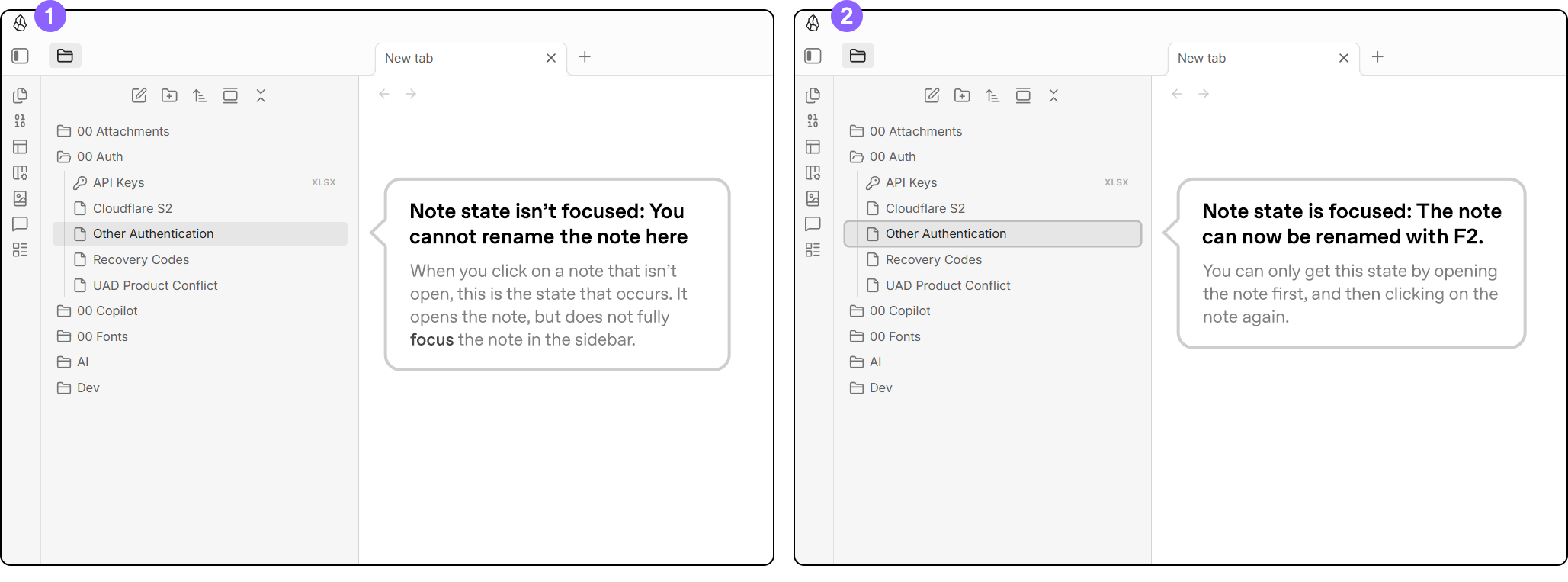


I can think of other ways to address this, the above images are just a quick and dirty remedy.

Things I have tried

I installed this plugin after reading about it on another thread. Haven’t found anything else worth trying.

Also, please don’t grill me for storing authentication info in plaintext on Obsidian, I’m aware of this and my current configuration is getting replaced. :confounded_face:

Below this line, write what terms you searched in the help docs and forum, plus any solutions you tried and what happened.

Google and Forums: "obsidian only open note if text label is clicked on"

Is this not already the default? Maybe something was lost in translation with the LLM write-up, or perhaps I’ve completely misunderstood.

At least on Linux, when I click on a note, it automatically opens. If I then hit F2, it allows me to change the file name by either placing the cursor in the file path at the top of the note (and highlighting it), or (with inline titles enabled), highlights and places the cursor in the inline title.

If I’ve clicked in the file list, I can also use the arrow keys to move around the folder and file tree and use F2 to change the title of something (both folders and files) whether it’s the note that’s “in focus”/open or not.

As for the proposed solution, that would be one of the most frustrating changes that could be made because it flies in the face of how default file systems typically work. Not to mention if you have a shorter file name, you’re forced to pinpoint it instead of just being able to get its line. Since I have a lot of shorter file names, that would be incredibly frustrating to me.

My post wasn’t a LLM write-up.

At least on Linux, when I click on a note, it automatically opens. If I then hit F2, it allows me to change the file name by either placing the cursor in the file path at the top of the note (and highlighting it), or (with inline titles enabled), highlights and places the cursor in the inline title.

I’m not looking to rename a note after it opens. I’m looking to rename a note (or folder) without having to open it first.

If I’ve clicked in the file list, I can also use the arrow keys to move around the folder and file tree and use F2 to change the title of something (both folders and files) whether it’s the note that’s “in focus”/open or not.

I overlooked this and didn’t realize you could use the arrow keys to focus notes. However, this solution is still a but cumbersome to select a note via arrow keys to navigate to the note/folder you want to rename. The real question is why can’t we just focus a note on click?

Optimal functionality IMO: Click Note / Folder > Press F2 > Type in new name. This can’t be done right now.

As for the proposed solution, that would be one of the most frustrating changes that could be made because it flies in the face of how default file systems typically work. Not to mention if you have a shorter file name, you’re forced to pinpoint it instead of just being able to get its line. Since I have a lot of shorter file names, that would be incredibly frustrating to me.

Like I said, the proposed solution was a quick and dirty. There is probably a better way to handle this.

Essentially, all I’m looking to do is to be able to focus a note or folder (without opening it or using the arrow keys to focus notes or folders), press F2, and type in a new name in the file view.

I know that if a note is open and you press F2, it allows you to rename that note by focusing the file path at the top of the note. But again, this still doesn’t allow you to rename the note in the file view. You have to OPEN the note first.

Sorry if my post is unclear. I am just sick of accidentally opening notes when i just simply want to organize my file tree. The arrow key approach is better, but kind of goofy. Why can’t the user just focus a note by clicking and then rename that way?

Thanks for the reply.

Ok, but how would you open a folder/note if clicking equals to renaming?

The only way I see is to:

  1. Click on the name field to open
  2. Click directly on the name to rename

Ok, but how would you open a folder/note if clicking equals to renaming?

Clicking does not equal renaming. Clicking to focus and then pressing F2 is how I propose renaming should be handled.

Another option is double clicking on a note or folder could instantly initiate the renaming process and you can then rename that way. (Single clicking would work as it does now). This matches the behavior of a lot of different windows apps and works great in other applications.

There needs to be a way to focus a note or folder without opening it or using the up and down arrow keys to focus.

I would love to hear any more suggestions.

The point we’re discussing here is, you want to click a note / folder to rename.

But simple click is already assigned to open notes / folders.

So how to click to rename and click to open?

As said before, the solution could be to:

  • click directly on the name of a note / folder to rename
  • click outside of the name but on the same line of a name (of a note / folder) to open

Or, maybe this one:

  • double click to rename
  • single click to open