Yaml and template spring cleaning after 6 years and way too many properties

What I’m trying to do

After 6 years and a vault filled with 15,000 pages of too many subjects to name, I need to fix up my yaml. I have too many properties that I don’t need, too many inconsistencies, and it’s starting to affect how I search/use dataview and/or bases.

I need a base to list “all properties that are not empty” filtered by folder. Then I could have a quick view of all the properties, including those I hardly use and those I use a lot, and I could easily rename things directly in the base.

Things I have tried

Alas, there is no such option, nor is there a way that I could think of to list that many columns (all non-empty properties).

Of course I looked at the “properties” menu in the navigation pane, and that does a great job of displaying which properties are used how many times, but to change/merge/delete from that menu is way inefficient (one file at a time).

:red_question_mark: What do people do when its time for a good yaml (and therefore template) spring cleaning?
If you want to change property values (not property keys, aka names), then have you looked into community plugins? Multi Properties and Bulk Properties stand out in a quick search.


Maybe ignore the rest of this comment if you were talking about editing individual property values. But if you meant the properties themselves, then…

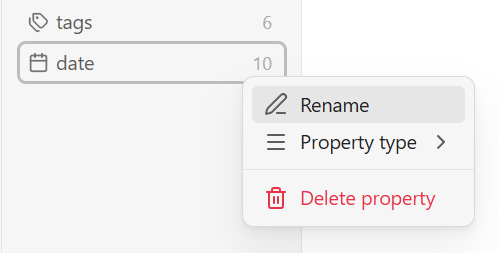
I’m not sure what you mean by “one file at a time”. Right-click > Rename lets you change and merge properties in all files, and right-click > Delete property deletes it in all files.

When `Delete property` doesn't delete

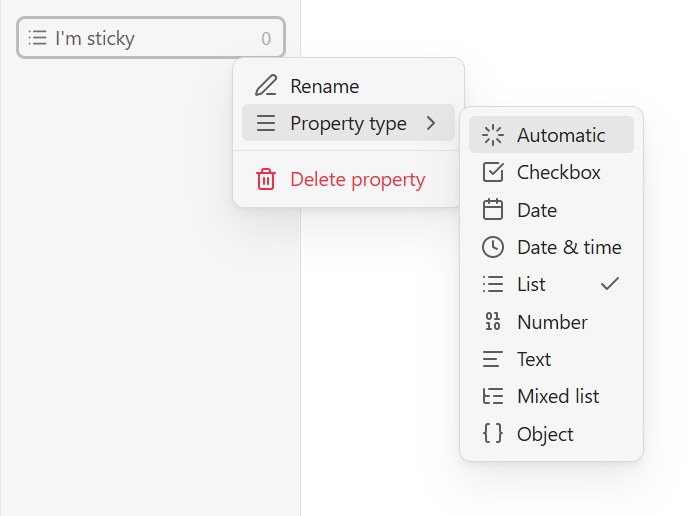
If an unused property sticks around you press Delete property, it’s likely because the manually-set property type is still saved in the settings json. To remove it, right-click the property again and this time choose Property type > Automatic.

Since each row in a base is a file, not a property, the closest I can think of at the moment is to create and display this property:

file.properties.filter(value != null).keys()

and also filter by that property. If you want, you could list all such properties in the column’s summary:

values.unique()

… though I don’t think it’s terribly useful.

The full base
summaries:
  Unique: values.unique()
formulas:
  propertiesWithValues: file.properties.filter(value != null).keys()
views:
  - type: table
    name: Table
    filters:
      and:
        - formula.propertiesWithValues
    order:
      - file.name
      - formula.propertiesWithValues
    summaries:
      formula.propertiesWithValues: Unique

Then add your folder filter.

(Regarding the process of changing property values not keys, the next step could be to display one property column at a time. Or display a minimum number of relevant property columns if you’re trying to split or merge values among existing and new properties.)

Maybe make a copy of the vault, and in the copy, aggressively delete properties (even delete them all?) and start over? Then add properties only as you come across an active need for it.

Would using the properties sidebar not solve that problem?

You can sort by occurrence, and rename or delete property names directly in the sidebar. The notes are updated accordingly.

Also, if you rename a property to one that already exists, it will ask you if you want to merge them.

You can do a ton of YAML housekeeping just from the sidebar.

I wasn’t as clear as I should have been. I’ll use an example.

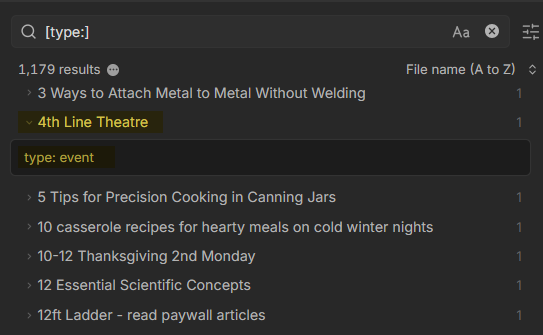
I search for the property type. There are over 1,000 results.

image

I can’t just auto rename it something because I’m not sure how I used it. To see how it is being used I have to open (expand) each of the 1,000+ files one at a time (unless I’m just not seeing the expand all button)

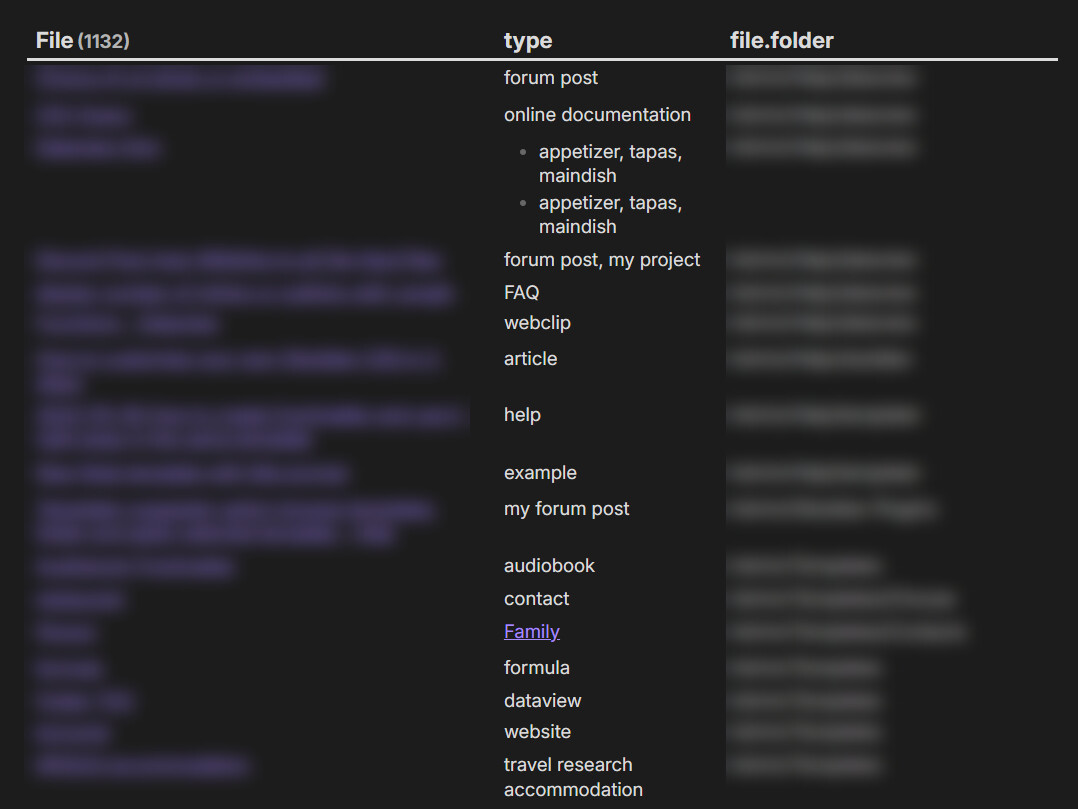
What I CAN do is create a dataview table, displaying the value (a SINGLE value) and the file folder which will also give me some context:

image

Now I can see that I used type for too many different things. Given that I want to re-create my templates with lots of suggesters, I’d like to get an idea of what I might use type for in the future (or ditch it), and what I should do with the values I no longer think should be associated with it.

What would help
What would be very helpful is a temporary table (base) where I could display columns for each of the properties that I use, with their values in the column. Then I could see that accommodation, for example, was used as a value for type and keywords and travel-acc among other properties. I could then decide which properties to ditch and which to keep.

So it’s not just that I want to see all the values used by a property (type: accommodation, webclip, audiobook); I also want to see all the properties that share a value (accommodation is used by type, keywords, travelType).

One large table (base), even if I have to copy/paste it into a spreadsheet and fix up things there, seems to be the best option to do this work. But I can’t figure out how to create such a table.

dawni, I must have missed your reply before adding my own a few minutes ago. I’m still in the process of following the steps you give here, and it’s looking like your advice might do the trick! I’m so happy!

Still noodling with it. I’ll let you know. Thank you for taking so much time to address my issue. I truly appreciate it.

The property sidebar on it’s own doesn’t do the trick. It does not provide enough info for me to know, for example what should I rename type? First I have to know how I used it, then I have to know if other properties already share the same values.

Your follow-up explanation helped a lot. I think this simpler base might help once you’ve identified a repeated value:

formulas:
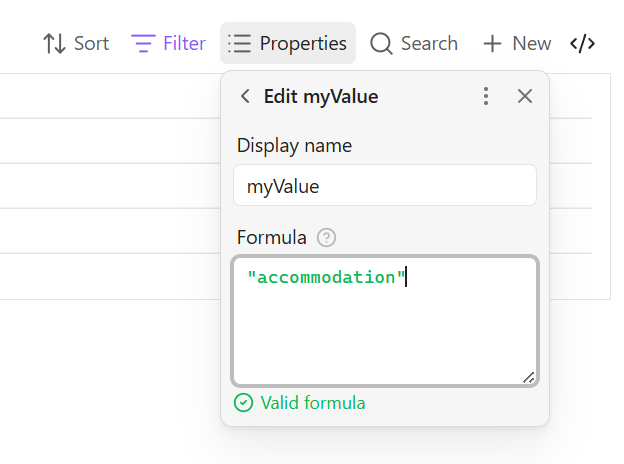
  findEmAll: file.properties.filter(if(value.isType("string"), value == formula.myValue, if(value.isType("list"), value.contains(formula.myValue)))).keys()
  myValue: '"accommodation"'
views:
  - type: table
    name: Table
    filters:
      and:
        - formula.findEmAll
    order:
      - file.name
      - formula.findEmAll

In the property formula called myValue, replace the word accommodation with whatever single value you’re looking for throughout your properties.

The findEmAll column will show you the name of the property that contains the value.

You could then display the relevant property columns in order to directly edit them.