First, search the help docs and this forum. Maybe your question has been answered! The debugging steps can help, too. Still stuck? Delete this line and proceed.
What I’m trying to do
I have a new Boox Go 10.3 Gen II Lumi, an eInk-based Android tablet. The interface elements, such as sidebars, are smaller than I’d like. Unlike on my Mac, there is no Advanced section in the the Appearances Options, and no Zoom option. Since I don’t use the tablet with a keyboard, I can’t use the Ctrl/Cmd-+ button to make things bigger.
Things I have tried
I’ve looked in all the options to find an alternative “Interface” or similar section, but cannot find a Zoom option. I can’t find this option in Obsidian on my iPhone, either. I searched “Zoom” in the forum and found nothing, nor could I find this addressed in the Help pages or by any plugins.
There is no desktop zoom available on mobile/tablet. Desktop scales the entire Chromium UI surface: what you want: doesn’t exist.
At best, you can use CSS snippets (which only affect Obsidian’s DOM elements) with larger fonts but that’s as far you can go. Not what you want.
I agree that on a larger tablet, especially in landscape mode, one should expect the same appearance as on a PC/Mac but there is simply no Electron process to fake…
I use a tablet (mini) to read (and to a lesser extent, write) in portrait mode and use a laptop, where you can customize Obsidian up the wazoo.
On mobile, the font size slider also adjusts the size of the UI elements acting as a zoom:
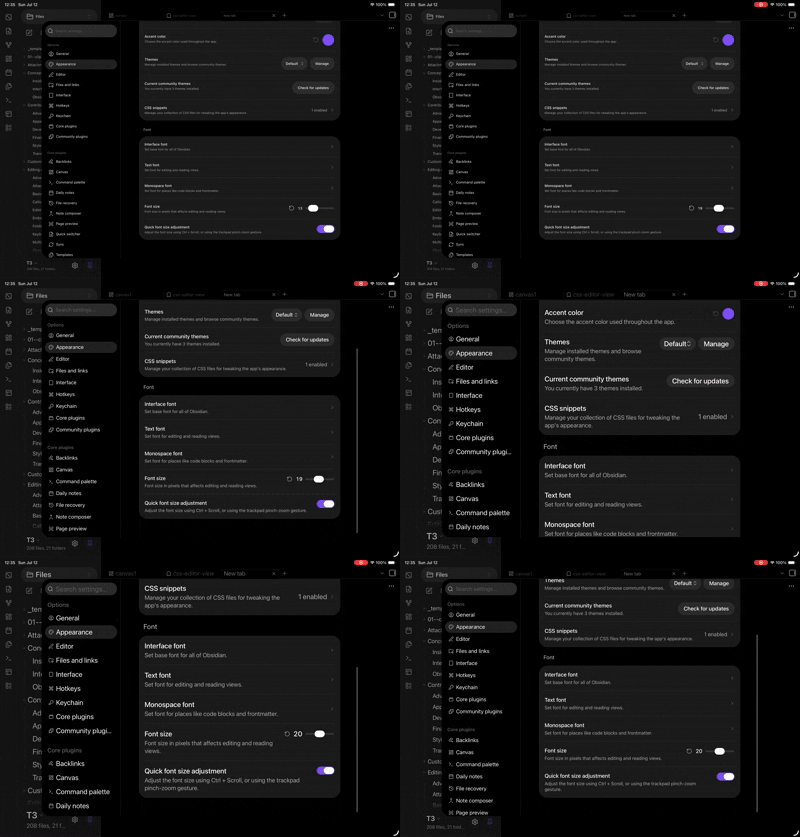
If you can’t get things looking good that way, then yeah, as Sunnaq445 mentioned a CSS snippet or two to adjust specific sections will work.
Alternatively, you can increase the zoom a bit and decrease only the body font size with a snippet (if it’s too large).
I use the Font Size Adjuster PlugIn from time to time. Does not only zoom the font of your text, but also the text of other visible elements like sidebar. Just to mention it.