Hello Obsidian community,
What I’m trying to do
My name is Adam, and I have been using Obsidian for several months on my MacBook Pro (2021 M1 chip model).
Recently, I decided to buy iCloud+, and host my Vault on there, so that I could access it from my iPhone (13) as well, instead of using the Apple Notes app on the iPhone, and Obsidian on Mac (creating a shared space for all my notes).
I almost got it working, but I have encountered a Problem.
I have spend quite a lot of time trying to figure this out by chatting with AI, and watching youtube videos, but wasn’t yet able to fix it. I hope someone more experienced than me will be.
Below I try to give a detailed and clear explanation of the current state, The Problem, and Things I Have Tried.
I would have attached more pictures but the forum limits me to just 5 since I am a new user.
Current State:
Vault & Folder Structure & Location
My vault is called ‘Adams_Vault’, and inside are various subfolders, like WORK, School, Training, Other, etc…
Finder View On Mac
In my iCloud Drive folder in the Finder app, I have a folder called ‘Obsidian’, with the logo on it.
This ‘Obsidian’ folder was created automatically, apparently because that’s the only way that the iPhone can locate the vault automatically (AI said).
Inside the Obsidian folder, there is my vault (‘Adams_Vault’), and a folder called ‘.obsidian’
When I go inside my vault, I see all the subfolders, and there is another file called ‘.obsidian’
Technical details - Mac
When I open the ‘Obsidian’ folder in the terminal, I am on this path:
~/Library/Mobile Documents/iCloud~md~obsidian/Documents
This is the tree structure of the folders:
❯ tree -L 3
.
└── Documents
└── Adams_Vault
├── 0 - Config
├── 1 - Rough Notes
├── 2 - Source Material
├── 4 - Indexes
├── 5 - Templates
├── Education
├── Hobbies
├── Other
├── Purpose
├── School
├── Training
└── WORK
This is strange, since the folder that I see as ‘Obsidian’ in Finder, appears to be ‘Documents’ in the terminal with the ‘tree’ command. And also, it appears so in Obsidian itself (see 'In App View on Mac).
Files App (system) View On iPhone
For a complete picture I describe the view of the folders on iPhone, in the Files App.
‘iCloud Drive’
Here I see just the ‘Obsidian’ folder as on Mac.
‘iCloud Drive/Obsidian’:
I see my vault folder. The ‘.obsidian’ folder is not visible here.
‘iCloud Drive/Obsidian/Adams_Vault’:
I see all my subfolders.
The ‘.obsidian’ folder is also not visible in here..
In App View on Mac
When I open Obsidian on Mac,
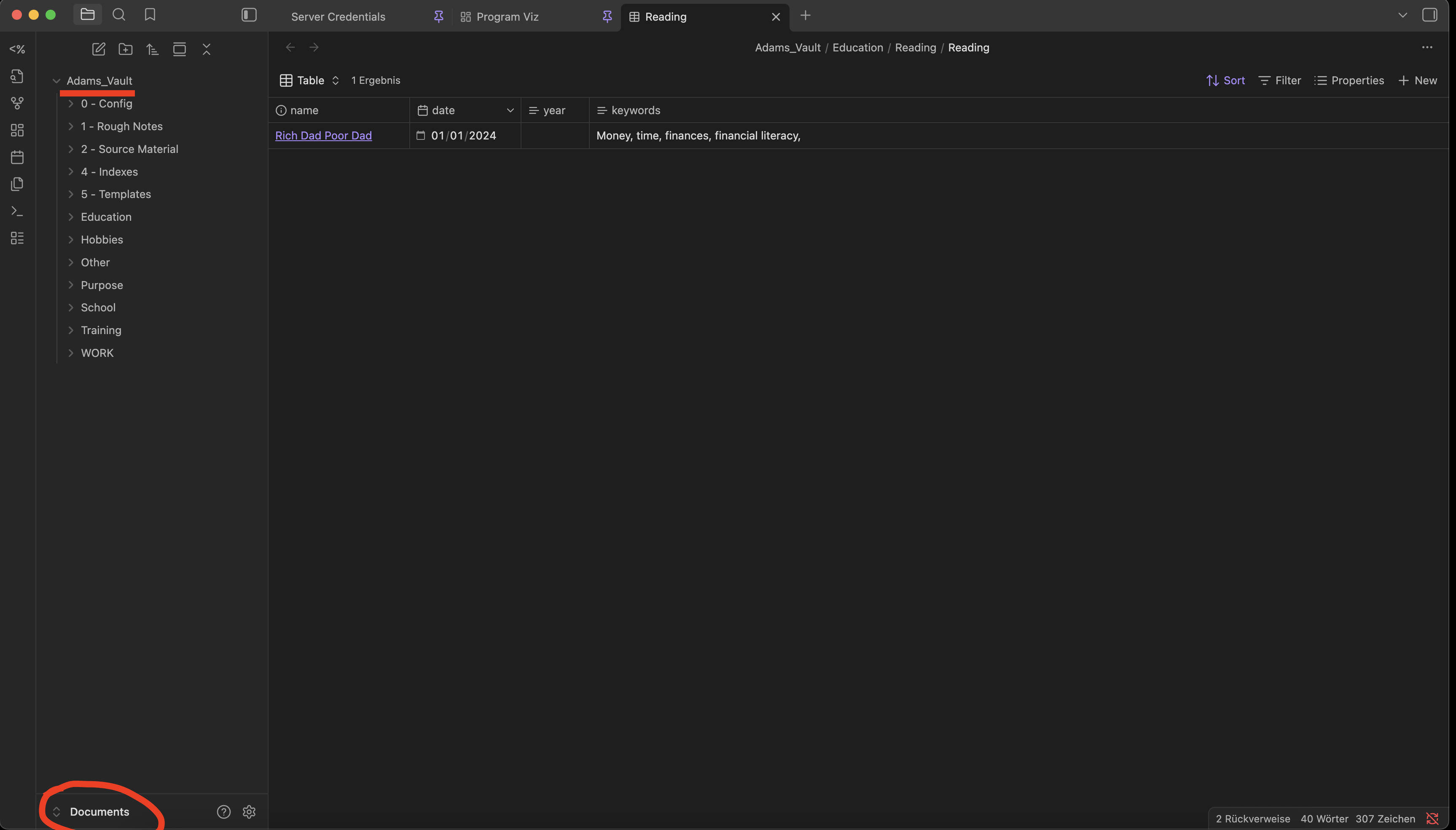
I see the folder ‘Adams_Vault’ as the parent folder, and underneath it are all the subfolders of my vault. The current vault, appears to be some ‘Documents’ folder, which I don’t see in Finder, however. It is probably an iCloud built-in system folder. See picture below:
In App iPhone View
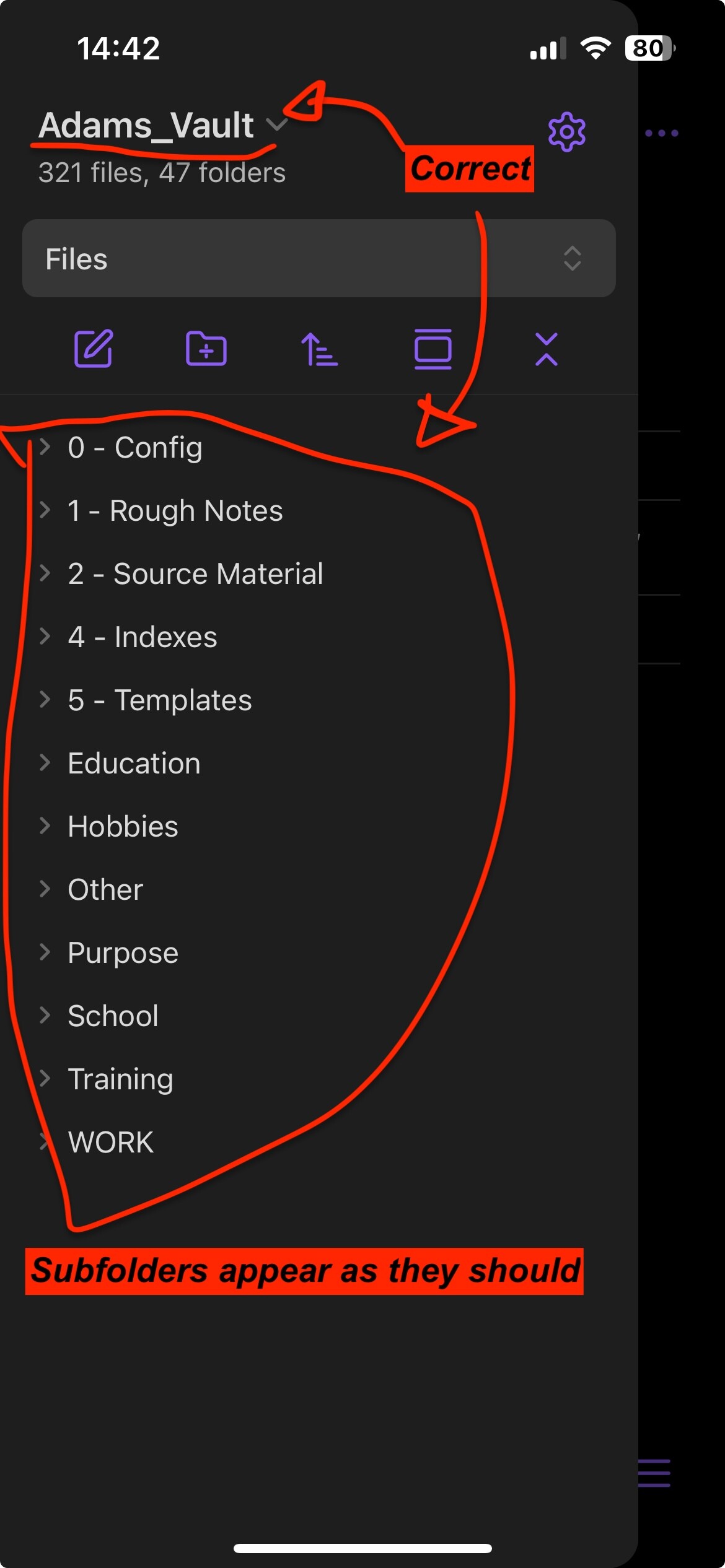
On the phone, the view of the vault is exactly as it should be. See picture below:
The Problem
This is obviously not the way I would like it to be. I would like the vault on Mac to be highlighted down on the place where the name ‘Doucuments’ now is, and all the subfolders of the vault to be at root level (all parent folders, cannot be hidden). Just as it is on the iPhone. There is a mismatch between what the Mac thinks is the vault, and what the iPhone thinks is the vault.
Why This Is A Problem
I would not mind if I had to have the vault folder on the left side panel on Mac, and be able to collapse all the other subfolders, if it didn’t impair functionality. It is not a purely visual inconvenience, but also a functional one. This is why:
Explanation of The Problem - File Paths
Consider this view of a Base with one note in it (Mac):
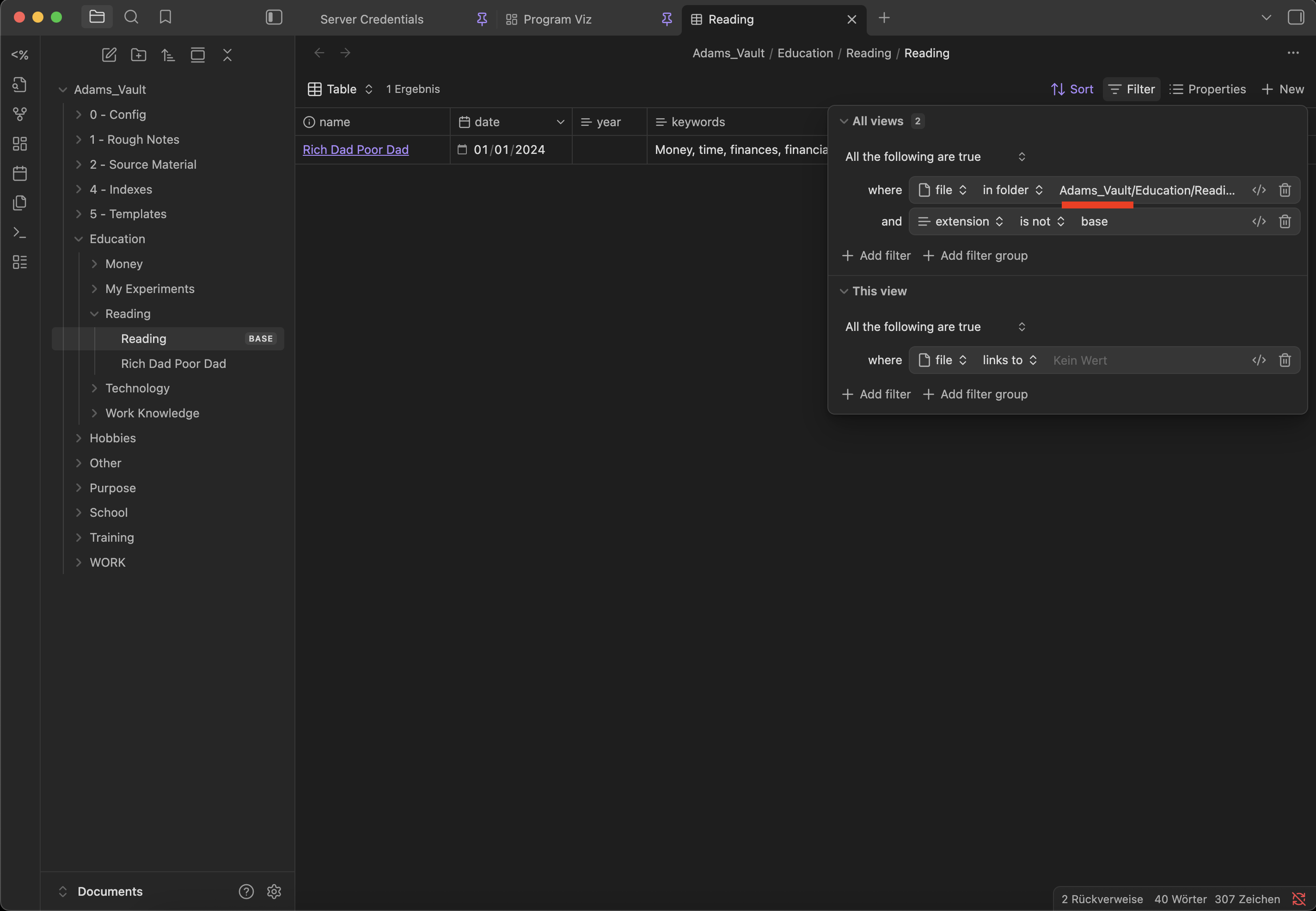
The base is stored in ‘Adams_Vault/Education/Reading’, along with all the files that it shows (just 1 right now). The highlight shows that the filter of the base view is set to only show files in this path. And it shows them. However, when it comes to the iPhone view, it does not.
When viewed from the phone, the base is empty, see picture below:
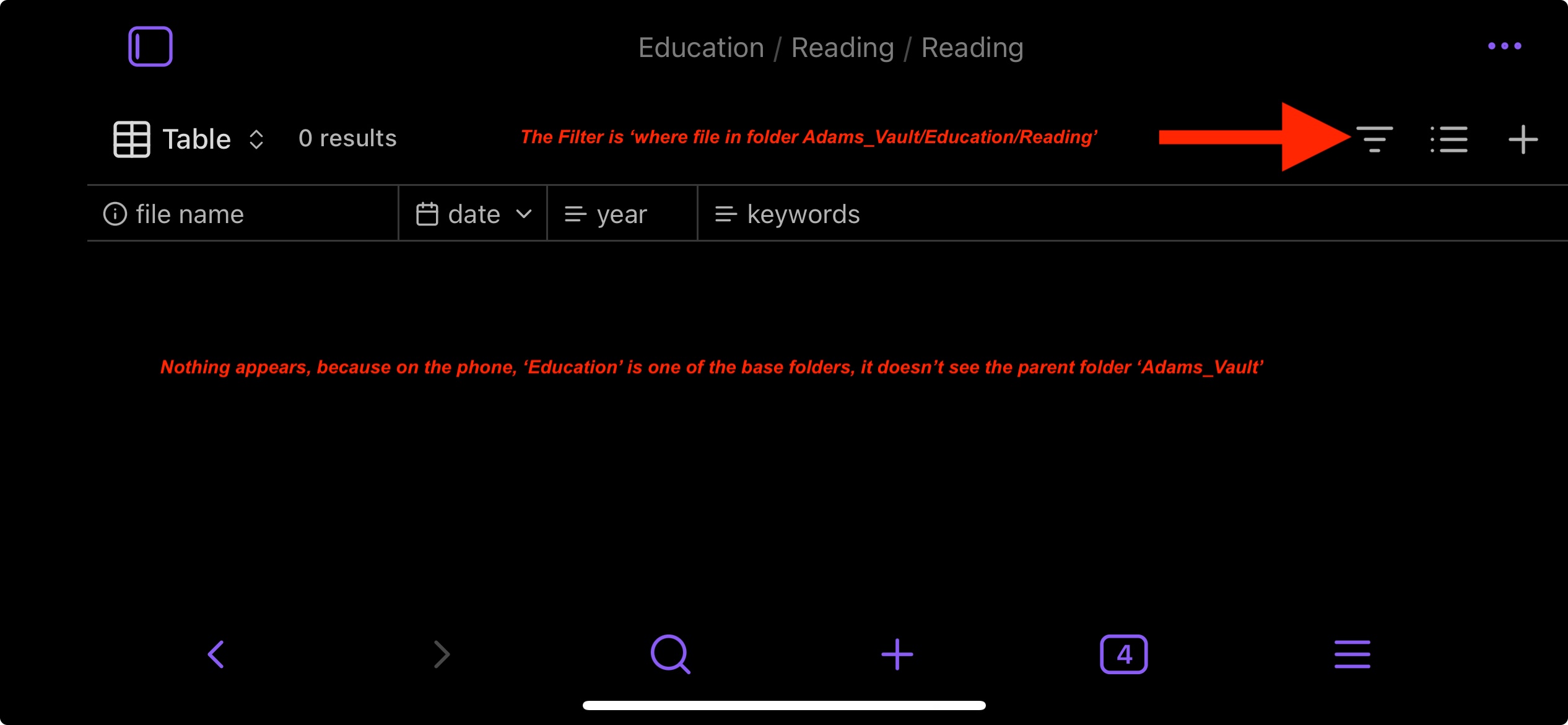
This is because Obsidian on the iPhone, doesn’t recognise any folder named ‘Adams_Vault’, since that is the name of vault itself. Hence, it doesn’t show any notes. This Problem makes me unable to effectively work inside the vault on both the Mac and the iPhone.
Further Context
Faded Folders:
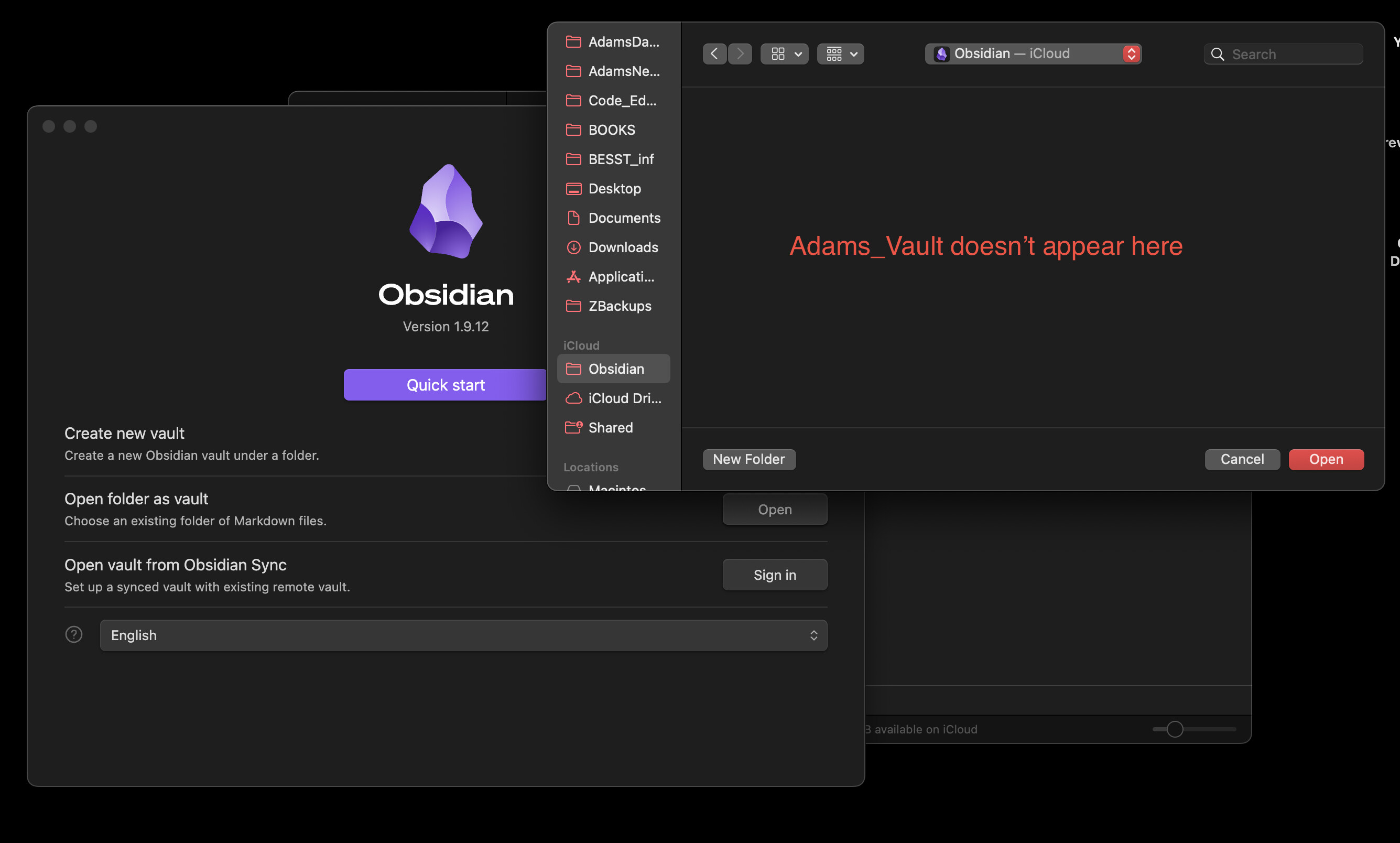
As you could see in the first three pictures all the folders inside the main ‘Obsidian’ folder are faded out. I am not certain why this is the case, but ChatGPT told me that it is because the ‘Obsidian’ folder is created for / by the iPhone, and isn’t compatible with Mac well (or something along those lines). When I try to ‘Open folder as Vault’, I literary don’t see the vault folder inside ‘iCloud Drive/Obsidian’. See picture below:
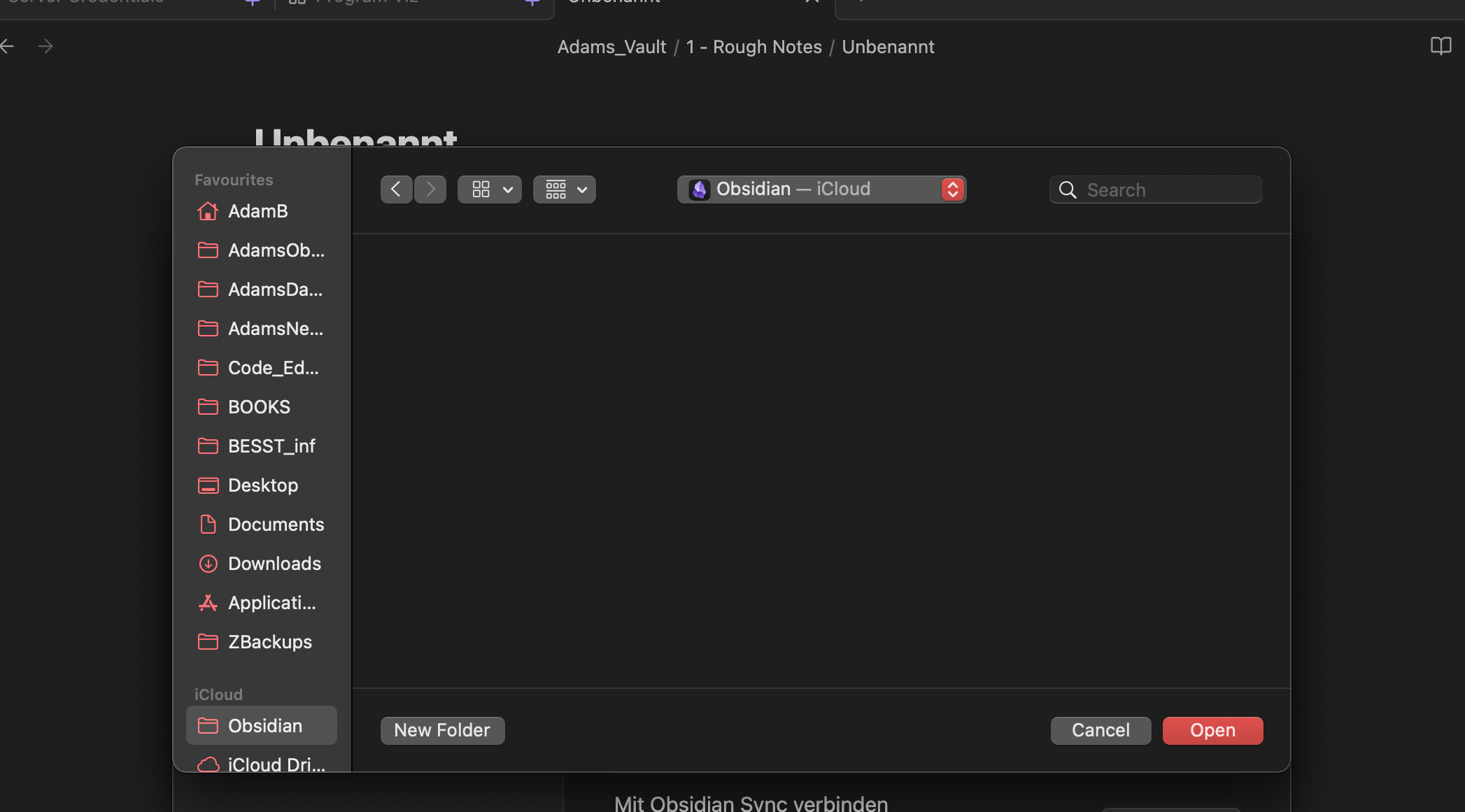
Right now, I presume this is tied to the issue itself, and will go hand-in-hand with fixing The Problem.
Two ‘.obsidian’ folders
I am aware that I have duplicate ‘.obsidian’ folders, one under ‘Obsidian/’, and one under ‘Obsidian/Adams_Vault’. One of them is surely being created automatically, when I was moving the vault folder (Adams_Vault) in and out of the ‘Obsidian’ folder, during repeated attempts to make it unified on both devices.
Right now, I decided not to touch them further, until I receive external advice.
Further Problems – Not Yet
The Problem which I have described above, is likely just a symptom of a deeper cause. I have some other issues as well, but I don’t want to dive into describing them.
I believe that if we can focus on solving this one problem, we will reveal the root cause, which will solve all the other ones as well.
Things I Have Tried
Vault Relocation
I tried moving the vault around in various different ways. I never reached a location that would fit both the iPhone and the Mac. Either it was like this (like the current state), or there was a second situation that I encountered:
I moved all of the contents of my vault (WORK, School, Training, etc…) directly inside the ‘Obsidian’ folder. That then worked on Mac, but on the phone, each of the subfolders appeared as a separate vault (obviously not the goal).
‘.obsidian’ folder relocation / recreation
I tried to move the ‘.obsidian’ folder around, and even deleted it and created anew. I learned that the latter was a mistake, when I opened the vault and all of my plugins were gone (thankfully, I use just 2 so far so that doesn’t take long to set up).
I know that the ‘.obsidian’ folder is crucial to this whole problem, but I don’t know what I should (or shouldn’t) do with it (and maybe it’s best to leave it alone as I have gathered by now).
Form Search
I searched this forum for anything on syncing with iCloud, but found nothing which resembled this issue exactly.
I will be grateful for any thoughts or ideas from anyone, but primarily long-term, experienced users, as this has bugged me for a while and I really want to solve it 
Thanks in advance,
Adam.
 …
… .
. …
…
 … That’s strange
  …
… )
)