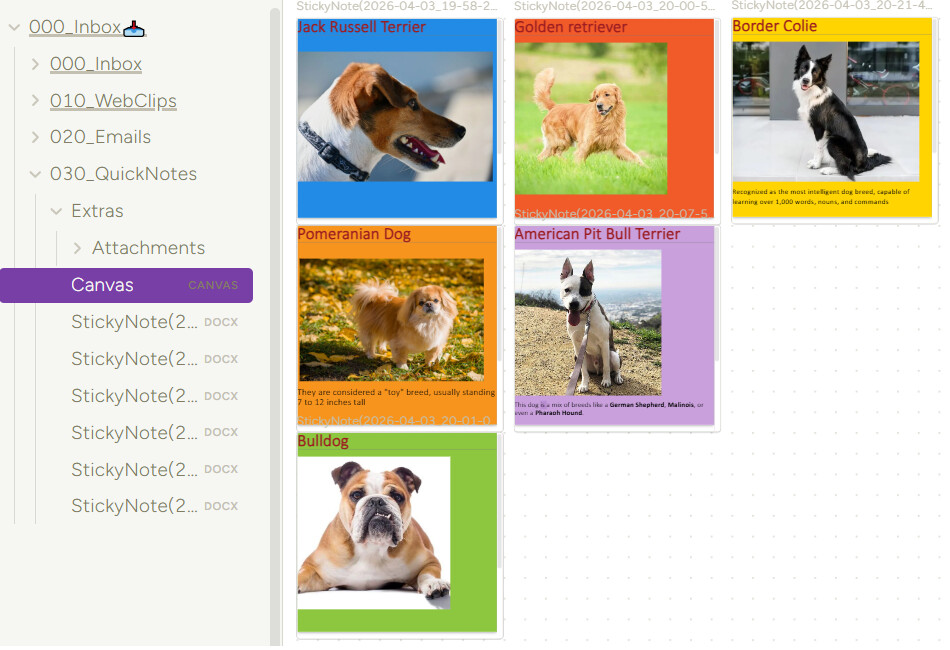
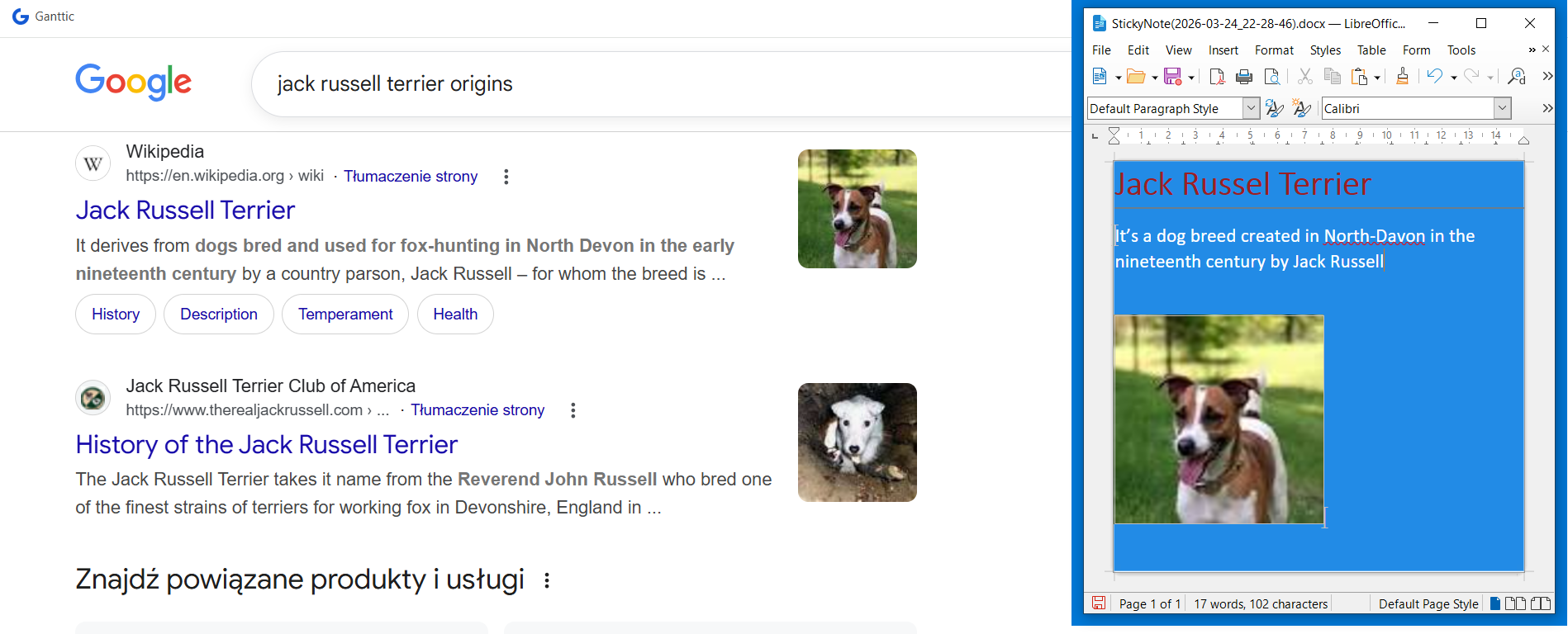
In this workflow I am using the LibreOffice Writer as Sticky Notes For My Desktop.
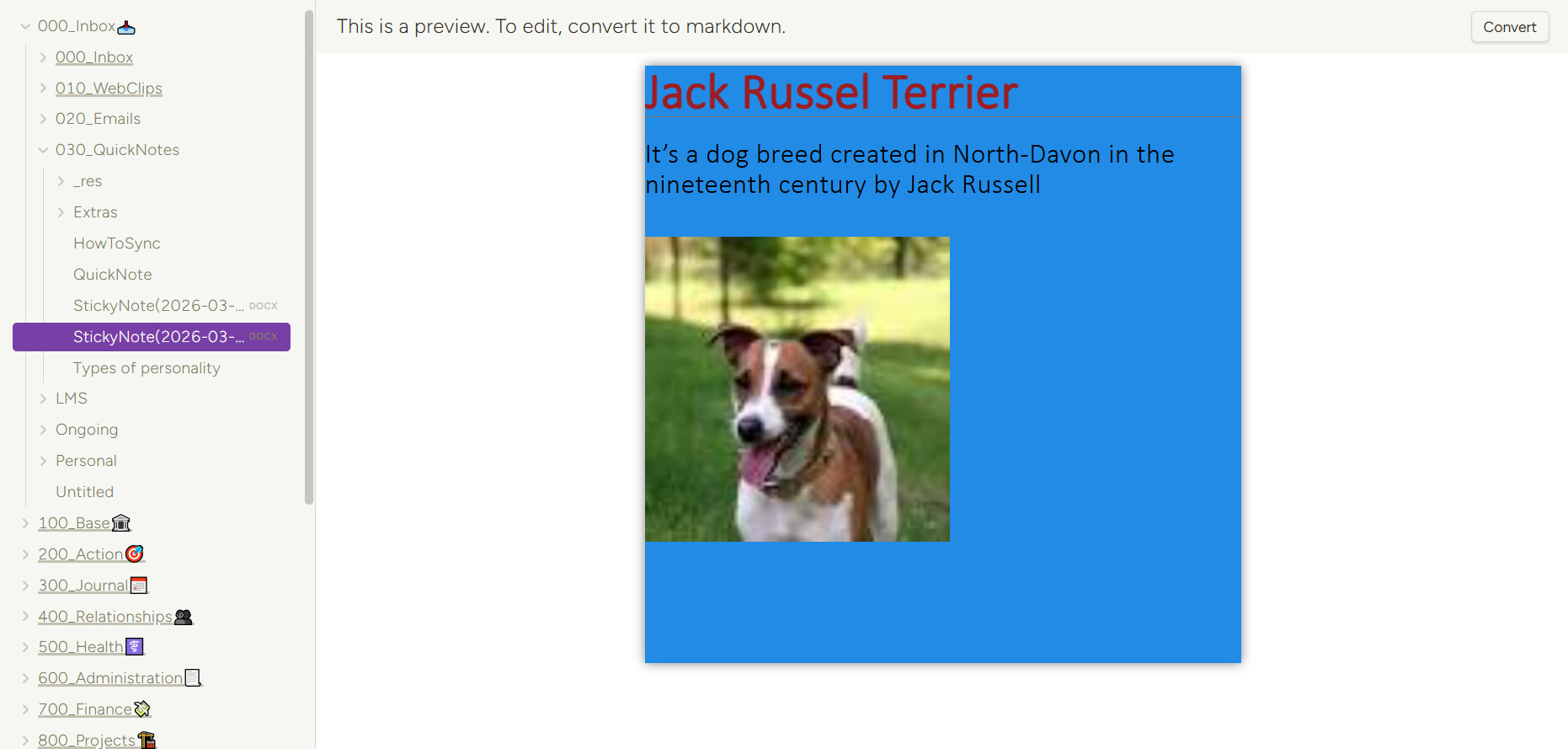
And it’s reflected in obsidian
It’s not the most compact approach that you could imagine I know someone suggested to write some python script Instant Note-Taking: Needs a Lightweight Sticky Note App for Obsidian - #18 by arturo2r .
Anyways I decided to showcase it since it allows for things such as pasting images/screenshots in the sticky note for later use in obsidian.
Perquisites:
Libre Office Installed (although MS Word could also be set up for this similarly)
DOCXER plugin Installed and enabled
Open Libre office go to Tools → Macros → **Edit Macros **
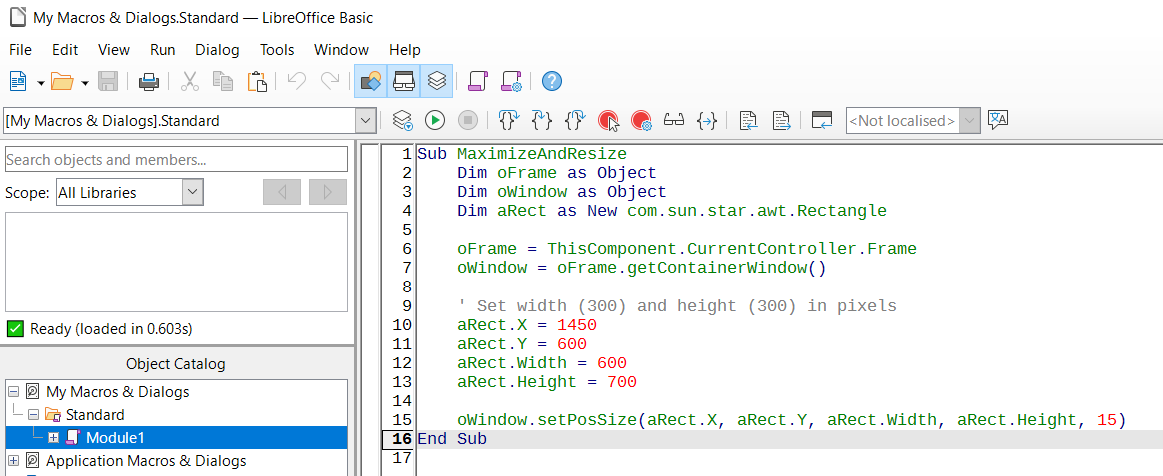
Create such macro in My Macros & Dialogs → Standard → Module1:
Sub MaximizeAndResize
    Dim oFrame as Object
    Dim oWindow as Object
    Dim aRect as New com.sun.star.awt.Rectangle

    oFrame = ThisComponent.CurrentController.Frame
    oWindow = oFrame.getContainerWindow()

    ' Set width (300) and height (300) in pixels
    aRect.X = 1450
    aRect.Y = 600
    aRect.Width = 600
    aRect.Height = 700

    oWindow.setPosSize(aRect.X, aRect.Y, aRect.Width, aRect.Height, 15)
End Sub
(It tells program to resize window so it looks like a sticky note additionally it positions it in the right bottom corner)
Now put the included StickyNoteTemplate.docx in your templates folder and create .ps1 script to open this template as a sticky note.
Make sure to enter your own vault folder as $destFolder and $source as a template location
$destFolder = "C:\Users\X\Desktop\LMS\000_Inbox\030_QuickNotes"

$source = "C:\Users\X\Desktop\LMS\Extras\Templates\StickyNotesTemplate\StickyNoteTemplate.docx"


# --- Generate Timestamped Filename ---

$timestamp = Get-Date -Format "yyyy-MM-dd_HH-mm-ss"

$newFile = Join-Path $destFolder "StickyNote($timestamp).docx"


# --- Run Copy and Launch Macro ---

if (Test-Path $source) {

    Copy-Item -Path $source -Destination $newFile

    $macroPath = "macro:///Standard.Module1.MaximizeAndResize()"


    # Opens LibreOffice and runs your global window-resize macro

    Start-Process swriter -ArgumentList $newFile, $macroPath

} else {

    Write-Host "Source file not found!" -ForegroundColor Red

}
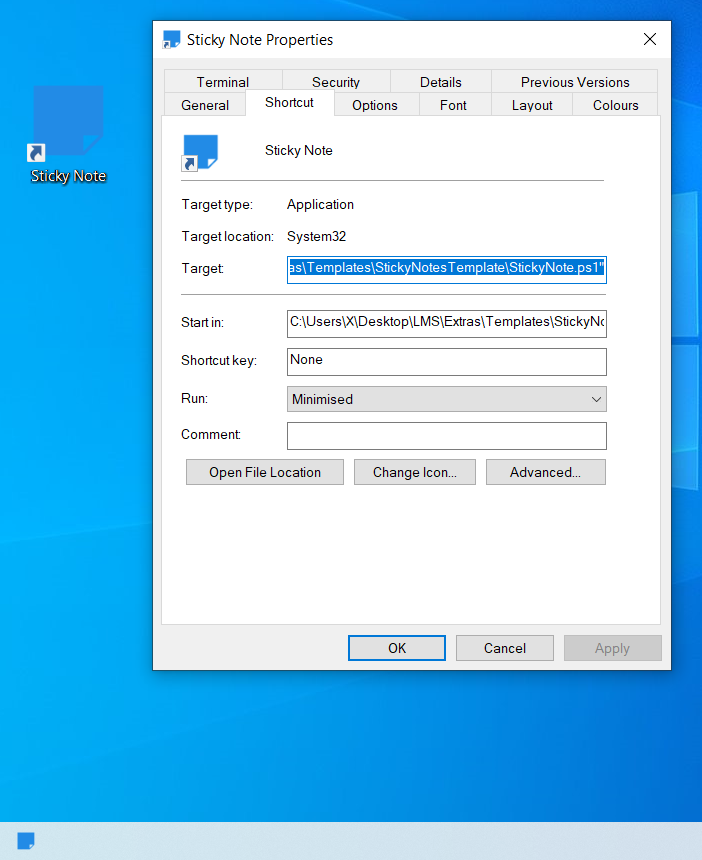
Now the last step is to create shortcut on your desktop by right clicking wherever on the desktop and choosing create shortcut from context menu.
Here you should pass your ps1 script location as a Target
C:\Windows\System32\cmd.exe /c start /b /min "" powershell.exe -NoProfile -ExecutionPolicy Bypass -File "C:\Users\X\Desktop\LMS\Extras\Templates\StickyNotesTemplate\StickyNote.ps1"
Also run it minimised so console doesn’t flash every time you open stickynote and if you wish change the icon for the shortcut and pin it to your taskbar.
Now to make your sticky note changes visible in obsidian you need to save docx you can also set up periodical autosave every minute by going to Tools → Options → General
And Save Document Automatically

StickyNotesTemplate.zip (15.5 KB)