Hello,
Following the release of obsidian-cli I began to create a lot of various automations script. But I quickly realized most were nearly useless considering 50% of my use of obsidian is on my android phone with the obsidian android app which has no support for the cli interface.
In the past I had already managed to install the desktop obsidian on my phone using termux. If you haven’t heard of it, it is an android app that allows you to run a linux distribution on your android phone, without root.
For technical reasons, it is not possible to run obsidian directly in the termux distribution. We have to set up a more classic linux distribution inside termux using an utility called proot.
Before beginning i have to say multiple things.
- It seems my account is to recent to put link in my posts, so well, you likely have to google some things
- I am not good at writing tutorials and clear instructions, if you have questions, don’t hesitate to ask.
- This guide is not specifically targeted to advanced users. But I guess that most people that might be interested in it are much more than me. Even more for the automation part.
- My knowledge of termux, linux and networking on android is mostly superficial. It is very likely that some things in this tutorial are not the best way or even a good way to do things, if you feel the need to correct me, do it, just be kind when doing it please.
- I haven’t tried the tutorial “from scratch”. Termux was already installed on my phone with a lot of packages. If you get stuck in the first steps it might be because of that.
- One step of the tutorial was made with claude code, I will say which one.
- Some functionalities don’t work yet or might never.strong text
- I did not make a lot of tests for the moment
- The performance is not really good. But I tested it on a 2019 mid-range and 6g of ram phone, you might have better experience on your side.
- It is unlikely to work on a phone with less than 6g of ram.
- I have only tested it on android 13
- I haven’t precised it in the tutorial, but for every android app you install, you should give it the permission to run in the background (search for dontkillmyapps on google). And notification access if it asks for it.
- You need to be connected to the internet at all time during the installation, there are a lot of packages to install. Internet is not required after the installation
- You need to have a significant amount of free space on your phone. I am not sure how much exactly, but I would say at least 5g, maybe more, maybe less. I would be interested to know how much space you needed
- I haven’t tested Obsidian Sync, it should be possible to use. I sync my vault using a 3rd party app, there should be various solutions on this forum, I might link the most relevant ones in the future.
I) Installing the obsidian desktop app in termux
I.A) Installing the necessary android apps
- Termux obviously. I am using the official f-droid / github release.
If you don’t know which one to download, pick the universal apk.
There is also a semi-official version on the play store. I haven’t tried it, it seems to have some different limitations so this tutorial might not work with it. - Termux:X11. Needed to get a graphical output : You need to install from the official termux:x11 github
Same, if you don’t know what to download pick the universal apk
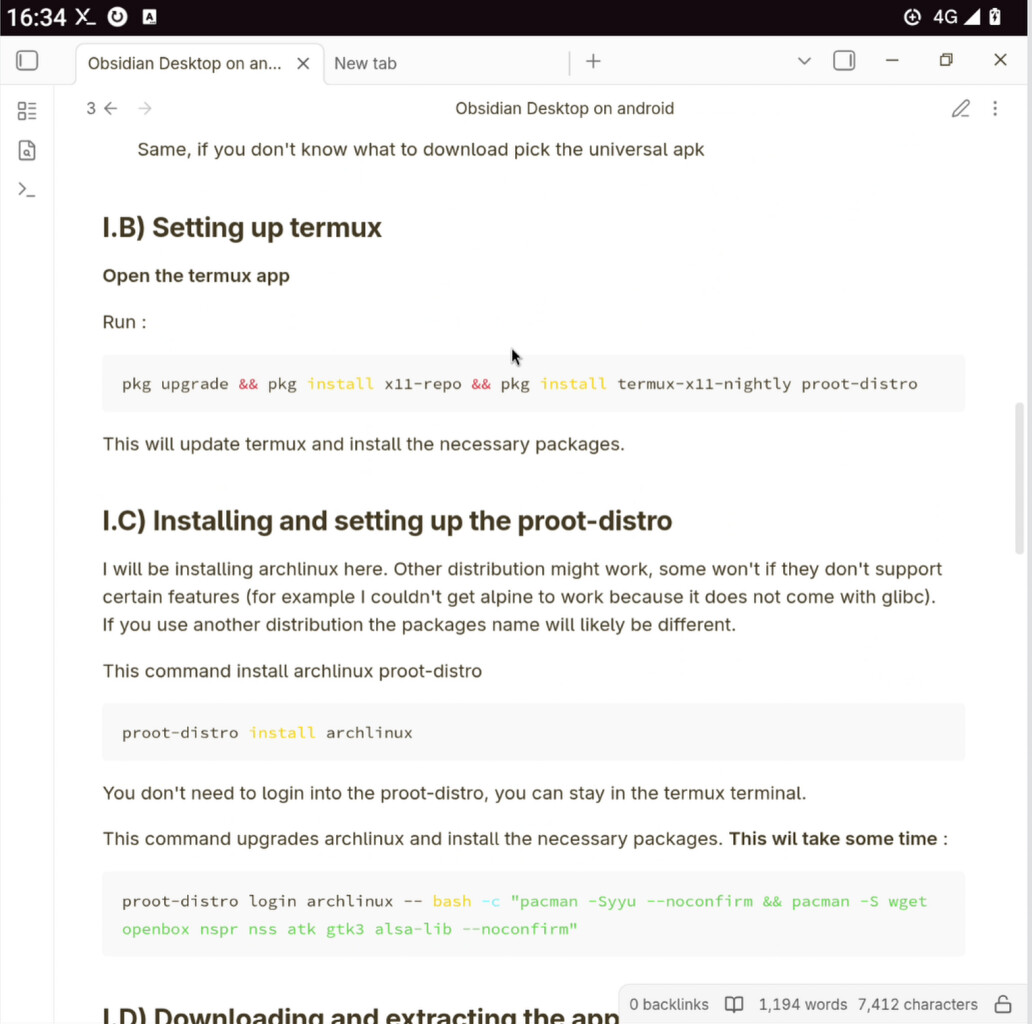
I.B) Setting up termux
Open the termux app
Run :
pkg upgrade && pkg install x11-repo && pkg install termux-x11-nightly proot-distro
This will update termux and install the necessary packages.
I.C) Installing and setting up the proot-distro
I will be installing archlinux here. Other distribution might work, some won’t if they don’t support certain features (for example I couldn’t get alpine to work because it does not come with glibc).
If you use another distribution the packages name will likely be different.
This command install archlinux proot-distro
proot-distro install archlinux
You don’t need to login into the proot-distro, you can stay in the termux terminal.
This command upgrades archlinux and install the necessary packages. This wil take some time :
proot-distro login archlinux -- bash -c "pacman -Syyu --noconfirm && pacman -S wget openbox nspr nss atk gtk3 alsa-lib --noconfirm"
I.D) Downloading and extracting the appimage
You first need to get the url to the latest obsidian appimage on github. You likely will need the arm64 appimage. Right click on the download link and copy it.
Replace the url in the command by the one you copied and run it :
appimage_url="https://github.com/obsidianmd/obsidian-releases/releases/download/v1.12.7/Obsidian-1.12.7-arm64.AppImage"
This command download and extract the appimage in the proot-distro :
proot-distro login archlinux -- bash -c "
mkdir -p /root/obsidian/appimage/

wget ${appimage_url} -O /root/obsidian/appimage/obsidian.AppImage
chmod +x /root/obsidian/appimage/obsidian.`AppImage`

cd /root/obsidian/appimage/
./obsidian.AppImage --appimage-extract
"
I.E) Set up the vault folder and obsidian config file
!!! — I strongly recommend you first try with a new test vault before doing it with one with important data ! And when you do, always remember to backup ! — !!!
termux-setup-storage
I couldn’t manage to get the filepicker to work in the graphical session so we need to manually create the obsidian.json configuration file pointing to your vault before launching obsidian.
First you need to get the path to your vault.
Open the obsidian android app > open left sidebar > tap on the Vault name > tap on “Manage vaults…” > Tap on your vault name.
You should now see your vault path, usually beginning with “/storage/emulated/…”
Go back to termux :
Enter this command with the path you got
vault_path="PATH/TO/YOUR/VAULT"
Then this command which create the default obsidian config file:
proot-distro login archlinux -- bash -c "
mkdir -p /root/.config/obsidian/

echo '{
  \"vaults\": {
    \"a1b2c3d4e5f67890\": {
      \"path\": \"${vault_path}\",
      \"ts\": 1742000000000,
      \"open\": true
    }
  }
}' > /root/.config/obsidian/obsidian.json
"
I.F) Helper script to launch obsidian
This is the part I had to ask for help to Claude AI.
This creates a helper script that makes easier to launch obsidian in a graphical session from the command line.
Enter this command in termux :
proot-distro login archlinux -- bash -c 'cat > /usr/local/bin/obs << ''EOF''
#!/bin/bash
export DISPLAY=:1
export DBUS_SESSION_BUS_ADDRESS=\$(grep -z DBUS_SESSION_BUS_ADDRESS /proc/\$(pgrep -x dbus-daemon)/environ 2>/dev/null | tr \0 \n | cut -d= -f2-)
export GDK_PIXBUF_MODULE_FILE=/root/.config/gdk-pixbuf-loaders.cache
exec /root/obsidian/appimage/squashfs-root/obsidian --no-sandbox "\$@" 2>/dev/null
EOF

chmod +x /usr/local/bin/obs
'
I.G) Launch obsidian desktop app !
Now everything should work. From the termux command line, launch this command :
proot-distro login archlinux --shared-tmp -- bash -c 'termux-x11 :1 -xstartup "dbus-launch --exit-with-session openbox" & obs'
You can now open the termux:X11 app and you should see obsidian appear after a few seconds (depending on you vault size).
Copy/Paste from android works.
II) Automation with obsidian-cli
I won’t go into detail about all the way to make bash script, because if you want to use obsidian-cli, you likely now about it. So just a few ideas on how to do things.
- The most simple way to launch obsdian-cli command is :
The--shared-tmpflag is mandatory.
This solution is very very slow
proot-distro login archlinux --shared-tmp -- obs [cli option]
-
Set up sshd in the proot-distro
I won’t go into details about it. You just need to know that sshd needs to be ran from an absolute path and not (eg/usr/bin/sshd -p 2222).
This is the fastest way I managed to get obsidian-cli to work. However it is 5+ seconds for each command.
It is possible to use Autotools built-in ssh command instead of using termux:Tasker. -
Termux:tasker
You can useproot-distro loginor ssh. Compatible with Tasker and other automation apps -
Termux:Widget
I think I covered everything I wanted. As I said earlier I would be happy to help and I am very open to criticism and suggestions.
I am very interested if anyone manage to get the file picker to not crash obsidian. It would make a lot easier to set up vaults.
Also if anyone manage to improve the performance of obsidian-cli commands, it would be really great. Some of the scripts I made which run in a few seconds on my PC run for literal minutes with this current solution.