What I’m trying to do
There is a more generalized use case here, but my specific scenario is this. I jot down a task(- [ ]) then realize it needs additional details necessitating a file of its own. What I’d like to be able to do is select a portion of the text, invoke a command resulting the text being replaced with an internal link, and a new file being created.
Example
Highlighting “requires additional information” from this task and invoking the command
- [ ] here is a task that requires additional information ⏳ 2025-12-29
would become
- [ ] here is a task that [[2025-12-29 1802|requires additional information]] ⏳ 2025-12-30
with a new file created (2025-12-29 1802.md) that has an alias of requires additional information
These “task details” files would be saved in a fixed folder location and follow the naming convention {{DATE:YYYY-MM-DD HHmm}}
Things I have tried
All my attempts to employ QuickAdd with a macro have failed, but it seems like this can’t be a unique use case. Any solutions—or nudges in the right direction—would be greatly appreciated. While I’m not opposed to yet another plugin, if a solution can be had with Templater and/or Quickadd, that would be my preference.
For anyone who may find this in the future, here is a working solution.
The Setup
Save the following as Templates/Scripts/linkAdditionalDetails.js
  const editor = app.workspace.activeEditor?.editor;
  if (!editor) {
    new Notice("No active editor.");
    return;
  }

  const selection = editor.getSelection();
  if (!selection || !selection.trim()) {
    new Notice("No text selected.");
    return;
  }

  /* ------------------------------------------ */
  /* Template selection                          */
  /* ------------------------------------------ */

  const templateFolder = "Templates";
  const templates = app.vault
    .getFiles()
    .filter(f => f.path.startsWith(templateFolder + "/"));

  const templateNames = templates.map(f => f.basename);

  const chosen = await app.plugins.plugins["quickadd"].api.suggester(
    templateNames,
    templateNames
  );

  if (!chosen) return;

  const templateFile = templates.find(f => f.basename === chosen);
  const templateContent = await app.vault.read(templateFile);

  /* ------------------------------------------ */
  /* Create detail file                          */
  /* ------------------------------------------ */

  const moment = window.moment;
  const timestamp = moment().format("YYYY-MM-DD HHmm");
  const displayText = selection.trim();
  const safeText = displayText.replace(/[\\/#^|?%*:"]/g, "");
  const fileName = `${timestamp}`;

  const folder = "Detailed Notes";
  const filePath = `${folder}/${fileName}.md`;

  if (!app.vault.getAbstractFileByPath(folder)) {
    await app.vault.createFolder(folder);
  }

  const file = await app.vault.create(filePath, templateContent);

  /* ------------------------------------------ */
  /* Link back in source note                    */
  /* ------------------------------------------ */

  editor.replaceSelection(`[[${fileName}|${displayText}]]`);

  await app.workspace.getLeaf(true).openFile(file);

  new Notice(`Detail note created using ${chosen}`);
};
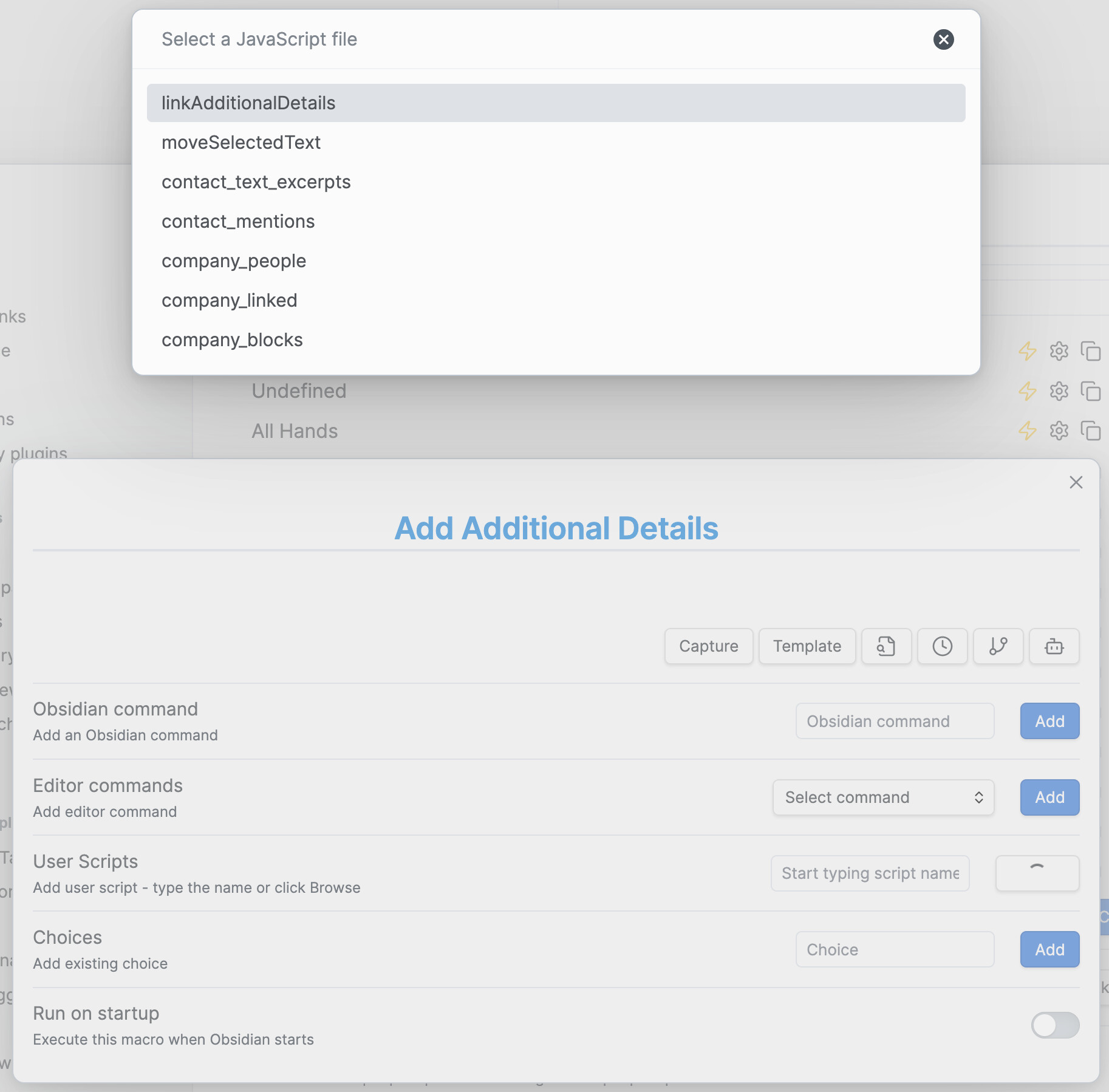
In QuickAdd, add a macro choice (I called mine “Add Additional Details”) and select the User Scripts browse button, selecting linkAdditionalDetails.
Use
Highlight the text you want to replace with a link. Initiate the Command Palette (⌘+P) and select QuickAdd: Add Additional Details from the list. You will be presented with a list of template files to choose from. Select one to assign the appropriate template. This will create a new file in Detailed Notes/.
Alternatively you could (a) specify a specific template to be used or (b) set the destination folder to use a predefined template. In my case I use various templates that contain YAML frontmatter properties that change with the document type, e.g. Call, Meeting, Research, etc. All files go into one folder and using a property, docType, I can filter to find all call notes, for example.
Assuming everything worked correctly you should have the [2025-12-30 1619|highlighted text] here that links to a new document, 2025-12-30 1619.md.