In Obsidian’s settings, you’ll see two version numbers like this:
Version 1.11.5
(Installer version: 1.10.6)
What do these two versions mean, and what’s the difference between them?
The Difference
The first line “Version” is the Obsidian app version number. You get new features and fixes when this updates.
So what’s this “installer version” below?
It represents the Electron version number that Obsidian uses.
Electron includes the Chrome browser engine and Node.js runtime environment.
(Yes, Obsidian is basically a browser in disguise.)
Sometimes Chrome updates bring new core features (like CSS or DevTools) that require Electron to update to a corresponding version to use them.
To use a wine analogy—
- App version = the wine in the bottle, each update is new wine in an old bottle
- Installer version = the bottle that holds the wine, updating means replacing both bottle and wine together
Should I Care?
Generally speaking, regular users don’t need to pay too much attention to this version number.
As long as you’re not too far behind—for example, if you’re still using installer version 0.12 when Obsidian is at 1.11, it’s probably fine.
What Impact Does the Electron Version Have?
Performance Improvements — Chrome major updates usually bring performance improvements and memory optimizations, so updating may improve Obsidian’s performance.
Security Fixes — Electron regularly fixes security vulnerabilities. While it’s not a big deal since it’s local software, if you frequently install community plugins, keeping a relatively recent version is more stable.
CSS Features — Some trendy CSS features also require the corresponding Chrome version to support.
For example, corner-shape (advanced rounded corners) requires Chrome M139+:
- Obsidian 1.10 (Chrome M138) doesn’t support it
- Obsidian 1.11 (Chrome M142) supports it
If you need this kind of feature, or Obsidian is obviously behaving abnormally, then it’s recommended to update the installer.
How to Check Version Numbers
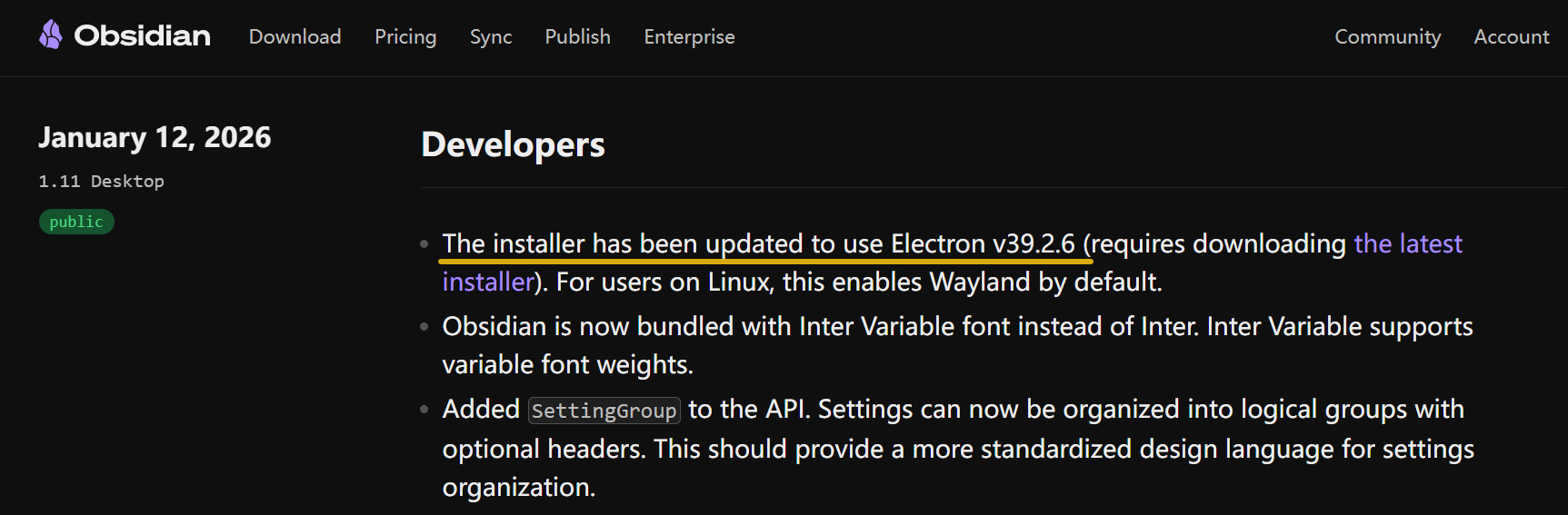
When Obsidian updates the core, its changelog will specifically mention it.
“The installer has been updated to use Electron v39.2.6”
This means Obsidian 1.11’s installer has been updated to the corresponding Electron version.
You can check the Chrome and NodeJS versions corresponding to each version at Electron Releases.
How to Update the Installer
Just download the new installer from the official website and reinstall.
When downloading the installation package during a major version update, you can usually get the latest version with both numbers in sync:
Version 1.10.6
(Installer version: 1.10.6)
But the core version doesn’t update every day, so it’s normal for the main version to be a bit newer than the installer version.
How to Stay on an Old Version
Sometimes, if you want to downgrade, you download a 1.9 installer, only to find it becomes the latest version again after a restart. What’s going on?
Because you have auto-update enabled.
In this case, even if you use an old wine bottle, it will automatically replace it with the latest wine.
So if you want to stay on a certain old version, install with the old installer package and disable auto-update.
How to Get Old Installers
Obsidian officially only provides the latest version.
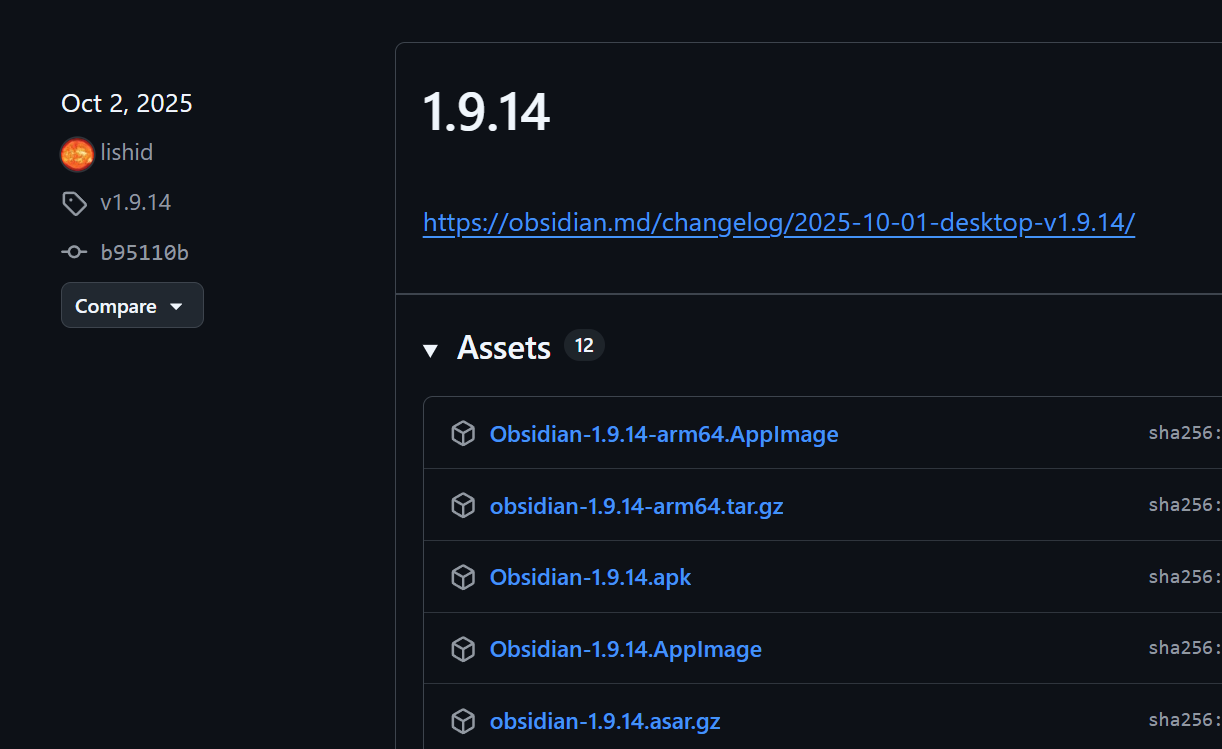
For older versions, go to the GitHub Releases page, find the corresponding version, and expand Assets to download:
Sidebar: What is the Catalyst Version?
When viewing the changelog, you’ll see two tags: public and catalyst:
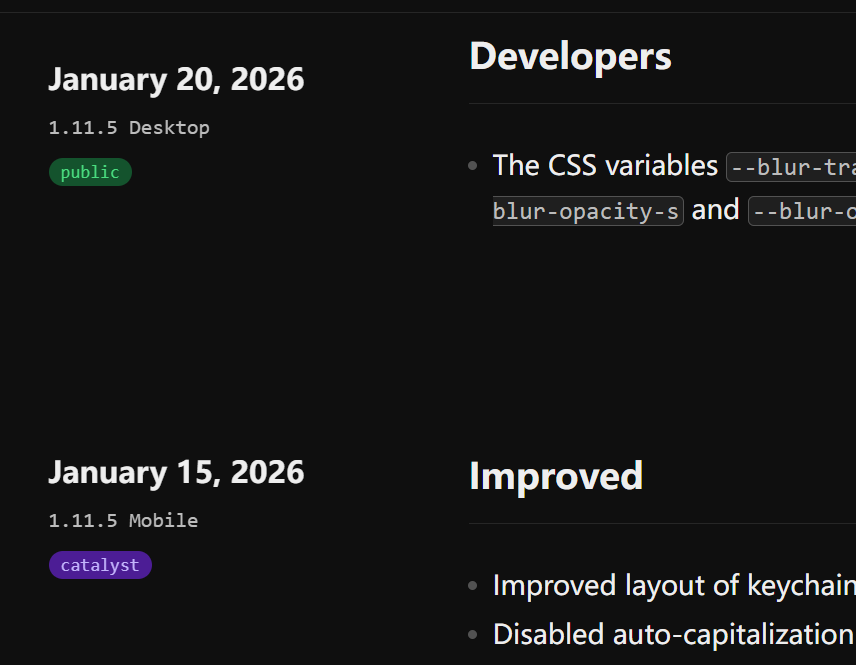
public is the public version, and catalyst is colloquially the “beta version”.
If you see people discussing some new feature but you click update and it says there’s no update, chances are they’re discussing things from the beta version.
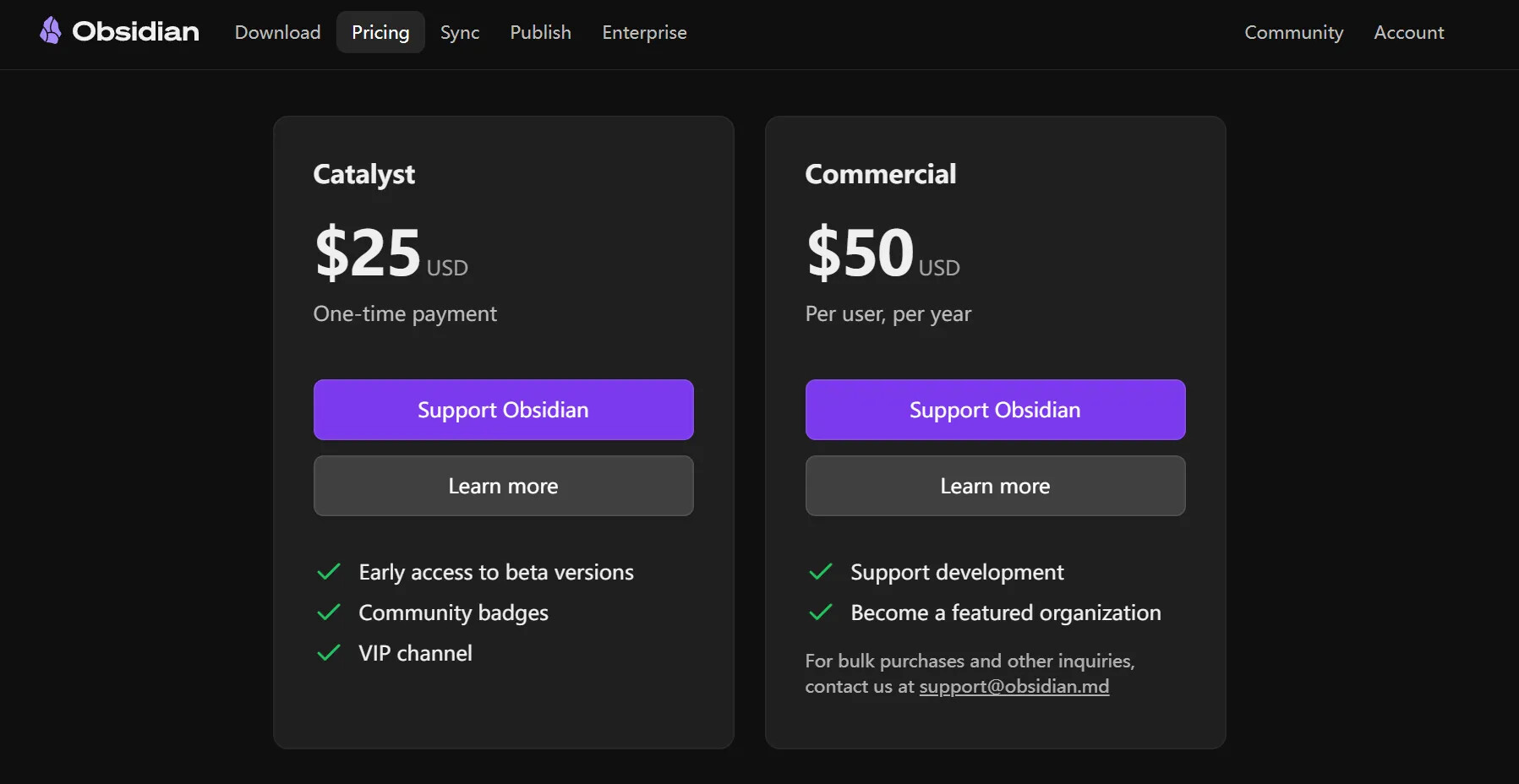
To get the beta version, you can pay for a Catalyst license ($25 USD), a one-time payment for lifetime use.
See the official website’s Pricing page for details:
Rather than “getting exclusive privileges,” Catalyst is actually more like support for the official team.
Obsidian is currently completely free for both regular and commercial users.
If you feel “this is such great software, I must give them money,” you can consider purchasing a Catalyst license.
By the way, although you can still see the Commercial commercial license, it’s also actually “sponsorship” in nature.
You can use it commercially for free, but you can also pay to add yourself to the “Enterprise” list.
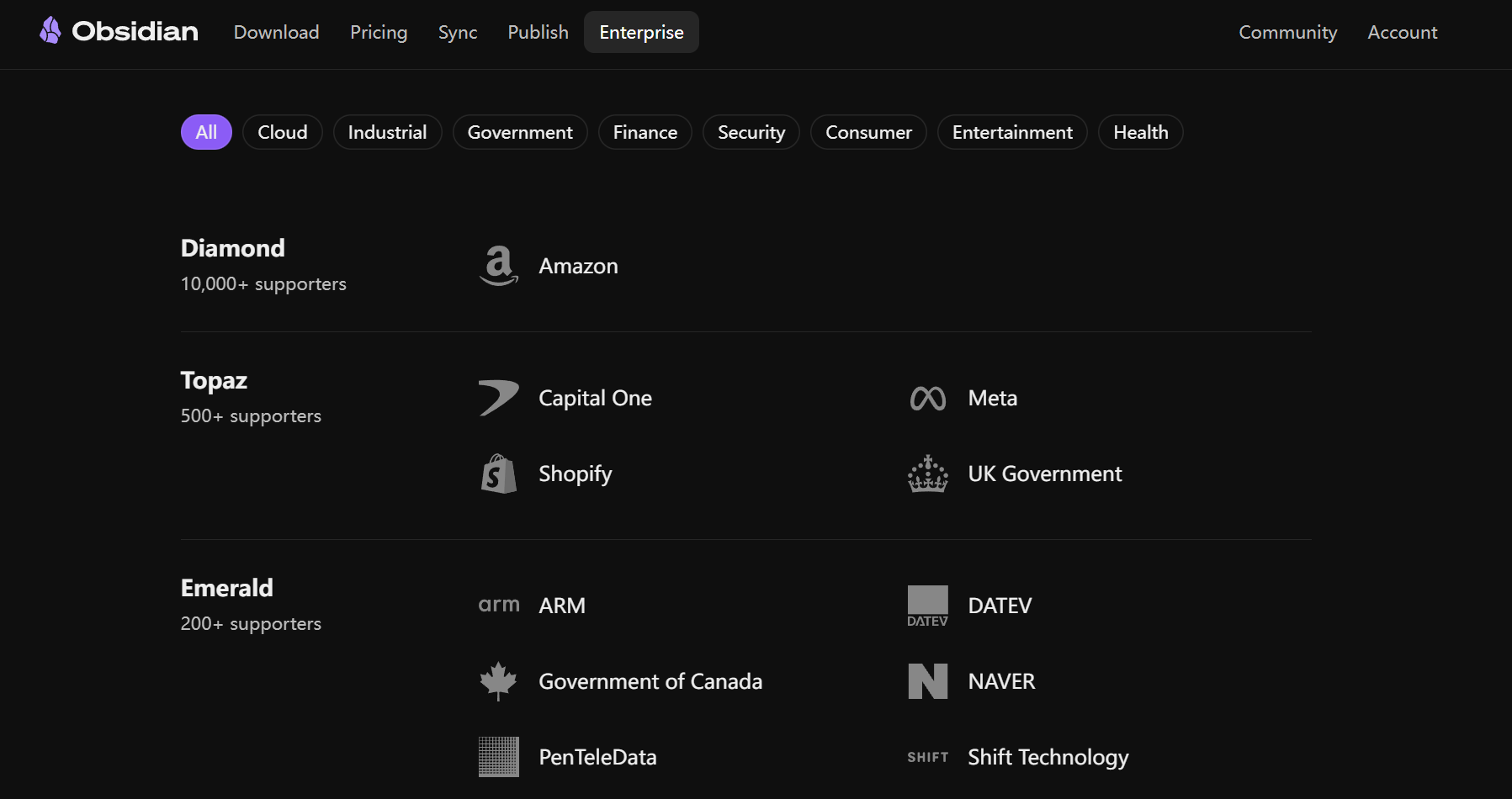
“Big customer list” (you can even see the UK government and Canadian government XD)
Summary
OK, that’s it for this share about Obsidian’s various versions!
To summarize:
- The difference between Obsidian’s main version and installer version
- How to update + how to get old versions
- Introduction to the Catalyst beta version
Hope this helps you, see you in the next article~