Plugin: Codeblock Customizer - Everything you need to customize your code blocks

A plugin to customize your code blocks in every possible way. The plugin is highly customizable. There are a lot of parameters, and a lot of options you can use. I will not document everything here, just the main things, so you get an idea what it can do.

The repo is available here: GitHub - mugiwara85/CodeblockCustomizer: Codeblock Customizer plugin for Obsidian · GitHub and the plugin can be installed from the official Obsidian marketplace here: Plugins - Obsidian

Themes

The plugin comes with 6 default Themes: Obsidian, Solarized, Dracula, Gruvbox, Nord, Tokyo Night. Default is the Obsidian theme. You can create your own themes, or modify existing ones.

For a simple example here is the Obsidian Theme

And here is the Solarized Theme (rest is on GitHub):

Header

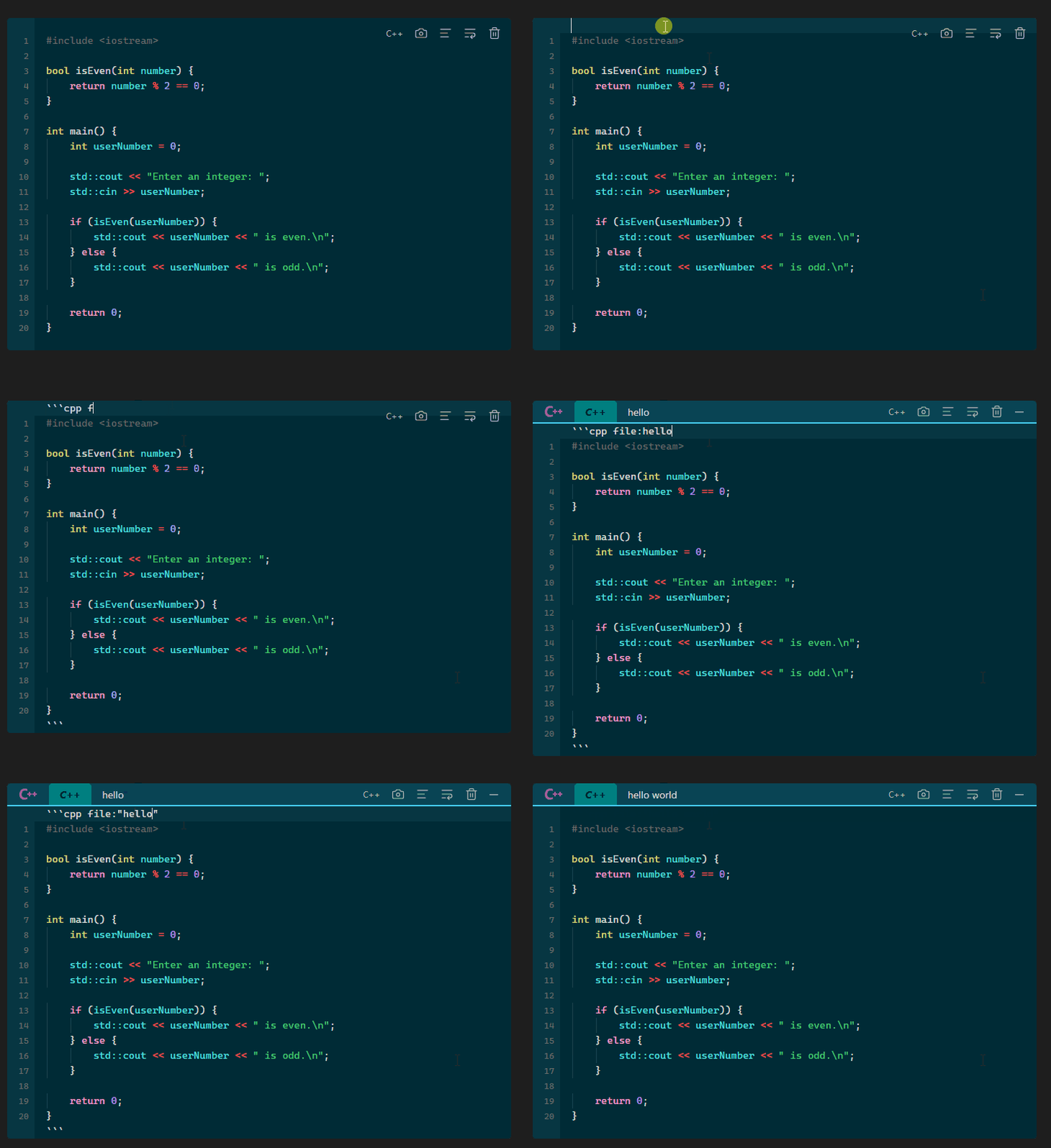
You can display a “header“ (a bar above of the code blocks), which can display a filename/title, language tag and icons.
Header

Line Number Jumps

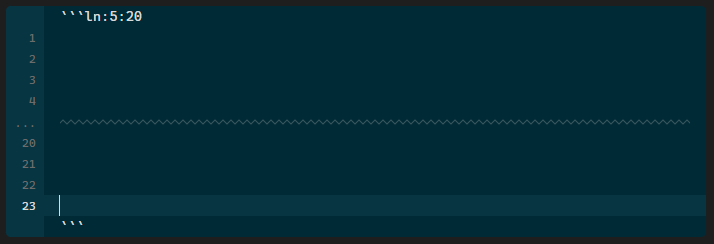
Want to display specific line numbers at specific rows? You can do that. Simply specify at which line to what the linenumbering should change. There will be a separator inserted so it is more visisble.
Folding / Semi-Folding

When the header is present you can fold code blocks, either fully, or semi-fold (if enabled and the code block has enough lines) by clicking on it. You can define how many lines should be visible for semi-fold and what effect you want (decreasing opacity, increasing blurring or both).

Folding

Highlighting Lines and Text

For highlighting there is a default highlight color, but you can create you own custom highlight colors as well.

You can highlight:

  • lines or ranges, by defining either line numbers or a specific word

  • specific text, and you can also define which occurence to highlight
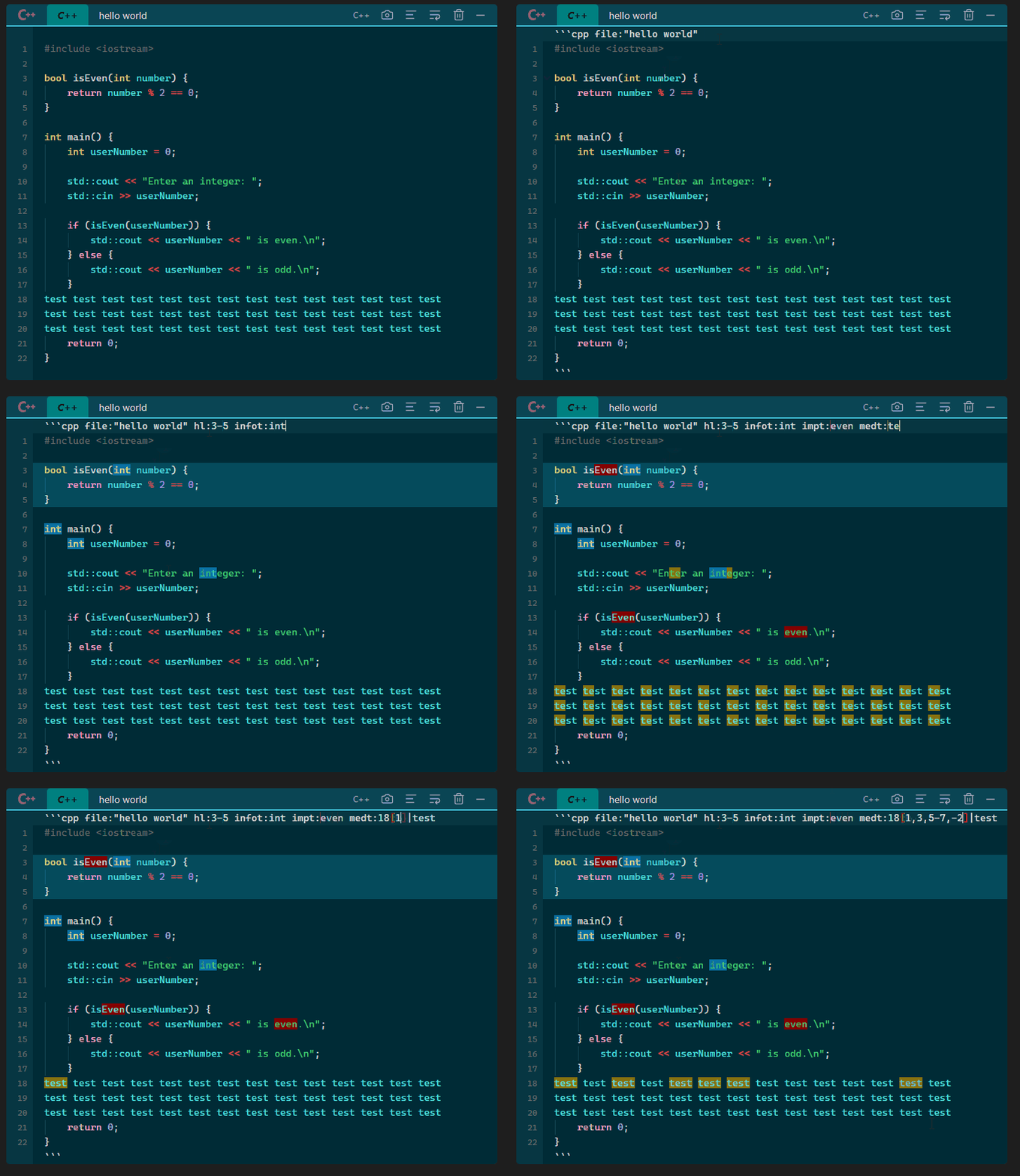
Highlighting

Language Specific Coloring

Define specific coloring rules for language. For example you can define that all the bash code blocks should have specific background colors, and all the JavaScript code blocks should have a totally different background color. (You can a define a lot more colors, not just the background color.)
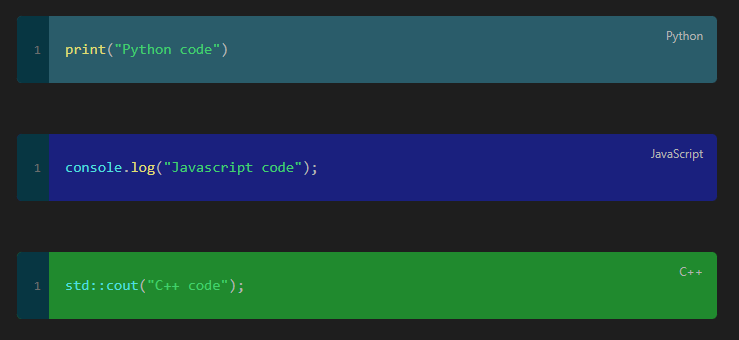
Grouped Code Blocks

Create grouped codeblocks by defining a group. Ideal when you have the same code in different languages.

Grouped

Terminal Prompts

Use terminal prompts to make the code nice. There are two ways you can use this. You can either use semi-interactive prompts, or parse raw cli output. Semi-interactive prompts mean, that they react to some commands (simpler ones) e.g. cd, su, pwd etc. Parsing raw CLI output means, that if you paste CLI output in the code block which contains prompts, then you parse them, to assign color for the prompts.

Prompts

Links

Use links in code (comments only) or in the header, which will render as clickable links.
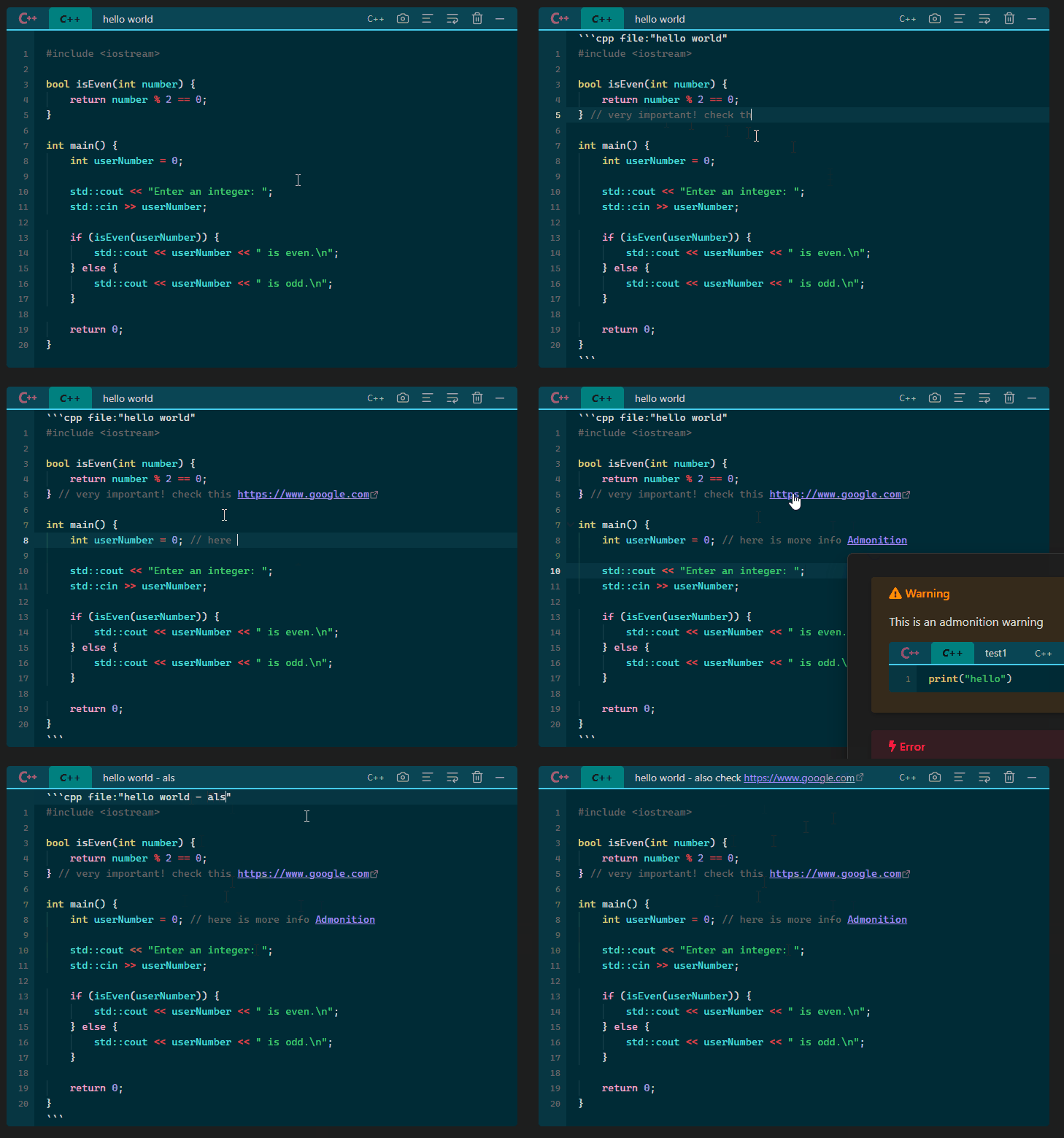
Links

Syntax highlight Inline code

Syntax highlighting inline code is simply done by specifying the language for the inline code in {} before the code.
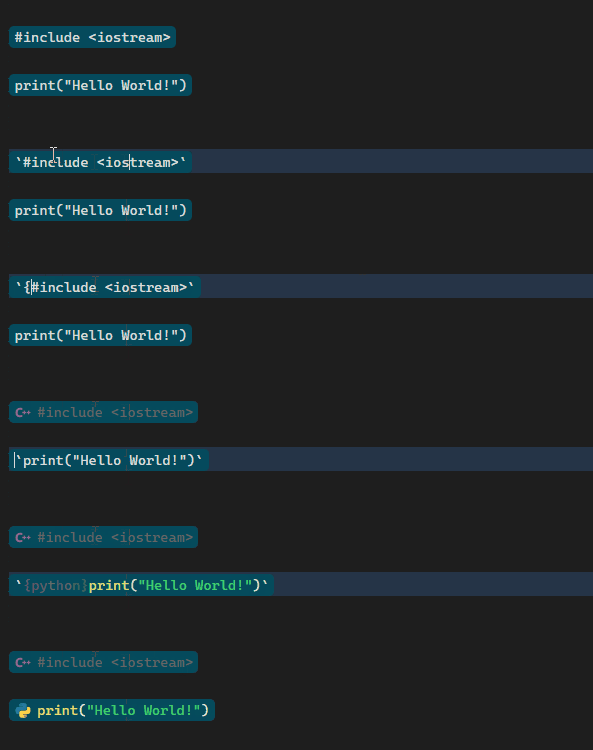
InlineCode

Annotations

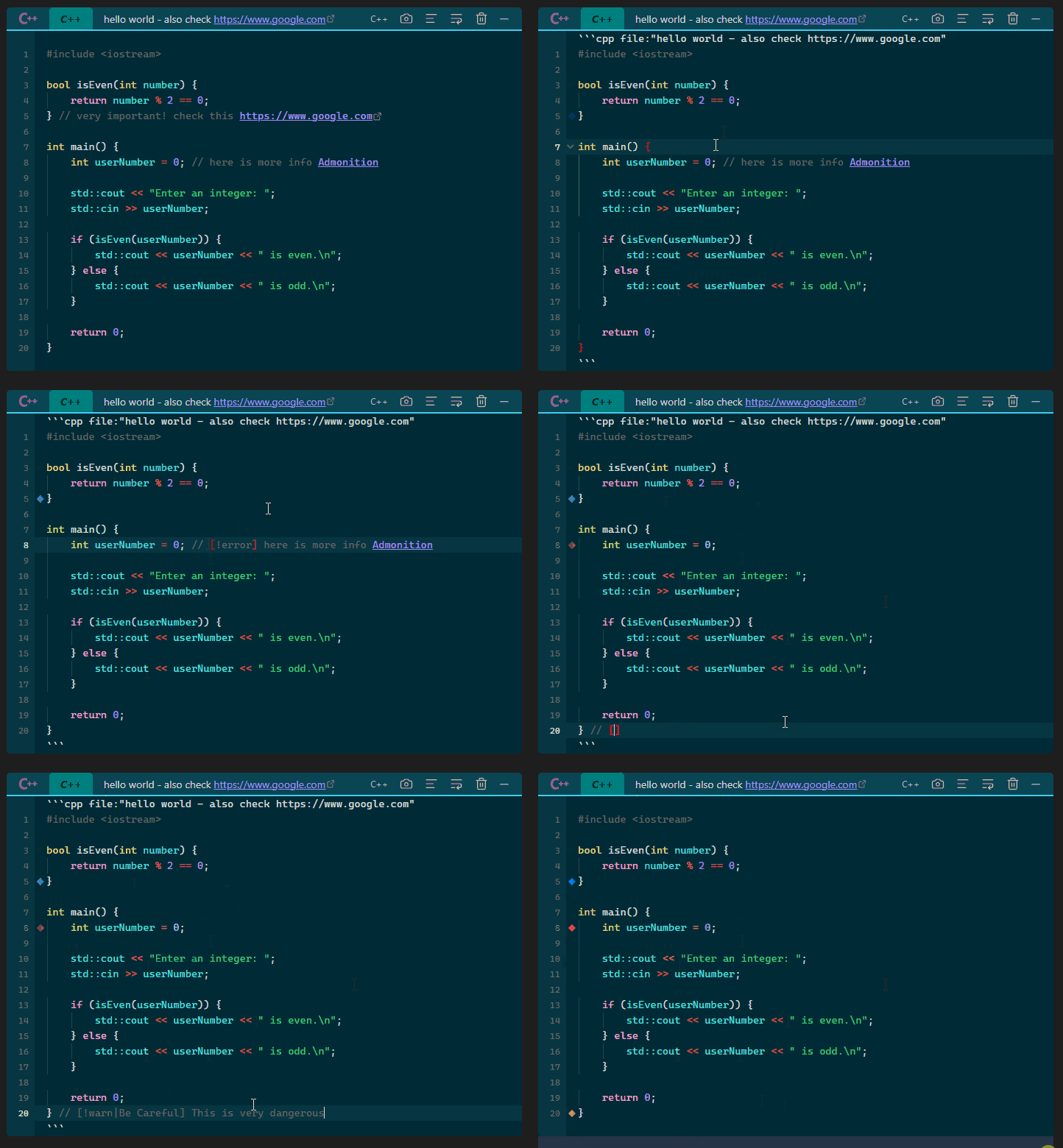
Want to keep your code clean? Use annotations in comments! They will render as a small icon at the beginning of the lines.
Annotations

Hiding Lines

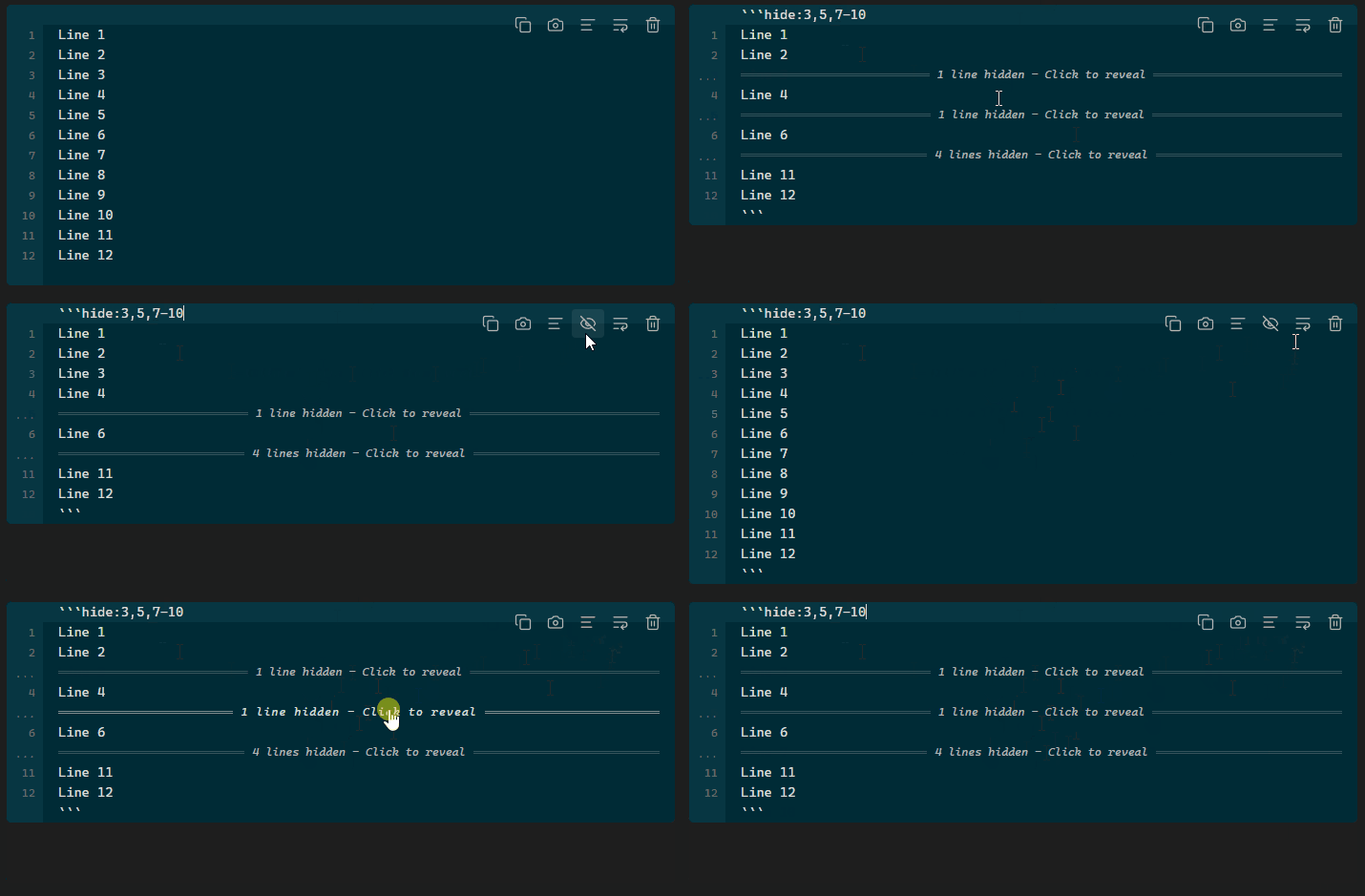
Want to hide lines or ranges? You can do that as well.
Hide

Wrap/Unwrap Code

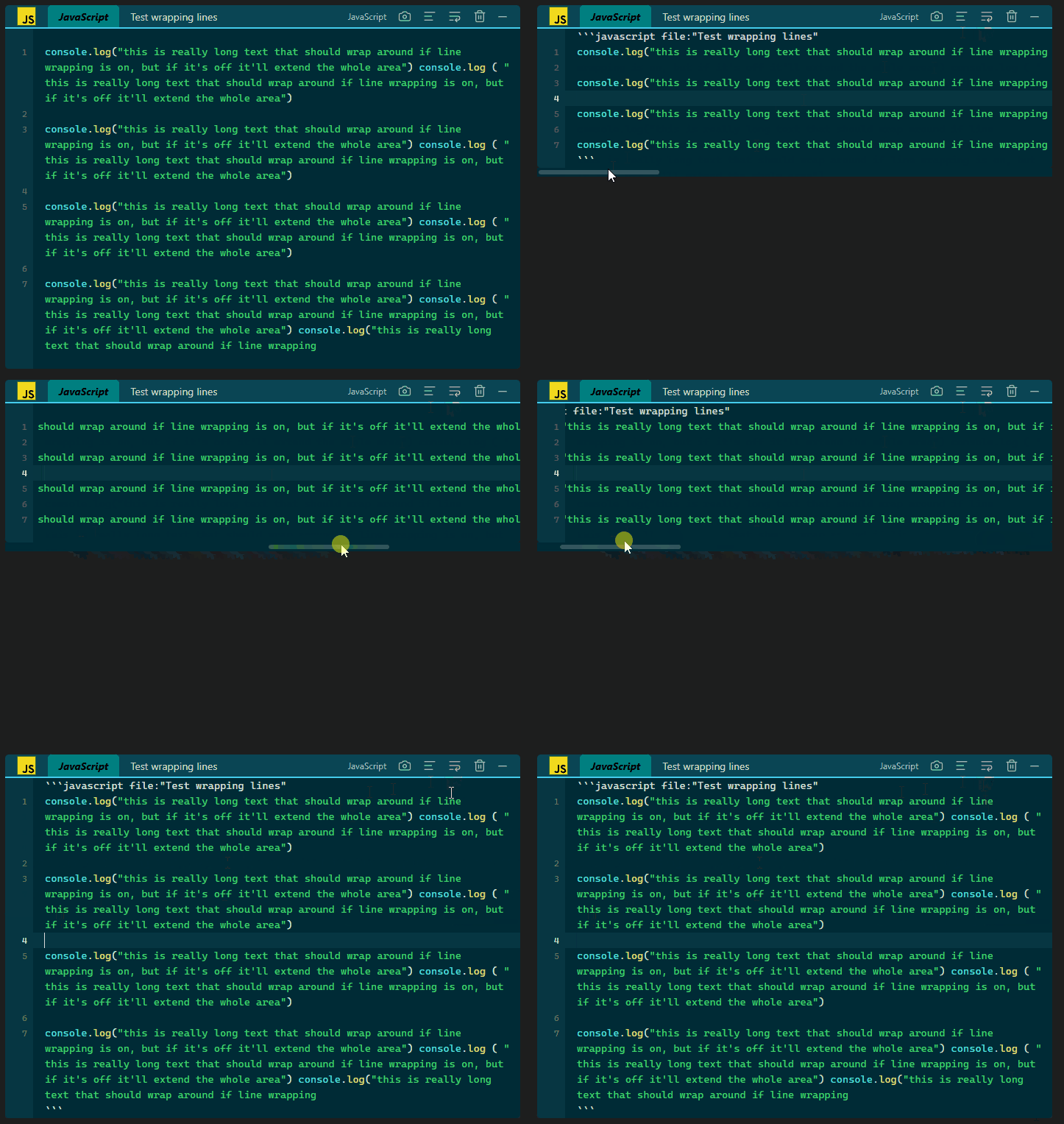
Wrap/Unwrap long code with a click of a button in both editing and reading mode.
WrapLines

Indent Code Blocks in Lists

In editing mode and in reading mode, code blocks in lists are indented as they should be.

Bracket Highlight

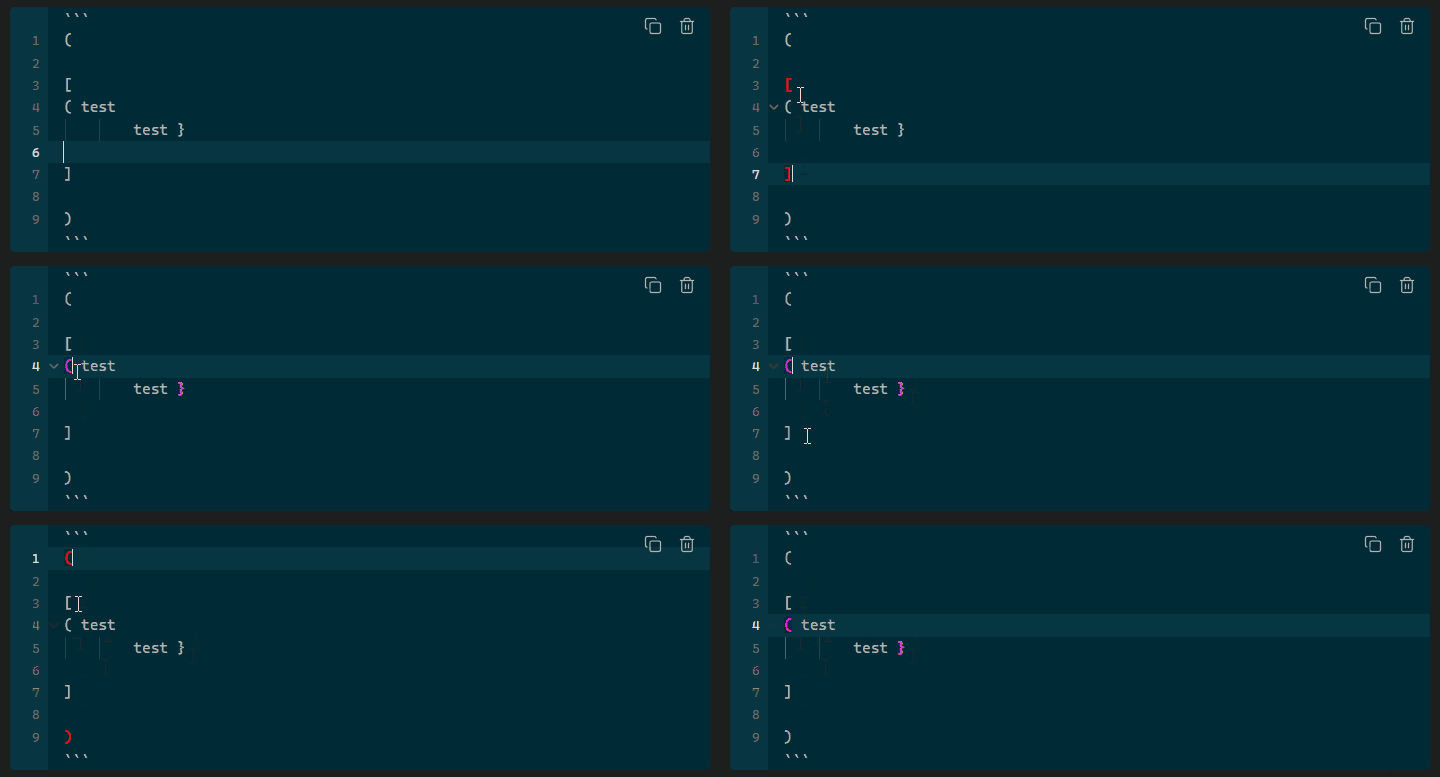
Forgot where the opening or closing bracket is? Use bracket highlight. It will highlight the corresponding pair with a specific color. You can define to use a different color if the bracket doesn’t
BracketHighlight

Selection Matching

Highlight text and the same text in other lines will be automatically highlighted if selection matching is enabled.
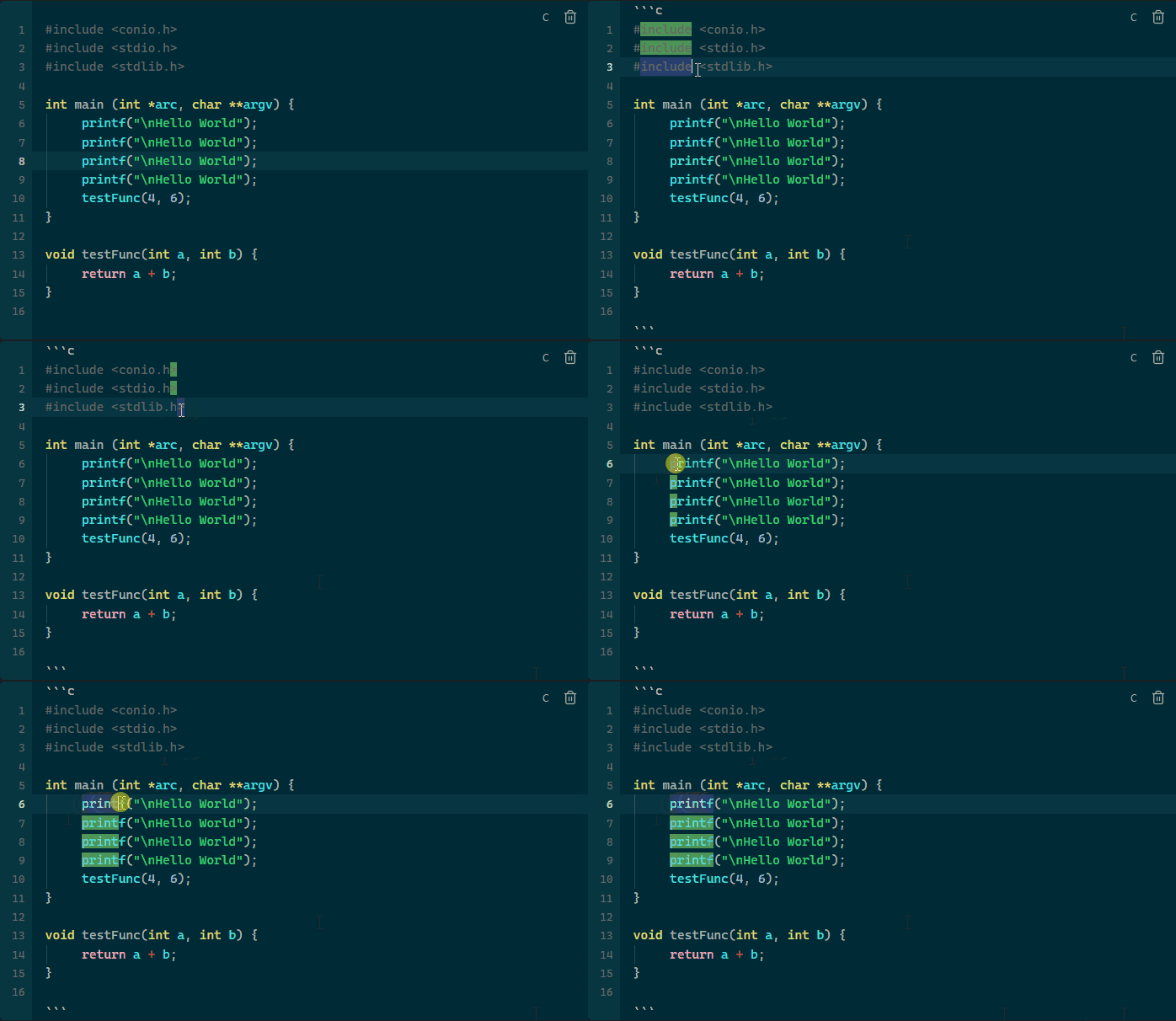
SelectionMatching

Plugin Compatibility

Compatible with Admonitions and Execute Code plugins.

Admonition will render like this:
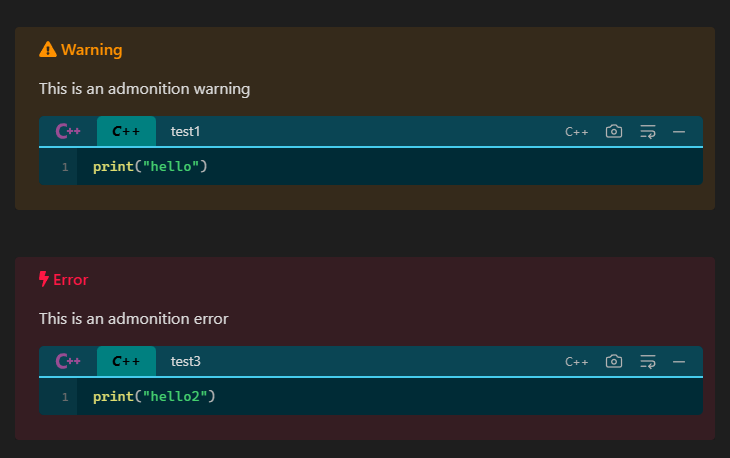
Execute Code works like this:

ExecuteCode

Do you have an idea what to implement next? Open an issue on Github.

3 Likes

Version 1.4.1 adds a new option

There is a new setting called “Use PrismJS syntax highlighting in editor mode“ under “Appearance & Styling“.

This is an experimental setting, but it is worth talking about this.

It forces the editor to use PrismJS in editor mode. This results, that when this setting is enabled, the syntax highlighting is the same in editing and reading modes! But that’s not all! This setting also has a positive side effect. CodeMirror does support a lot of languages, but nearly not as many as PrismJS. When this setting is enabled, that also means that languages which CodeMirror does not support (e.g. graphql or makefile or hlsl) also get syntax highlighting, because PrismJS does support it.

Even though this setting is not as thourughly tested as others, I wanted to release it easlier. Should you encounter some errors or bugs, just open an issue.

Example code block in editor mode with the setting disabled:

PrismDisabled

Same code block with setting enabled (matches reading mode):

PrismEnabled

This is amazing - that must have been a huge amount of work.

The header and the inline code function seems especially handy. I’ll give it a shot. Thanks for publishing it.

1 Like

Yeah, it took a “little“ time :smiley:

Glad you like it. There are a lot of settings in the settings page as well. Click it through once. Most of them are self-explanatory, so I didn’t document them.

1 Like

Version 1.4.2 new feature: Syntax Themes

Syntax Themes let you change the colors used for syntax highlighting in code blocks. Pick a built-in theme or create your own. Each theme automatically adapts to Obsidian’s dark and light mode.

Built-in themes: Obsidian, Dracula, Gruvbox, Nord, Solarized, Tokyo Night, VS Code Modern, Monokai, GitHub, Catppuccin.

An example JavaScript code block, with the default PrismJS syntax highlighting:

Same code block with Nord syntax theme applied:

You can set a syntax theme globally for all languages, or override it for specific languages. For example, use Dracula globally but apply Nord to Python code blocks only.

Note

This feature works only with PrismJS tokens. For the best result, enable Use PrismJS for syntax highlighting in editor mode. Without it, syntax themes only apply in reading mode, **not** in editing mode.

How it works

Syntax highlighting works by analyzing the text in a code block. Each word is identified as a token, which can be a keyword (if, else), a string, a number, a comment, etc. A color is then assigned based on the token type. The full list of tokens can be found [here]( Prism tokens ▲ Prism ). Syntax Themes let you customize the color for each of these token types.

Version 1.4.5 new feature: Syntax Highlighting for Custom Languages

PrismJS provides syntax highlighting for a lot of languages, but there are still some, which it doesn’t support. This feature lets you define your own syntax highlighting rules for those unsupported languages by creating a JSON configuration file. If Use PrismJS for syntax highlighting in editor mode is enabled (see PrismJS Syntax Highlighting), the rules apply in both editor and reading mode. If it is not enabled, the rules will only apply in reading mode.

To get started, create a customPrismLanguages.json file in your <VaultFolder>\.obsidian\plugins\codeblock-customizer\ folder. In this file you can define the RegExes used by PrismJS to provide syntax highlighting for those languages. You will need to define RegExes for the tokens. There are a few examples on the official PrismJS website.

Important
The RegExes are stored as strings in the customPrismLanguages.json file. This means, that you will have to escape the backslashes. So instead of one backslash (\), you’ll have to write two (\\).

Note
If the JSON file is malformed or contains invalid RegExes, a notice will be shown when the plugin loads.

A sample customPrismLanguages.json which provides syntax highlighting for the ma3 language would look like this:

{
  "ma3": {
    "comment": "/(^|[^\\\\#])#.*/gim",
    "string": [
      {
        "pattern": "/'(?:\\\\[\\s\\S]|[^\\\\''])*'/",
        "greedy": true
      },
      {
        "pattern": "/\"(?:\\\\[\\s\\S]|[^\\\\\"])*\"/",
        "greedy": true
      }
    ],
    "number": "/(?:\\b\\d+(?:\\.\\d*)?|\\B\\.\\d+)/gi",
    "operator": "/[-+*%]/",
    "slashModifier": {
      "pattern": "/(\\/\\w+)/",
      "alias": "class-name"
    },
    "macroInputPrompt": {
      "pattern": "/\\((?:\\\\[\\s\\S]|[^\\\\(\\\\)])*\\)/",
      "alias": "variable",
      "greedy": true
    },
    "macroVariableResolve": {
      "pattern": "/\\$.[^\\s]*/",
      "alias": "variable",
      "greedy": true
    },
    "keyword": "/\\b(?:\\w+)\\b/"
  }
}

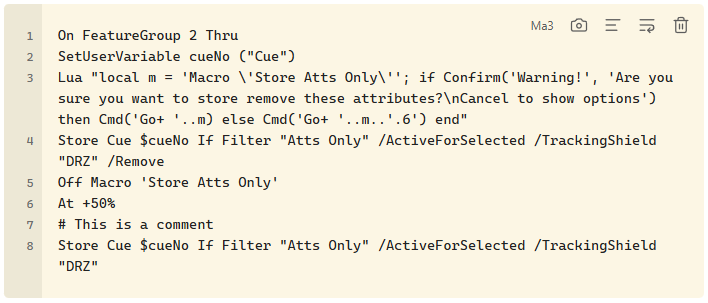
ma3 language without custom syntax highlight definition:

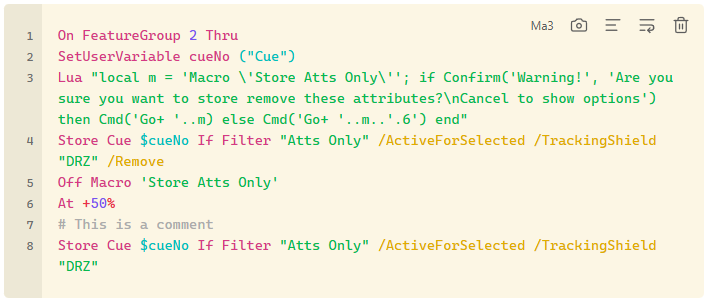
ma3 language with custom syntax highlight definition: