Disclaimer
Is this plugin open source? Yes
Is this plugin completely free? No
Is this plugin vibe-coded beyond the author’s ability to comprehend how it works? No
Community Directory: NoteFerry Companion
Note: The Obsidian plugin, NoteFerry Companion, is open source. The separate NoteFerry browser extension is not open source.
Hi everyone,
I built NoteFerry to solve one very specific, persistent annoyance in my own Obsidian workflow.
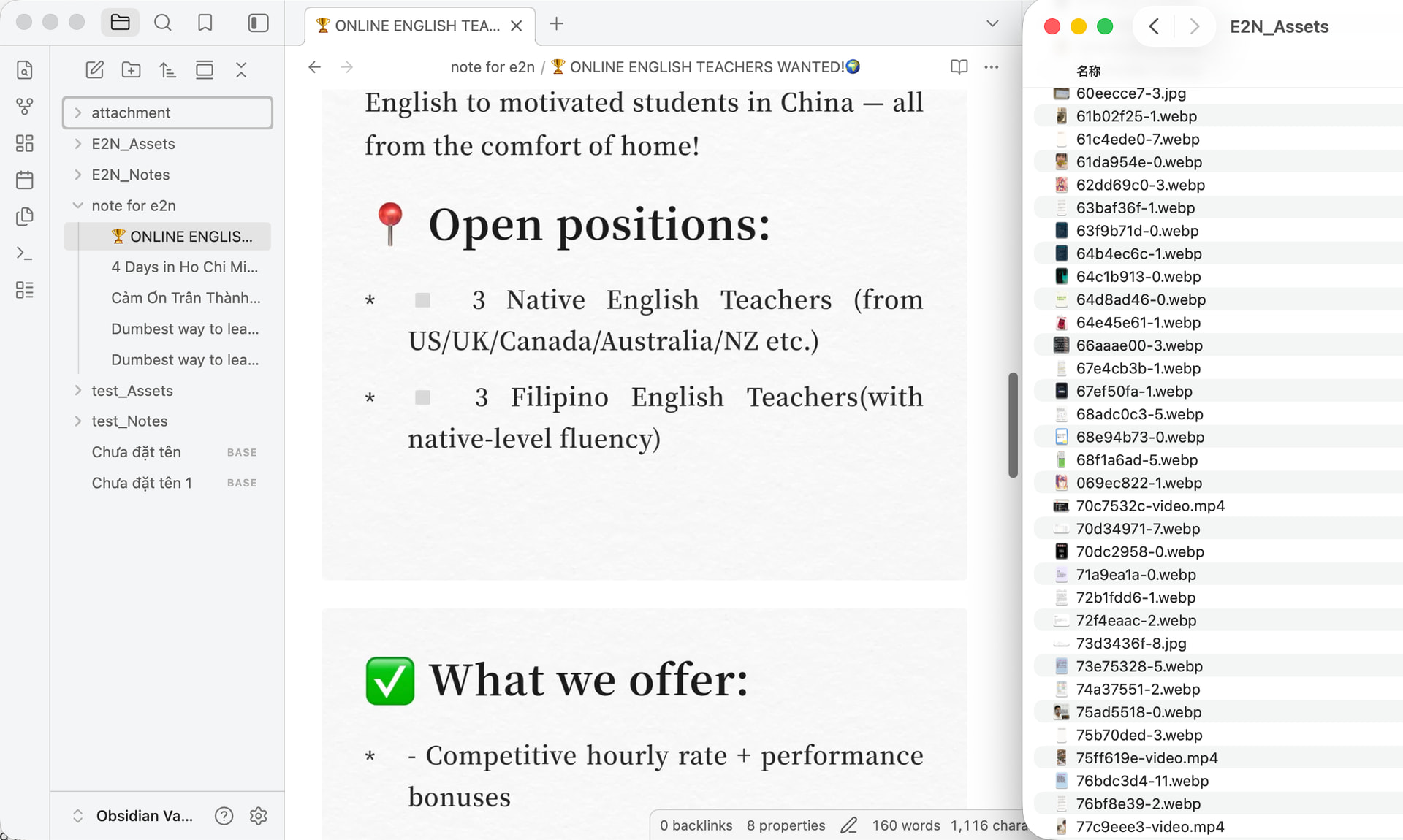
A lot of my notes aren’t just Markdown. They’re full of screenshots, PDFs, or other attachments.
Inside Obsidian, all of that feels like one complete note. But the moment I want to bring that note into ChatGPT, Claude, or Gemini, things get messy fast.
Copying the text is easy — until you realize you’ve copied local image references instead of the actual images.
Then the alternative is opening the attachment folder, figuring out which files belong to that note, and dragging them into the AI chat one by one.
So I built NoteFerry.
The idea is intentionally simple:
Stay in the AI chat you’re already using. Click +, choose “Add from Obsidian”, select the notes you need, and add them directly to the current conversation.
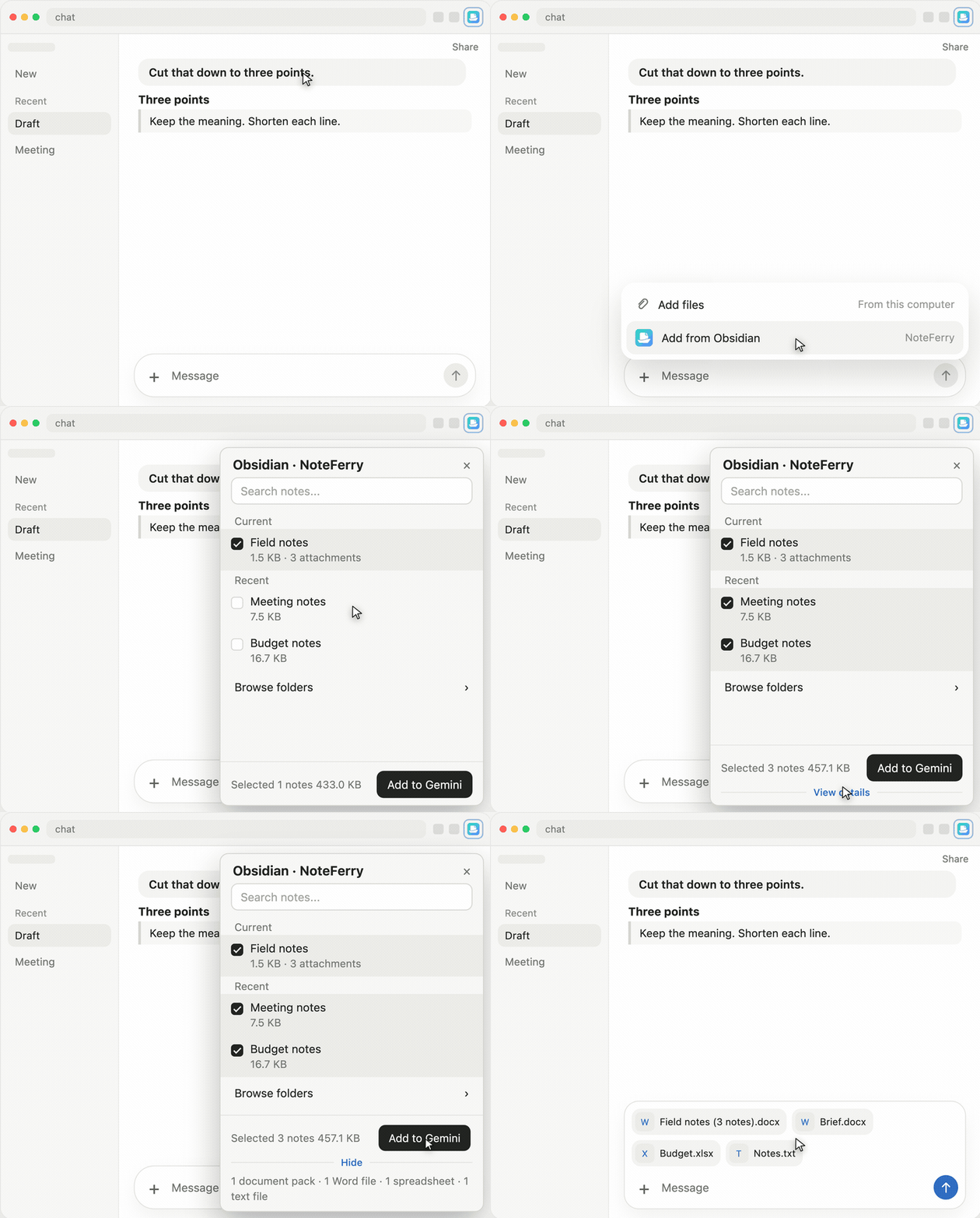
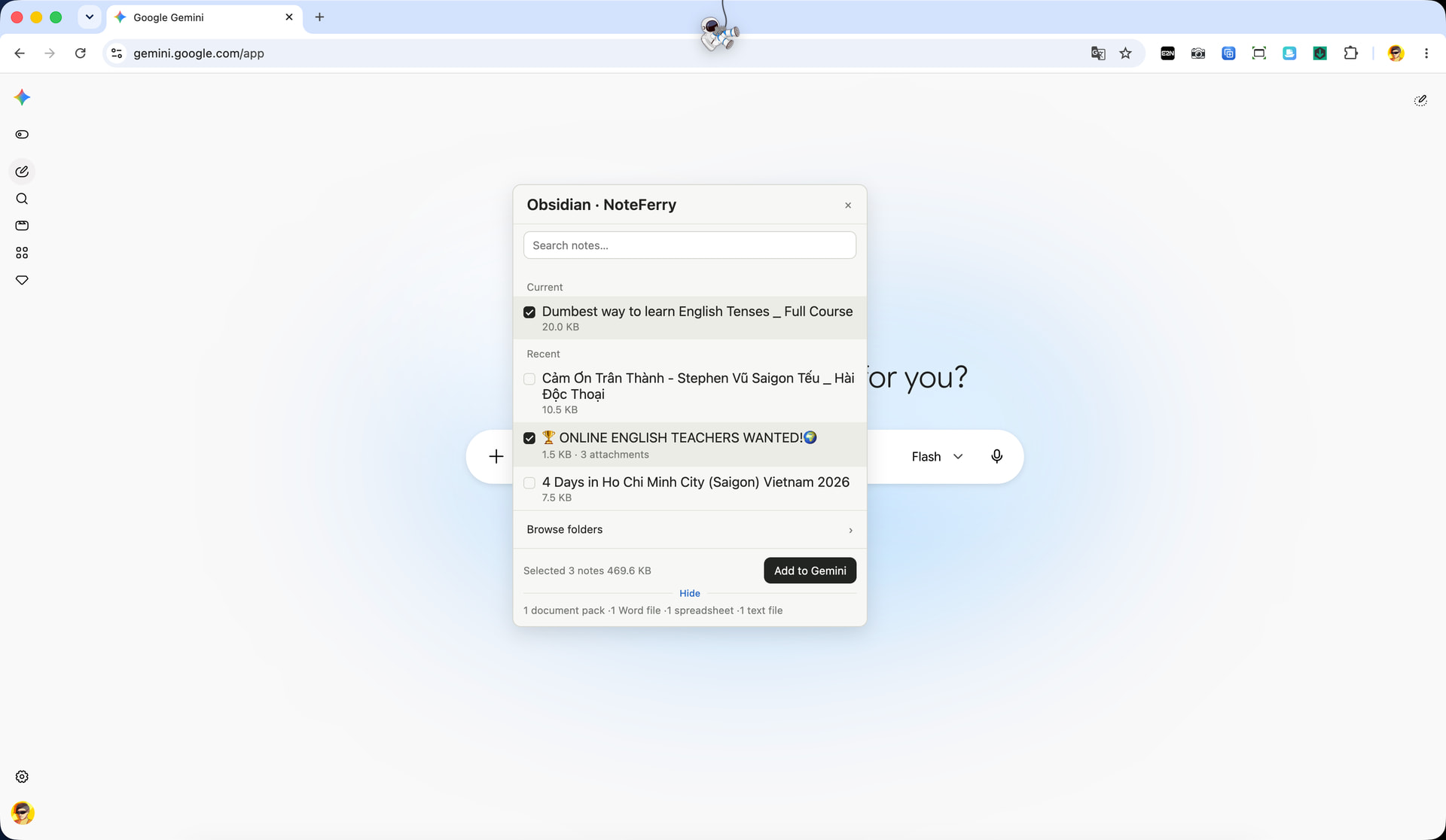
NoteFerry collects the note text and embedded images into a document. It can also bring along common linked attachments such as PDFs, Word documents, spreadsheets, presentations, text files, audio, and video, subject to the file limits of the AI site you’re using.
You can select up to 10 notes at a time, and before adding them you can see what will be included and what will be skipped.
I intentionally avoided building another AI chat inside Obsidian.
There’s no full-vault RAG, no automatic sending, and no separate NoteFerry chat interface.
Obsidian stays where my notes live. ChatGPT, Claude, or Gemini stays where the conversation happens. NoteFerry just handles the awkward step in between.
Getting started
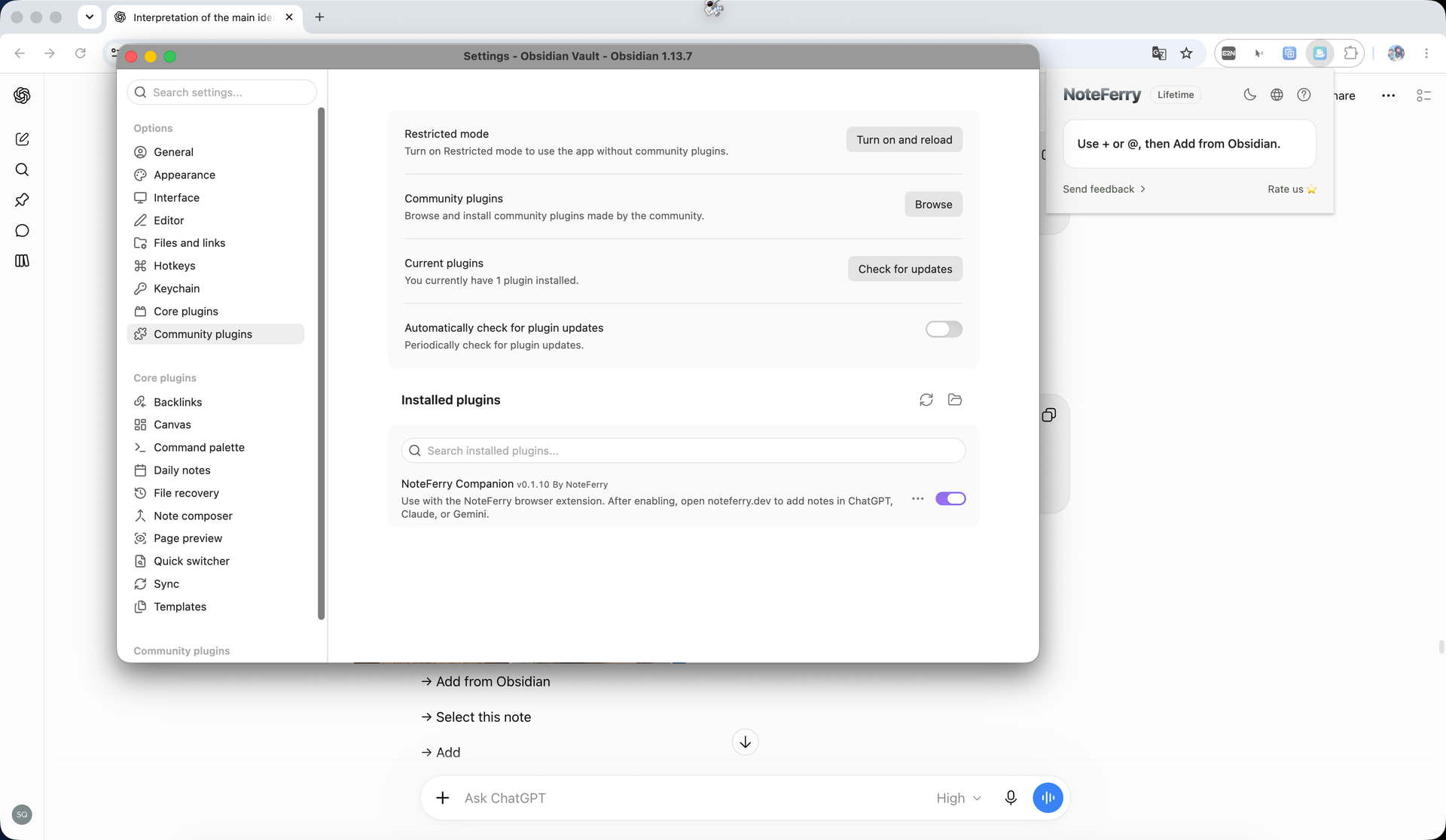
The first-time setup has two parts.
- Install the NoteFerry browser extension for Chrome or Edge.
- Install and enable NoteFerry Companion from Obsidian Community Plugins.
Then connect them once and allow NoteFerry on the AI site you want to use.
After that, normal use is simply:
+ → Add from Obsidian → select → Add
ChatGPT can also use @.
A quick note on privacy
There is no NoteFerry account or sign-up.
NoteFerry only works on ChatGPT, Claude, or Gemini after you explicitly allow it on that site.
The NoteFerry server does not receive your vault path, note titles, search queries, filenames, or note contents.
NoteFerry does not modify your original Obsidian files.
When you choose Add, the selected files are added to the AI website you’re currently using. NoteFerry itself does not receive those files.
NoteFerry also does not send the message for you — you still decide whether to send it.
Pricing
The free trial includes 10 complete successful adds.
Opening the picker, searching, browsing folders, or previewing files does not consume a trial use. It only counts once the files actually appear in the AI conversation.
After the trial, NoteFerry is a one-time purchase, not a subscription.
Website: NoteFerry — Bring Obsidian notes into AI conversations
Setup guide: Install NoteFerry
Obsidian Companion: NoteFerry Companion - Obsidian Plugin
I’m especially curious how other people handle image-heavy notes or notes with PDFs and other attachments when they want to use them in an AI chat.
If you already have a workflow for this, I’d genuinely like to hear how you’re doing it — and of course I’m happy to answer questions about NoteFerry as well.