Disclaimer
Is this plugin open source? Yes
Is this plugin completely free? Yes
Is this plugin vibe-coded beyond the author’s ability to comprehend how it works? No
Community Directory: Noria
Turn knowledge into action, and action into lasting knowledge.
I’m sharing Noria, a desktop Obsidian plugin that connects daily records and knowledge management with planning, execution, and review. Its configurable Home brings together projects, tasks, Inbox notes, knowledge maps, habits, statistics, and periodic reviews.
The idea is to keep the work and its context close together: capture something in a note, return to the project it belongs to, arrange the next action, and use the resulting records when you review your week.
Home: current work and useful entrances
Home brings today’s tasks, quick capture, Inbox, habits, countdowns, and activity summaries into one dashboard. Capture writes a thought to today’s diary Inbox; Task records an actionable item in the diary’s task section.
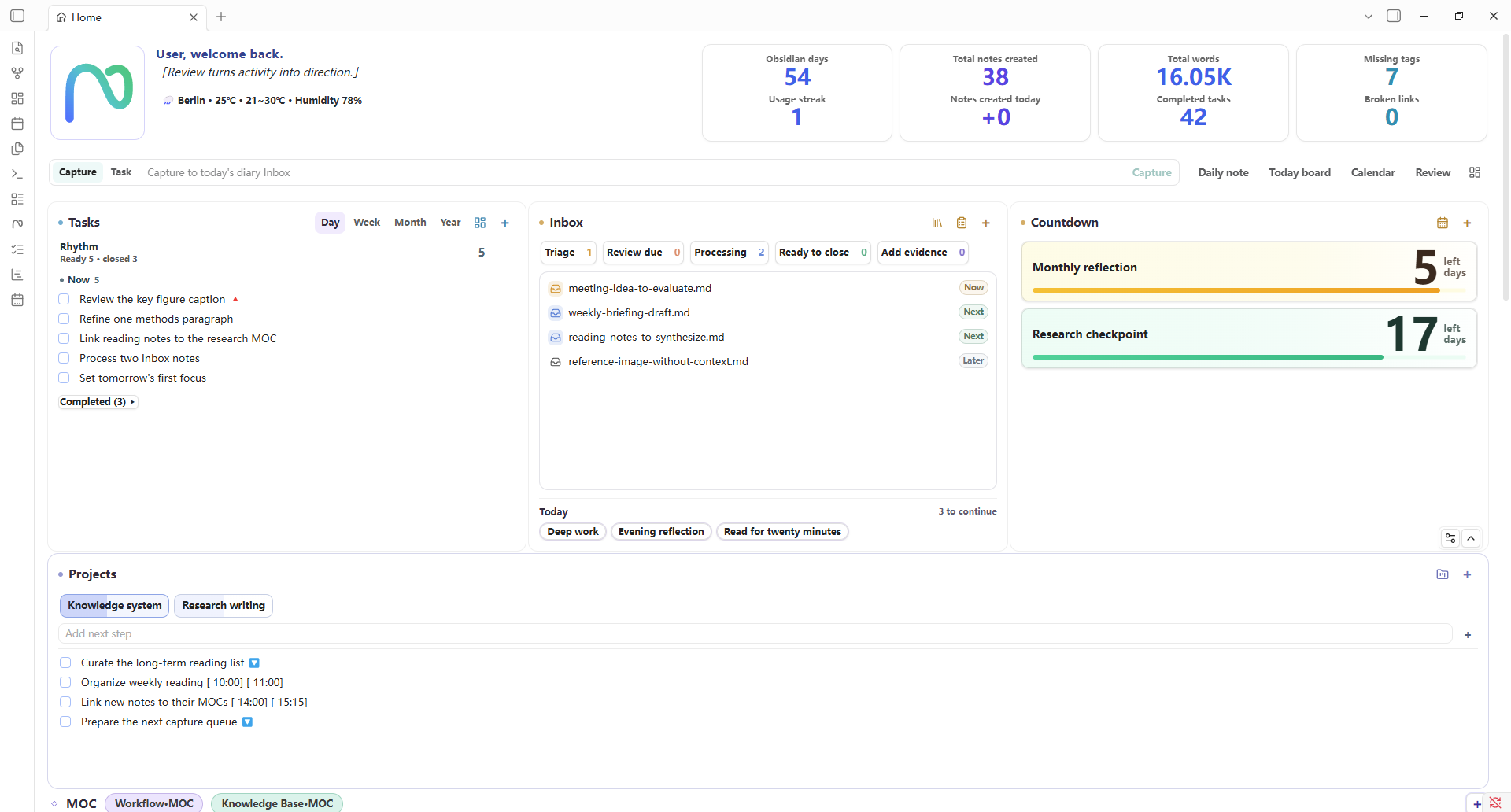
The Projects area connects project home notes with their current tasks. MOC cards provide entrances to knowledge maps and related notes, so material you have collected remains reachable while working. Inbox groups help you return to captured material and decide what to process next.
Home is a widget dashboard. You can enable or hide cards, change their order and size, and add content such as a Markdown briefing, a project-monitor note, or a Base. A briefing written by an external script or agent can appear alongside your tasks; Noria reads that note without needing to generate it itself.
Task Board: choose the view that fits the decision
Task Board gathers tasks from the diary, projects, and other configured notes. The source task remains in Markdown, and edits to its schedule or completion state write back to that source.
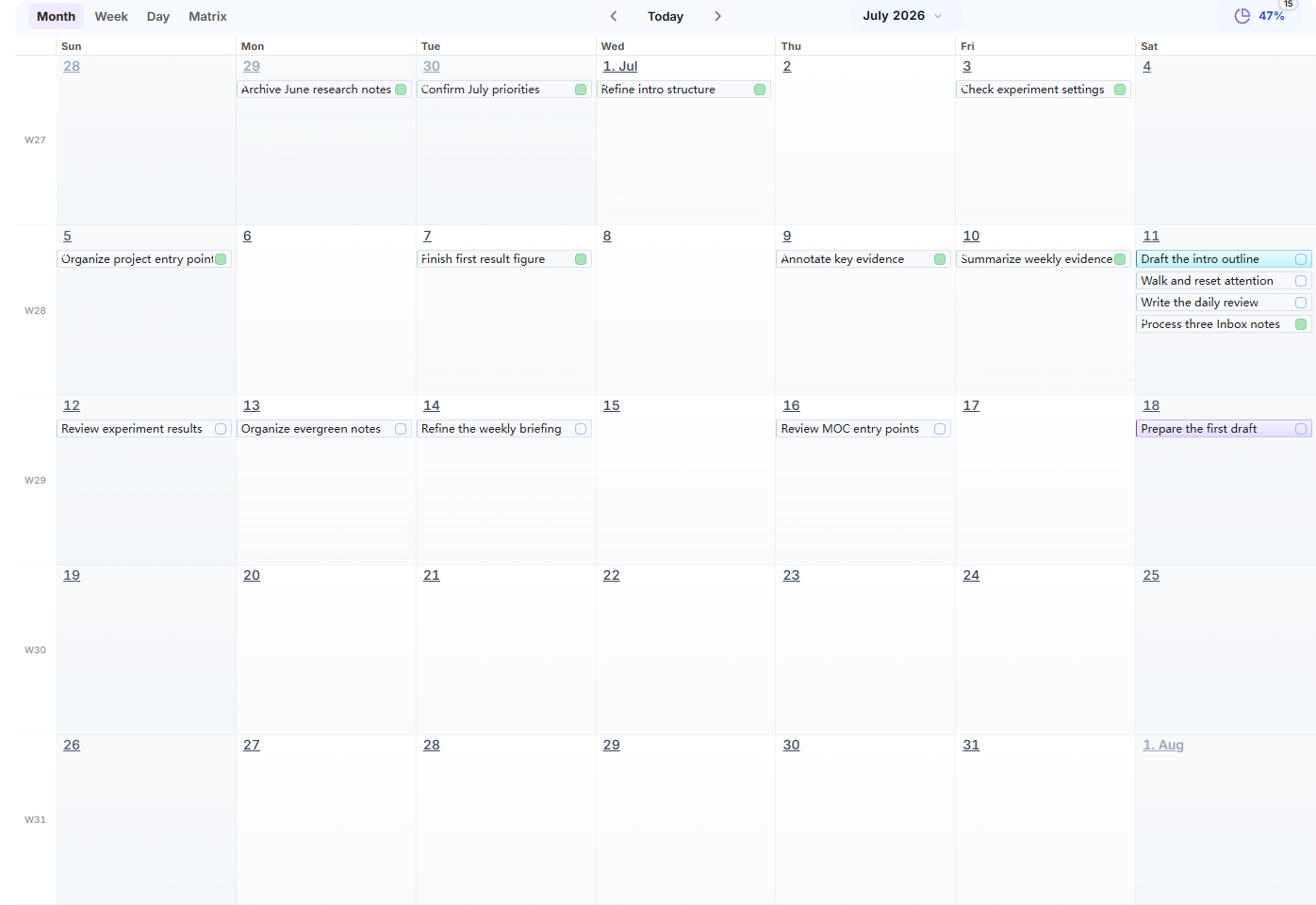
Month gives an overview of dates, deadlines, and work across several days.
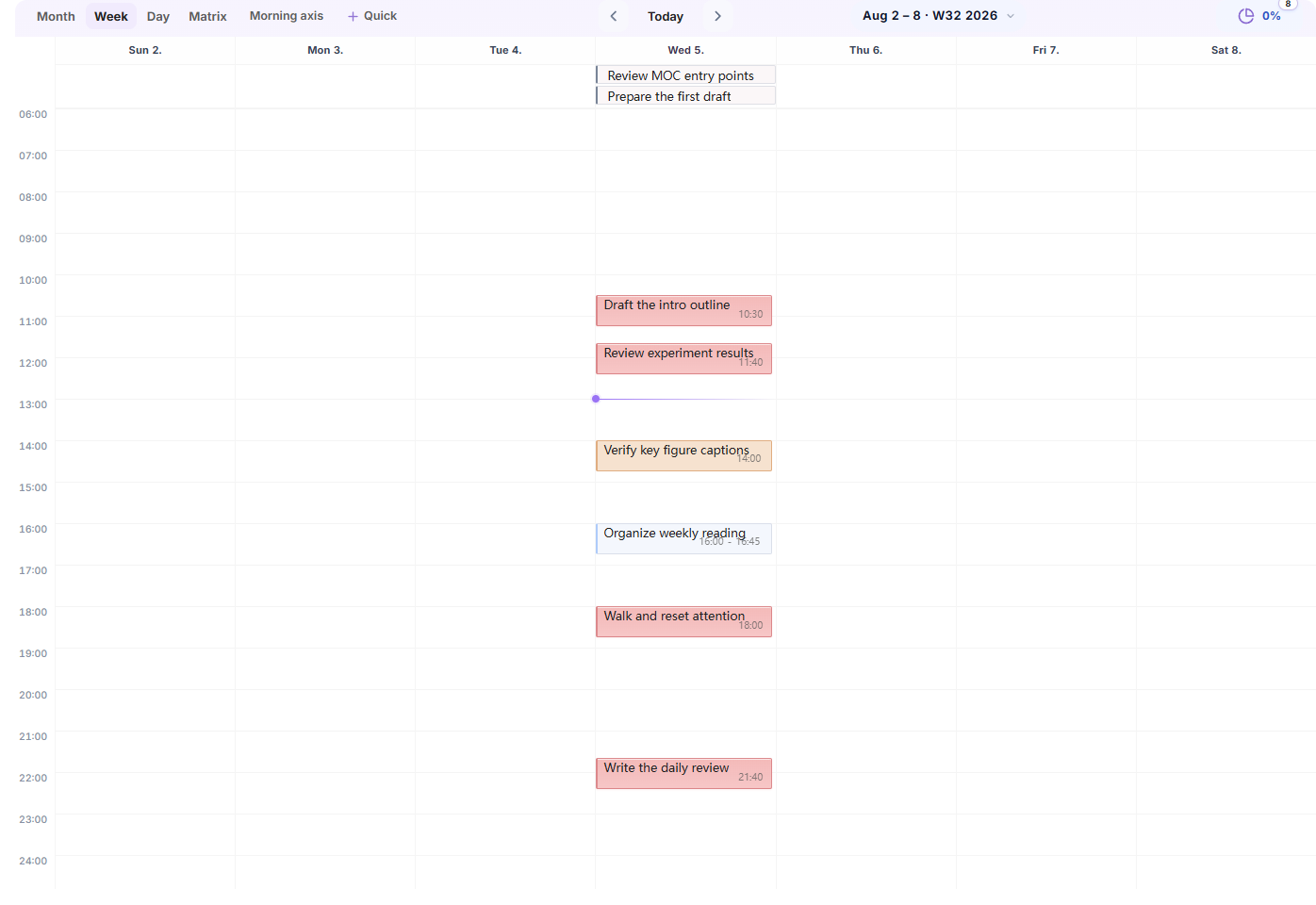
Week brings scheduled work into the week’s time slots, with an all-day area above.
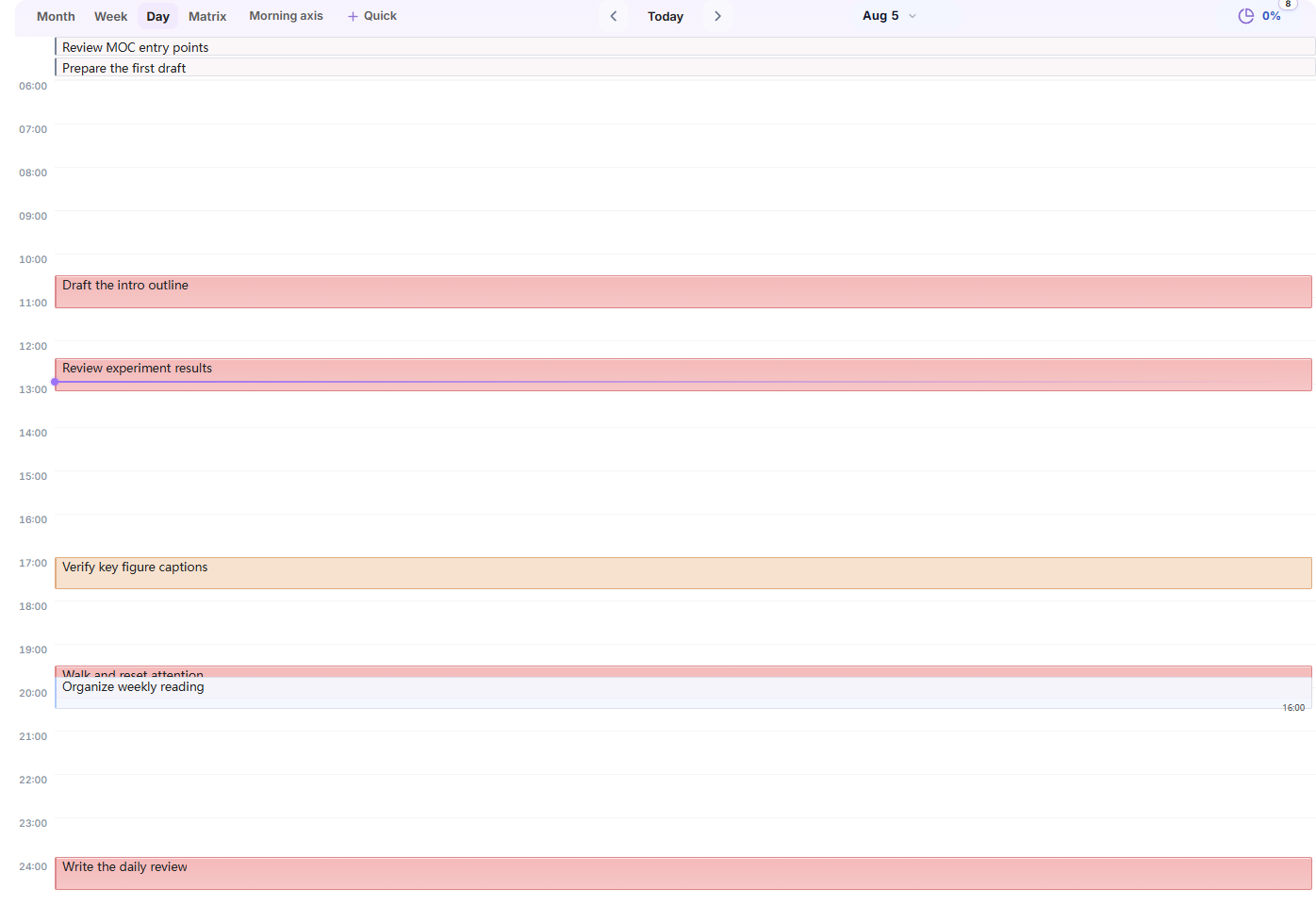
Day focuses on one day’s tasks and timing.
Matrix groups tasks by importance and urgency when the next decision is about priority.
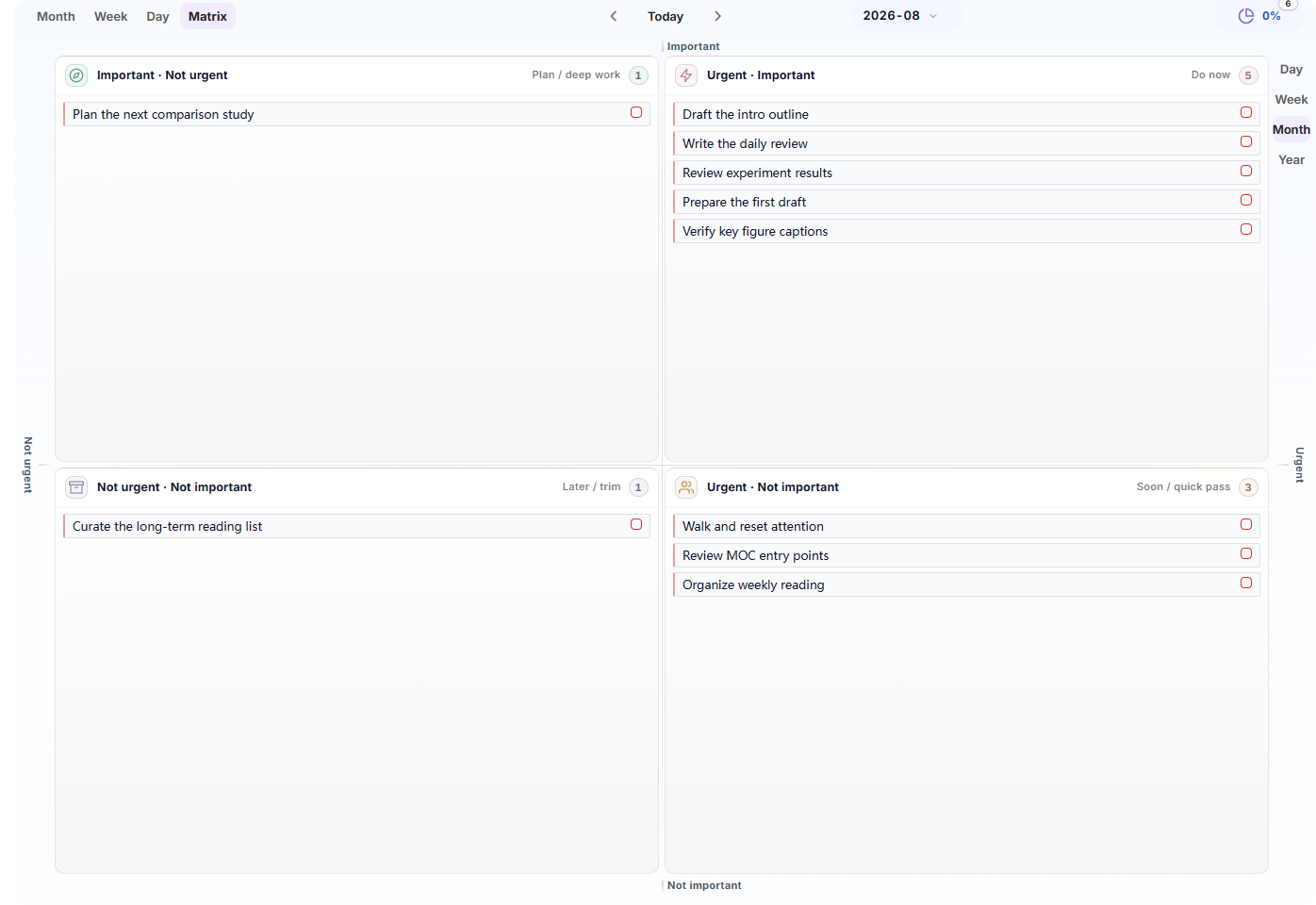
You can open a task’s original note to recover the surrounding discussion, references, or project plan. The board, Home statistics, and Timeline use the same task records.
Task Timeline: from project phases to the hours in a day
Task Timeline places dated tasks and project phases on a horizontal timeline. It can occupy the main area for a broader plan or stay in the sidebar while you work in a note.
The following example follows a team making a city garden field guide and hosting a community walk, with 30 tasks over two weeks:
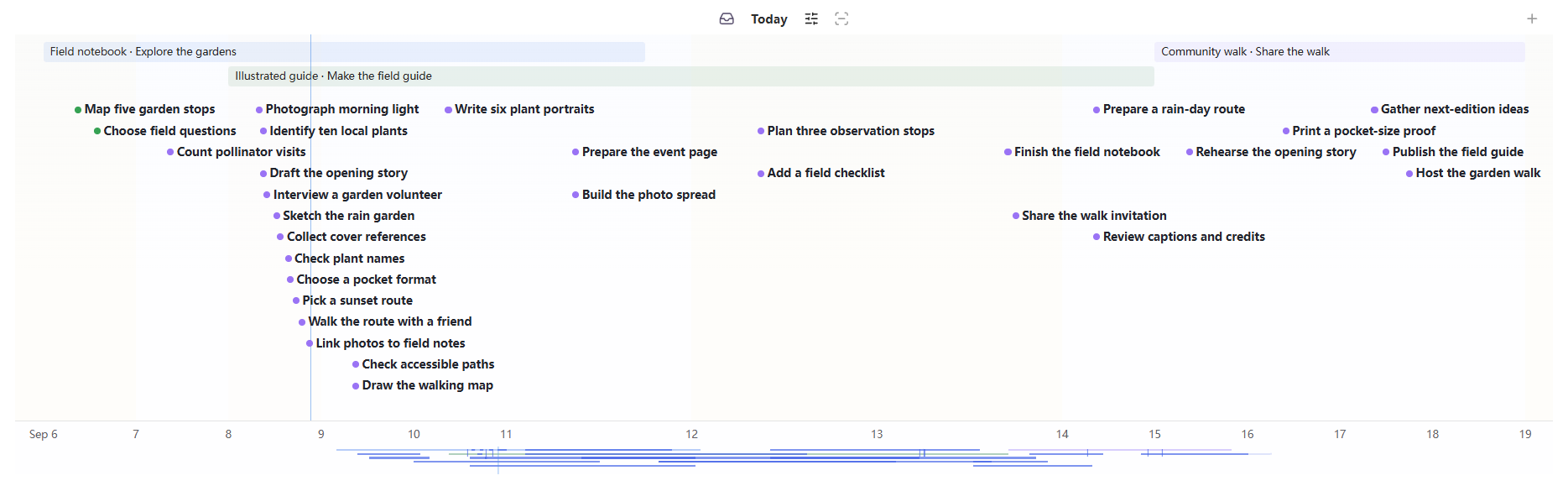
Each task has a circle followed by a short title. Circle color shows completion while the title stays readable. Hover or focus a task to see its full schedule, duration, and source note.
Zooming into hours makes the smaller gaps and overlaps easier to see. Drag the bottom date row or minimap to move through time.
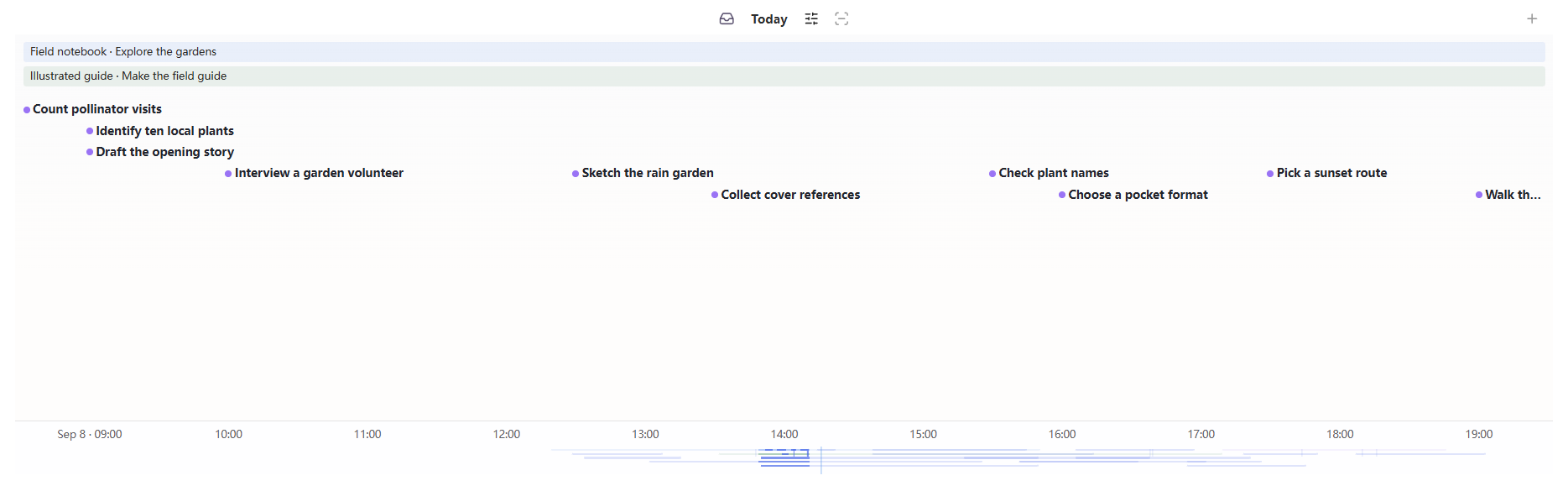
Named project or global time annotations mark phases above the tasks. You can create, rename, adjust, or remove these periods without changing task dates.
All screenshots in this post use example data. These two Timeline screenshots and the revised Timeline interactions described here are from the current preview build.
Calendar: a route into periodic notes
Calendar lives in the sidebar and opens or creates daily, weekly, monthly, quarterly, and yearly notes. It can use Noria’s configured diary paths, Obsidian Daily Notes, or your own folder and naming pattern, with templates for the relevant periods.
This connects planning and reflection to the same dated notes: open a day to record work, return to the week for a broader plan, and save a review into the matching period note.
Habits and statistics: today and the longer view
Today’s habit check-ins stay close to the Inbox on Home. Full habit cards support checkbox and numeric habits, targets and units, and pausing or marking a habit as established. The records remain ordinary Markdown.
Trends and Statistics show note growth, task completion, habit and workload heatmaps, note distribution, and daily-state signals over a shared range. These are independent Home widgets, so you can keep the charts that help you and hide the rest. Workload heatmaps show relative activity; they are not a time tracker.
Review Center: write, inspect evidence, and save
Review Center supports daily, weekly, monthly, and yearly reviews. It opens on the editable final review, with evidence and analysis available when you need them.
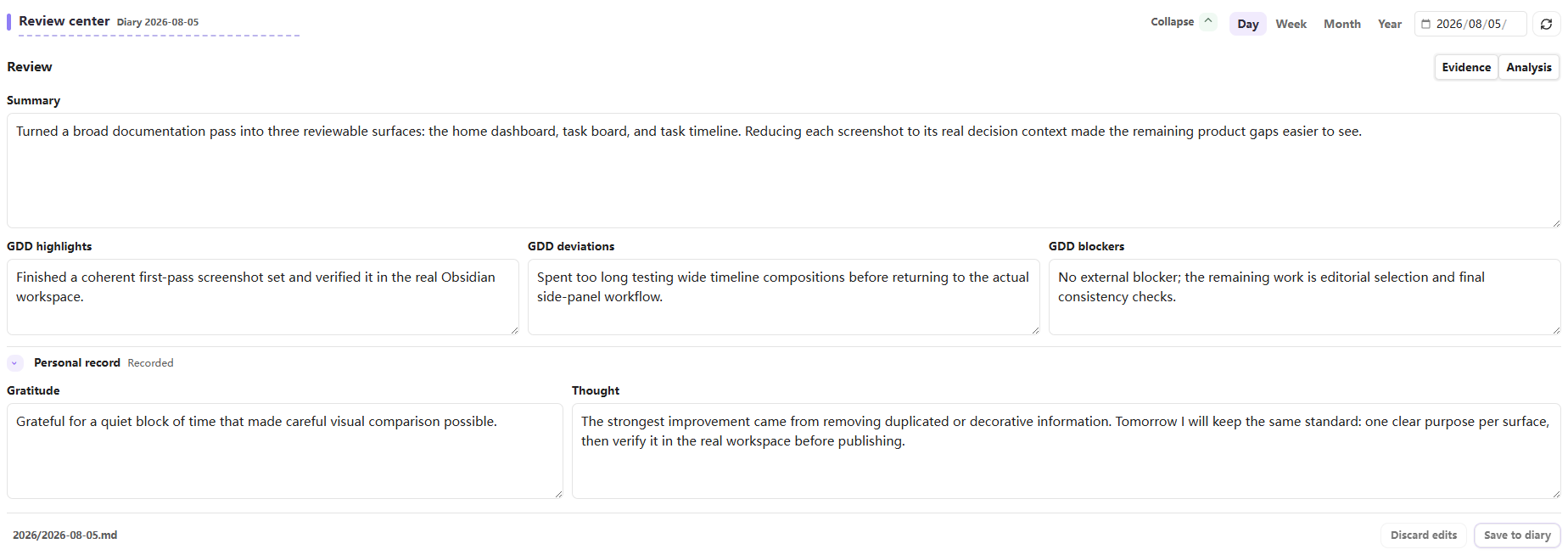
You can write directly, or prepare local evidence and prompts for an external AI workflow. Noria does not call a model inside the plugin. External analysis can be inspected and edited before you choose what to adopt; an explicit save writes the final review to the diary or period note.
Configure it around your vault
For a new vault, Standard workspace keeps the starter content under Noria/. For an existing vault, Custom paths connects Noria to your own diary, projects, Inbox, MOC, and template locations.
The seven settings pages divide the choices by use:
| Page | What you can configure |
|---|---|
| Overview | Workspace initialization, paths, module switches, and scan scope |
| Home | Widgets, knowledge entrances, Inbox workflow, review prompts, and weather |
| Tasks | Task sources, tags, status handling, and filtering |
| Timeline | Opening position, scale, layers, completion display, and named views |
| Calendar | Date sources, period templates, and note-creation behavior |
| Appearance | Density, theme following, and status and tag colors |
| Maintenance | Installation checks, diagnostics, settings backup, and trusted custom views |
Custom JavaScript view widgets require an explicit trust setting. The built-in views work without it. Optional weather and other network-related behavior are described in the README disclosures.
Try one complete path
Noria supports English and Chinese and requires desktop Obsidian 1.5.0 or later. The project is open source under the MIT license.
Installation and source code · Published releases · User guide · 中文手册
For a first session:
- Install and enable Noria, then open Settings → Noria → Overview.
- Choose Standard workspace or Custom paths, inspect the initialization preview, and create the missing starter content you want.
- Open Home, choose a sample project, and follow it to its source note.
- Record one task for that project, give it a date, and find it in Task Board or Task Timeline.
- Advance the task by changing its schedule or marking it complete, then return to the source note to see the change in context.
That is the path I want to make clear: initialize → find a project → record and advance one task. The other modules can be introduced as they become useful.
Feedback and discussion
I’d like to hear how this fits your actual vault:
- Is it clear where tasks come from and where your changes will be saved?
- Does moving between Home, projects, the board, Timeline, and reviews preserve the context you need?
- Which layouts, visual details, interactions, or plugin settings make the workflow harder to understand or use?
Please share questions and workflows in this thread or join Noria on Discord. Reproducible bugs and concrete feature requests can also go to GitHub Issues; I can help turn a discussion into an issue when needed.
也欢迎用中文交流,分享实际用法,以及初始化、界面、交互和设置中不清楚的地方。