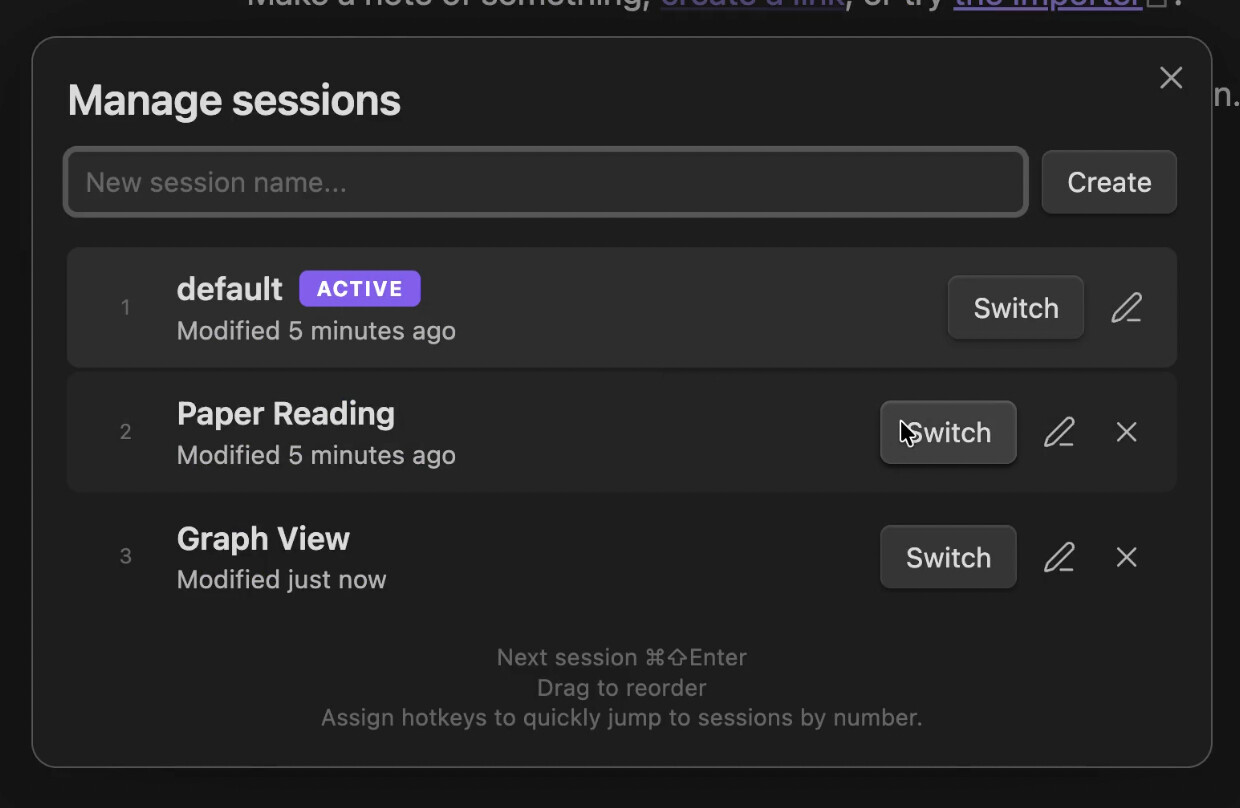
I’ve been using the core Workspaces plugin, but a few things always bothered me — no auto-save, easy to overwrite by mistake, and switching never felt smooth.
I tried some community alternatives too. They cover a lot of ground, but I wanted something simpler — just the basics, with better UX.
So I built Workspace++. It’s a workspace session manager that tries to feel like a core plugin. Auto-saving, fast switching, and a UI that stays out of the way.
The other focus was on UI simplicity. I found some parts of existing solutions a bit hard to navigate, so I designed the session manager to follow the look and feel of Obsidian’s core Workspaces plugin.
Workspaces Plus may be a better fit if you need advanced functionality, but I think Workspace++ is quite easy to use as well. If there’s demand, I plan to add more features as options.
I like how it works. And it seems to sync well between devices, which was the key problem with Workspaces Pro. Is it possible to remove the Switcher after changing the workspace? It’s a minor annoyance to have to dismiss it every time.
Thank you for the feedback! Good to hear the cross-device sync is working well for you. That wasn’t something I specifically focused on, but glad it’s not causing issues.
Before looking into the Switcher behavior, I’d like to confirm what you mean by it. Is it the screen shown in the image below?
I would suggest having a command (+hotkey) to create a new workspace without having to go through the manager. Both native workspaces and Workspaces Plus makes you go to manager, click on new name, enter on keyboard, click on create : very awkward imo
Thanks for the feedback! I totally agree — I personally don’t create new sessions very often, so I hadn’t noticed how awkward the flow was through the manager.
This has been addressed. You can now manage sessions entirely through hotkeys without ever opening the manager:
New empty session — creates a blank session instantly (assign your own hotkey)
Duplicate current session — Cmd/Ctrl+Shift+M
Rename current session — Cmd/Ctrl+Shift+R
Delete current session — Cmd/Ctrl+Shift+Backspace
Next session — Cmd/Ctrl+Shift+. or Cmd/Ctrl+Shift+Enter
Previous session — Cmd/Ctrl+Shift+,
Switch to session 1–9 — assignable in hotkey settings
Next/Previous session hotkeys correspond to <> on an English keyboard layout.
All of these show a visual overlay (like Cmd+Tab) so you can see where you are.
This is now released — if you’re using BRAT, just update and you’re good to go.