Vault AI Chat - Obsidian Plugin
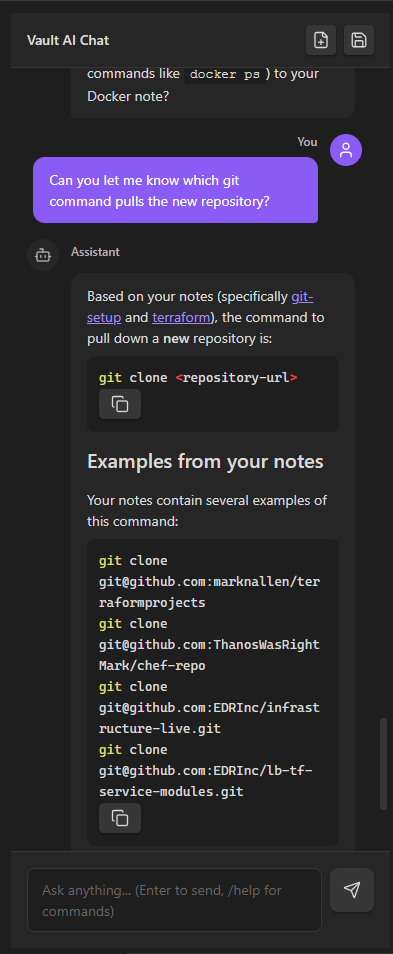
An AI-powered chat assistant that lives inside your Obsidian vault. Ask questions, get answers based on your notes, and manage files directly from the chat interface.


 Features
 AI Chat
- Chat with AI right inside Obsidian
- AI reads your notes for context (RAG - Retrieval Augmented Generation)
- Supports multiple AI providers
- Streaming responses for real-time feedback
 File Operations
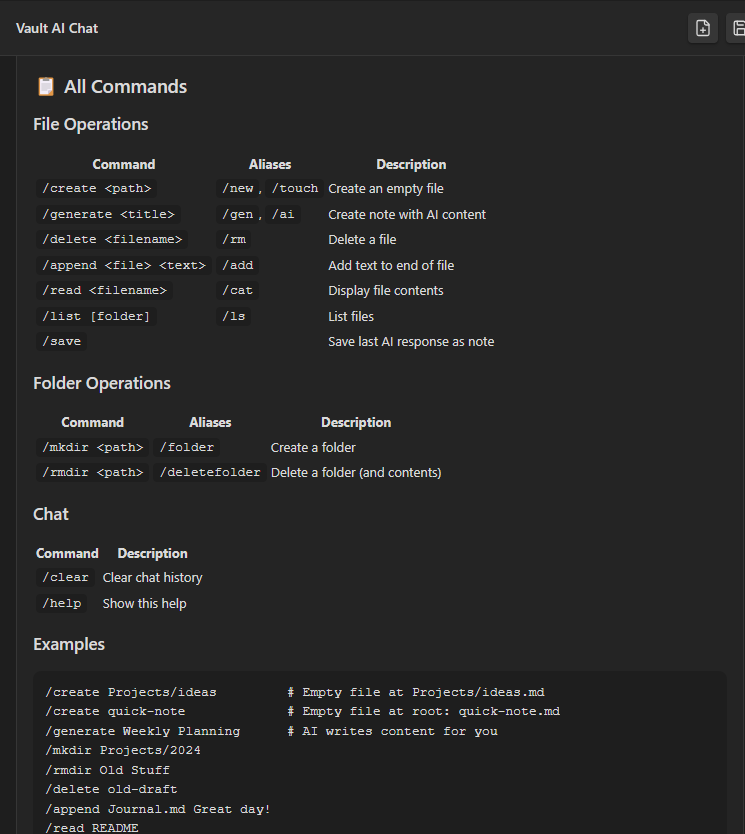
Manage your vault directly from the chat with slash commands:
- Create files and folders
- Delete files and folders
- Append text to existing files
- Read and list files
 AI-Powered Writing
- Generate complete notes with AI
- Save any AI response as a note
- Copy responses to clipboard
 Installation
Option 1: Pre-built (Easy)
-
Download
vault-ai-chat-v1.1.1.zip -
Extract the zip file
-
Copy the 3 files (
main.js,manifest.json,styles.css) to:YourVault/.obsidian/plugins/vault-ai-chat/ -
Create the
vault-ai-chatfolder if it doesn’t exist -
Restart Obsidian
-
Go to Settings → Community Plugins → Enable “Vault AI Chat”
Option 2: Build from Source
See the Building from Source section below.
 Configuration
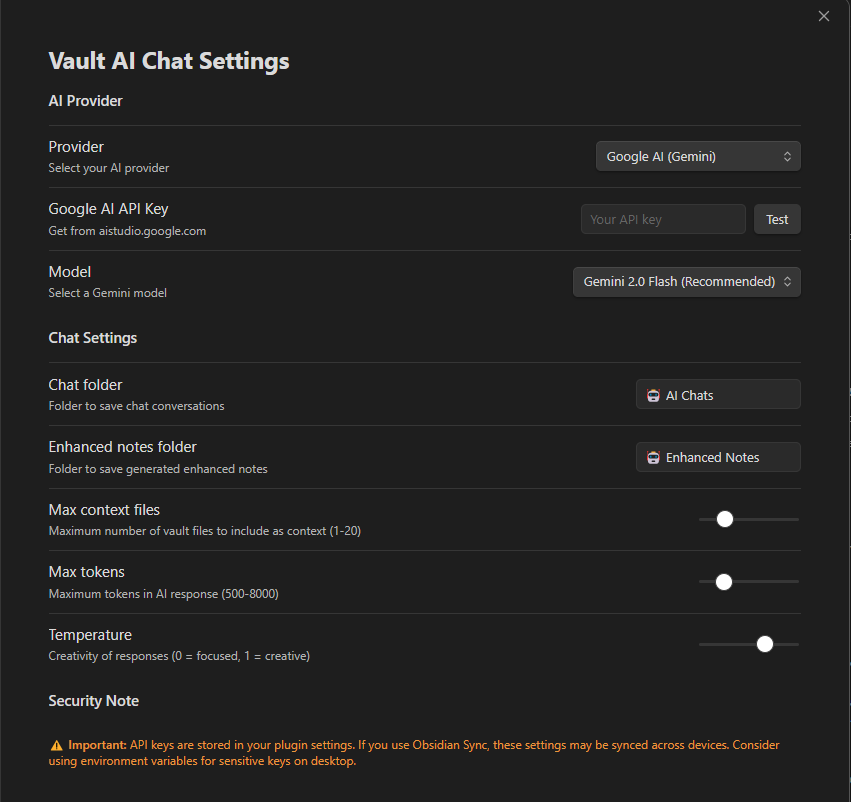
- Open Obsidian Settings
- Go to “Vault AI Chat” in the left sidebar
- Choose your AI provider and enter your API key
- Select a model
- Click “Test” to verify the connection
Supported Providers
| Provider | Description | Get API Key |
|---|---|---|
| OpenRouter | Access to many AI models (Claude, GPT-4, Llama, etc.) | openrouter.ai/keys |
| Google AI | Gemini models (2.0, 2.5) | aistudio.google |
| Ollama | Run AI locally on your computer (free!) | ollama.ai |
| MiniMax | MiniMax M2 models | platform.minimax.i |
| OpenAI Compatible | Any API that works like OpenAI (DeepSeek, Groq, Z.AI GLM, local LLMs) | Varies |
 Commands Reference
File Operations
| Command | Aliases | What it does | Example |
|---|---|---|---|
/create <path> |
/new, /touch |
Creates an empty file | /create Projects/ideas |
/generate <title> |
/gen, /ai |
AI writes content for you | /generate Weekly Plan |
/delete <file> |
/rm |
Deletes a file | /delete old-draft |
/append <file> <text> |
/add |
Adds text to end of file | /append Journal.md Great day! |
/read <file> |
/cat |
Shows file contents | /read README |
/list [folder] |
/ls |
Lists files | /list Projects |
/save |
Saves last AI response | /save |
Folder Operations
| Command | Aliases | What it does | Example |
|---|---|---|---|
/mkdir <path> |
/folder |
Creates a folder | /mkdir Projects/2024 |
/rmdir <path> |
/deletefolder |
Deletes folder + contents | /rmdir Old Stuff |
Chat Commands
| Command | What it does |
|---|---|
/help |
Shows all commands |
/clear |
Clears chat history |
 Usage Examples
Creating Files
/create quick-note              → Creates quick-note.md in vault root
/create Projects/meeting-notes  → Creates Projects/meeting-notes.md
/create Archive/2024/January    → Creates file with nested folders
AI-Generated Content
/generate Weekly Planning       → AI writes a weekly planning template
/generate Project Proposal      → AI creates a project proposal
/generate Study Notes: Biology  → AI writes study notes
Natural Language
You can also just ask naturally:
- “Write a note about productivity tips” → AI generates content with a save button
- “Create a meal plan for next week” → AI writes it, you click save
File Management
/mkdir Projects/2024/Q1         → Creates nested folder structure
/list Projects                  → Shows files in Projects folder
/read README                    → Displays README.md contents
/append Daily Log.md Had lunch  → Adds text to Daily Log.md
/delete old-draft               → Deletes old-draft.md (with confirmation)
/rmdir Archive/Old              → Deletes folder and everything inside
 Settings
Chat Settings
- Chat folder: Where saved chats go (default: “AI Chats”)
- Enhanced notes folder: Where AI-generated notes go (default: “Enhanced Notes”)
- Max context files: How many of your notes the AI sees (1-20)
- Max tokens: Length of AI responses (500-8000)
- Temperature: Creativity level (0 = focused, 1 = creative)
Security Note
 API keys are stored in your plugin settings. If you use Obsidian Sync, these may sync across devices. For sensitive keys, consider using the OpenAI Compatible option with environment variables.
 Building from Source
Prerequisites:
- Node.js (version 16 or newer) - Download here
- A code editor (VS Code recommended)
- Basic familiarity with the command line/terminal
Step-by-Step Instructions
Step 1: Get the source code
# If you have the source zip, extract it to a folder
# Or clone from git if available
Step 2: Open a terminal/command prompt
- Windows: Press
Win + R, typecmd, press Enter - Mac: Press
Cmd + Space, typeTerminal, press Enter - Linux: Press
Ctrl + Alt + T
Step 3: Navigate to the plugin folder
cd path/to/vault-ai-chat
(Replace path/to/vault-ai-chat with the actual folder location)
Step 4: Install dependencies
npm install
This downloads all the required code libraries. It may take a minute.
Step 5: Build the plugin
npm run build
This compiles the TypeScript code into JavaScript that Obsidian can run.
Step 6: Copy to Obsidian
After building, you’ll have these files:
main.jsmanifest.jsonstyles.css
Copy all three to your Obsidian vault:
YourVault/.obsidian/plugins/vault-ai-chat/
Step 7: Enable the plugin
- Restart Obsidian
- Go to Settings → Community Plugins
- Find “Vault AI Chat” and enable it
Development Mode (for making changes)
npm run dev
This watches for changes and rebuilds automatically.
 Project Structure
vault-ai-chat/
├── main.ts                 # Plugin entry point
├── manifest.json           # Plugin metadata
├── styles.css             # UI styling
├── package.json           # Node.js dependencies
├── tsconfig.json          # TypeScript configuration
├── esbuild.config.mjs     # Build configuration
└── src/
    ├── core/
    │   ├── provider.ts           # LLM provider interface
    │   ├── providers/            # Provider implementations
    │   │   ├── openrouter.ts
    │   │   ├── google-ai.ts
    │   │   ├── ollama.ts
    │   │   ├── minimax.ts
    │   │   └── openai-compatible.ts
    │   ├── grounding/
    │   │   ├── vault-search.ts   # Searches your notes
    │   │   └── context-builder.ts
    │   └── templates/
    │       └── note-templates.ts
    ├── storage/
    │   ├── settings.ts           # Plugin settings
    │   └── chat-persistence.ts   # Saves chat history
    ├── commands/
    │   └── commands.ts           # Obsidian commands
    └── ui/
        ├── chat-view.ts          # Main chat interface
        └── settings-tab.ts       # Settings page
 Troubleshooting
“No AI provider configured”
→ Go to Settings → Vault AI Chat and enter your API key
“Authentication Error”
→ Check that your API key is correct and has credit/quota
“Model Not Found”
→ The model name may be wrong. Check the provider’s documentation.
Chat is slow
→ Try a faster model (e.g., gemini-2.0-flash or gpt-3.5-turbo)
Responses are cut off
→ Increase “Max tokens” in settings
Plugin doesn’t appear
→ Make sure all 3 files are in the plugin folder and restart Obsidian
 Changelog
v1.1.1
- Fixed folder/file deletion on OneDrive and cloud-synced vaults
- Now uses trash instead of permanent delete (recoverable!)
- Better error messages with helpful tips
v1.1.0
/createnow creates empty files (use/generatefor AI content)- Added
/generatecommand for AI-written notes - Added
/rmdircommand to delete folders - Added
/touchalias for/create - Improved
/helpwith comprehensive command list
v1.0.x
- Initial release
- Chat interface with streaming
- Multiple AI provider support
- File operations (create, delete, append, read, list)
- Folder creation
- Save responses as notes
 License
MIT License - feel free to use, modify, and distribute.
 Credits
Built for Obsidian by Mark Allen.
Uses the Obsidian Plugin API and various AI provider APIs.