Hello everyone,
Like many of you, I use Obsidian for everything, which means I paste a lot of screenshots and images into my notes. I started noticing my vault was getting larger and larger, making sync times longer and the vault feel less portable.
To solve this, I spent my time since July developing a solution that I’m excited to share with you all today.
Introducing NotePix: A plugin to automatically upload images from your vault to a GitHub repository, keeping your notes lean and fast.
I built this with two core principles in mind: security and flexibility.
 Key Features
 Seamless Automation: Just paste or drag an image into your note. NotePix detects it, uploads it, and replaces the local link for you.
 Private Repository Support: This was essential for me. You can use a private GitHub repository to store your images. NotePix securely fetches and displays them on-the-fly in Reading View, so your assets are never public.
 Secure Token Storage: Your GitHub Personal Access Token is never stored in plain text. It is encrypted using AES-GCM and requires a master password to decrypt once per session.
 Fast CDN Links: When using a public repository, the plugin uses GitHub’s fast raw content URL, making your images load quickly anywhere.
 Optional Clean Up: You can configure the plugin to automatically delete the local image file after a successful upload to save space.
 Mobile Compatible: Works on both Obsidian Desktop and Mobile.
How It Works
The process is simple. When you add an image to a note:
- NotePix uploads the image file to your configured GitHub repository (
/assets/folder, for example). - It then replaces the local
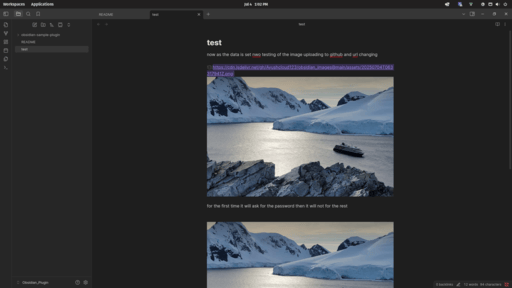
![[image.png]]link with a markdown link. - If you’re using a private repo, the link will appear broken in the editor, but will be securely rendered and displayed perfectly in Reading View.
Here is a quick demo of the workflow:
 Quick Setup Guide
- Create a GitHub Repository: Go to GitHub and create a new repository. It can be Public or Private.
- Generate a GitHub PAT: In your GitHub Developer Settings, generate a new “Personal access token (classic)” with the
reposcope. Copy this token immediately. - Configure NotePix: Install the plugin from the Community Plugins browser, open its settings, and fill in your GitHub username, repository name, and paste the token. I highly recommend enabling encryption for maximum security.
This has been a real passion project for me, and I’m eager to hear what the community thinks. I’m looking for feedback, bug reports, and any feature suggestions you might have to make it even better.
You can install NotePix directly from the Community Plugins browser in Obsidian.
For the full documentation and source code, please visit the GitHub repository: NotePix(github)
“ayushparkara/notepix”
Thank you for checking it out!