I expect controls that are clear enough so I can comprehend and use efficiently.
Currently there is an accessibility issue with some menus such as opened note tab menu and link menu.
I’m overwhelmed and can’t comprehend the long list of items with no obvious structure. Every time it takes long time to find the item I need or to see whether what I’m thinking about is available at all.
Who are most likely to suffer like me: anyone with neurodiversity, information processing challenges (ADHD, ASD, likely some other diagnoses)
Proposed solution
What I’d like to see:
better organization of the menus, so I could understand the logic of what is expected to be where. Even if there is some logic currently, I can’t comprehend it
benefits might go further than the length issue if more clear organization would allow me better understand what each menu item does exactly with relation to the context item over which the context menu is opened - some menu items are inherited from some parent context and it is not always clear what to expect and why it is there at all;
visual cues for said organization - such as named groups, submenus
named groups in context menus are not very common so may require some innovation…;
submenus don’t need extra explanation I guess;
guidelines for plugin authors about how to maintain healthy menus, with some level of enforcement
it should be incentivized to add tightly related items as a submenu;
API methods for creating submenus should be added if they don’t exist already;
maybe some item groups of very common items can be condensed into icon-only rows that can be seen in some modern Windows applications (https://files.community/ for example);
This has to be used very sparingly, because there is a risk to introduce more confusion, and the ability to use custom icons for clarity is currently limited if at all present.
I opened the issue for the Links plugin as a major UX abuser, but I also need the awareness of the Obsidian team.
Current workaround (optional)
I’m not aware of any. I think some plugin promised to allow to remove items from various menus, but I’m not sure if it was for these menus. And the solution should be not in removal but in better organization.
Related feature requests (optional)
I’m not aware of any.
Current state illustration
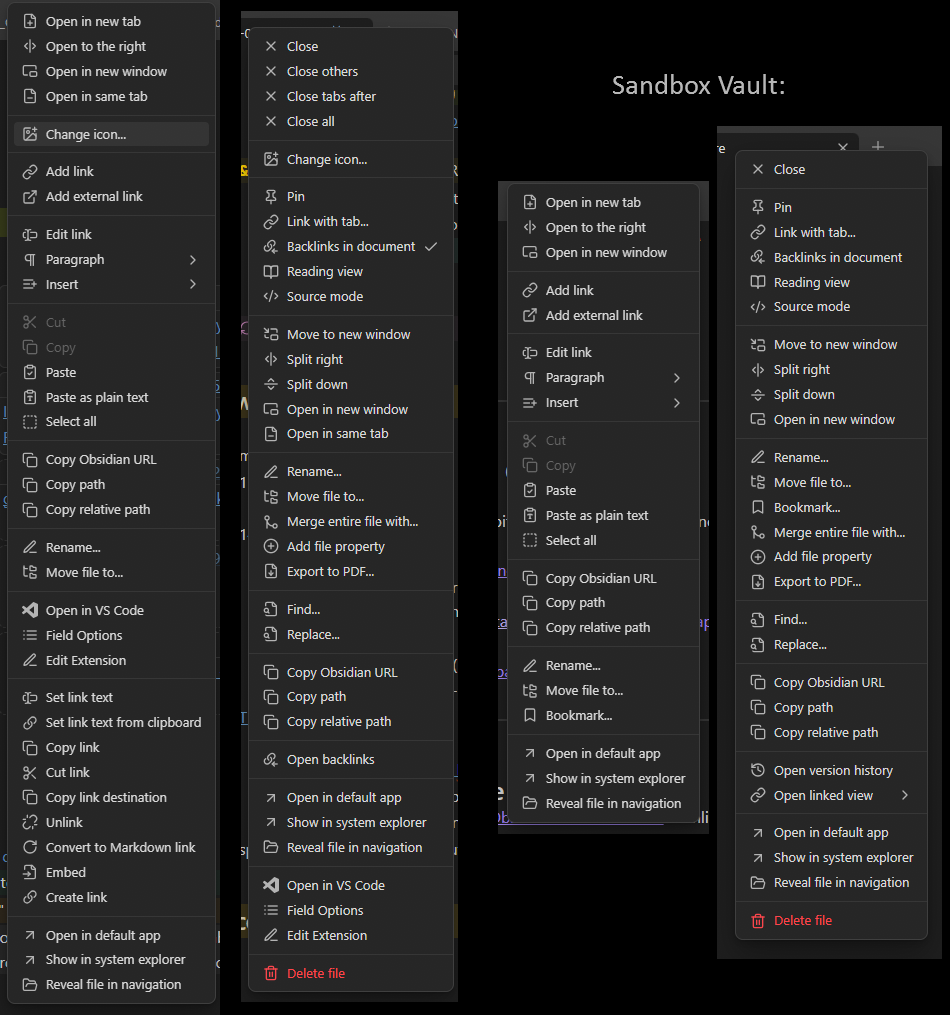
Real vault menus on the left, sandbox on the right.
Sandbox menu of internal links is at the limit of what I can process comfortably.
Content (such as link) menus might be broken into groups based on the hierarchy of contexts that specific items are attached to.
When I’m interacting with a link, I most likely only care about commands that operate on the link. Commands from a broader context most likely can be safely moved into submenus per context.
This is just a first idea and not a refined proposal.
The tab menu contains many items that aren’t about tab management. Removing those gives us a much more manageable menu. (“Link with tab…” and “Open linked view” seem redundant but maybe they do different things?)
- Close
---
- Pin
- Link with tab...
- Open linked view
---
- Move to new window
- Split right
- Split down
- Open in new window
An argument could be made for keeping some or all of the file management items. Here’s the full tab menu list for convenient copying, if you want to experiment:
- Close
---
- Pin
- Link with tab...
- Backlinks in document
- Reading view
- Source mode
---
- Move to new window
- Split right
- Split down
- Open in new window
---
- Rename...
- Move file to...
- Bookmark...
- Merge entire file with...
- Add file property
- Export to PDF...
---
- Find...
- Replace...
---
- Copy Obsidian URL
- Copy path
- Copy relative path
---
- Open version history
- Open linked view
---
- Open in default app
- Show in system explorer
- Reveal file in navigation
---
- Delete file
Many of the non-tab items in the menu are available very near to the tabs, either in the More Actions (3 dots) menu or as icons by the note name.
The link menu contains fewer irrelevant items (altho why is “Add link” there in the menu for an exiting link?), but could still be trimmed.
- Open in new tab
- Open to the right
- Open in new window
---
- Edit link
---
- Cut
- Copy >
- Paste
- Paste as plain text
- Select all
---
- Open in default app
- Show in system explorer
- Reveal file in navigation
Or we could just use the rarely-seen tablet version of the link menu:
- Open in new tab
- Open to the right
---
- Edit link
---
- Copy Obsidian URL
---
- Rename...
- Move file to...
- Bookmark...
---
- Share
The full link desktop menu list for convenient copying, if you want to experiment:
- Open in new tab
- Open to the right
- Open in new window
---
- Add link
- Add external link
---
- Edit link
- Paragraph
- Insert
---
- Cut
- Copy
- Paste
- Paste as plain text
- Select all
---
- Copy Obsidian URL
- Copy path
- Copy relative path
---
- Rename...
- Move file to...
- Bookmark...
---
- Open in default app
- Show in system explorer
- Reveal file in navigation
While some of the various command in these menus are arguably handy to have there, the clutter they add makes it harder to use the more primary items. I think it’s better to leave the adding of such extras to plugins like Commander.
I think it would be useful to look at the tab and link context menus of other relevant apps to see what they include, but I don’t have time right now.
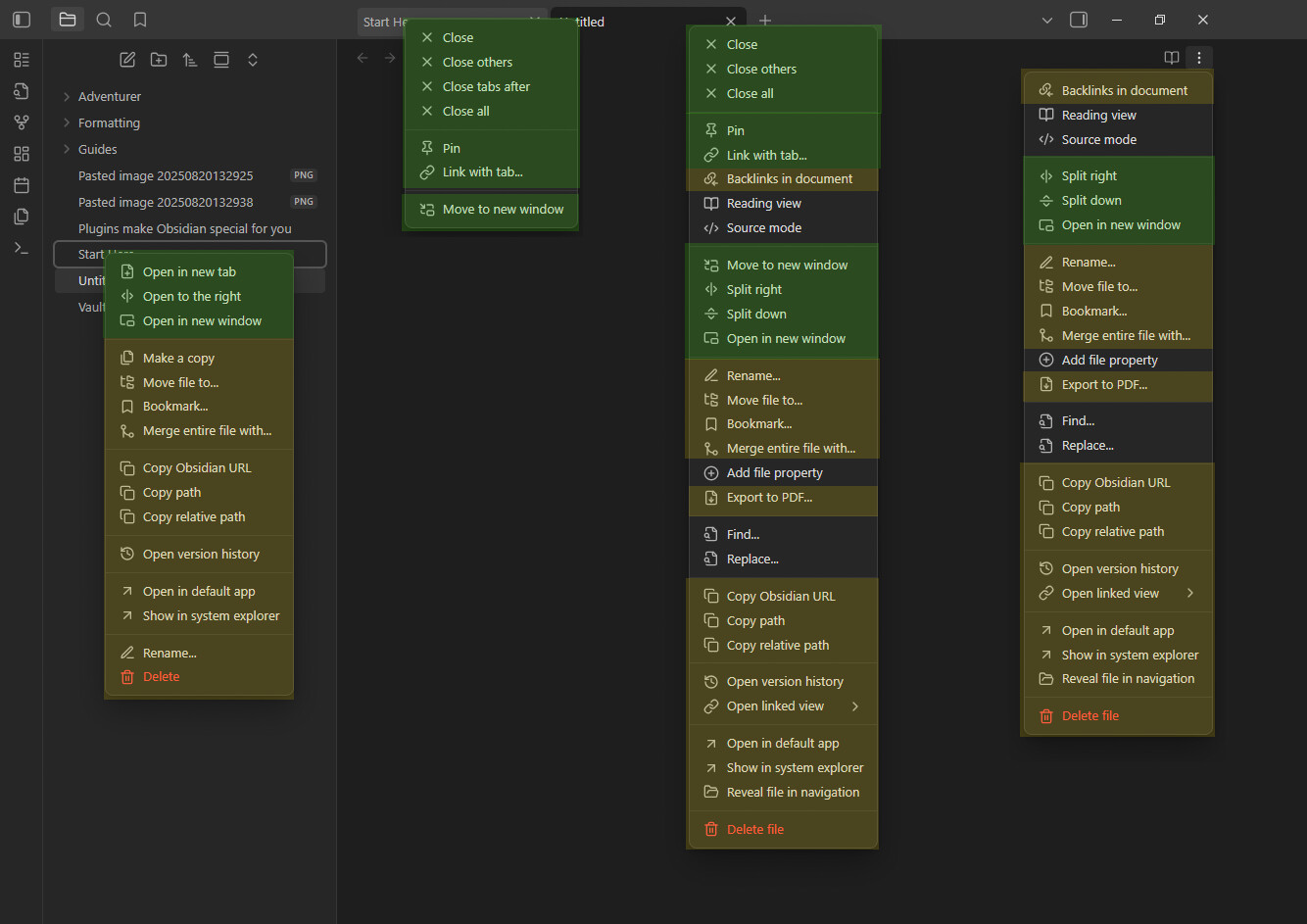
Highlighted in green and yellow(ish) are unique elements, unhighlighted are shared elements.
When interacting with a specific element inside a note, it is arguably less useful to see all inherited commands.
Currently they are intermixed, and extensions will only increase the chaos.
My point from previous comment still holds. Inherited commands can be moved to a submenu/distinct named group, or even removed. I just decided to add this illustration.
When inherited commands moved to a submenu, there will be no confusion about their context.
Now checking what some of inherited commands do in a context of a link:
adding link inside another link might only be useful if that one will be edited into an embed (by adding !), and when the cursor is at acceptable position;
adding links and pasting clipboard are more likely to just break stuff as they are not aware of the link context. So it might be better to not have them easily accessible and instead add link-context-specific commands to paste as link destination, paste as link text (partially what Links extension does).
Some of internal link commands can be attributed to the linked note rather than the link itself (in yellow-ish color).
It might be possible to enforce grouping of commands based on scope:
Highlighted in green are tab-related commands, in yellow(ish) are file-related commands, and unhighlighted are file content commands (at least how I interpret them).
(Edit: “Backlinks in document” and “Open linked view” probably would’ve been better uncolored, as more related to content.)
You can see them intermixed, and that makes it difficult to find anything.
This is another illustration for my past comment.
It might be possible to enforce grouping of commands based on scope:
tabs and layout;
note file as a whole
might be possible to further categorize into modifying and non-modifying commands;
content (presentation and editing).
Some further thought on named groups:
They can be made foldable. Folded state can be remembered by the app.
So it might be a bit like an accordion menu, except forcing exactly one unfolded group might be unnecessary.
One real world example that currently has foldable groups in context menus (instead of submenus) is the beta of https://filepilot.tech/ file manager.
For them it might’ve been due to initial constraints of their implementation, but for Obsidian it might actually suit well to work on different platforms including mobile.
I couldn’t agree more! And I really hope this gets official support from the Obsidian team.
From what I understand about how these types of plugins work, their functionality in Obsidian is currently quite limited. Generally, they fall into two main approaches:
The first type of plugin works by waiting for a menu to appear and then injecting CSS (display: none) to hide the items that the user has pre-configured to be hidden.
The second type of plugin also waits for a menu to appear, but then it creates a copy of the menu, replaces the original with the copy, and then makes its modifications to that new menu.
However, both of these approaches have significant drawbacks:
Obsidian only supports adding new items to a menu. It doesn’t provide a direct way to modify the menu’s layout or pre-configure it.
These plugins can only start working after the menu has already appeared, not before. While workarounds like animations can help mask the slight delay, it’s ultimately not a clean or ideal solution.
 I never invoke most of these commands and would like to be able to hide them for good.