I used to have something in the right sidebar that would show a complete list of links for which no file created. I would simply click each link to create a new file using the appropriate template and just continue down the list. I did not install any plugin or create any kind of query or anything. It was there by default, and now it’s gone. I have only been using Obsidian for a few months, and it was always there (I was using it as recently as a few days ago). Does anyone know what I’m talking about? I cannot find this feature/setting anywhere. I can see the non-existant ones in the Graph view, but this was just a list that I could very easily click through to create the non-existant ones.
Things I have tried
I have looked in all of the settings. Again, I know it is not a community plugin, because I have only ever installed 1, which is Creases. And I don’t know how to write a query or script, so it had to be an existing feature of Obsidian.
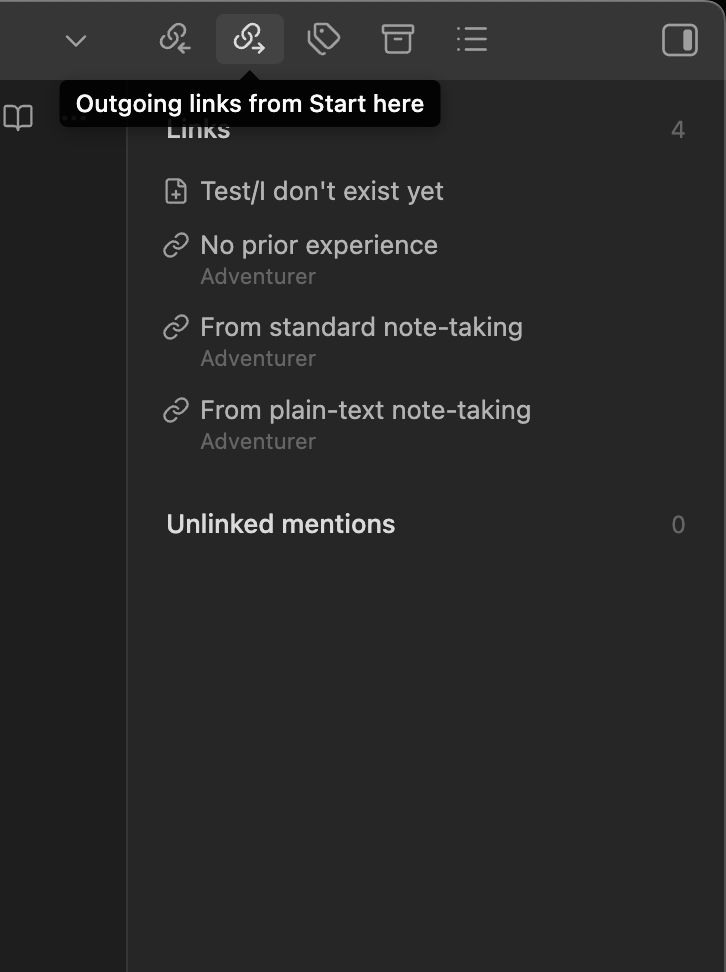
From your description, it makes me think about the Outgoing links core plugins …
Which is available in the right sidebar by default and lists all the links within the currently open/focused note (both existing and non-existing ones).
What I’m really not sure about though, is when you mention this:
… because AFAIK, having a template automatically applied on a new note isn’t something you can really achieve without one or another community plugin …
(I could be wrong though )
That only shows a link for something that doesn’t exist on the current note. The list I had showed every single link for all of my notes. It even grouped them. Then I simply when down the list, clicked on each one, manually selected the correct template (sorry if that sounded confusing from my original post), and then clicked on the next one on the list. I was able to see an complete list of all notes that didn’t exist but had links in one single place. It was very convenient for me because I make a lot of links in my notes and then go back and add the linked info later. Now I have to go into each individual note to see if there are missing links, but before, I had a single list by default. I closed something on the right sidebar and the list was gone and I haven’t been able to figure out what it was.
This really doesn’t sound like a feature one of Obsidian’s core plugins provides …
Not to my knowledge at least .
I did search a little through the Community plugins and stumbled upon one named Broken Links which seems to provide the features you’re describing … Dangling links could be another option, as well as Pending notes.
The latter doesn’t have any settings so from the Obsidian’s settings modal, it doesn’t appear under the Community plugins header after the Core plugins one (so one could think, without checking in the installed Community plugins, that this plugin isn’t actually installed).
There could still be other though …
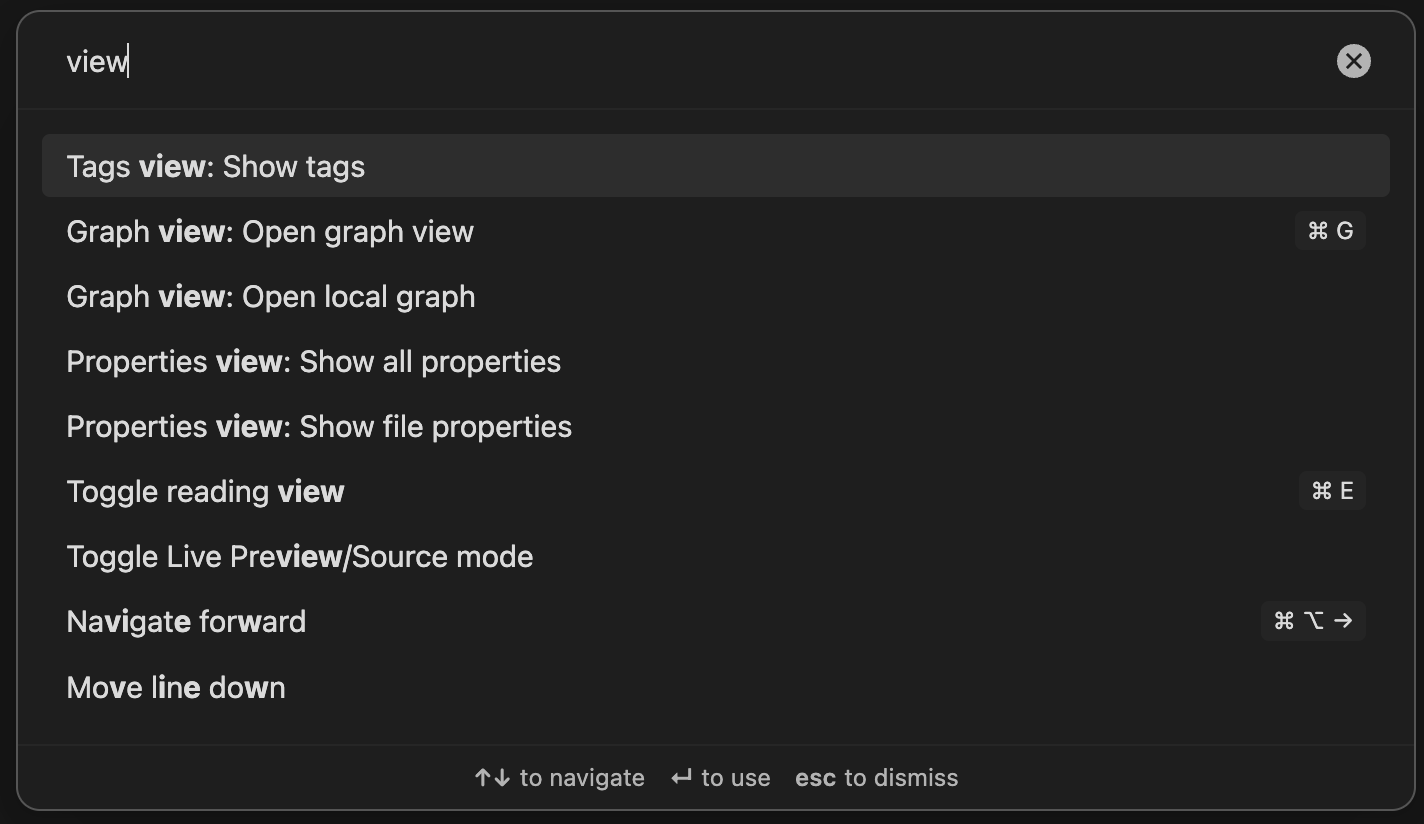
You could possibly find it again by looking for “view” in the command palette .
Generally, plugins (either the core or the community ones) providing “sidebar view(s)” have a command to open it … Either because it was closed or simply to access it .
Thanks for the suggestions. I will check out those plugins, but this is going to haunt me forever. I may try to uninstall Obsidian and then reinstall using the same file and see if I can find a difference somewhere. However it happened, it was very useful. I really can’t understand why this isn’t a core feature, anyhow. Clearly Obsidian can identify the uncreated files, because it does so on the graph view. I would think it’d be trivial to drop them into a list view instead.
Potentially, but I don’t know how to use that. I’ve only been using Obsidian for 2-3 months, and it’s just something I’m messing around with personally, so I’m learning as I go. Thank you for taking the time to respond. I will try to learn more about this and potentially it can meet my needs.
 …
…
 …
… )
) .
. …
… .
.