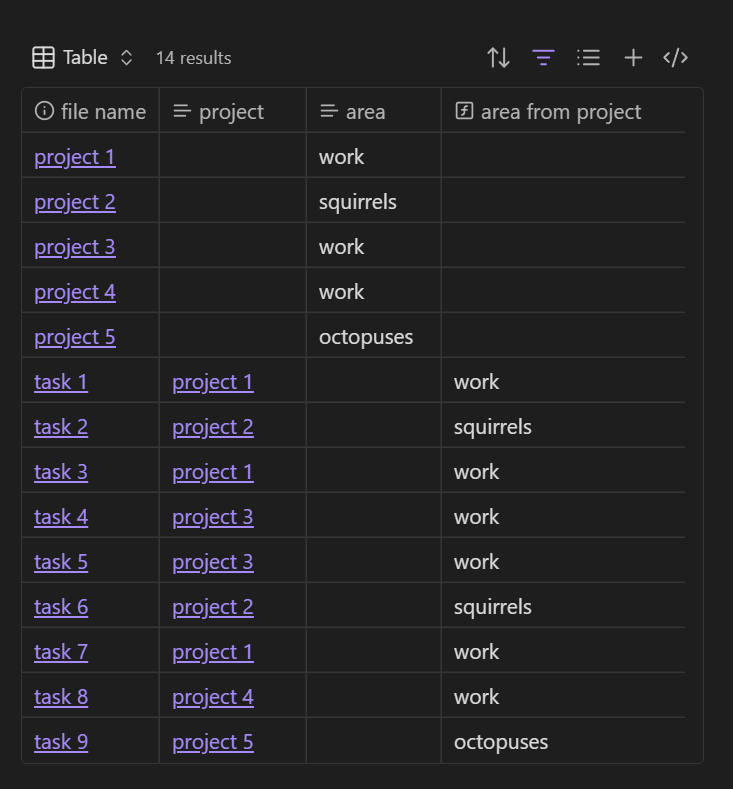
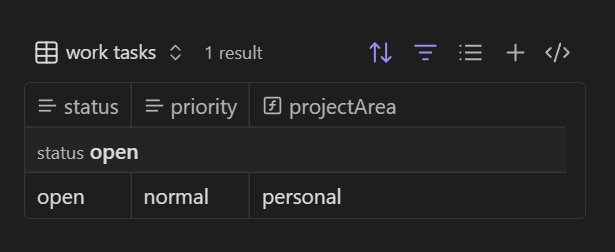
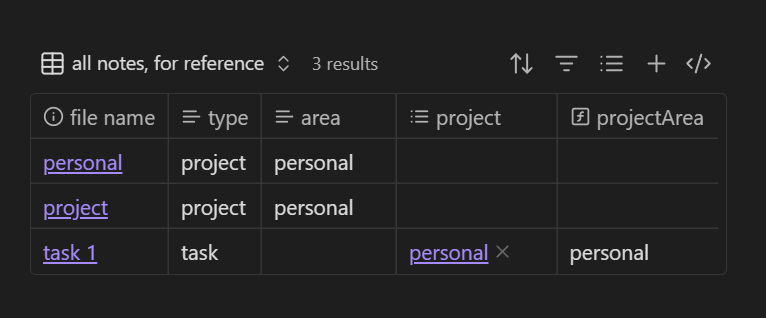
Task notes have a property project: project name (same as project note title)
Project notes use property type:project
Project notes also have a property area:areaname (to allow grouping of projects)
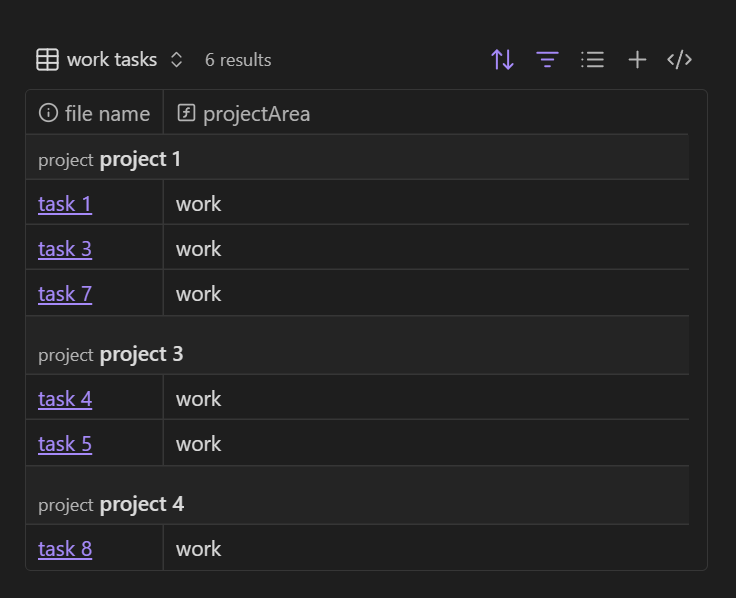
What I am trying to do is view tasks group by project but limited to a specific area. Basically - show me all my “Work” projects (where work=area). I haven’t been able to figure out a filter formula to allow me to do this.
Currently as a super kludgy workaround I just create a filter that includes every project in the area manually. In other words a file rule per project to include. Which is obviously not idea.
I’m no expert, and have only recently started transferring from the Tasks plugin to TaskNotes, but is it because you have two properties called type? Perhaps change the one to area, then populate it with the area concerned.
This new property should then appear in the Bases filter for your TaskNotes, allowing you to select it as a further filter.
Thanks for responding. I think it’s a little more complicated. The issue is…
I can create a filter to show me all tasks that belong to a specific project (type=task / project=whatever)
But I can’t figure out how to tell it to show me all tasks that belong to all projects that have a specific property (area=work for example)
The tasks don’t inherit the projects “area” property so I can’t filter there…and I can’t reference the area property in projects from a filter specifying tasks (if that makes sense)
EDIT: I see where you were referencing the 2 types. You’re right - was a misrepresentation on my part. I’ve fixed it in the post. thx
Replace that literal list with a source if you want, such as this.area when in a project note or task note.
If you got it from there, awesome. But for help writing a more specific filter, can you clarify a few things?
Where is the base? As in, what’s expected to be the active file when you see your results: a project note, a task note, another note (any relation to the area, project, or tasks), a standalone base?
There might be a typo in your description that makes it seem like project notes have two type values, making it a list. Your response clarified that there’s an area property, but I would want to be sure.
Do these represent the relevant parts of a project and task note? If not, then what does?
“project 1.md”:
---
type: project
area: work
---
“task 1.md”:
---
type: task
project: "[[project 1]]"
---
edit: Shortened an unnecessarily verbose formula I repeatedly pasted into this thread from my first test. The edit is effectively identical to the original, just less atrocious.
Ok gave it a try and it seems to be kind of working? So it looks like it’s technically doing what I want but for some reason it isn’t showing all of the projects. So there are 15 projects with the area “work” it will show 4 of them. I’m not sure why. I’ve triple checked their front matter.
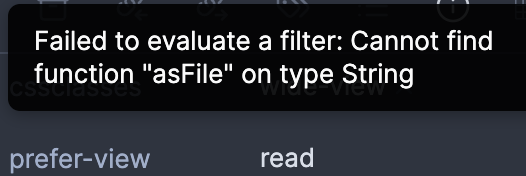
It does give me this error:
“Failed to evaluate a filter: Cannot find function “asFile” on type String.”
It means some of your project values are not links to existing files. The filter presumes each project is a single link to a project note that exists.
We can adjust for different requirements; just say what they are.
But presuming you’re good with the above, then look at the missing tasks in source mode to make sure project is formatted as:
project: "[[project 1]]"
Your options:
If your project values are different from what’s above (e.g., no quotation marks, not a link, is a list), fix those. And if the project file doesn’t exist, create it.
If you prefer to keep some of them as text or uncreated files, then try this filter instead:
file(project).properties.area
It’s a “cheap” workaround and less robust than the first option. It requires certain strict things from your project values otherwise they’ll fail the filter. But it should stop the error messages.
I recommend the first option over this one.
And if you have trouble standardizing your values for option one, feel free to post an example of YAML from those notes to get more eyes on it.
edit: Shortened the same part of the formula as in my other comments
With errors still popping up, though, the base is probably skipping some files. It might return the correct results anyway and from now on, or it might sneak up on you later under different circumstances to give you incomplete results.
Happy to help you figure it out if you want to. Or to let it go if you’re satisfied with it as is.
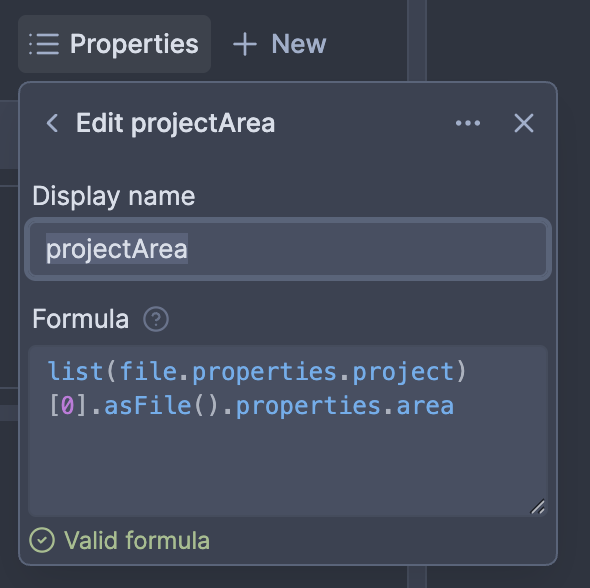
If you do want to troubleshoot the error, try this for projectArea:
file(list(project)[0]).properties.area
If that stops the errors, then some tasks probably still have projects that aren’t links, or that are links to uncreated notes. If so, then you can correct those links or carry on without worries.
But if errors persist, then what error are you getting now, and can you paste your full base in a code block?
It makes sense, and you don’t need to manually list every project. The key is to filter tasks through their linked project and then check that project’s area property.
If your task has a property like project → (links to a project note), and your project has an area property, then your filter just needs to check:
Task.project.area == “Work”
After that, you can group the remaining tasks by project.
So your view would be:
Filter:project.area == "Work"
Group by:project
This pulls only the tasks whose parent project is in the Work area, without having to create a rule for every project.
If your setup supports formulas, the logic is the same:
project.area = "Work"
Once applied, you’ll get exactly what you want: all tasks from Work projects, grouped automatically by project.
Great, that’s your big clue. Open a note with the error and view it in source mode. Try to see what’s different its project compared to ones that work. And try to make them similar.
As a reminder, these are the two YAML syntax that should work:
project: "[[project 1]]"
project:
  - "[[project 1]]"
Note that even though this syntax should not show an error, it would lead to missing tasks in your base, per how we’ve written it:
project:
  - "[[project]]"
  - "[[project]]"
If you can’t get the errors to go away, then post the YAML from a note(s) with each type of remaining error: type list and/or type string.
Erratum: Your screenshot of projectArea made me realize I had been pasting my test version of the formula and not the one I meant to share. Apologies. I updated it throughout the comments. You can use either; they’re the same, just the original one is uglier.
Sorry, just rushing to do it. The project note is in fact called “personal”.
For what’s worth I deleted all task and project files to try to eliminate as much as possible. Still get the error. I feel like it’s not fixable and maybe I just live with the error. Or maybe there is some CSS that can disable the notification on this specific page.