I’m a dedicated Obsidian user and have greatly enjoyed the excellent text editing experience it offers. However, I’ve always felt that image handling could be improved. The latest insider builds have introduced features like copy, delete, and resize for images, which are fantastic steps forward. After testing these new features, I’d like to share some thoughts that might help make them even better.
Over the past months, I actually developed a personal image plugin for Obsidian. It took considerable time and effort, and it became quite feature‑complete. However, due to some minor issues I never submitted it to the community store. With the new built‑in image handling, my plugin would need significant adjustments, and future official changes might break it again. Rather than continuing to maintain it, I decided to stop development. But I believe the concepts I implemented could be valuable for the official implementation, so I’d like to present them here.
Here’s a quick preview of my plugin’s interface (it works only up to Obsidian 1.11.7):
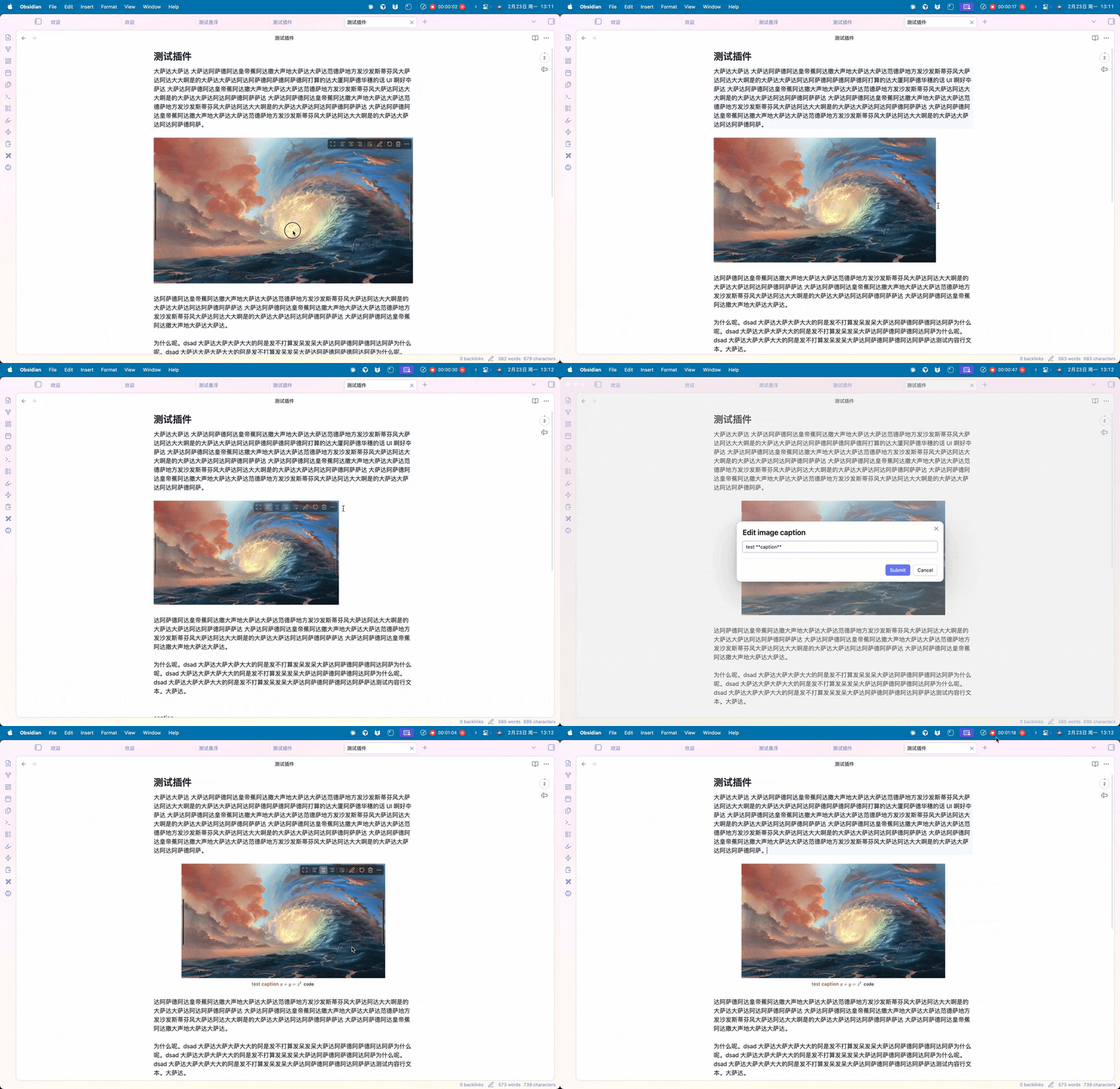
Image Toolbar
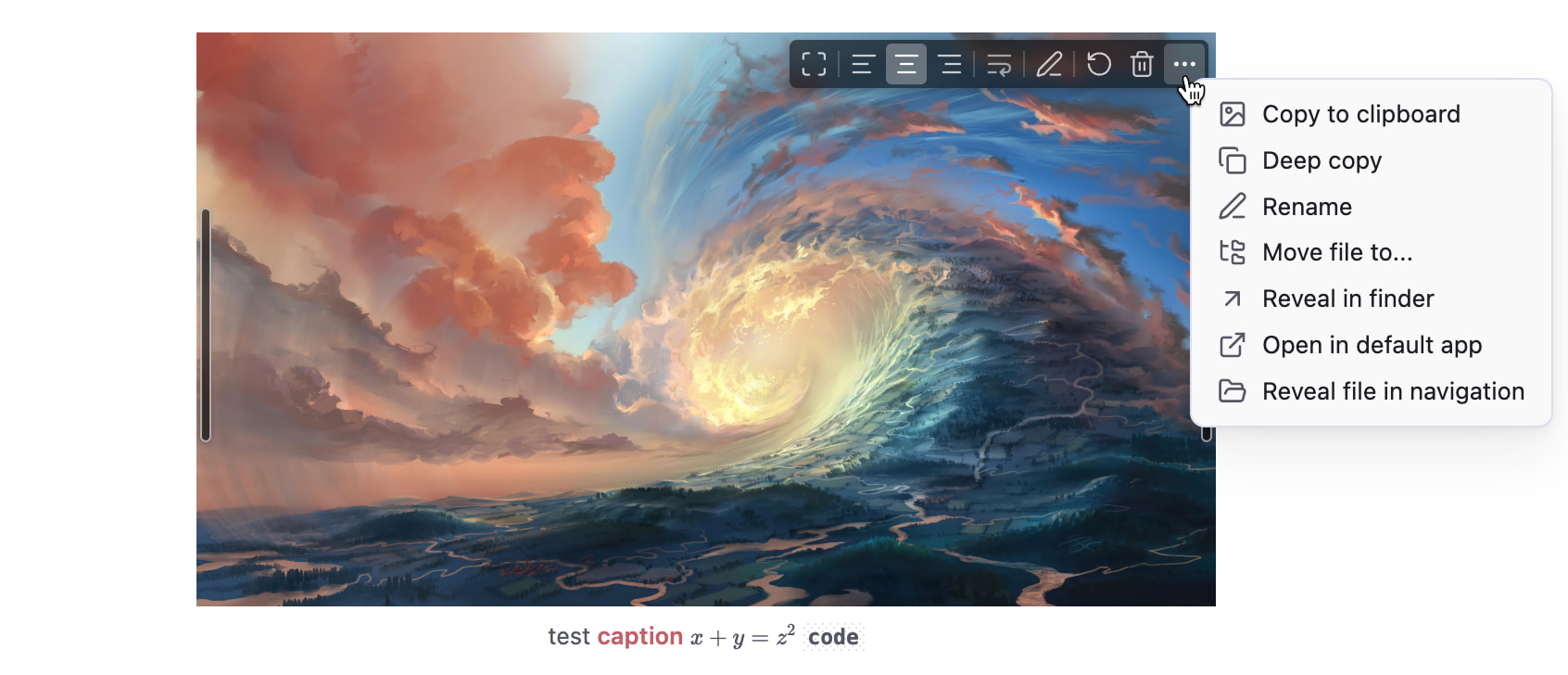
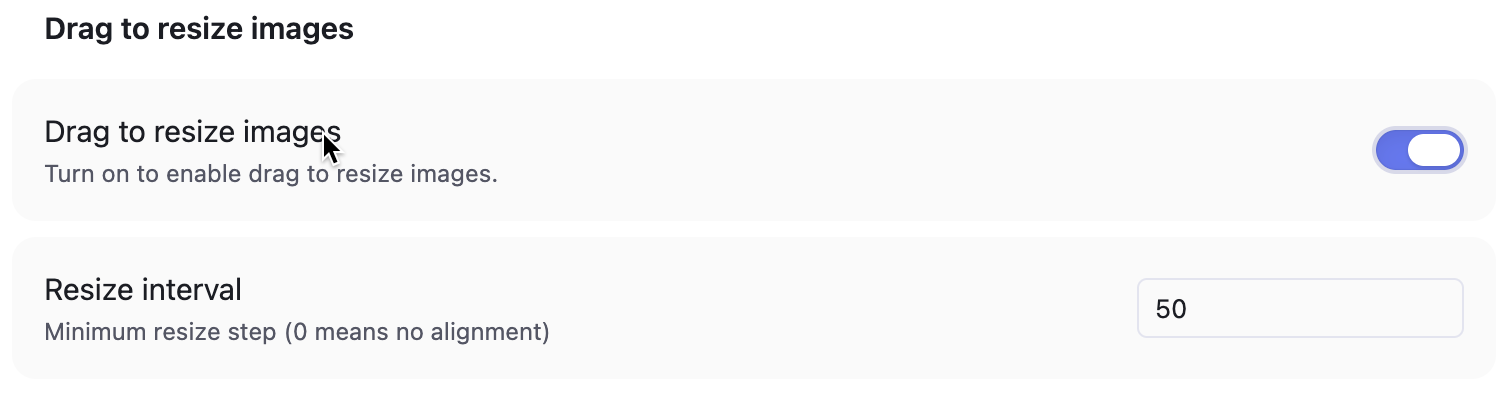
Image Resizing
In the resize settings, I designed a Minimum resize step option. This allows users to snap the image width to multiples of a chosen value (e.g., whole hundreds or tens), making it easy to achieve consistent sizes.
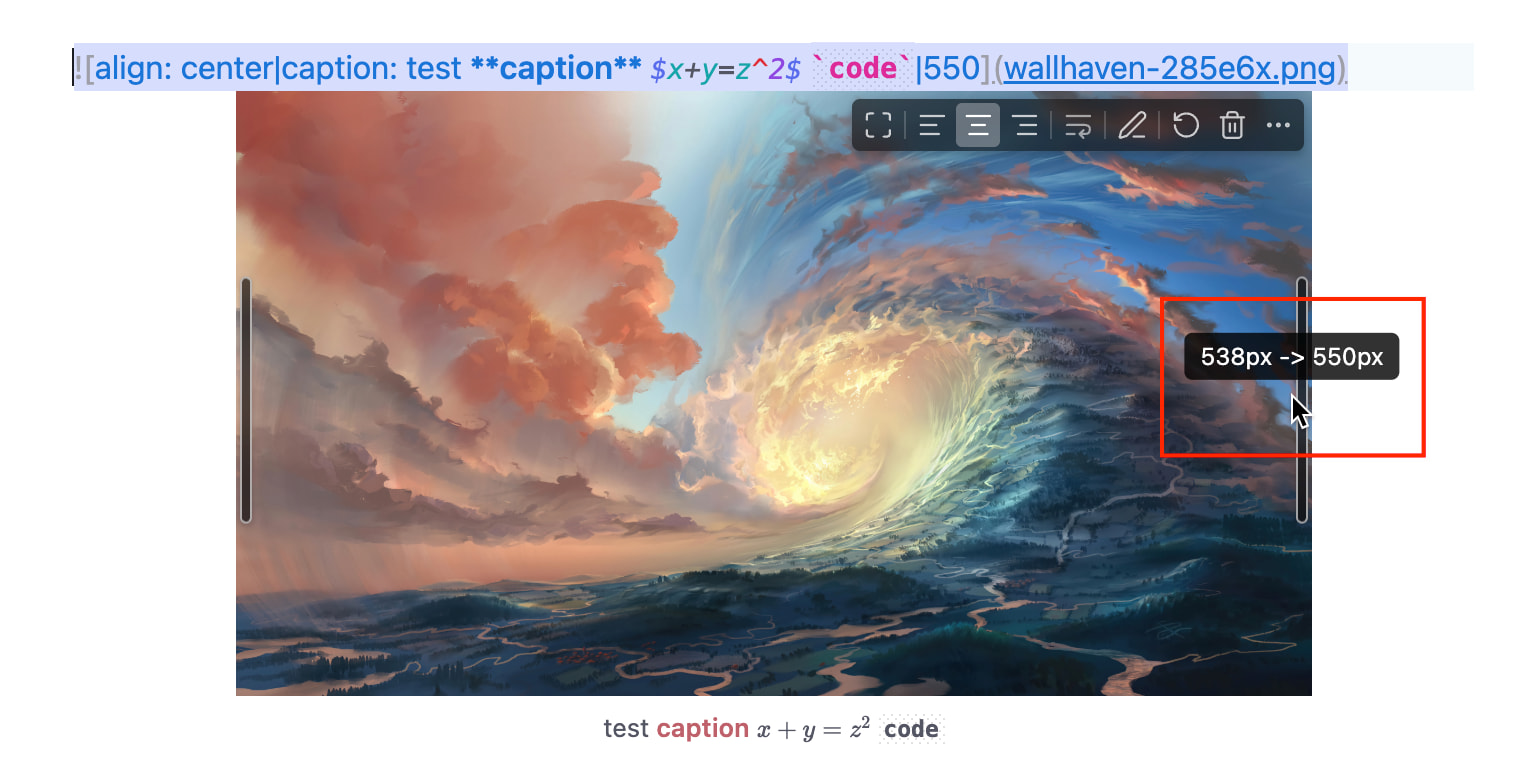
During resizing, it’s helpful to show the current and final width in real time, giving the user a sense of control. I implemented this with a floating tooltip that displays the dimensions while dragging.
Deleting Images
In the current insider version, deleting an image removes both the markdown link and the source file immediately, without checking whether the image is used elsewhere. This can unintentionally break links in other notes.
My approach was different: when an image is referenced by multiple notes or canvases, only the link text is deleted — the source file is left untouched. If the image is used only in the current note, a confirmation prompt appears: “Do you also want to delete the source file?” This prevents accidental data loss.
Copying Images
The insider build copies the actual image content to the clipboard. While that works, pasting it back into Obsidian creates a duplicate of the image file, leading to unnecessary attachment clutter.
I simulated the system’s native Ctrl/Cmd+C behavior instead, so pasting inside Obsidian does not create a duplicate. Here’s the code I used:
if (Platform.isMacOS) {
    execSync(`open -R "${file_path}"`);
    execSync(`osascript -e 'tell application "System Events" to keystroke "c" using command down'`);
    execSync(`osascript -e 'tell application "System Events" to keystroke "w" using command down'`);
    execSync(`open -a "Obsidian.app"`);
}
else if (Platform.isWin) {
    let safe_path = file_path.replace(/'/g, "''");
    exec(`powershell -command "Set-Clipboard -Path '${safe_path}'"`, callback);
}
// (I couldn't find a solution for Linux.)
Alternatively, this issue could be mitigated by adding a simple context menu option: Copy Link Text. That way, users can copy the markdown link instead of the image data, avoiding duplicates when pasting inside Obsidian.
Image Alignment and Captions
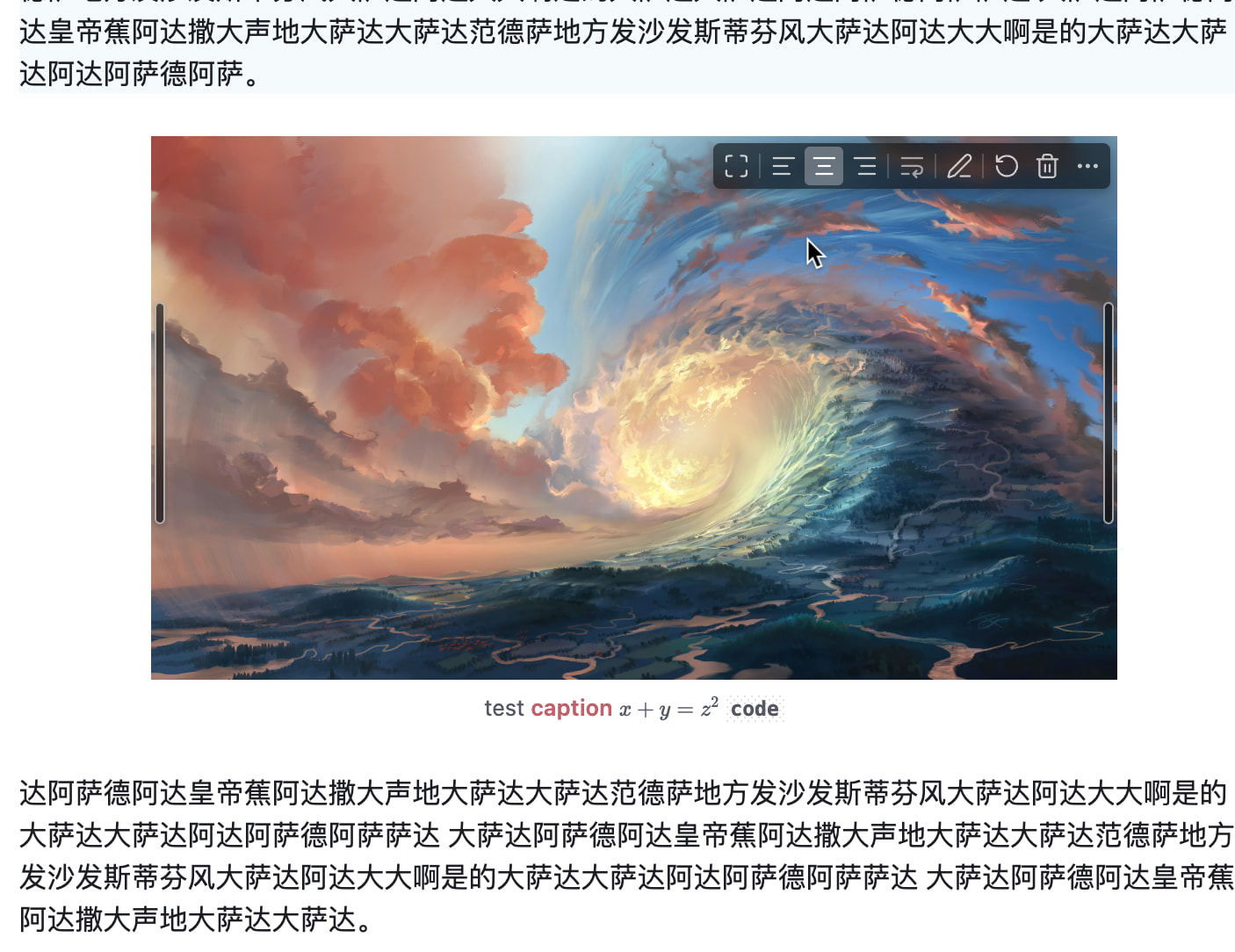
I understand that Obsidian intentionally keeps formatting minimal, but many users coming from Word or similar editors expect basic image alignment and caption support. Markdown itself doesn’t provide these, so I used the image’s Alt Text to store such metadata.
For example, with this markdown:

I parse the Alt Text into key‑value pairs and attach them as attributes to the image element (e.g., image-caption, image-align). If a value is omitted, the attribute is added without a value.
Once these attributes are present, CSS can easily handle alignment, captions, and even more creative styling (like style:circle for round images). Captions themselves I implemented as separate <div> elements for flexibility.
This approach is extensible — users can define their own attributes and style them with custom CSS, opening many possibilities.
Closing Thoughts
Obsidian has already come a long way, and I’m excited to see these image improvements. I hope my experience and ideas can contribute to making them even more polished and user‑friendly.
If any part of my plugin’s source code could be useful, I’d be happy to share it.
Thank you for your amazing work, and keep making Obsidian better!