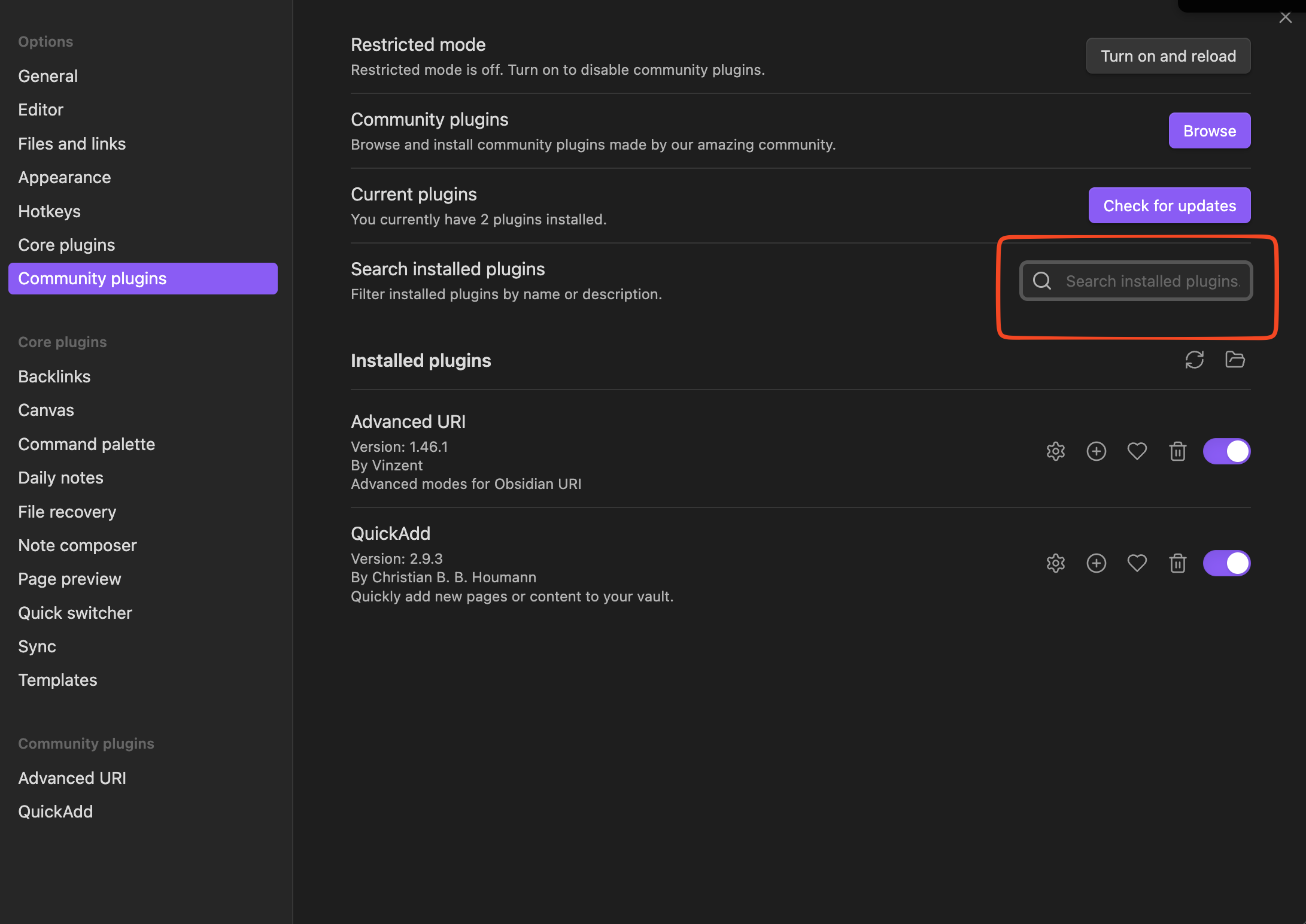
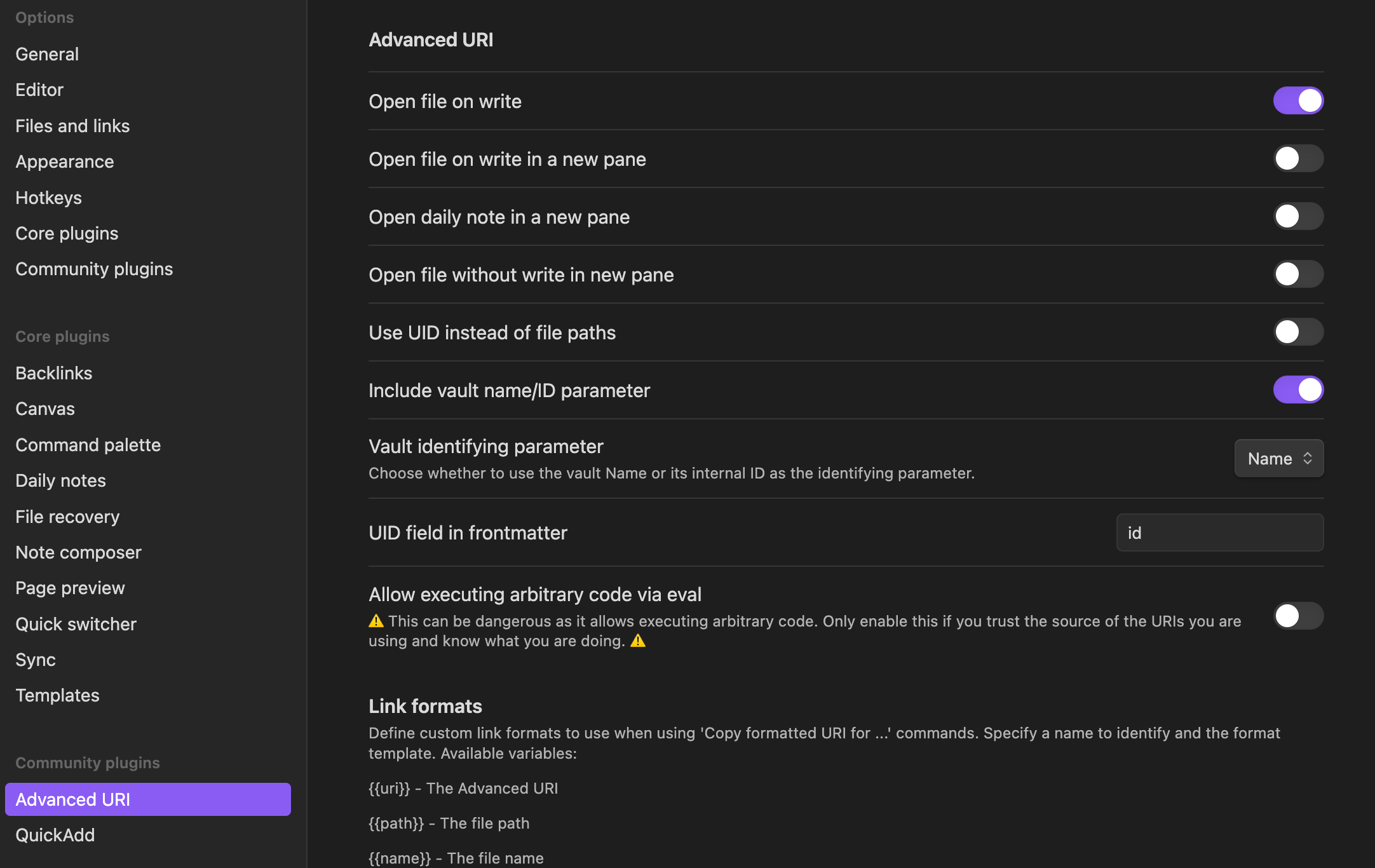
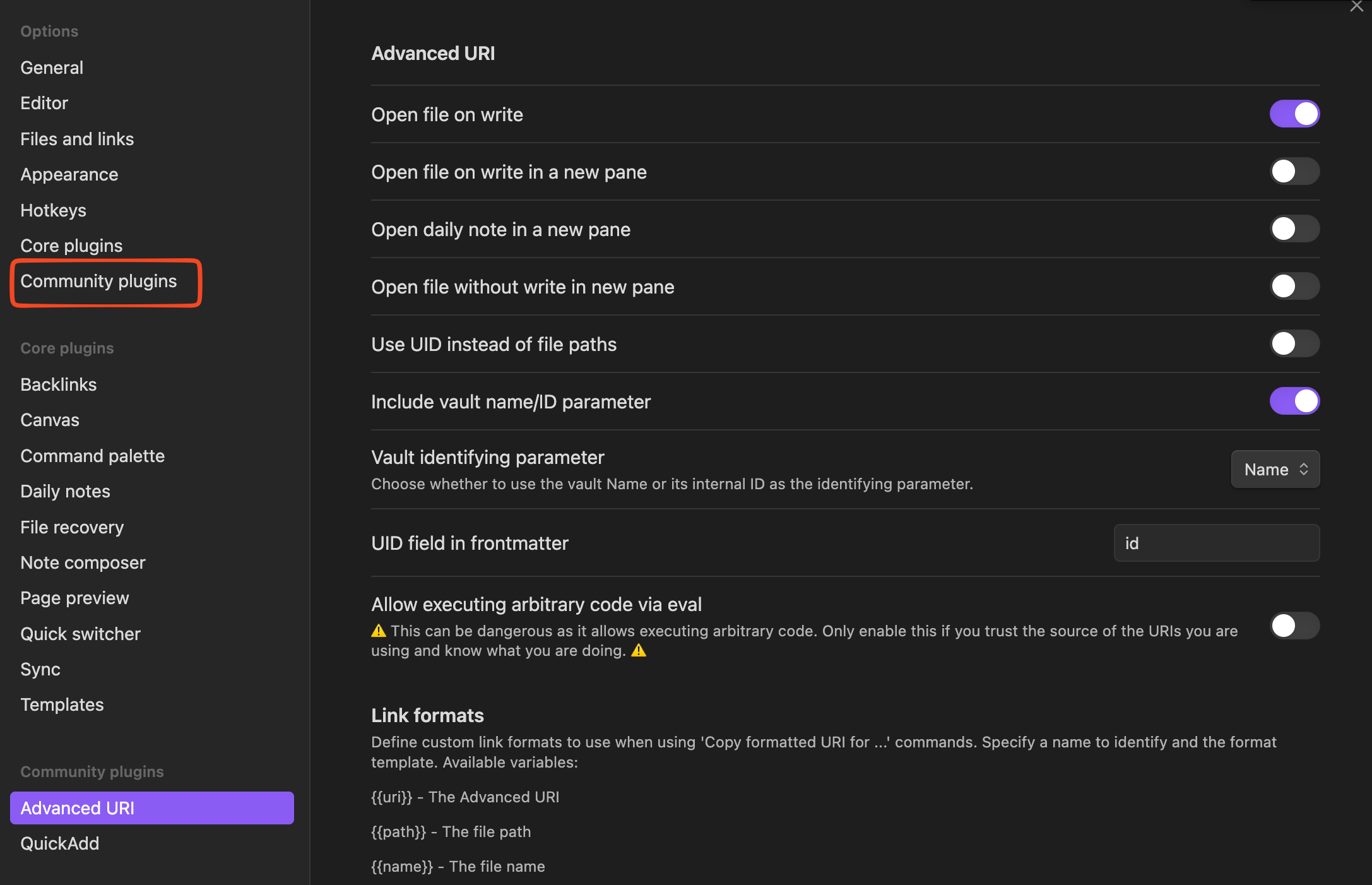
It is very redundant to have to go through plugins to setup. I have 100+ plugins and to setup various things like LLM’s is a pain because when one ends up on the settings page for a specific plugin, to go to a new plugin one has to start completely over. That is, there is no “back button”. Currently I have to go through the entire process including adding the same search term just to list similar plugins to move to the next one to setup the next plugin.
Proposed solution
Either have a quick access for installed plugins list or if one goes to settings from the installed plugins list that there is a back button that lets one go back to the list.
I don’t understand what the issue is. Can you provide example steps of what you’re doing now, and how you’d hope to speed up that process? The more specific you can be the better.
This navigation is very slow when one has 100+ plugins and is only modifying certain plugins. It is much easier to use the “browse plugins” + “installed only” + “search box”. This allows one to show only the plugins one specifically wants to modify/edit rather than hunting for them in the navigation panel list.
This works well except the moment one clicks on “options” for the plugin then it jumps one to the “navigation” list mode and one loses all the brows plugins + installed only + search box that one previous setup rather than having them retained. E.g., If one simply browses the community plugins then clicks on a plugin a nice interface shows the plugins on the left and then the specific plugin info right where one can then install the plugin. There is a back button that returns the full plugin list view mode. Again, the momentum one goes into the options of some plugin one gets dumped back into the original settings window that you have shown and has to hunt and peck because there is no search box.
Another solution should be to add a search box above the plugins list in the settings view of the plugins list. This might be better but it would require it to also search their descriptions and not just their names.
E.g., the names of the plugins are not always relevant for setting things up so hunting and pecking for the plugins does not work. Either one has to write them all down or use the “community plugins” list to get to a search box to find the plugins.
E.g., many plugins that use llm’s either have ollama or llm in their description(NOT THEIR NAME) so there is no way find them but by searching. But as I pointed out, when one lists them using the “community plugins” path and goes tot heir options(e.g., after enabling the enable button usually turns into an options button) one is dumped back to the start line having to repeat the cycle.
The better solution is to simply not dump one to the settings window in the first place and put a back button in when one clicks on the options(the options page is just loaded in line to replace the description page that one gets when clicking on a plugin in the plugins list page).
What you are showing does not work. It is only marginally faster. E.g.,
Click on community plugins.
2. enter search term.
3. find plugin in reduced results.
4. click plugin box.
5. Plugins pops up with description pane for plugin clicked.
6. Click the options button in the description pane.
7. It takes you to the settings window and the “community plugins list” in the navigation pane and you have to start all over.
There is no reason one has to start over. All one has to do is to show the options data in the same pane as the plugin description and have a back button that navigates back to the original plugin list that would then retain the search term so that one doesn’t have to keep doing these extra steps just to track a subset of the plugins.
I’ve had that installed. It doesn’t solve the problem. The issue is that when ever one goes to the options of a plugin they lose the “history”/”breadcrumbs” of what they were just doing with searching and listing plugins.
Install a bunch of llm plugins that require setup. Then try to go setup each such as setting the apikeys, or llm model, or whatever. Then you will see how slow it is. What is worse as you try to check the plugins you have to close the settings and then go through the entire process again and try to find the plugin you are currently trying to test. Many of the names are similar so if you forget the name you’ll have to search, click on the wrong one, then go through the entire process again just to figure out what you are doing. It shouldn’t be that difficult.
Having the search term persist might help and this is something the plugin could do. It might help a little.