I use CMD+K (on Mac) to create a markdown link from a selected word.
What if I already have the link and I want to add the custom text?
Is there a shortcut or a plugin that allows me to do that?
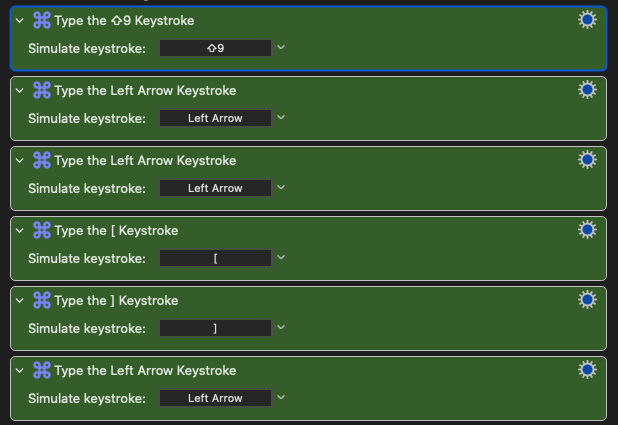
Right now I’m using Keyboard Maestro using a few keystrokes:
Well, the title of the thread and your description of the problem do not match. But I understood.
Fistly, what is required by what is in title is easily done with V. C. plugin.
As for aliases:
See here:
Add a hotkey in the settings:
Seems like there is a new feature too where you type in the string in the markdown file and trigger with hotkey set in the dropdown but it seems this will only work well if the first few chars of the existing link and the prospective alias will match.
See:
And then if you want to save that alias for the frontmatter of the linked file in question (so that next time you can simply type the alias in your note and the link will pop up automatically to be inserted in the file along with the alias), you can use Link with Alias plugin.
Various Complements needs a bit of setup as there are many settings but it is an indispensable tool.
I also use with custom dictionaries and I often (well, not often enough) add my own phrases to another dictionary to ride by verbal hobby horses.
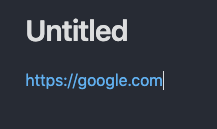
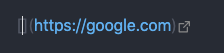
And I want to select the URL, press a shortcut, and it will show me this:
So I can either paste whatever I have on the clipboard or I can just type something and I will achieve the same:
The Various Complements doesn’t seem to address this?
If it does, then it’s probably buried in the documentation, and before I start digging deeper to then realize it doesn’t do what I need, it’s better to ask if you now understand my goal and if VC indeed does something like that? If so, can you point me in the right direction?
You can use templater plugin. It is not designed for this, but it can be tweaked. Follow these steps:
Setup
Create a folder for templater templates (if you don’t have one already) and put there a file called for example paste-link.md
Write the following content in that file (important, no newline at the end)
<%*
let s = await tp.file.selection();
let c = await tp.system.clipboard();
let result = c;  // Default fallback
let match;

if (s && c.startsWith("http")) {
    result = `[${s}](${c})`;
} else if (c && s.startsWith("http")) {
	result = `[${c}](${s})`;
} else {
    match = c.match(/\[\[(.*?)\|.*?\]\]/) || c.match(/!?\[\[(.*?)\]\]/);
    if (match && s) {
        result = `[[${match[1]}|${s}]]`;
    }
	match = c.match(/\[.*?\]\((.*?)\)/);
	if (match && s) {
		result = `[${s}](${match[1]})`;
	}
}
tR = result;
%>
Create a shortcut for the “Templater: Insert paste-link” command (you have to use templater settings to add this command to the palette). For example, you can use Ctrl+V (Meta-V on Mac) to replace the regular paste with this new paste-link, or if you prefer to be more conservative use Alt+Ctrl+V for example.
Usage
Put something in the clipboard
Select some text in a note
Press the keyboard shortcut
The following will happen:
If the clipboard contains a URL, then the selected text in the note will be replaced by a link. For example, suppose that the clipboard contains https://forum.obsidian.md and in your note you select the word “Obsidian”. After the key stroke, the note will have [Obsidian](https://forum.obsidian.md)
If the selected text in the note is a URL and the clipboard has arbitrary text, the text will be used as the shortcut name. Eg, suppose that the clipboard contains the word “Forum”, and your note contains the selected text https://forum.obsidian.md. Then, after the keystroke you’ll have [Forum](https://forum.obsidian.md)
I think the second case is similar to the one you were asking for, but involving the clipboard (which imho provides better ergonomics).
As a bonus, if the content of the clipboard matches the wikilink syntax ([[something]]), then the selected text in the note will be replaced by [[something|selected text]]. Even if the clipboard contained other alias, as for example [[something|other alias]], the result will be [[something|selected text]], i.e. the alias in the clipboard is replaced by the selected text, and the result pasted in the note.
Note if there is no text selected in the note, the result will be a regular paste.
<%*
// Enhanced Obsidian Link Creator
// Handles both URLs and Obsidian block references

async function isValidUrl(urlString) {
    try {
        new URL(urlString);
        return true;
    } catch {
        return false;
    }
}

async function isObsidianReference(text) {
	// Match Obsidian internal links including both headings (#) and block references (#^)
    return /^\!?\[\[.+?(?:#[^\]]+?)?\]\]$/.test(text);
}

async function sanitizeTitle(title) {
    // Remove markdown syntax characters and trim
    return title
        .replace(/[[\]()]/g, '')
        .trim();
}

async function createMarkdownLink() {
    try {
        // Get title from selection or prompt
        let title = tp.file.selection();
        if (!title) {
            title = await tp.system.prompt("Enter label for the link:");
            if (!title) {
                // User cancelled the prompt
                return tp.file.selection();
            }
        }

        // Sanitize the title
        title = await sanitizeTitle(title);

        // Get content from clipboard
        let clipboardContent = await tp.system.clipboard();

        // Check if it's an Obsidian reference
        if (await isObsidianReference(clipboardContent)) {
            // Extract the internal link content (remove outer brackets if present)
            let innerContent = clipboardContent.replace(/^\!?\[\[(.*)\]\]$/, '$1');
            // Create Obsidian-style link with alias
            return `[[${innerContent}|${title}]]`;
        } else if (await isValidUrl(clipboardContent)) {
            // Handle regular URLs as before
            let trailingCharacter = tp.file.selection() ? '' : ' ';
            return `[${title}](${clipboardContent})${trailingCharacter}`;
        } else {
            // If clipboard doesn't contain valid URL, prompt user
            let url = await tp.system.prompt("Invalid or no URL in clipboard. Please enter URL:");
            if (!url || !await isValidUrl(url)) {
                new Notice("Invalid URL provided");
                return tp.file.selection();
            }
            let trailingCharacter = tp.file.selection() ? '' : ' ';
            return `[${title}](${url})${trailingCharacter}`;
        }
    } catch (error) {
        new Notice(`Error creating link: ${error.message}`);
        return tp.file.selection();
    }
}

// Execute the main function and assign result to tR
tR += await createMarkdownLink();
%>
Try this. Handles blockID internal links as well if you have that on the clipboard.
At least it is supposed to do it. This is from my archived templates. I don’t use Templater anymore.
Read my previous reply. It has more info. I don’t want to depend on the clipboard. even if there’s a URL there, I don’t want it to paste it, because if it’s an old URL and I want to use a different one, I want to type it. If it’s the one on the clipboard, I can just hit CMD+V
<%*
// Simple Link Wrapper
// If URL is selected: [$CursorHere](URL)
// If word is selected: [WORD]($CursorHere)

function isValidUrl(urlString) {
    try {
        new URL(urlString);
        return true;
    } catch {
        return false;
    }
}

let selection = tp.file.selection();

if (selection) {
    if (isValidUrl(selection)) {
        // Selected text is a URL - create [CURSOR](URL)
        tR += `[${tp.file.cursor(1)}](${selection})`;
    } else {
        // Selected text is a word/phrase - create [WORD](CURSOR)
        tR += `[${selection}](${tp.file.cursor(2)})`;
    }
} else {
    // Nothing selected - create empty link template
    tR += `[${tp.file.cursor(1)}]()`;
}
%>
I understood, but again, I don’t want to depend on the clipboard. I don’t want what’s on the clipboard to be pasted. Having to type the word, select, cut, run the script, is just too many unnecessary steps.
The same for the URL.
I just want to select a word, run the script, type the URL where the cursor is.
The same for a selected URL.
I don’t want to depend on the clipboard. I want empty brackets