I’ve been using Obsidian since around 2021, and also switched to Linux soon after that, and learned about shell/bash scripting and how to combine that with Obsidian. I use those scripts daily.
That said, I’m not sure I understand the purpose of the CLI. Is it mainly for AI or LLM things?
What is the advantage of using the official Obsidian CLI over a normal Linux (or Windows or Mac) terminal?
Thanks 
Your Linux terminal doesn’t have special commands to interact with Obsidian. You can edit .md files with a bash script, but to change properties, you’d have to parse files manually. I read in an earlier post that using the CLI consumes less LLM tokens.
Obsidian CLI is a command line interface that lets you control Obsidian from your terminal for scripting, automation, and integration with external tools.
Anything you can do in Obsidian you can do from the command line. Obsidian CLI even includes developer commands to access developer tools, inspect elements, take screenshots, reload plugins, and more.
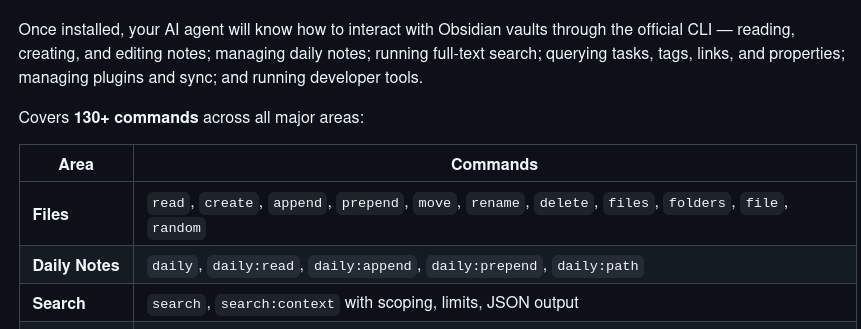
Obsidian CLI — Claude Code Skill
I found ob eval to be the game-changer - it runs JavaScript inside Obsidian’s context. That means you get access to app.metadataCache, resolved wikilinks, plugin APIs - things that are completely invisible from the filesystem.
Concrete examples of what that unlocks:
- Query actual backlinks - not just grep for [[note]]
- Trigger plugin commands from a script
- Run graph algorithms on the live link index
If your bash scripts only need to read/write markdown files, you’re fine without it. But the moment you need Obsidian to understand the files - not just store them - that’s when ob becomes useful.
What worked for me was using it in integration pipelines - syncing between project folders and the vault, triggering Templater on new files, that sort of thing.
Obsidian CLI allows you to do various single custom actions like creating a file with a template. If I’m correct you currently need a plugin to achieve this. The problem however is that there seems to be no obvious way to map these actions to a keyboard shortcuts. Another great benefit is macros that run multiple Obsidian commands in sequence. Again you need a plugin to achieve this. You could use macros to save a particular configuration like
- zoom level
- which theme (and whether to use dark or light mode)
- readable line length (on/off)
- which plugins are enabled
- which snippets are enabled
- is spell check enabled
- is line numbers enabled