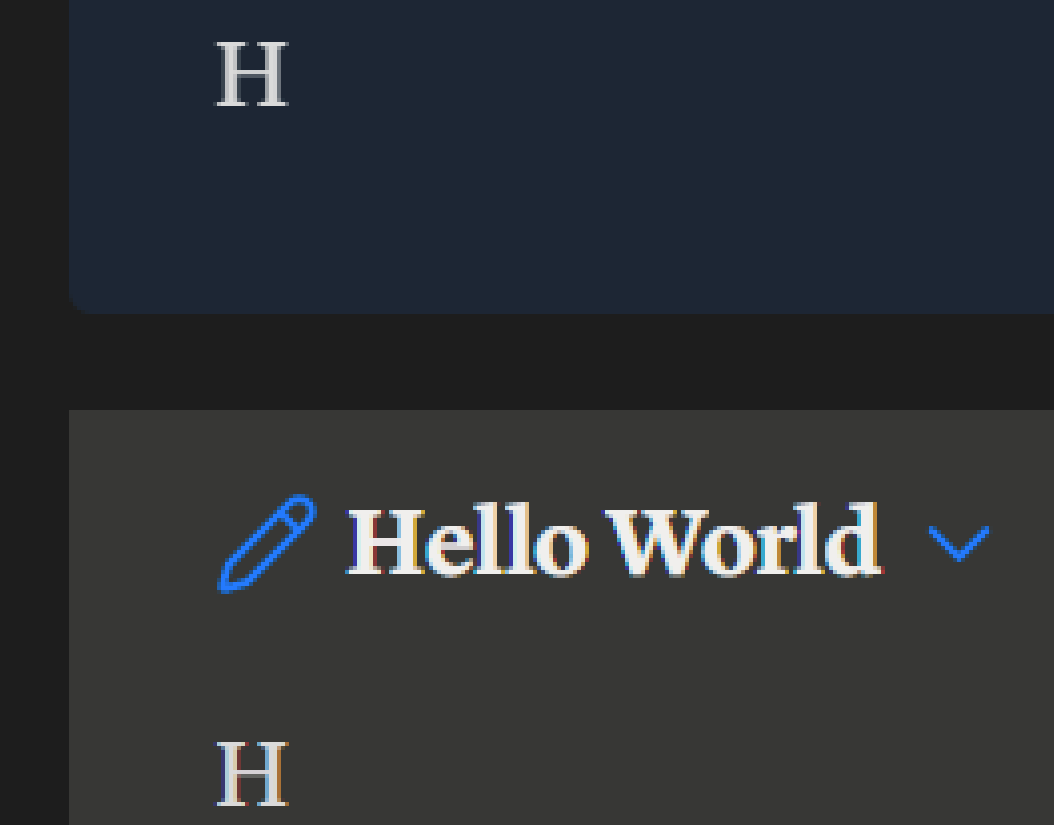
As can be seen in the image, the text inside the normal callout (above) displayed normally, but the ones inside the toggle callout (below) displayed artifacts.
Steps to reproduce
I’m am using a fresh vault with only this snippet to narrow down the cause:
.callout:is([data-callout="toggle"], [data-callout="toggleh4"]) {
  background-color: #383836;
  border-radius: 0px !important;
  border-color: #383836 !important;
}

.callout:is([data-callout="toggle"], [data-callout="toggleh4"]) .callout-title-inner {
    color: #f0efed !important;
}
Step 1
Simply create a toggle callout and use the snippet above .
Step 2
Type something inside the toggle callout (texts, bullets etc.) and in the note itself (outside the toggle callout). Why is this step important? Because I noticed, when the toggle callout is in an empty note, the text on the toggle callout title seems to be fine.
Step 3
Turn on Reading Mode (Live Preview seems to be fine, these artifacts only appear in Reading Mode.)
Step 4
Take a screenshot and zoom in.
Additional information
The reason I’ve narrowed it down to this snippet:
.callout:is([data-callout="toggle"], [data-callout="toggleh4"]) {
  background-color: #383836;
  border-radius: 0px !important;
  border-color: #383836 !important;
}
Is because once you remove “background-color” from the code, the text on toggle callout seems to display normally.
Environment
SYSTEM INFO:
Obsidian version: 1.12.7
Installer version: 1.12.4
Operating system: Windows 11 Pro 10.0.26200
Login status: not logged in
Language: en
Insider build toggle: off
Live preview: on
Base theme: dark
Community theme: none
Snippets enabled: 1
Restricted mode: off
Plugins installed: 0
Plugins enabled: 0