The Cause
When I was browsing the post Best PKM Apps for 2026: Which one is working for you? : r/PKMS, one answer caught my attention:
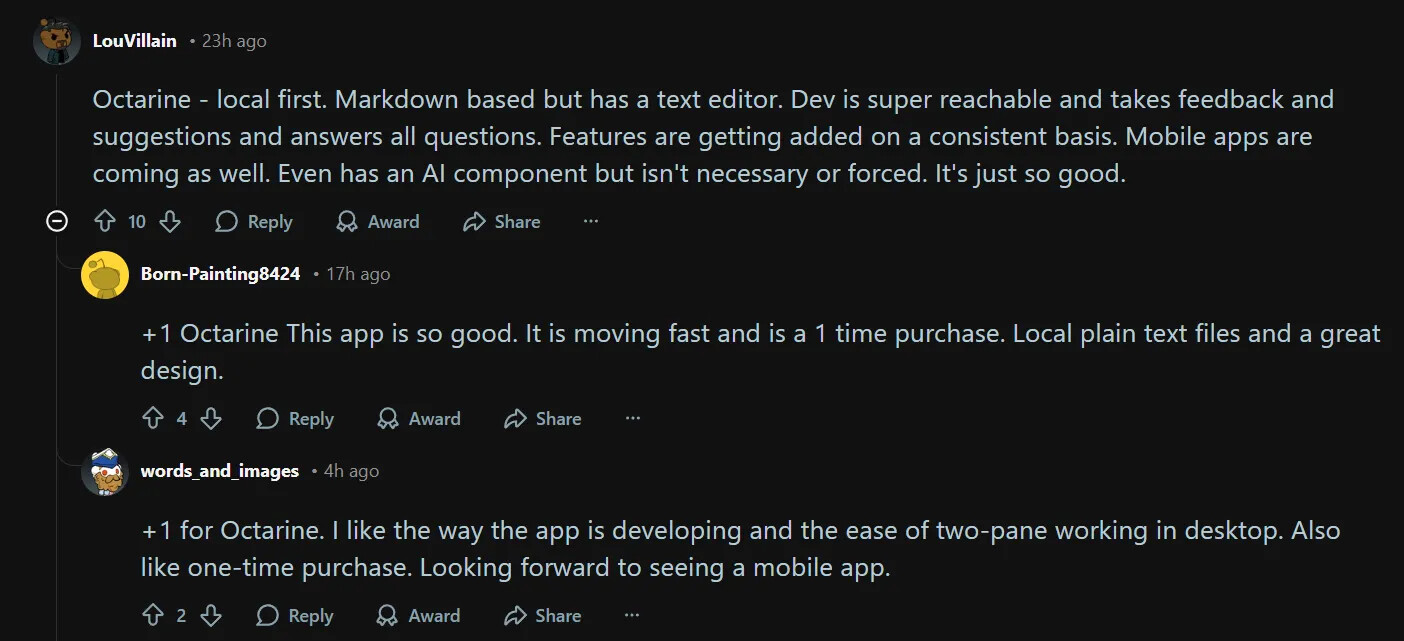
“Local-first, based on markdown files…” this sounds like another Obsidian?
I couldn’t help but feel curious, so I embarked on an exploration.
For those who come after.
― Expedition 33

TOC
- The Cause
- Disclaimer
- Getting Started
- Basic Editing
- Image Editing
- Views and UI
- Note Properties
- Additional Features
- Where are the Disadvantages?
- Unexplored Parts
- Summary
Disclaimer
Don’t worry, I haven’t betrayed Obsidian, I’m still a devoted fan.
But recently I’ve seen quite a few posts that made me realize one thing—Obsidian’s onboarding experience is quite unfriendly for non-technical users.
For example, the responses Kepano received in Give me one TINY thing you want fixed or improved in Obsidian. The smaller the better. Going on a paper cuts rampage. , as well as the “negative reviews” in Tiago Forte’s review of Obsidian and Very disappointing experience with Obsidian, any tips? .
So I started consciously looking for materials to see where exactly the problem lies?
—and how to improve this?
This post is a small attempt among them. It not only lists what Obsidian lacks in the native experience, but also includes how you can get a better experience (through plugins).
I understand these features are not essential —maybe only some users need a small part of them. For those users, I hope this post can be helpful.
Also:
- Please forgive me if Chinese appears in the screenshots, they shouldn’t affect understanding
- Considering that most of the issues here should be directly perceptible to Obsidian users who have used it for a while, so this will focus on Octarine’s performance, with fewer comparison images of Obsidian
Getting Started
Almost every paragraph begins by describing “a certain feature/manifestation in Octarine,” followed by instructions on how to achieve the corresponding effect in Obsidian, using bold text to indicate the required plugins.
You can search for the corresponding plugins in the community plugin marketplace. If you’re unsure about the specific usage, feel free to reply and discuss further.
Onboarding
A good onboarding experience, when you open it you can directly start creating your first new workspace:
In Octarine, you switch between different Workspaces (Vaults) all within the same interface, similar to the Notion experience.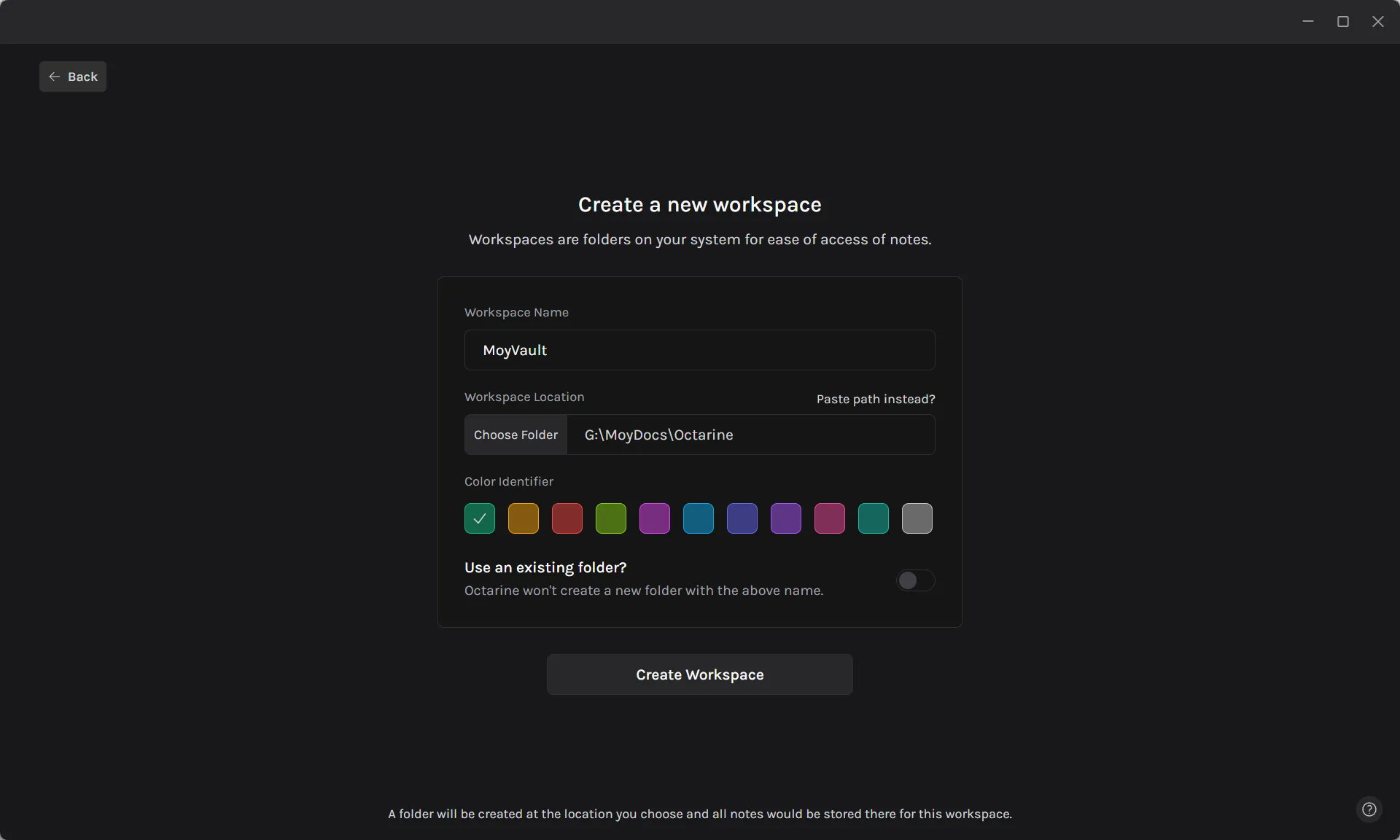
On the Obsidian side, to be fair, the difference isn’t huge, it’s just that it’s not in the same interface as the “software itself,” requiring an extra layer of jumping. And switching vaults opens a new Obsidian application.
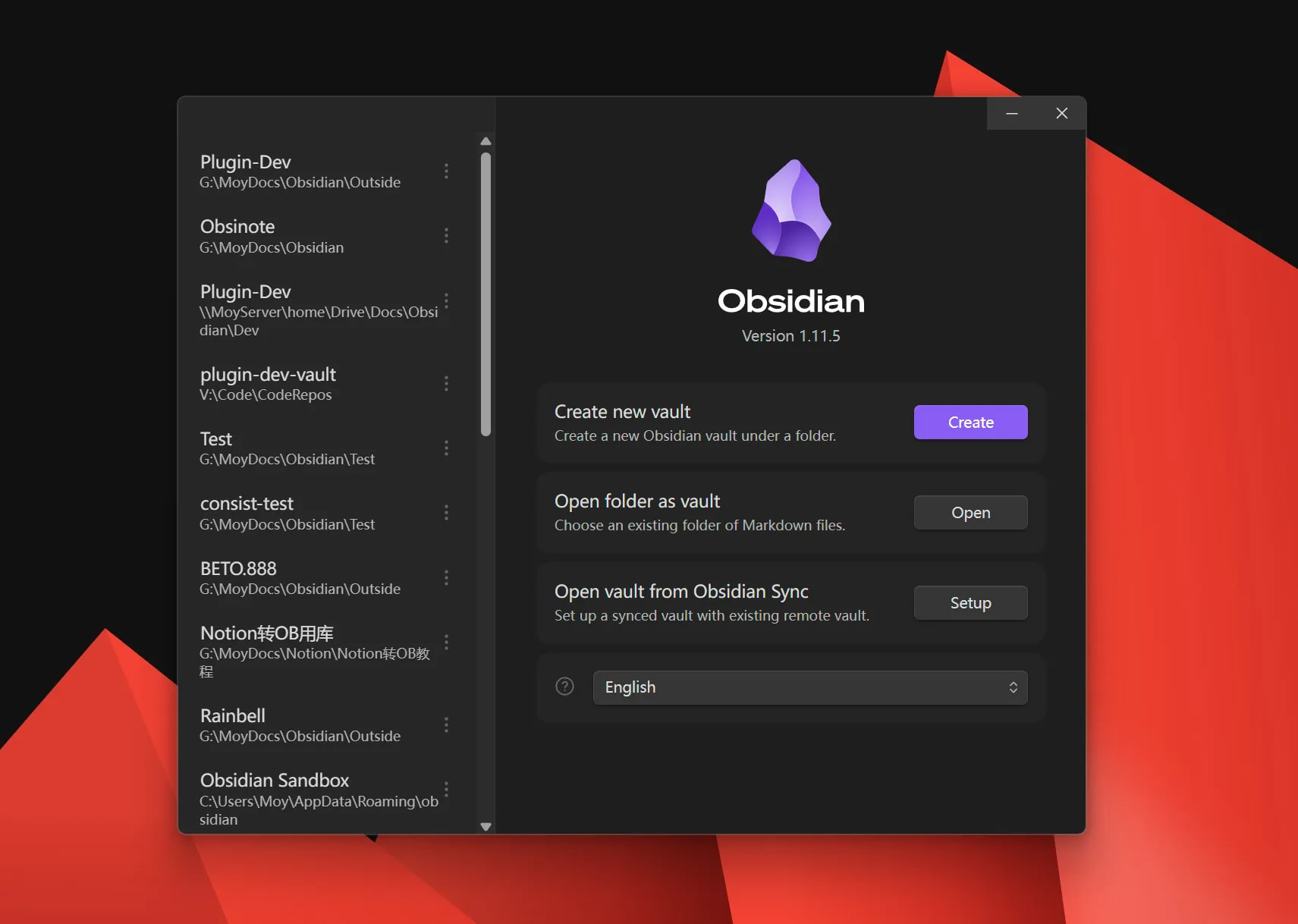
A Complaint: The OB team still refuses to provide a way to directly open Vault Switcher—such as command line or some runtime parameter.
This means you can almost only open a certain vault first, and then switch.
Basic Editing
Slash Command
Slash commands very similar to Notion:
Prioritized display of commonly used formatting commands, with keyboard shortcuts (OB also has this), and different function sections:
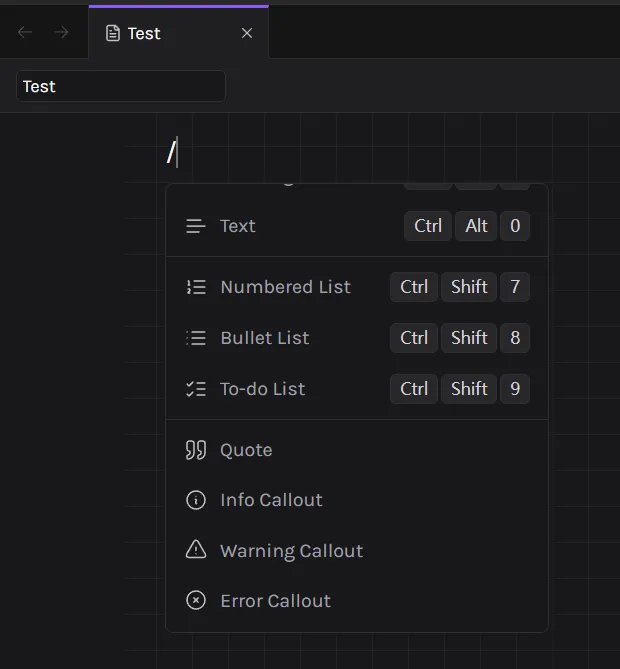
How to improve in OB?
-
Obsidian’s native core plugin slash commands can also achieve similar functionality, but they give a bit too much, which is unfriendly to beginners: too much information = confusion
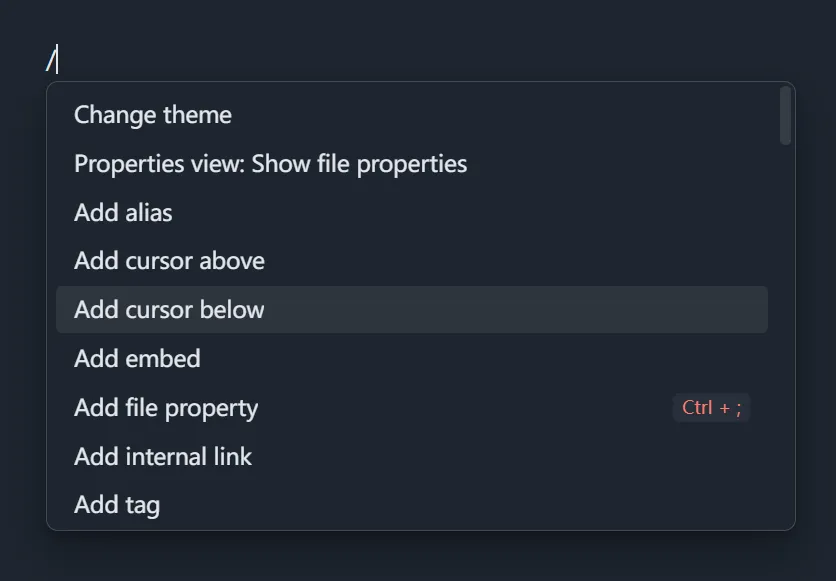
When a beginner switches from Notion and wants to use slash commands to format, they first have to face the dazzling full set of commands.
—not to mention that the “slash command” core plugin is disabled by default in my impression.
-
Slash Commander allows you to configure the displayed commands yourself, which is more friendly; it has preliminary Group functionality, but it’s not yet complete.
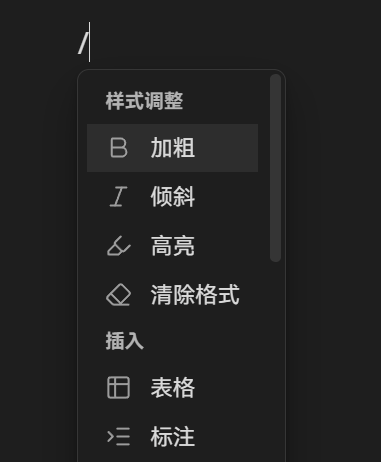
Callout
Callout can quickly switch types:
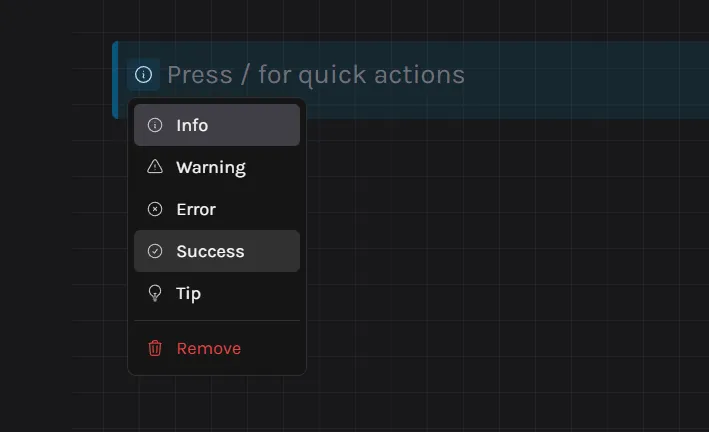
And Callout editing is also directly edited in real-time, without needing to click back and forth to switch views.
How to improve in OB?
- Obsidian can quickly switch between different Callout types via right-click menu
- Admonition also provides dropdown options when entering types
- But real-time editing functionality can’t be achieved—I guess it might be a limitation brought by
CodeMirror
Code Block
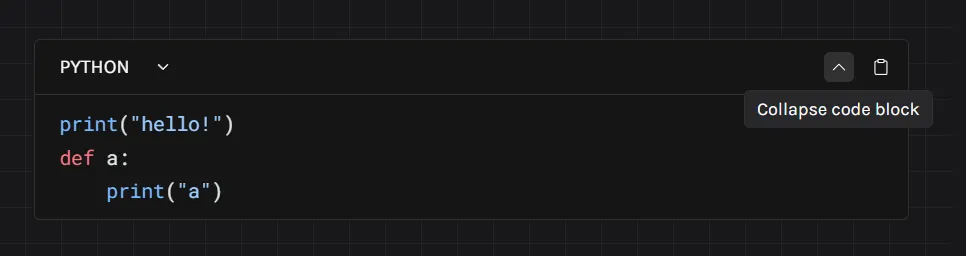
Code blocks come with collapse buttons:
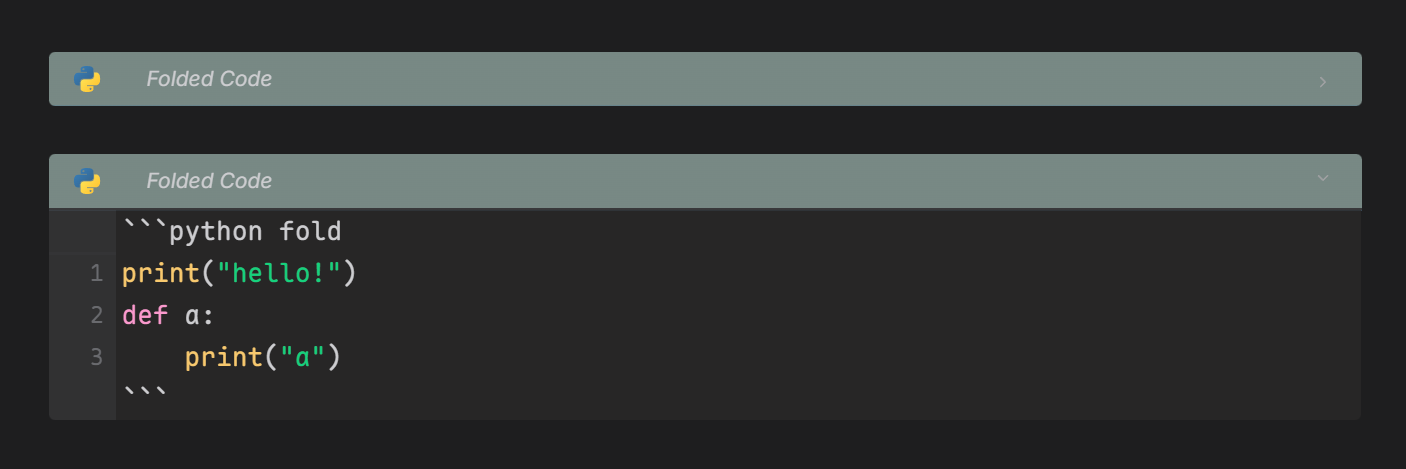
- Code Styler can add code folding functionality
Links Editing
Create links:
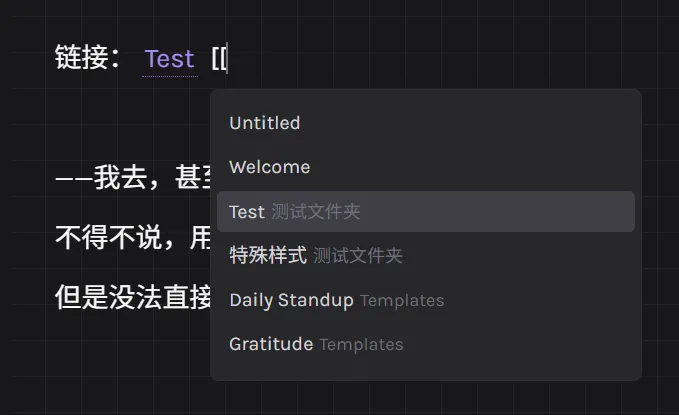
Internal links don’t seem to allow custom display names. This is inferior to OB, otherwise not much different from Obsidian.
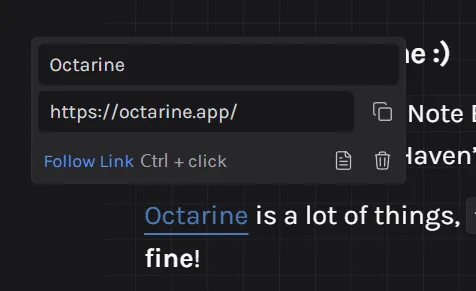
However, for external links it provides visual editing:
How to improve in OB?
As far as I know, there doesn’t seem to be a good plugin that can achieve this.
You can probably only switch to source code view and then edit the text.
Default is click to edit, Ctrl+click to jump:
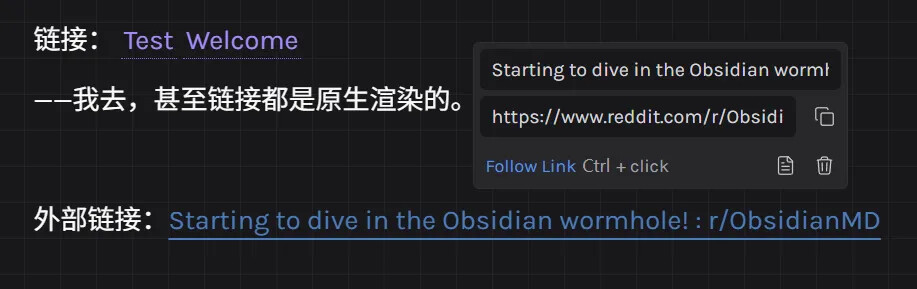
- Better Link Clicker can disable default editing and change to the same interaction
Then when pasting it will also automatically fetch webpage titles. OB does this too.
Image Editing
In terms of image experience, it comes with image drag-and-drop:
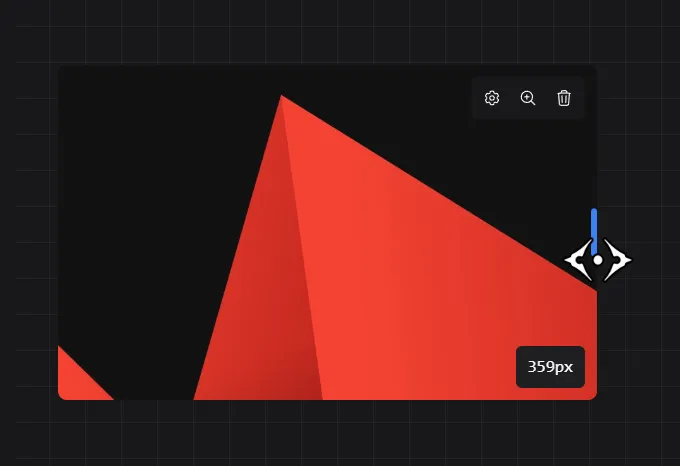
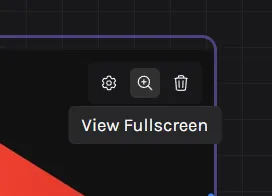
When hovering over an image, you can see three extension buttons: image settings, maximize view, delete image
In the image right-click menu, there are: save as image, copy image, copy image link.
How to improve in OB?
-
Image Converter can drag images, automatically compress and rename, provide image right-click menu, etc.
-
Image Toolkit can enlarge and view images, gallery-style image browsing
-
Pixel Perfect Image can quickly set image sizes, provide image right-click menu
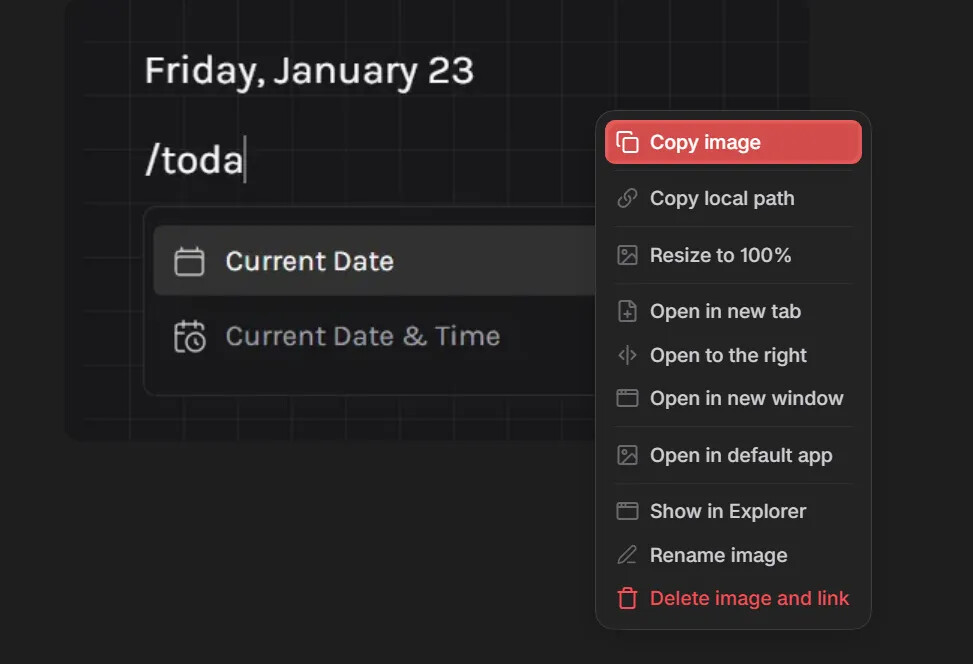
Notice: They are all very complete image plugins, with overlapping functionality between them. Choosing 1-2 you like is enough.
Besides, I know there are many plugins that can implement the basic “right-click to copy image” feature, but it’s surprising that Obsidian doesn’t natively provide such a fundamental function, which I think will frustrate quite a few users.
Views and UI
Menu Commands
Restrained right-click menu:

File right-click menu:
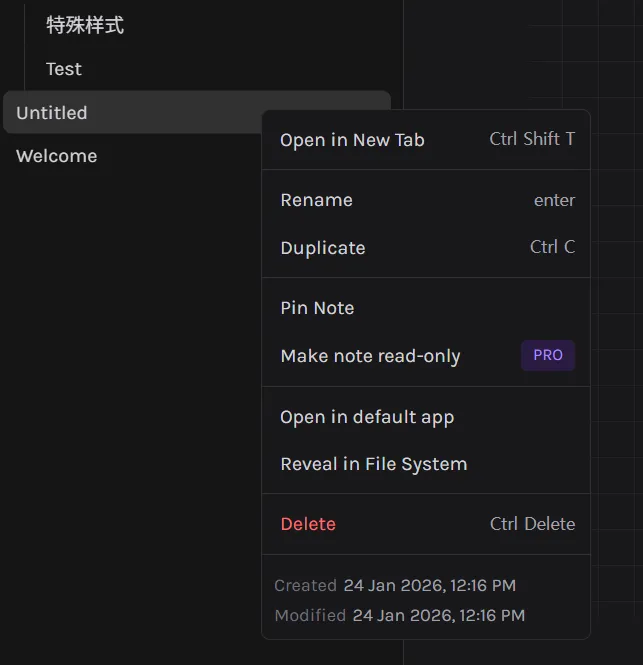
In comparison, this is Obsidian’s right-click menu:
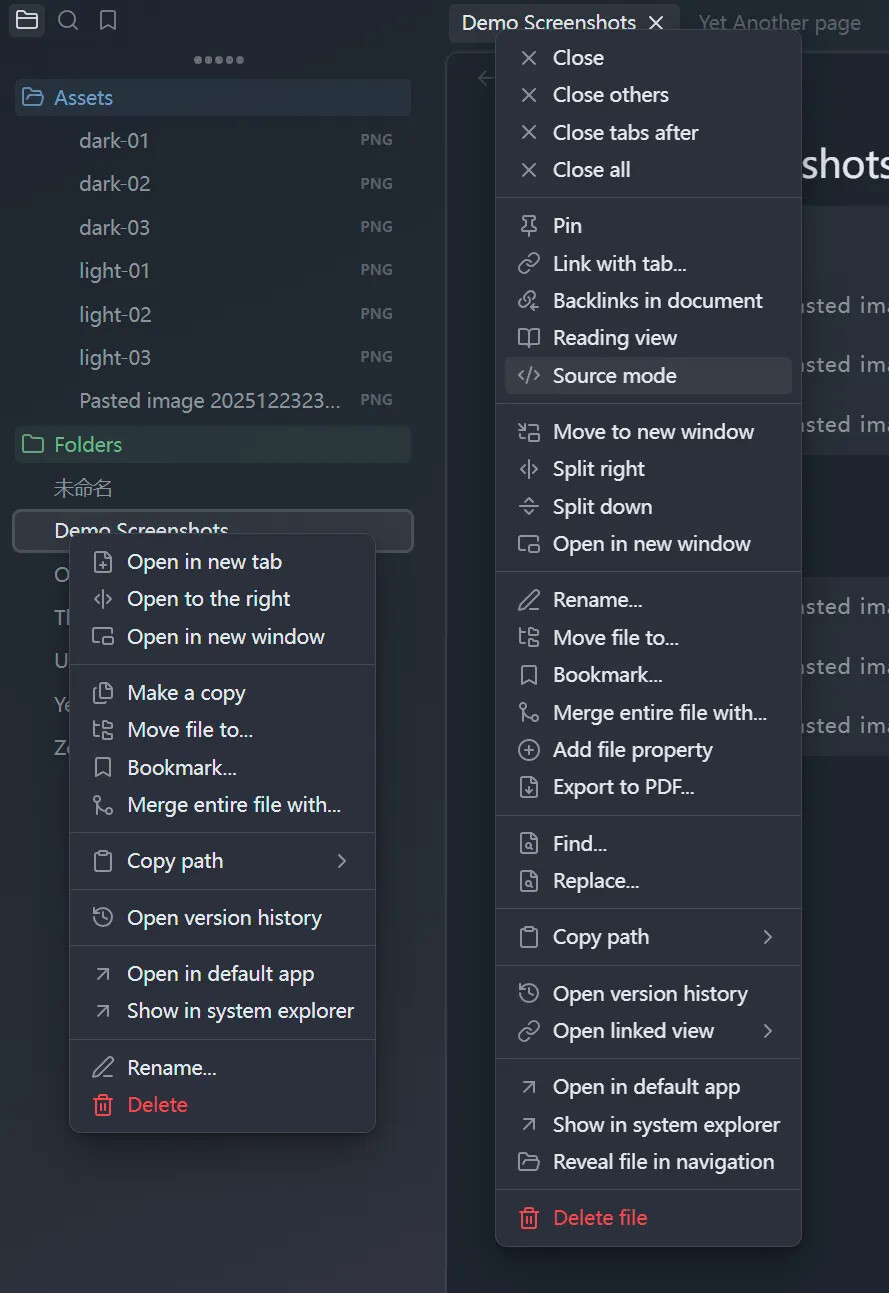
I mean, I know Obsidian has more complete functionality, but—
Its biggest problem in Onboarding is giving too much at once
Imagine you’re a beginner, encountering so much new content when you don’t understand anything at all—your brain would definitely be quite overwhelmed!
Skilled gamers can handle complex key combinations, but a good tutorial for beginners starts with the basic arrow keys.
How to improve in OB?
- Context Menu Hider can hide excessive unnecessary menu items
New Tab View
More friendly new tab:
In the view, on the left are recently viewed notes, on the right are common keyboard shortcut guides.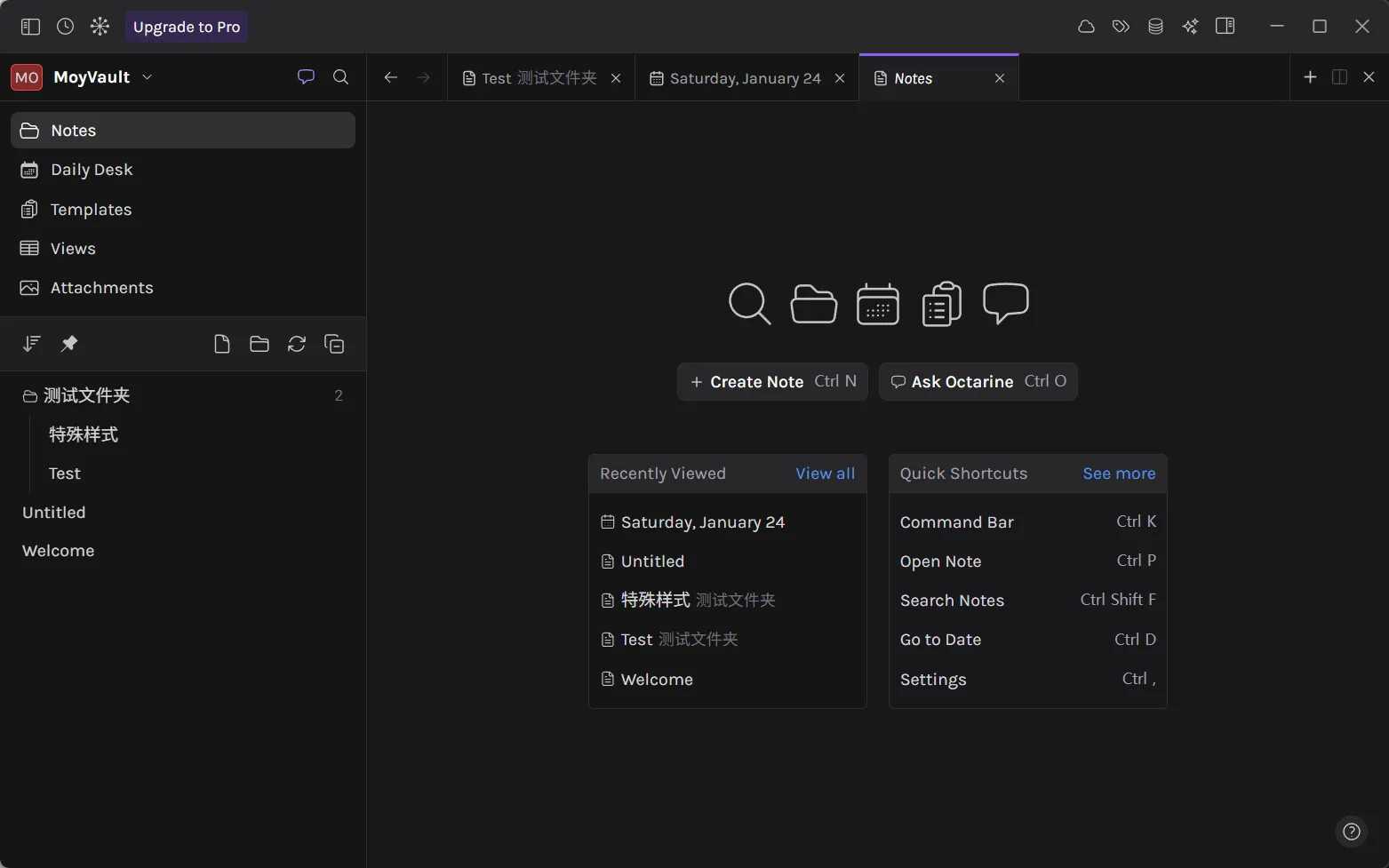
In the middle are two buttons for creating new notes and asking AI.
In comparison, on the Obsidian side:
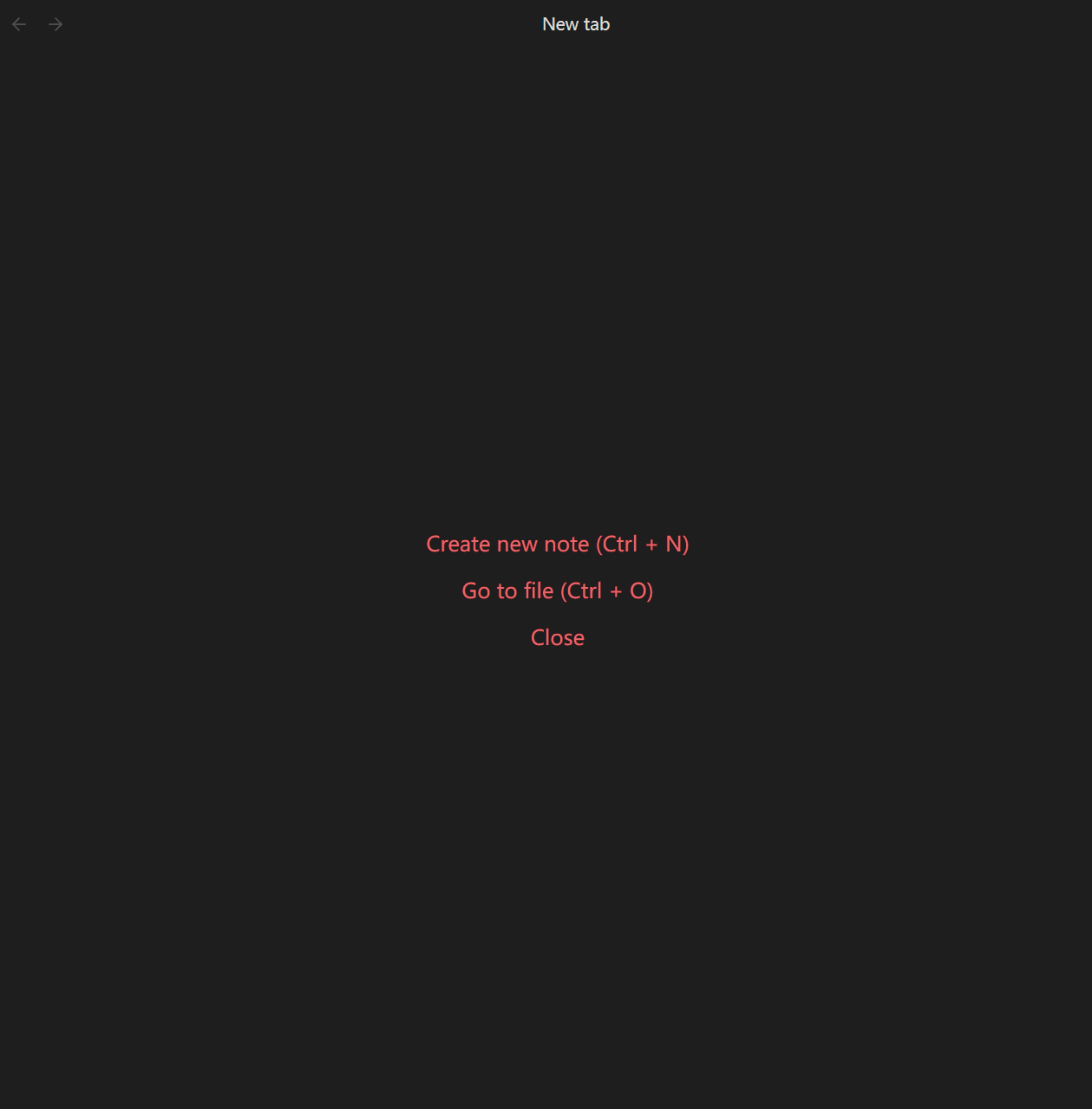
Haha, experience it for yourself.
How to improve in OB?
- HomeTab can display recently opened notes, bookmarked notes, etc., and also provides a note search bar
- NoteToolbar can display a Dashboard for specific tools in a new tab
Recent Notes
Native recent notes view:
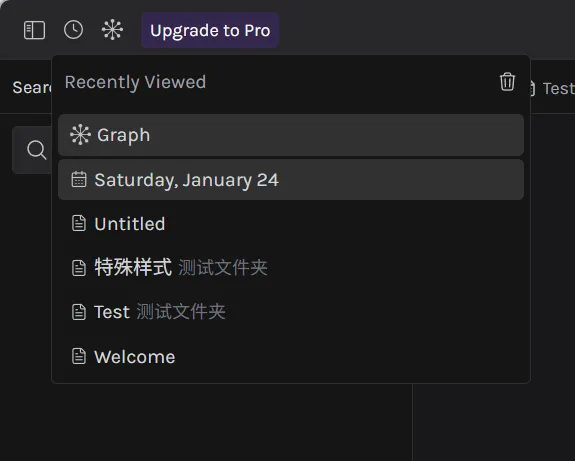
How to improve in OB?
- RecentNotes plugin can display recently opened notes
Search
Global search:
In-file search (when clicking results in the left global search, this search box will automatically open)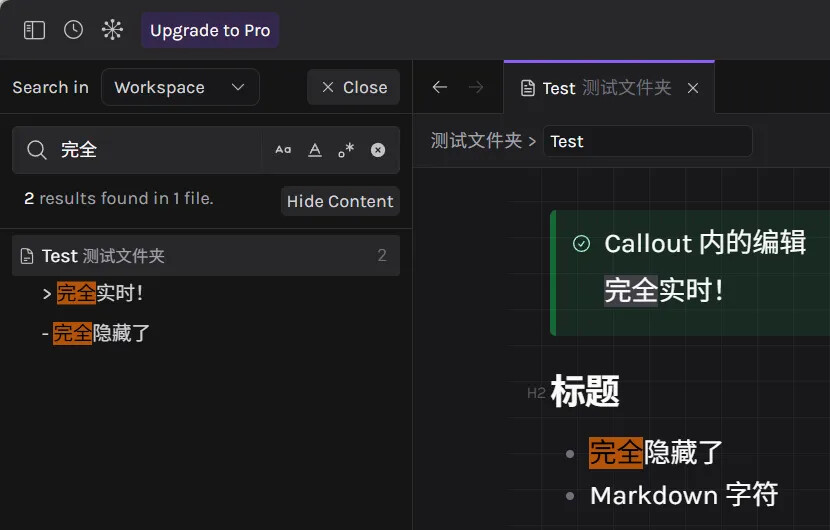
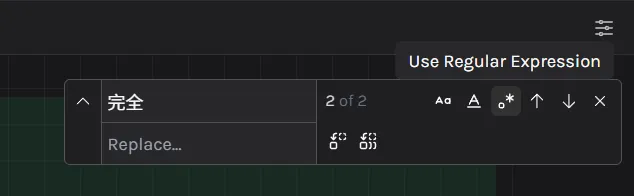
Here OB isn’t far behind, rather it provides more powerful search syntax. In comparison, Octarine has more clickable buttons.
It can be said that OB has a higher threshold but stronger functionality.
Note Properties
Comes with metadata properties:
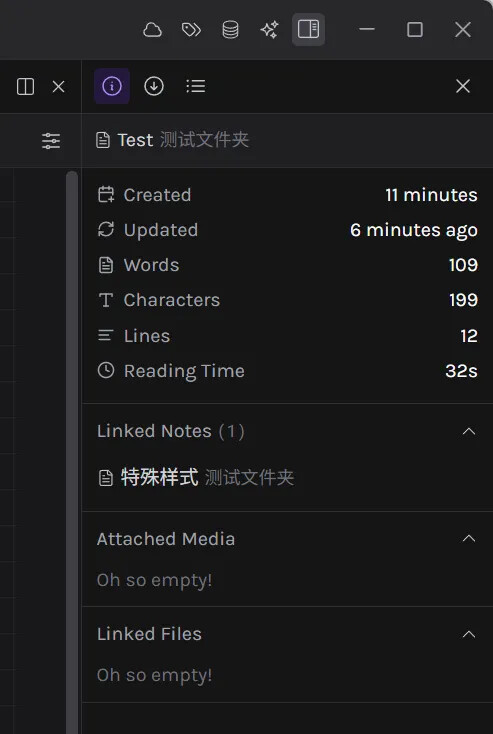
Although Obsidian can add metadata to notes, it doesn’t maintain any initial properties.
Such as creation time, modification time, word count, viewing duration… etc.
How to improve in OB?
This needs to be achieved through collaboration between Templater and several other plugins…
-
Templater basic templates can directly write creation time to properties
-
Update Time Updater / Update time on edit can update the modification time in properties
-
Word count seems unable to be written, but there is native word count statistics to view
-
FocusTime plugin can view the reading duration of notes, but cannot save to metadata
-
View Count can record the number of times a note has been viewed
Additional Features
Text Toolbar
Native text editing toolbar:
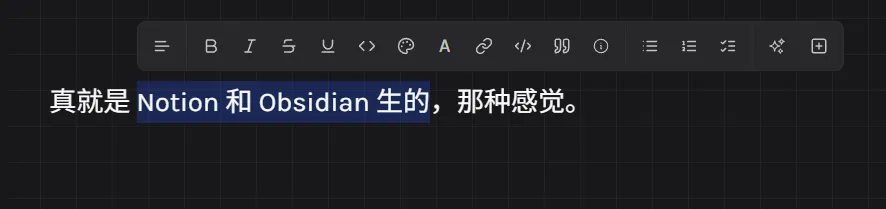
How to improve in OB?
- NoteToolbar provides Text Toolbar functionality
- Editing Toolbar also provides toolbar layout displayed when text is selected
- MiniToolbar V2 also provides some formatting functions, even the colored highlighting below
Text highlighting with background color:
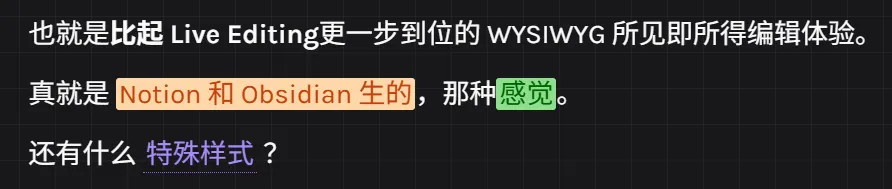
Source code is as follows:
This is ==🟠a combinition of Notion and Obsidian==, that ==🟢feeling==.`
I think this is quite a genius idea. Through native highlighting syntax combined with one specific color emoji character.
In addition, Octarine also supports text color, but this requires membership, so I can’t try it for now.
How to improve in OB?
There is currently no plugin in Obsidian that can achieve this functionality, or rather rendering enhancement for this specific format, I estimate one could be written using decorations.
-
Mini Toolbar V2 can set text highlight colors, but it writes to
data.json, which is usable, but not “file-based” enough—once the plugin is uninstalled, it’s lost -
Editing Toolbar can add colors using HTML syntax, but it’s not elegant
-
Dynamic Highlights can achieve rendering functionality by dynamically attaching CSS, but the plugin is natively ineffective in reading view
-
Regex Mark is considered a modern version of Dynamic Highlights, supporting multiple different views
Backlinks
Backlinks panel:
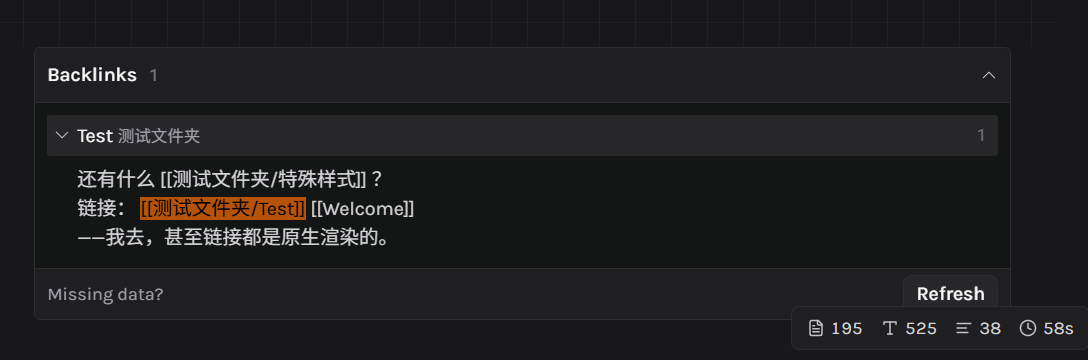
OB also comes with it, just enable it in core plugins.
Quick Insert
Quickly insert date:
-
Date Inserter can insert time
-
You can also use Templater to write scripts to insert any desired time
Quickly insert preset templates:
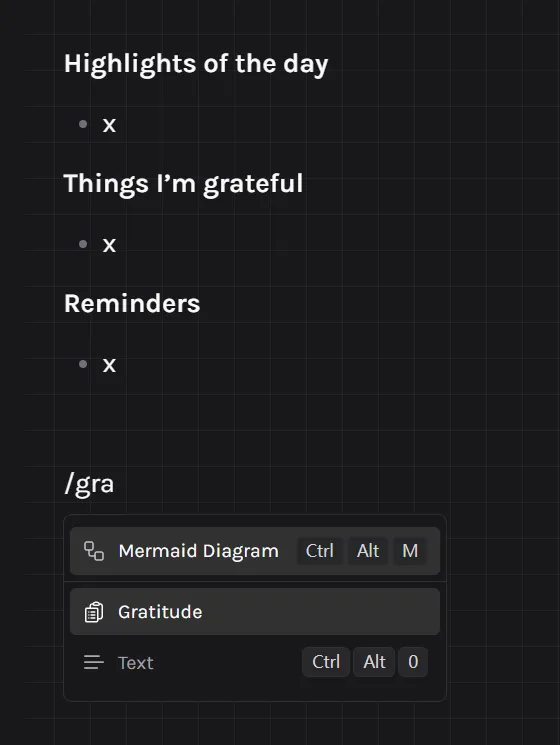
- Templater or QuickAdd can both achieve this
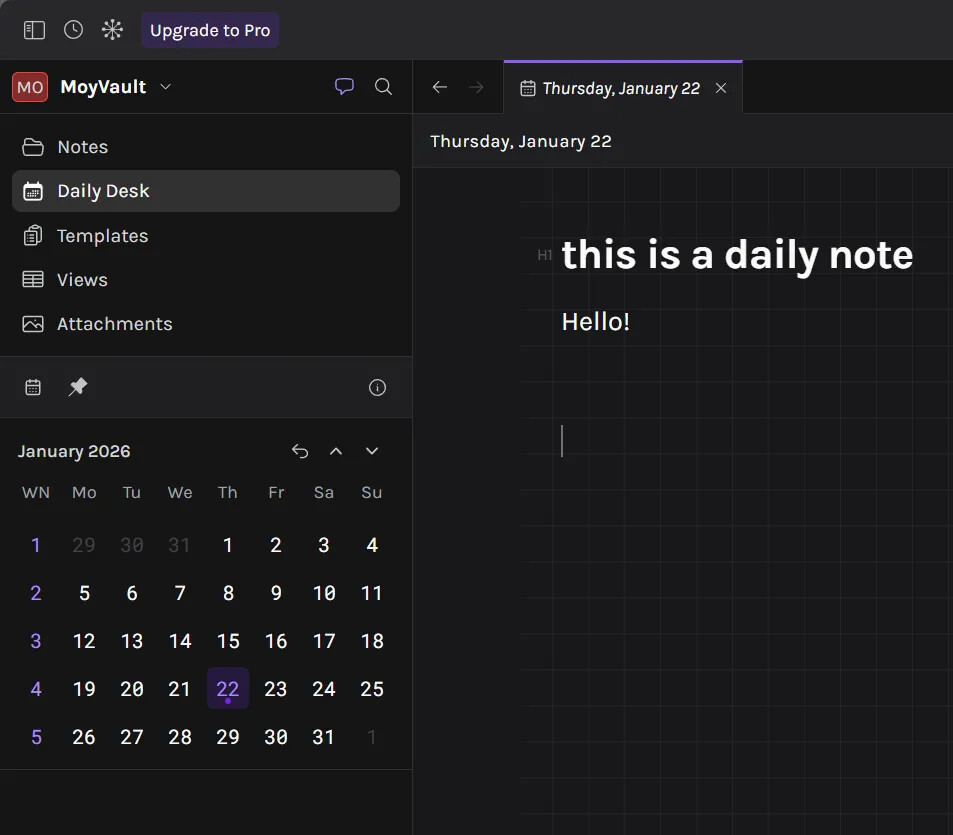
Calendar
Native built-in calendar view:
-
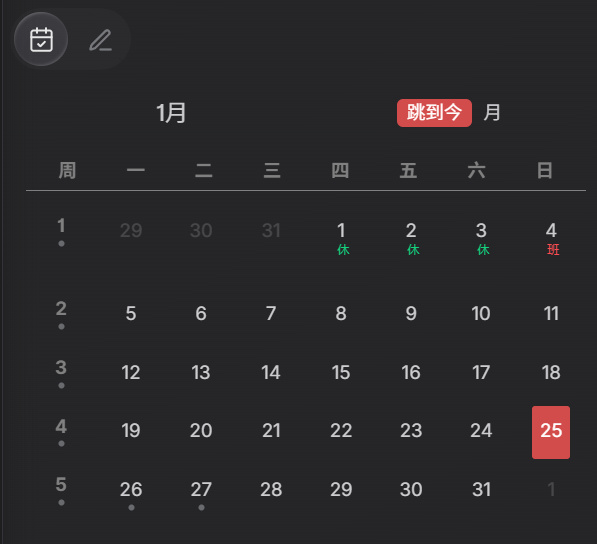
DailyNote core plugin can implement diary functionality
-
Calendar or DustCalendar can provide calendar view
Git
Built-in Git sync:
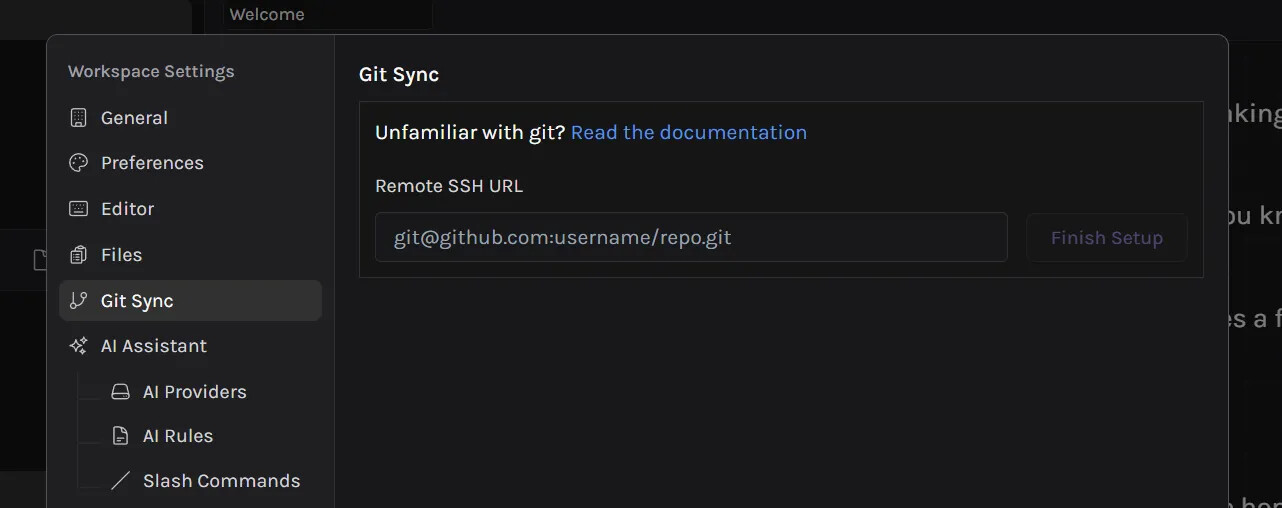
- Obsidian Git plugin can provide integrated Git functionality
Where are the Disadvantages?
First, relying entirely on individual developer development, unable to leverage the massive community plugins and themes.
Second, at present extensibility seems limited, more like Notion than OB—you can’t customize your habitual script workflows.
(But most users actually don’t master this ability… but now with AI it’s different, which means often you only need to provide ideas, and AI can help you implement scripts or even plugins)
And some limitations that may be inherent to the MD format still exist:
- Cannot embed code blocks in lists
- Cannot drag blocks (Notion-style operation)
- Cannot set aliases for internal links
- No Multi-columns layouts
Overall, because it’s like Typora where they write their own editing and rendering engine, there’s no switching between “editing mode/preview mode.” For beginners, this is more friendly.
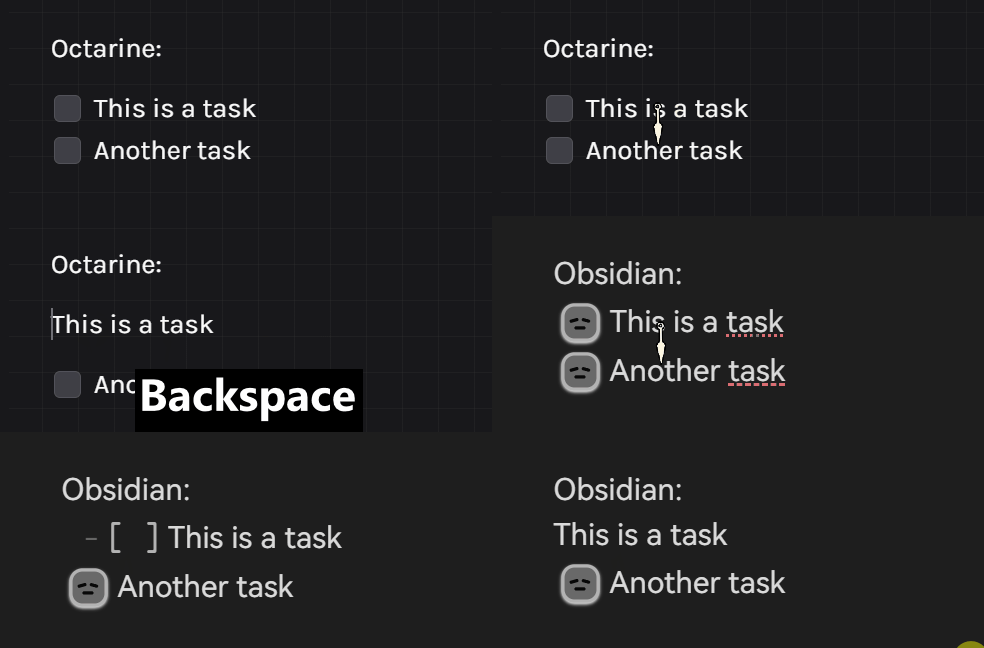
Conversely, most Markdown symbols are hidden within the rendered formatting, and can’t even be actively edited—this may have pros and cons for different users.
This is very evident in “Project Lists” (tasks)
Unexplored Parts
Because I haven’t purchased the Pro version, there are many features I haven’t tried yet.
Such as AI functionality, and also that “Views” database feature that looks very similar to Bases.
I only spent about 2 hours doing a rough experience, so please don’t blame me if I wrote something wrong.
Summary
Actually, you can see that the “good native editing functionality” achieved by Octarine (for so-called “note beginners”—programmers can of course directly use source code mode and enjoy it), the vast majority can be achieved with appropriate plugins.
But the problem may also lie here—when a new user gets started, how do they know about these plugins?
Unless seeing a detailed post like this, otherwise it will face nearly 3000 community plugins and fall into this rabbit hole.
And when you achieve these so-called functional optimizations, you may have already installed a long string of plugins.
I’ve been using Obsidian for three or four years, I’m an old hand in this field.
But I hope those “beginners” can also more easily step into this land.