The core meaning of “Jotting” is “a short note” or “something written down quickly.”
Overview
When writing notes, it can feel troublesome if you have to consider “What’s a good file name?” or “Which folder should I put it in?”
So, I recently devised a new Obsidian note-taking workflow, which I call Jotting (Quick Notes).
What Problem Does This Solve?
As mentioned above, the main issue it addresses is the “cognitive burden when recording notes.”
When creating a Jotting note, you don’t need to look for a folder structure, and you hardly need to consider the naming convention. The process of writing a note is similar to posting a tweet.
“Making note-taking as easy as posting a tweet”—that is the purpose of Jotting Workflow.
This concept is actually similar to “Fleeting Notes,” which was my initial inspiration. Therefore, you can also consider this to be a workflow for practicing Fleeting Notes within Obsidian.
How It Works
Simply put, when you have a fragmented idea, you can use a keyboard shortcut to directly create a new note and write whatever you want (even if it’s just a sentence or two).
Notes are placed in a Jotting/Year-Month folder for only the most basic classification.
At the same time, each note’s parent property links to the Daily Note for that day, making it easy to trace and query.
Because I have the habit of writing “Daily Notes,” I used a double link like
[[2025-11-20]]here. If you don’t use this workflow, you can simply write it as a plain text property, e.g.,jotting_date: 2025-11-20.
Property Association:

Quickly viewing all quick notes created on the current day within the Daily Note:
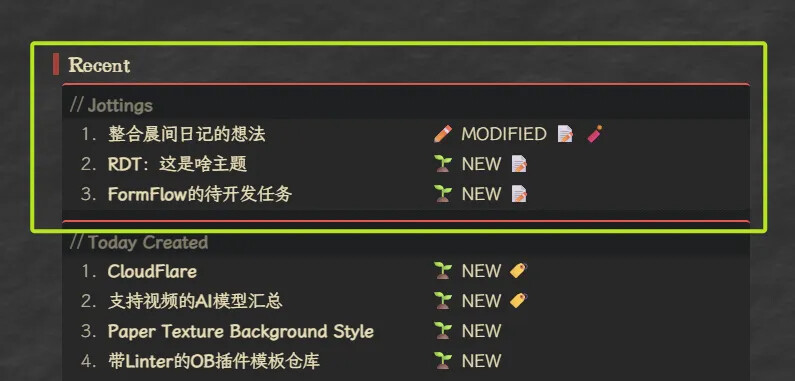
Solution
Quick Creation
Here I use the QuickAdd plugin, which can quickly create new notes in a specified folder.
In the plugin settings, create a new Template, enter the name, and click “Add Choice”:

Click the gear icon and configure as follows:
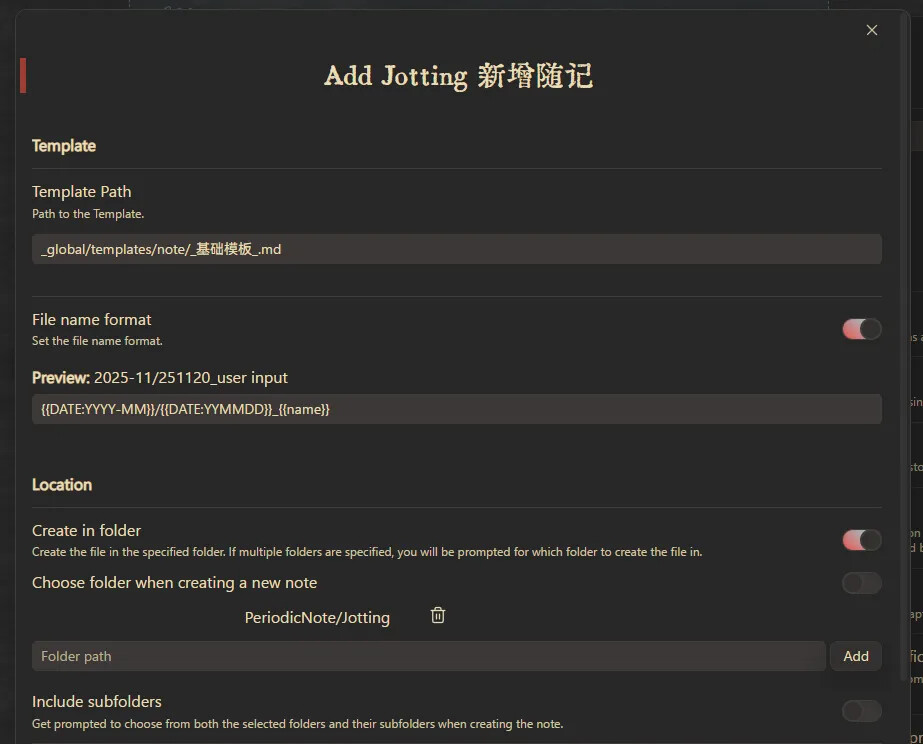
The Location below is the folder path;
By checking File name format and setting the filename to {{DATE:YYYY-MM}}/{{DATE:YYMMDD}}_{{name}}, it can automatically create the note in a date folder and add a date prefix.
The final path will look like this:
Folder/2025-11/251120_a random thought.md
The template part can be customized according to personal habits. I like to add a #jotting tag for easy filtering.
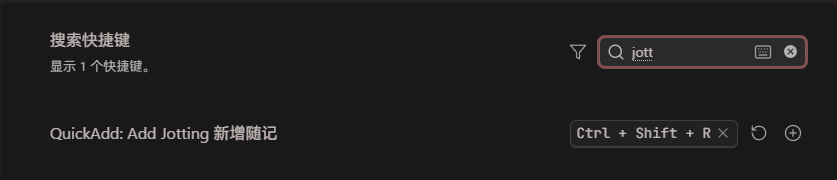
After configuration, click the lightning icon to register it as a command, and then assign a keyboard shortcut. That’s it!
Query and Aggregation
With the Bases database feature, querying Jotting notes becomes very convenient, eliminating the worry of “remembering things too messily to find.”
The simplest way is to use the #jotting tag combined with Bases to query all quick notes and group them by folder:
```base
views:
  - type: table
    name: Table
    filters:
      and:
        - file.hasTag("jotting")
    groupBy:
      property: file.folder
      direction: ASC

```
Paste this code into your OB to see the effect, provided notes with the corresponding tag already exist.
After adjusting as needed, you can create a database like this:
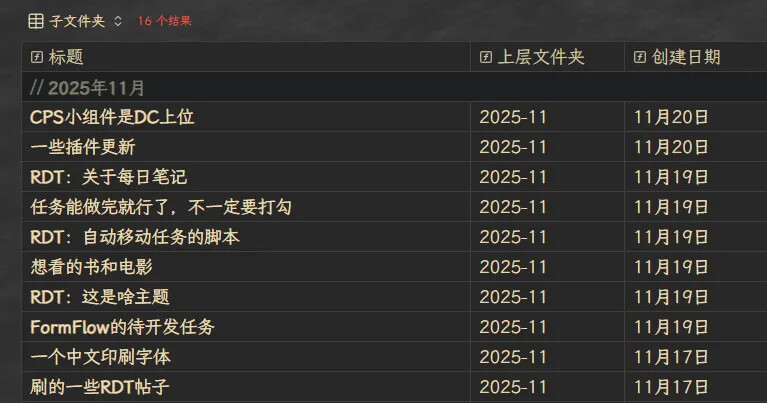
As you can see, my naming is also very casual. But this is enough; when needed, I can quickly search for any quick note.
Here is a slightly more complex version, which adds a simplified creation date property and sorts by creation time, for your reference:
```base
formulas:
  Creation Date: file.ctime.format("MMDD")
views:
  - type: table
    name: Table
    filters:
      and:
        - file.hasTag("jotting")
        - file.inFolder("PeriodicNote/Jotting")
    groupBy:
      property: file.folder
      direction: ASC
    order:
      - file.name
      - formula.Creation Date
    sort:
      - property: file.ctime
        direction: DESC
    columnSize:
      file.name: 563

```
Additionally, regarding “Creation Time,” I actually recommend managing the creation time yourself by writing it into the properties, which can be achieved through the template! For details, see:
Follow-up Maintenance
If we just casually jot down thoughts, it’s essentially similar to a memo or a random piece of paper.
This certainly has its “use,” but the value is somewhat limited.
So, another question arises—what’s next?
Adding New Content
For instance, if you have more related thoughts about a temporary idea later on—
Simply continue to add and complete the content directly in the original note!
Thanks to it being an independent note, you can be as brief or extensive as you like—just one sentence or several paragraphs are both fine.
Creating Connections
Also, thanks to it being an independent note, you can very easily create its associated notes.
For example, you initially wrote a document 251010_movies to watch.md, recording Mulholland Drive. A month later, you find another movie you want to watch, Twin Peaks, is by the same director. You can directly link to it in 251120_new movie to watch.md:
Twin Peaks

> I recorded *Mulholland Drive* in [[251010_movies to watch]] before, and it's also by this director!
If you delve further into the director and even create a separate note for David Lynch.md, you can create an associated double link as needed—or not, it’s up to you! It’s your notes, you’re in charge.
Converting to Formal Notes
Similarly, if you find that a thought, which was initially fragmented, gradually becomes more “important” and needs “organization” or “standardization,” it’s also very simple—
-
“Cut” or “copy” the text from the quick note into a separate note.
-
Directly “move” a quick note into a more structured directory.
-
“Rename” it as needed.
-
“Split” it into multiple notes, or “combine” it into a larger note.
-
…
These operations might sound like common sense, but the core point is this: You can perform any operation you want on these quick notes later on; don’t have any psychological burden.
Conversely, it’s precisely the knowledge that “quick notes can be formalized later” that allows us to create them more effortlessly.
Leaving them where they are is also fine; you don’t need to convert all quick notes into formal notes.
Imagine them as seeds: some seeds will sprout, some will decay, and some will suddenly germinate after being buried for a dozen years… These are all very natural occurrences 
Evolution
The sharing of the Jotting workflow essentially concludes here.
The following is a brief sharing on the formation process of my current workflow.
Initially, I actually added a sub-heading in my Daily Note and used even smaller headings to record things.
Like this:
2025-11-20.md
Markdown
## Emphemral Notes

### CSS Query Method
21:15
...

### Movies to Watch
10:15
...
However, first, adding content to a specific heading in a note like this was slightly cumbersome;
Second, when I wanted to link to or expand upon one of those thoughts, the operation became tedious because it was a sub-content block within the Daily Note.
Furthermore, it wasn’t easy to query. Although there are ways to list sub-headings within a specific heading, it is clearly not as convenient as using an independent note.
So, after using this format for a long time, I finally decided to make an innovation.
I ultimately broke through the mental barrier and decided—even if it’s just one sentence, it can absolutely be created as a single note.
This way, both searching and referencing become much easier.
It could be called the most “Obsidian” style of usage!
At the same time, the double link in the properties maintains the crucial information of “when this quick note was written,” preventing them from becoming a mass of completely disorganized, scattered notes.
Above is my recent fresh discovery of an “effortless quick note-taking workflow in Obsidian.” I hope it helps you.

 )
)