Oh, I forgot to mention one way of defining the summary. If you define it inline like the following example note:
[summary:: This is my summary, which is too long to fit on one line, so really someone should summarise the summary to make it shorter]

And some more descriptive text...
This could be styled into something like:
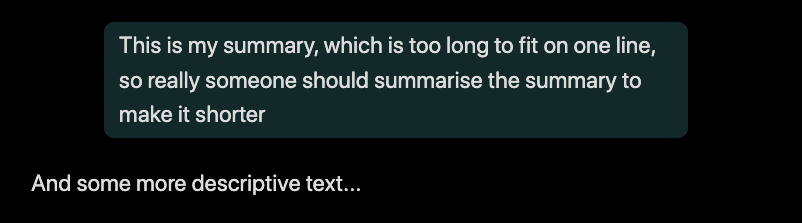
using CSS like the following:
.inline-field-key[data-dv-key="summary"] {
  display: none;
}

.inline-field-key[data-dv-key="summary"] + .inline-field-value {
  display: block;
  margin-left: 10% !important;
  margin-right: 10% !important;
  background-color: hsl(180, 100%, 8%) !important;
  border-radius: 10px;
  padding: 6px 15px;
  color: var(--text-normal) !important;
}
Then you don’t need to do the `= this.summary `, and you can make it stand out just as much as you want to.
Bonus tip: How to add a custom CSS snippet
- Goto Settings > Appearance and scroll down to “CSS snippets” section, and hit the folder icon on the far right. This opens up a file explorer window, in the folder
vault/.obsidian/snippets, which is were you want to save your css snippet - In this new window create a file, like
myCss.css, where you copy the CSS into. Make sure this actually is a text file, and that the name ends in.css - Back in Obsidian, you should now see your
myCssin the list of CSS snippets. If not, hit the refresh button - Final step is to click the enable button to the right of your file, and now your new CSS should be in effect
- If you later on make changes in the CSS snippet file, the effect should be immediate. If not, try disabling and re-enabling the snippet, or in some strange cases, you would need to reload Obsidian. In 99% of the cases, the changes are immediate, though.