Disclaimer
Is this plugin open source? Yes
Is this plugin completely free? No
Is this plugin vibe-coded beyond the author’s ability to comprehend how it works? No
Community Directory:https://community.obsidian.md/plugins/foxycape-pdf
A PDF reader for Obsidian that stays connected to your notes — highlights, citations, and deep links that take you back to the source.
Why
Reading PDFs inside Obsidian often breaks the note-taking loop:
-
Highlights stay in the PDF; your vault notes stay elsewhere.
-
Grabbing a figure usually means a blurry screenshot.
-
Pasted quotes and images rarely point back to the exact page or region.
-
Light PDF pages feel harsh in a dark vault theme.
-
Switching readers can break page/selection links you already use.
Foxycape PDF addresses these gaps without asking you to leave Obsidian.
Features
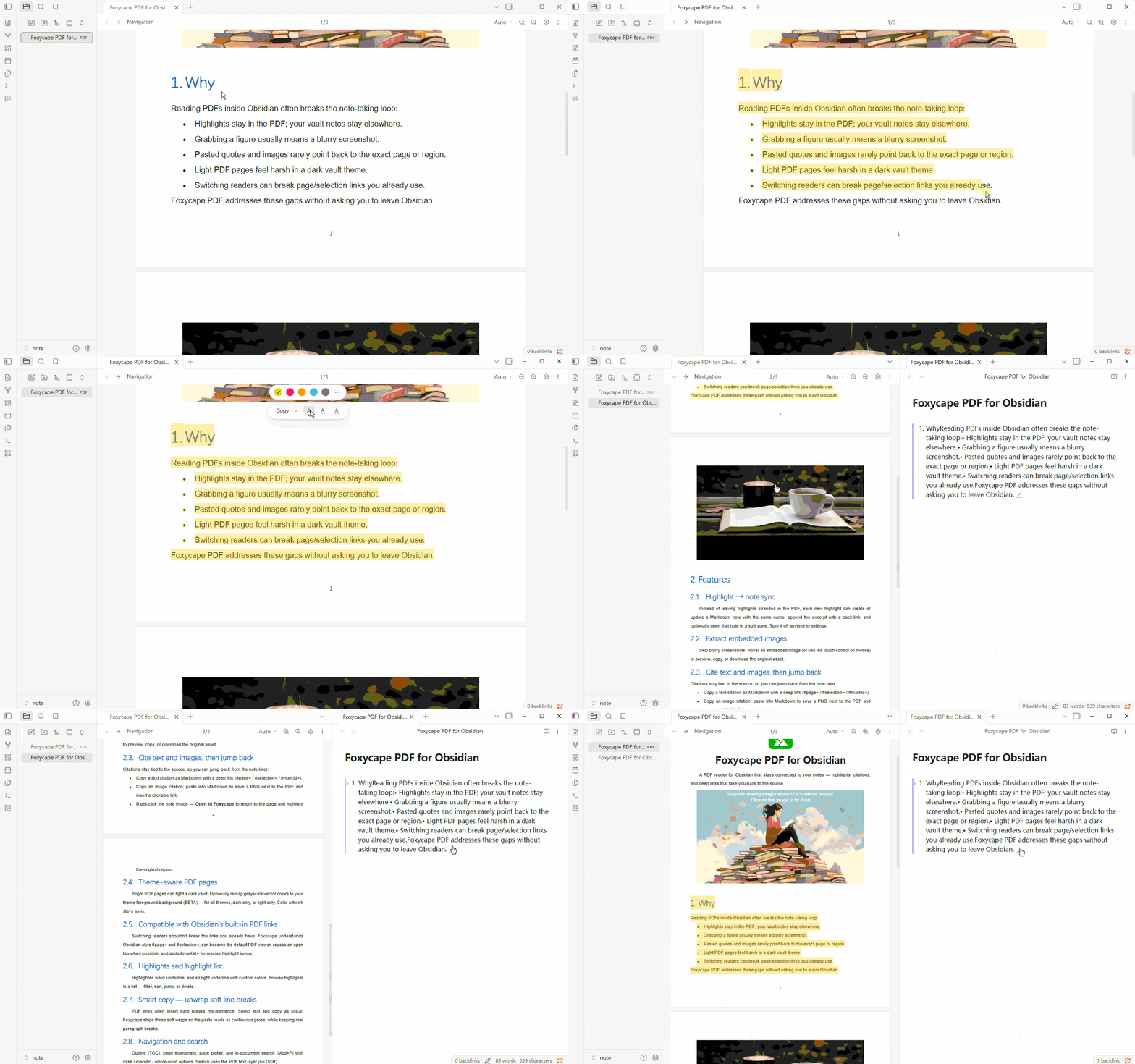
Highlight → note sync
Instead of leaving highlights stranded in the PDF, each new highlight can create or update a Markdown note with the same name, append the excerpt with a back-link, and optionally open that note in a split pane. Turn it off anytime in settings.
Extract embedded images
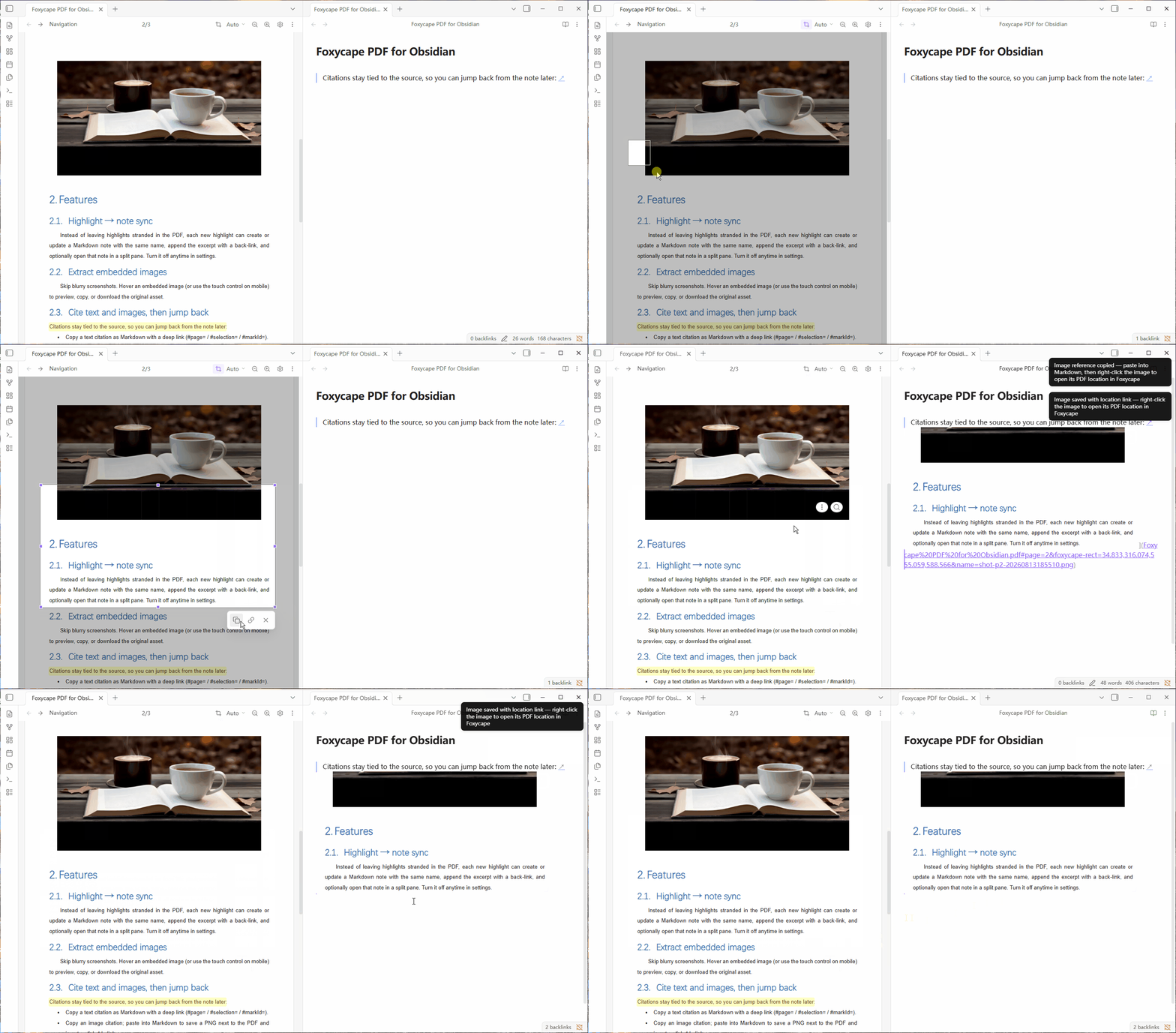
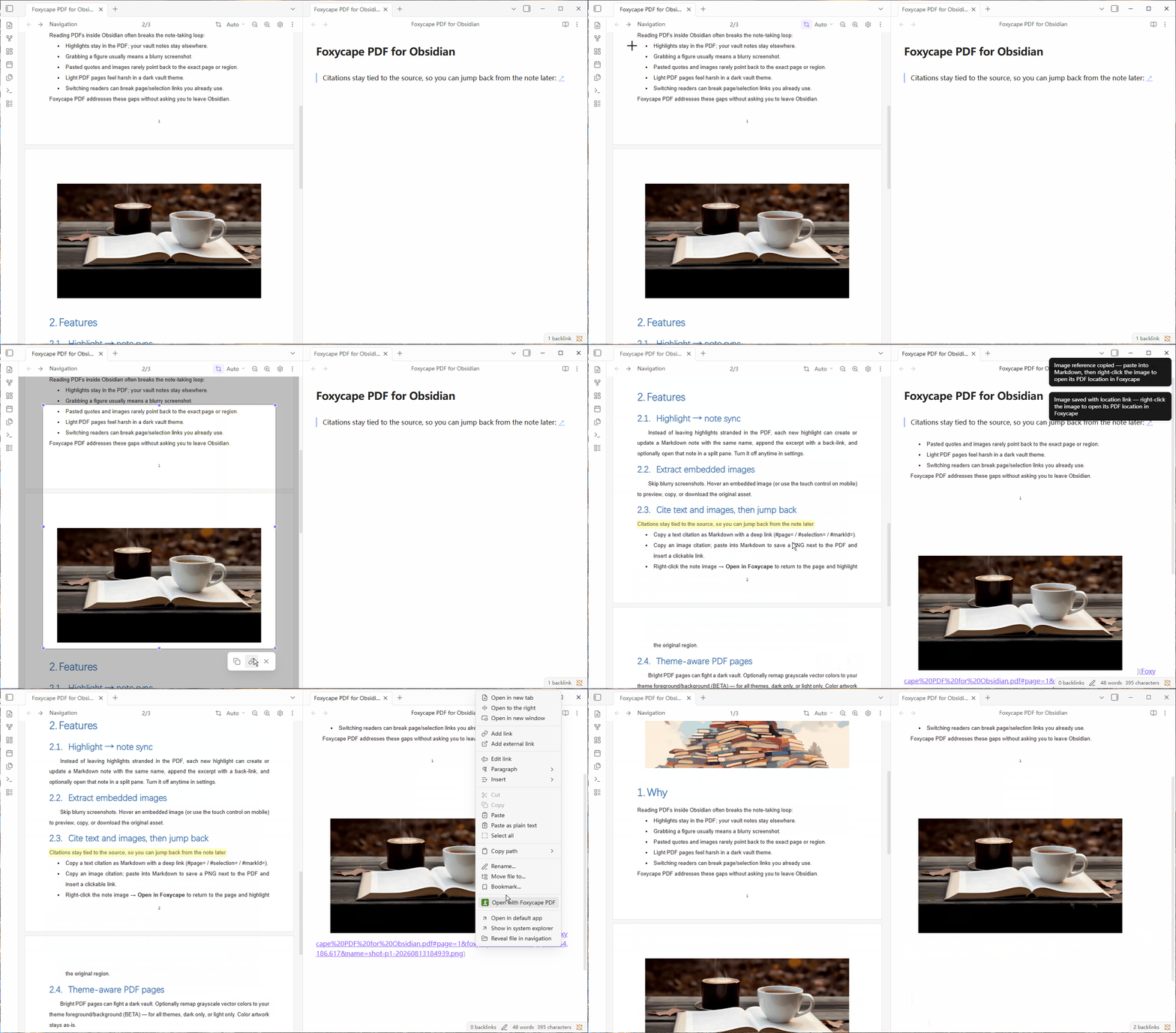
Skip blurry screenshots. Hover an embedded image (or use the touch control on mobile) to preview, copy, or download the original asset.
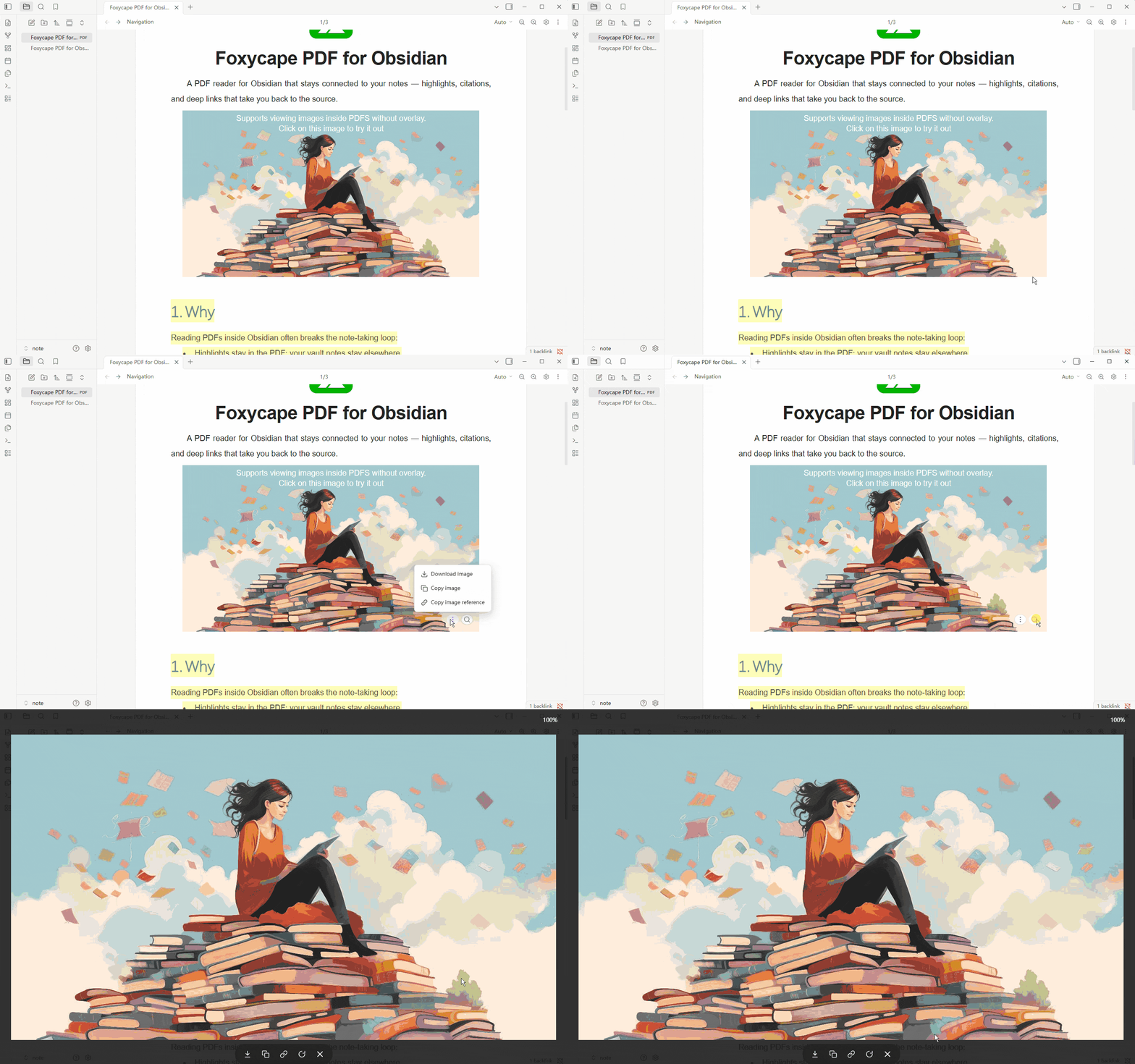
Cite text and images, then jump back
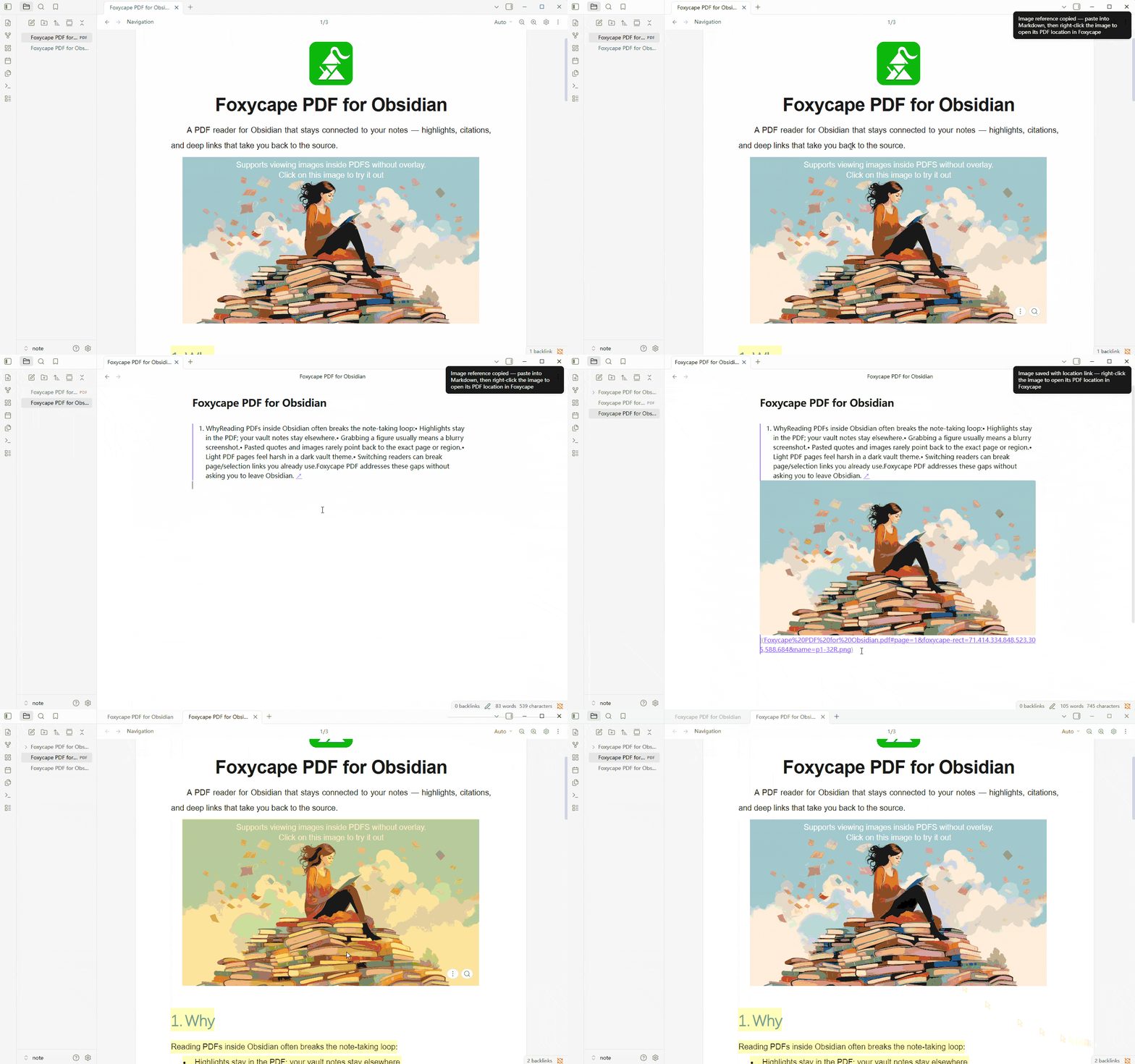
Citations stay tied to the source, so you can jump back from the note later:
-
Copy a text citation as Markdown with a deep link (
#page=/#selection=/#markId=). -
Copy an image citation; paste into Markdown to save a PNG next to the PDF and insert a clickable link.
-
Right-click the note image → Open in Foxycape to return to the page and highlight the original region.
Theme-aware PDF pages
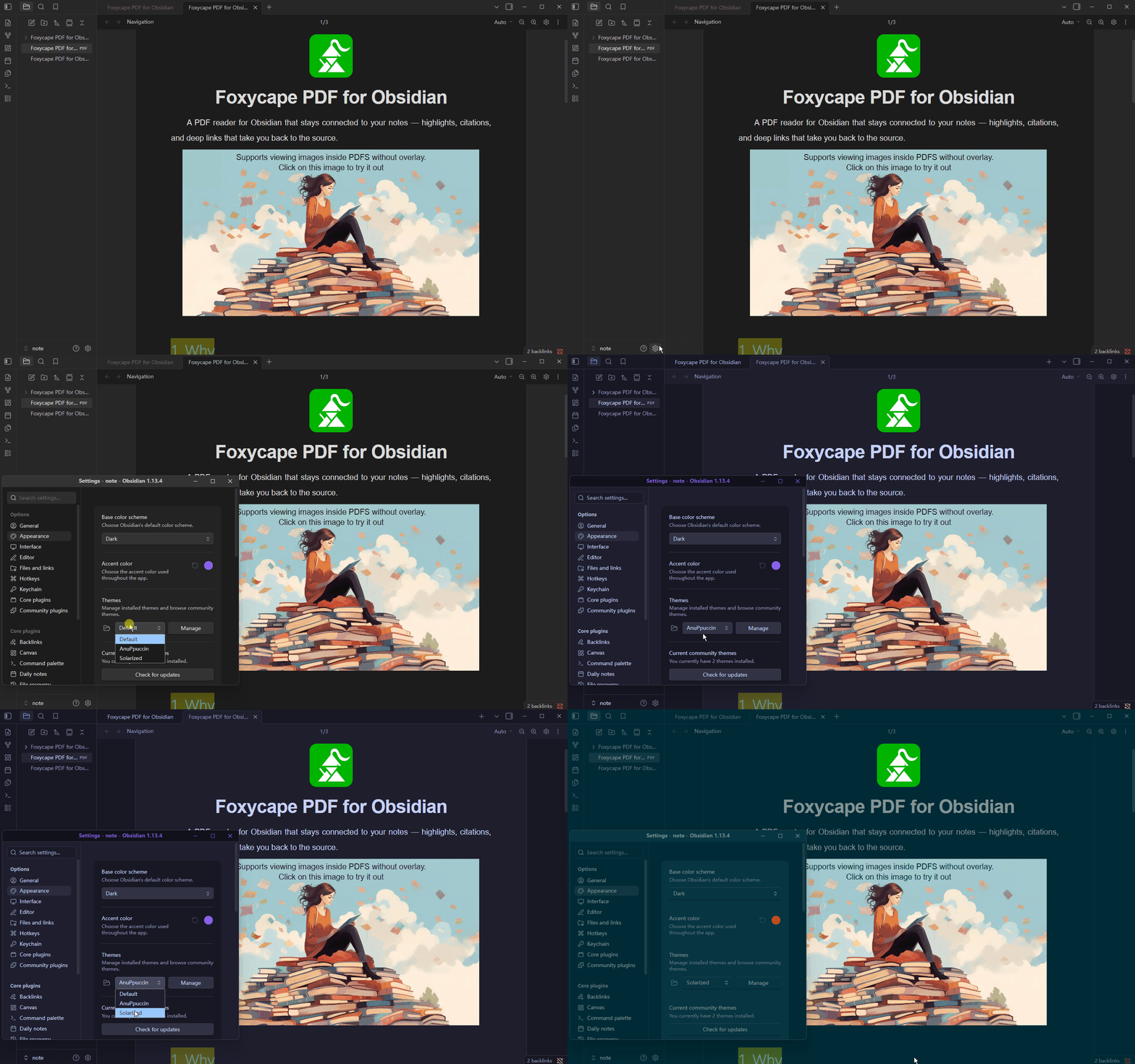
Bright PDF pages can fight a dark vault. Optionally remap grayscale vector colors to your theme foreground/background (BETA) — for all themes, dark only, or light only. Color artwork stays as-is.
Compatible with Obsidian’s built-in PDF links
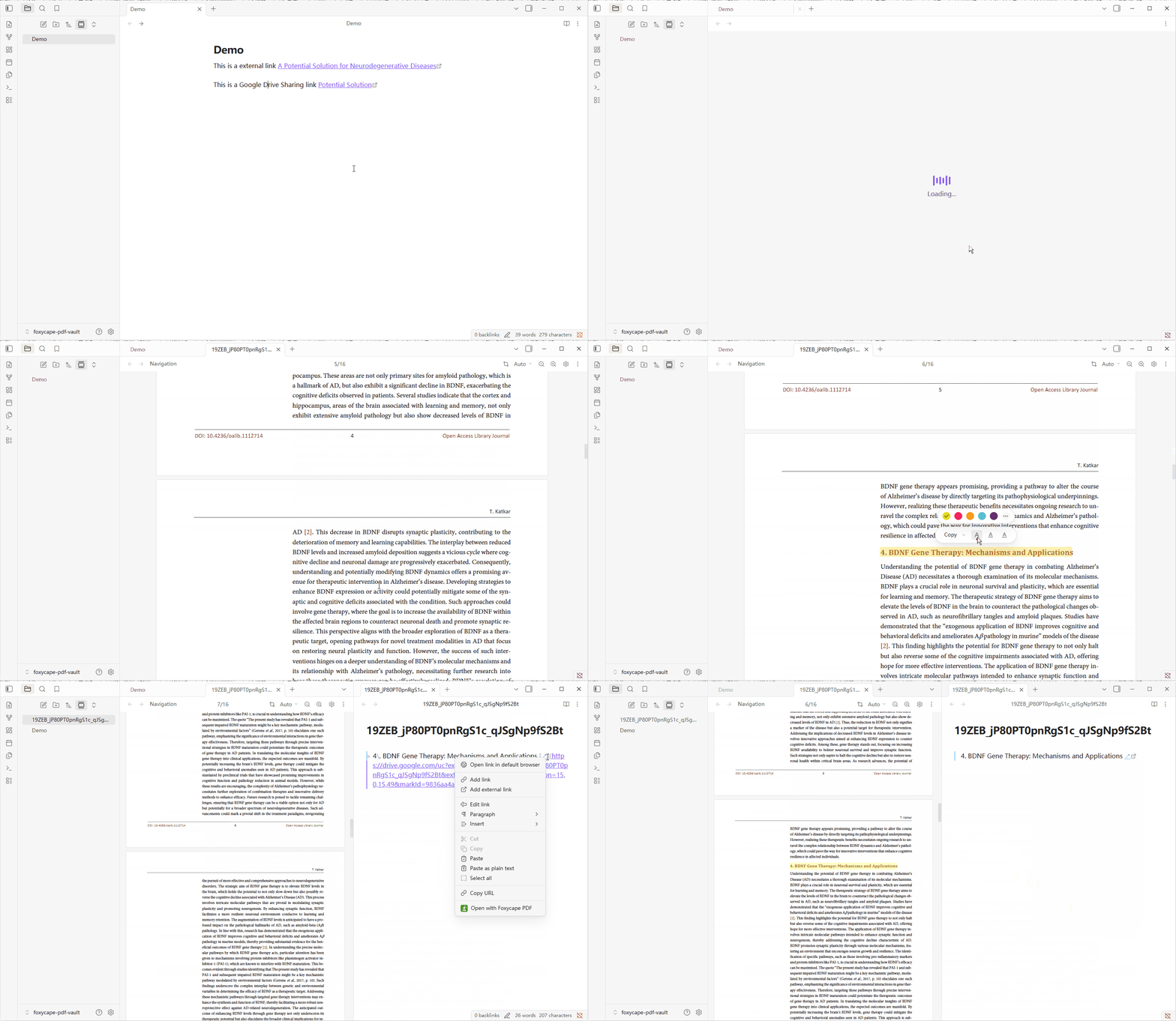
Switching readers shouldn’t break the links you already have. Foxycape understands Obsidian-style #page= and #selection=, can become the default PDF viewer, reuses an open tab when possible, and adds #markId= for precise highlight jumps.
Highlights and highlight list
Highlighter, wavy underline, and straight underline with custom colors. Browse highlights in a list — filter, sort, jump, or delete.
Smart copy — unwrap soft line breaks
PDF lines often insert hard breaks mid-sentence. Select text and copy as usual: Foxycape strips those soft wraps so the paste reads as continuous prose, while keeping real paragraph breaks.
Navigation and search
Outline (TOC), page thumbnails, page picker, and in-document search (Mod+F) with case / diacritic / whole-word options. Search uses the PDF text layer (no OCR).
Reading layout
Zoom (auto / page width / percentages), vertical or horizontal scroll, single / facing / book layout, page rotation, password-protected PDFs. Works on desktop and mobile.
Set as the default PDF reader
For the smoothest experience—deep links, highlights, and theme-aware pages—turn on Use as default PDF viewer in Foxycape settings so Obsidian opens PDFs with Foxycape by default.