Is this plugin open source? Yes — the Obsidian client is MIT-licensed. The remote signing engine is proprietary and is not distributed with the plugin.
Is this plugin completely free? Yes — the plugin, account and signing/verification service are currently free.
Is this plugin vibe-coded beyond the author’s ability to comprehend how it works? Yes. The plugin was implemented with coding-agent assistance. I understand the product principles, but cannot meaningfully assess the implementation myself. Windows functional testing and Obsidian’s automated review have been completed; neither is an independent code or security audit.
Hi everyone! WaveSign 0.1.1 is now available in the Community directory. It helps people who publish notes with image or PDF attachments create and verify invisible, tamper-evident authentication packages. It is not a visible watermark or an electronic-signature tool.
What it does
Signs a selected image/PDF, or unique eligible attachments linked from the current note.
Creates signed media plus matching JSON verification metadata beside the original, without overwriting originals or earlier outputs.
Verifies the signed file using its matching JSON and the same passphrase.
Important before trying it
A WaveSign account and internet access are required. Selected files and operation passphrases are sent over HTTPS to WaveSign servers on AWS; signing and verification run there, not locally in Obsidian. The plugin does not store passphrases and has no client-side telemetry. Start with a separate test vault, non-sensitive samples and a fresh test passphrase.
Keep the signed media and matching JSON together: both and the same passphrase are required for verification. Lost JSON cannot currently be regenerated. JPG/WEBP signing produces PNG. Signed PDFs become rasterized image-PDFs and lose searchable/selectable text, forms, annotations and original structure.
Requires Obsidian 1.11.5+. Real-app testing has covered Windows with Obsidian 1.14.4; macOS, Linux and mobile remain unvalidated. This is an early release, not a formal cryptographic guarantee.
Install through the directory link above, enable WaveSign, then run WaveSign: Connect WaveSign account from the command palette. Right-click a sample image to sign it; right-click the signed output to verify it.
I would welcome 3–5 Windows users willing to spend about 15 minutes trying it, especially people publishing notes with images or PDFs. Does keeping a signed-file/JSON pair fit your workflow? What is confusing or missing? Please reply here or use GitHub Issues; include your OS/Obsidian/plugin versions and redacted error details, never passphrases, login codes, tokens, signature JSON contents or private files. I’ll keep future plugin updates in this thread.
Less friction in your creative workflow. Invisible authentication for what you share.
If you write in Obsidian and publish illustrations, screenshots or PDF attachments, WaveSign lets you add an invisible, tamper-evident signal without leaving your vault or placing a visible logo over your work.
Here is a simple publishing workflow to try:
Install WaveSign using the Community directory link in the opening post, enable it and connect your free WaveSign account.
Right-click a sample image or PDF, choose the WaveSign signing action and enter a dedicated passphrase. You can also sign eligible attachments linked from the current note as a batch.
Use the generated signed copy in your publishing workflow and keep its matching JSON verification file. Your original stays untouched.
Later, verify the signed file with that JSON and the same passphrase. Keep the passphrase private; never post it here.
This is file authentication, not copy prevention, proof of ownership or a guarantee of legal IP protection. Keep the exact signed file: resizing, recompression or editing may prevent successful verification. JPG/WEBP inputs produce PNG; signed PDFs become image-PDFs and lose searchable/selectable text, forms and annotations.
Privacy: Selected files and passphrases are sent over HTTPS to WaveSign’s servers for signing and verification; processing does not happen locally in Obsidian. The plugin does not store passphrases. An account and internet access are required. The plugin and service are currently free.
Real-app testing has covered Windows; macOS, Linux and mobile remain unvalidated. Please start with non-sensitive samples in a test vault. The AI-assistance disclosure and further limitations are in the opening post.
Would this fit your publishing workflow? I’d especially welcome feedback on keeping the signed file and JSON together, and where the process still feels cumbersome.
Login bug fixed — server-side update, no plugin reinstall needed
If you saw “Rate limit exceeded. Please try again later” while requesting or entering an email code to connect WaveSign, I’m sorry for the blocked onboarding.
The cause was on our backend: the plugin’s normal checks for connection approval shared a rate-limit counter with email login. Waiting for an email code could therefore exhaust the login allowance—even in a new vault with a different email address.
The fix is now live. Connection polling has its own counter, while the existing abuse-protection limits remain enabled and unchanged. The Obsidian plugin is still version 0.1.1; no update or reinstall is required.
To retry:
Close the old approval page.
In Obsidian, run WaveSign: Connect WaveSign account again.
Request a fresh email code, complete sign-in and approve the connection.
Return to Obsidian and check that WaveSign shows Connected.
Validation included 138 passing backend tests, including 10 new regression tests, plus paced polling checks in preview and production. Those live checks confirmed that login requests no longer hit this shared-counter block; they did not complete a real email-code sign-in.
If you were affected, please let me know whether a fresh connection now works. If it still fails, share your Obsidian/plugin versions and the redacted error text—never email codes, tokens, passphrases or private files. Thank you for helping catch this.
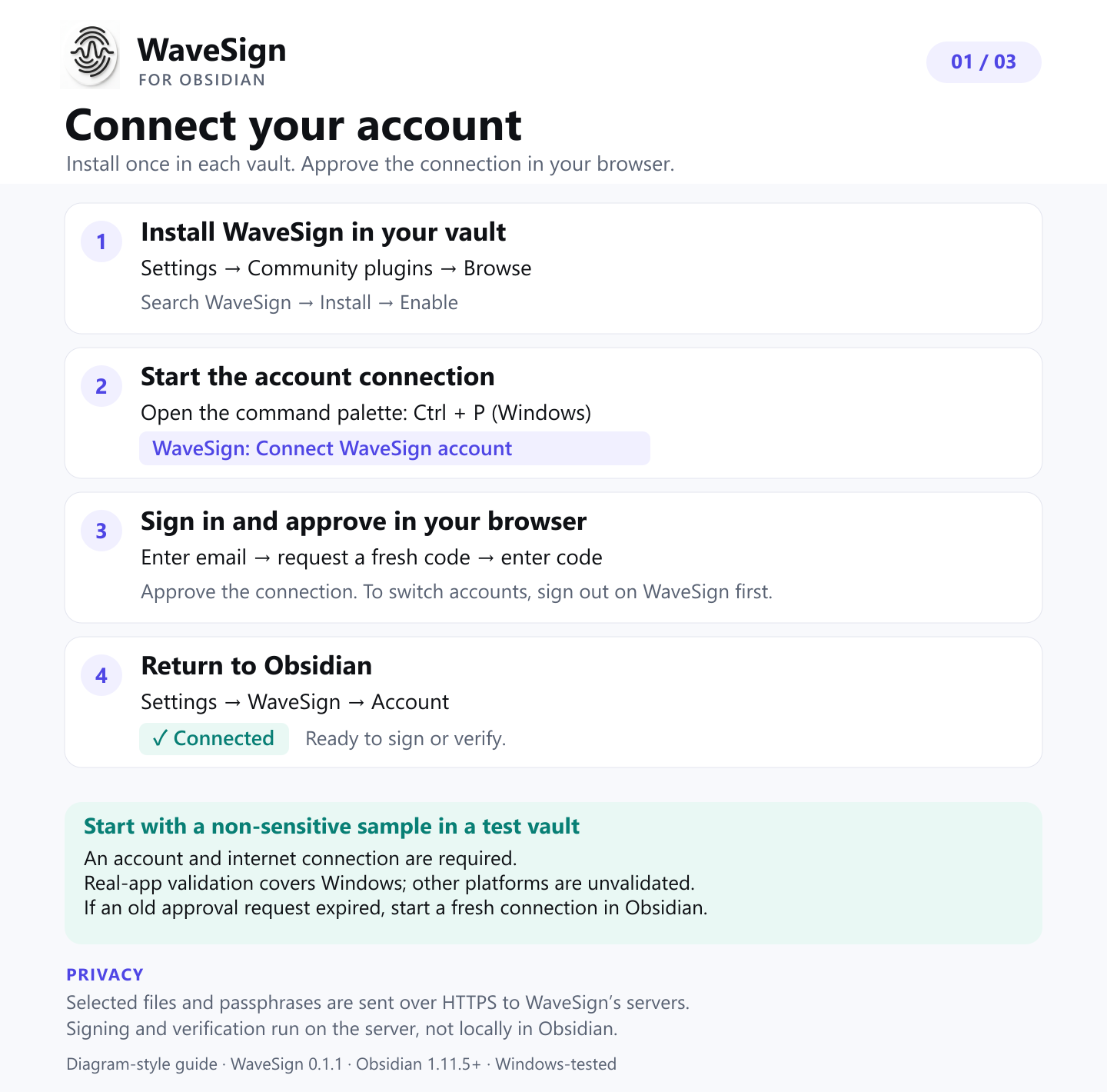
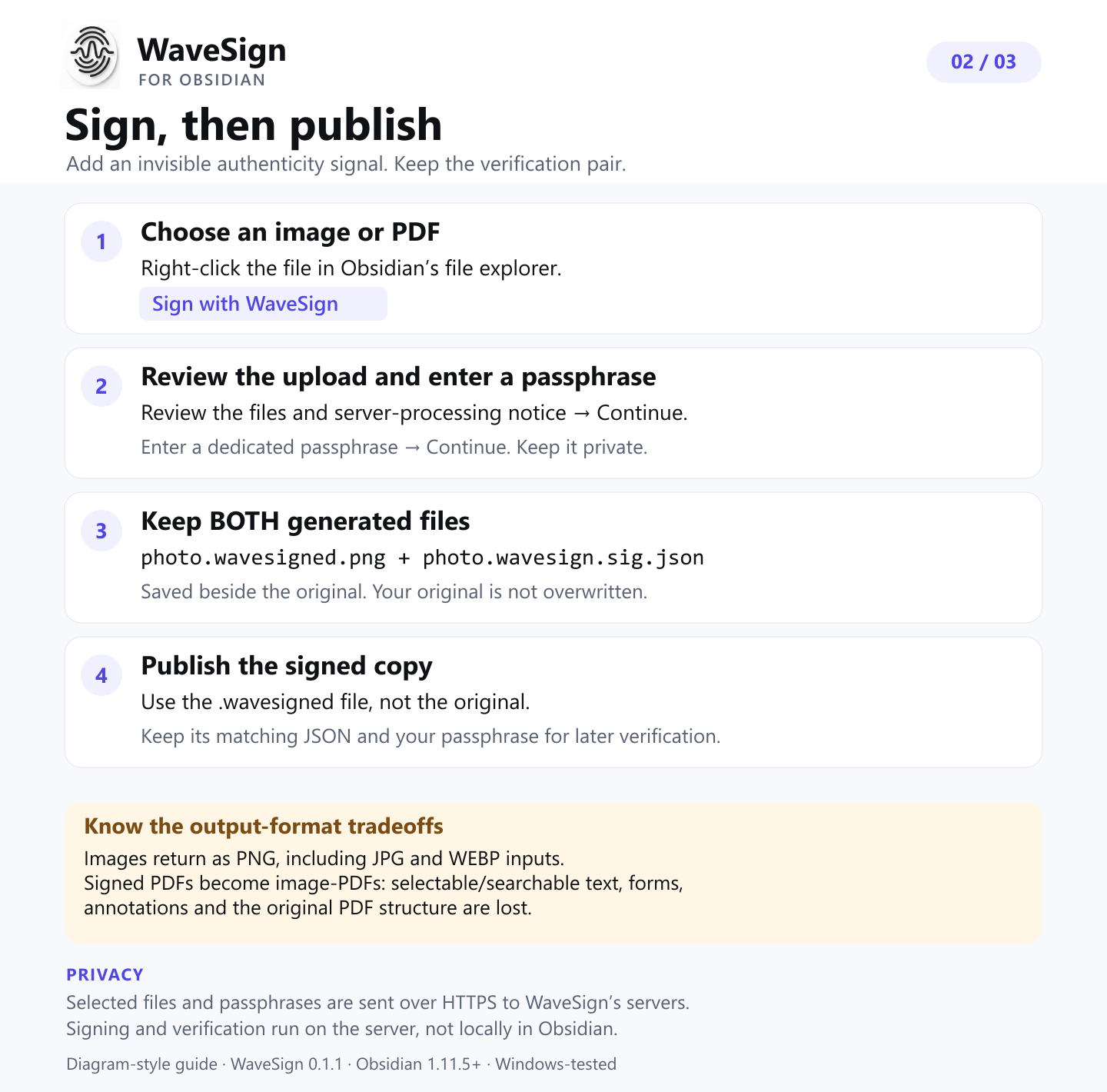
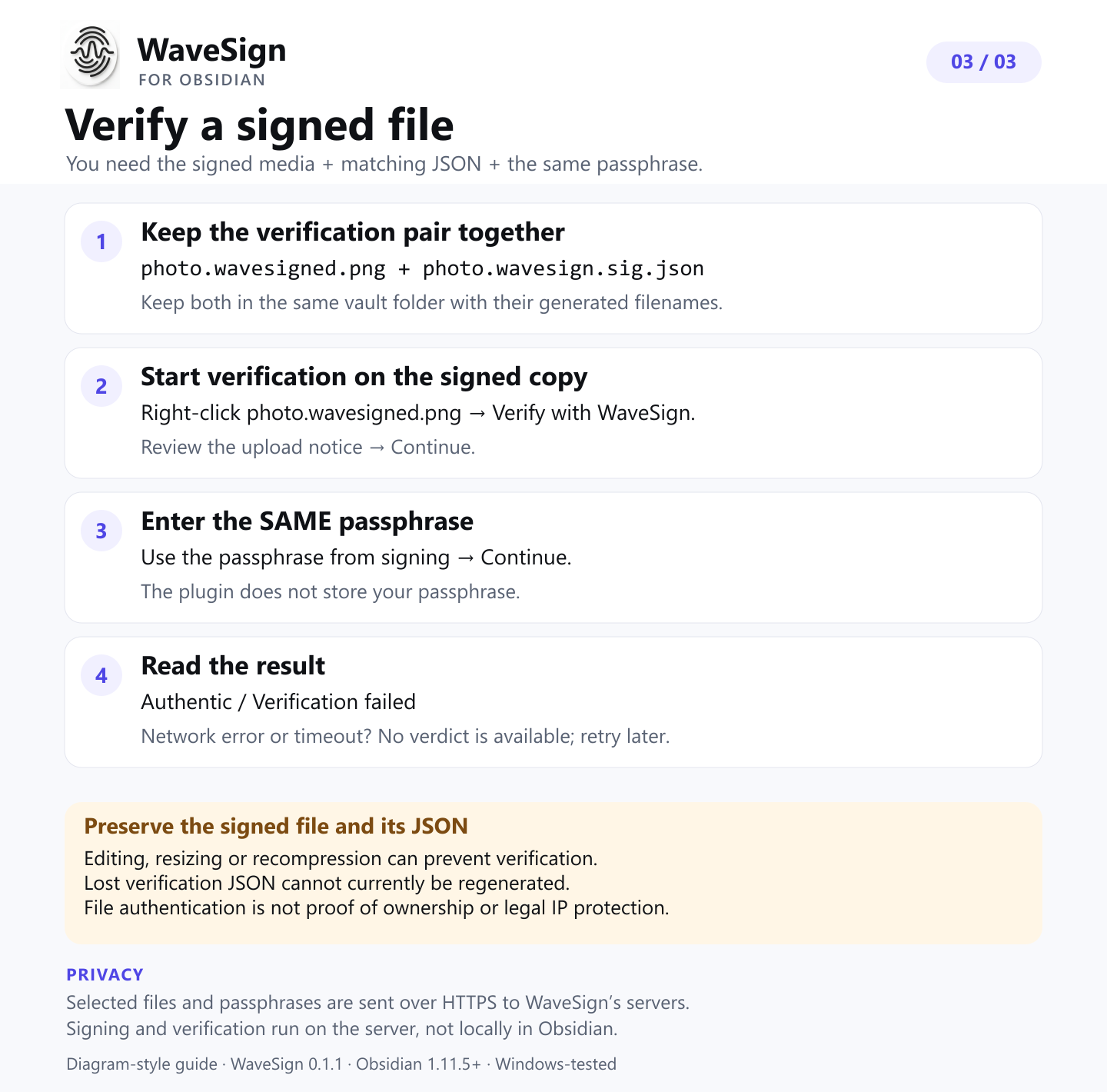
I’ve put together three simple visual guides for using WaveSign in Obsidian. These are diagram-style instructions, not app screenshots, based on WaveSign 0.1.1 and the Windows-tested workflow. Open each image to read it at full size.
1. Install and connect your account
Install and enable WaveSign from Community plugins, run WaveSign: Connect WaveSign account, then sign in and approve the connection in your browser.
Right-click an image or PDF → Sign with WaveSign. Review the upload notice, enter a dedicated passphrase, then keep both generated files. Publish the signed copy; your original stays untouched.
Keep the signed media and matching JSON together. Right-click the signed file → Verify with WaveSign, review the upload notice and enter the same passphrase. A network error is not an authenticity verdict.
Before trying it: start with non-sensitive samples in a test vault. Selected files and passphrases are processed on WaveSign’s servers over HTTPS, not locally in Obsidian. Lost verification JSON cannot currently be regenerated. Images return as PNG; signed PDFs become image-PDFs and lose searchable/selectable text, forms and annotations. File authentication is not proof of ownership or legal IP protection.
Requires Obsidian 1.11.5+. macOS, Linux and mobile remain unvalidated. The source, installation link and AI-assistance disclosure are in the opening post.
Please tell me which step is unclear or where you get stuck. Share only redacted error details—never passphrases, login codes, tokens, signature JSON contents or private files.