Create New note and open it in a new tab
There is an alternative for the code above, but pay attention because it is triggered differently and works differently
<%*
const folder = "Notes"
const ext = ".note"
const typefilename = "Note.type"

// construct timestamp
const dfrmt = "YYYY-MM-DD" ;
const tfrmt = "HH:mm:ss" ;
const zfrmt = "+03:00" ;
var timestamp = tp.date.now(dfrmt)+"T"+moment().format(tfrmt)+zfrmt ;

// Create NEW file at the specified folder and
// include frontmatter properties from the <.type> file
const filename = tp.date.now("YYYYMMDD")+moment().format('HHmmss') + ext
const type = await tp.file.find_tfile(typefilename);
await tp.file.create_new(type, filename, false, folder);

// Modify frontmatter by adding created_at and updated_at properties
const file = await tp.file.find_tfile(filename);
await app.fileManager.processFrontMatter(file, (frontmatter) => {
	frontmatter["created_at"] = timestamp;
	frontmatter["updated_at"] = timestamp;
});

// Open the new file in a new tab
await app.workspace.getLeaf("tab").openFile(file);
%>
The only similarity with the previous code in my main post is that you have the same (Note.type) file for your frontmatter properties. But there are many significant differences here from the Templater code in this reply:
- This Templater code can be triggered from any current note that is opened from any folder.
- You must not right-click on the specified folder (e.g. Notes) to create your new note/file. Instead you run
Templater: Open Insert Template modalcommand and select your template with the Templater code. - The paradox here is that this Templater code will not insert anything at the opened/current file but it will create a new file.
- You do not need to use
tp.hooks.on_all_templates_executedto modify the frontmatter - The new file will be opened in a new tab and it will become the current file.
- You must not add any content for the note after the Templater code, instead you can modify the “Note.type” file. Be careful for any white space before or after the code or use Templater whitespace control.
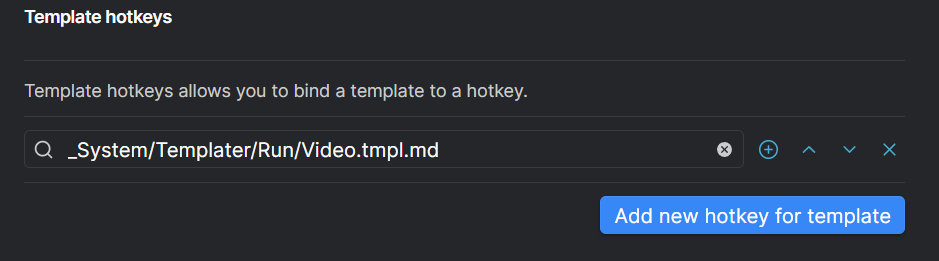
- You must not add a new Folder Template in Templater instead if you want a quicker way to trigger this templater code you can add a Template hotkey
Perhaps someone can also make a youtube video to highlight the differences between these two specific use cases so that Templater newcomers can understand better this functionality. It took me a long time to understand how this works despite the fact that I watched videos and read Templater documentation and related posts