To the left of the obsidian window, at the very bottom! Or just ctrl + ,
Thanks! That brings up the “settings” (so I guess preferences = settings)…But I realized my mistake - I first have to toggle the citation to “on” and then the tab appears. Silly me.
Yes, Pandoc is the way.
2 Likes
Thank you! I’ll do my best to try this 
1 Like
Hey jgauthier,
I also want to thank you for your awesome work. I am not exaggerating when I say that I wouldn’t have started using Obsidian without your plugin! It would’ve been Zettlr.
So I am very excited after hearing that you work on a reference panel like Zettlr.
Regarding the pretty preview renderer, if you also mean full bibliography that would be great!
5 Likes
Hi @jgauthier,
Thanks for building this amazing plugin. I just decided to try Obsidian because this plugin exists 
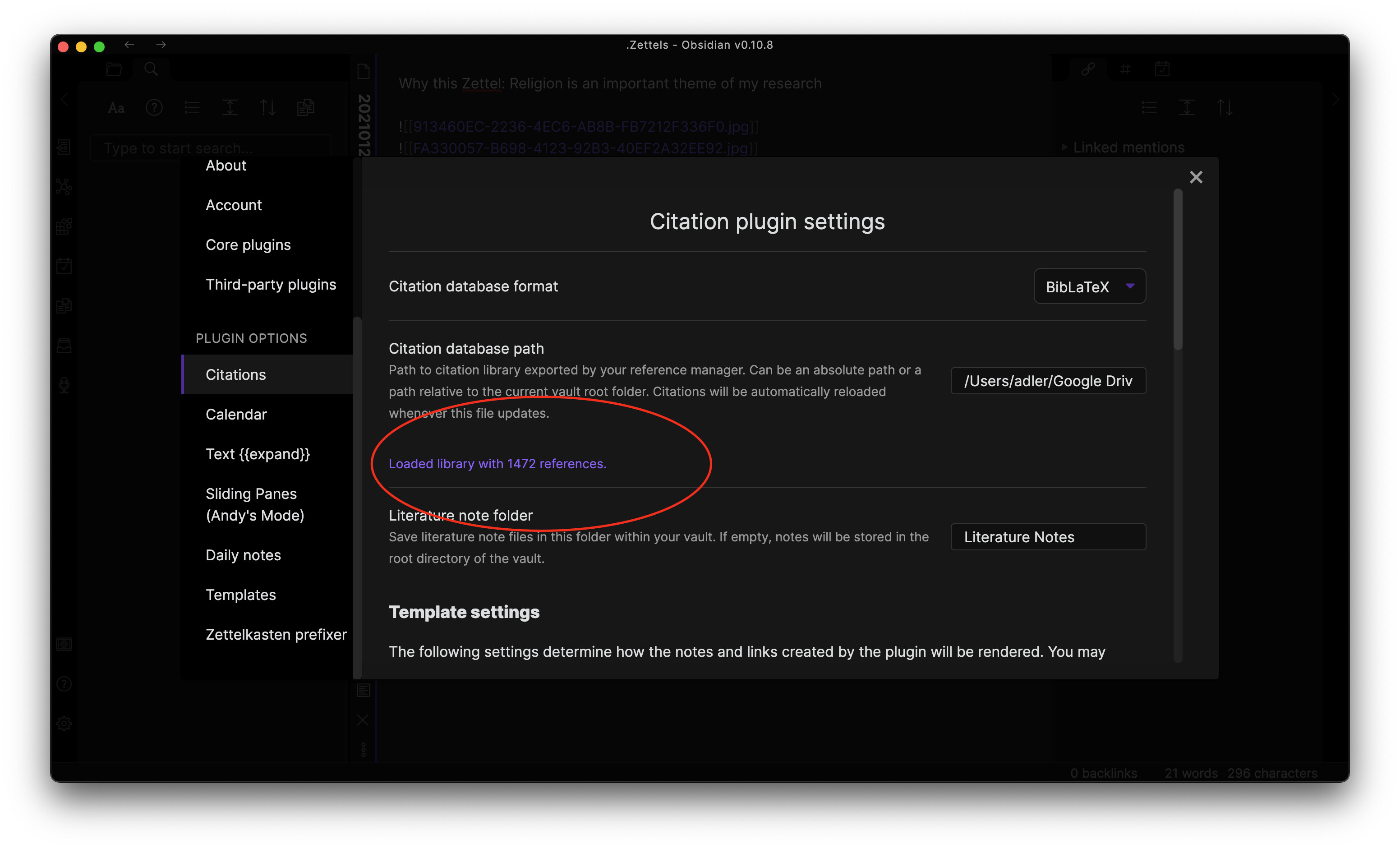
The problem is, I followed your guide and it shows that I’ve already “Loaded library with 1472 references,” yet I’m unable to use any part of the features that people have been discussing here.
Is there anything that I missed?
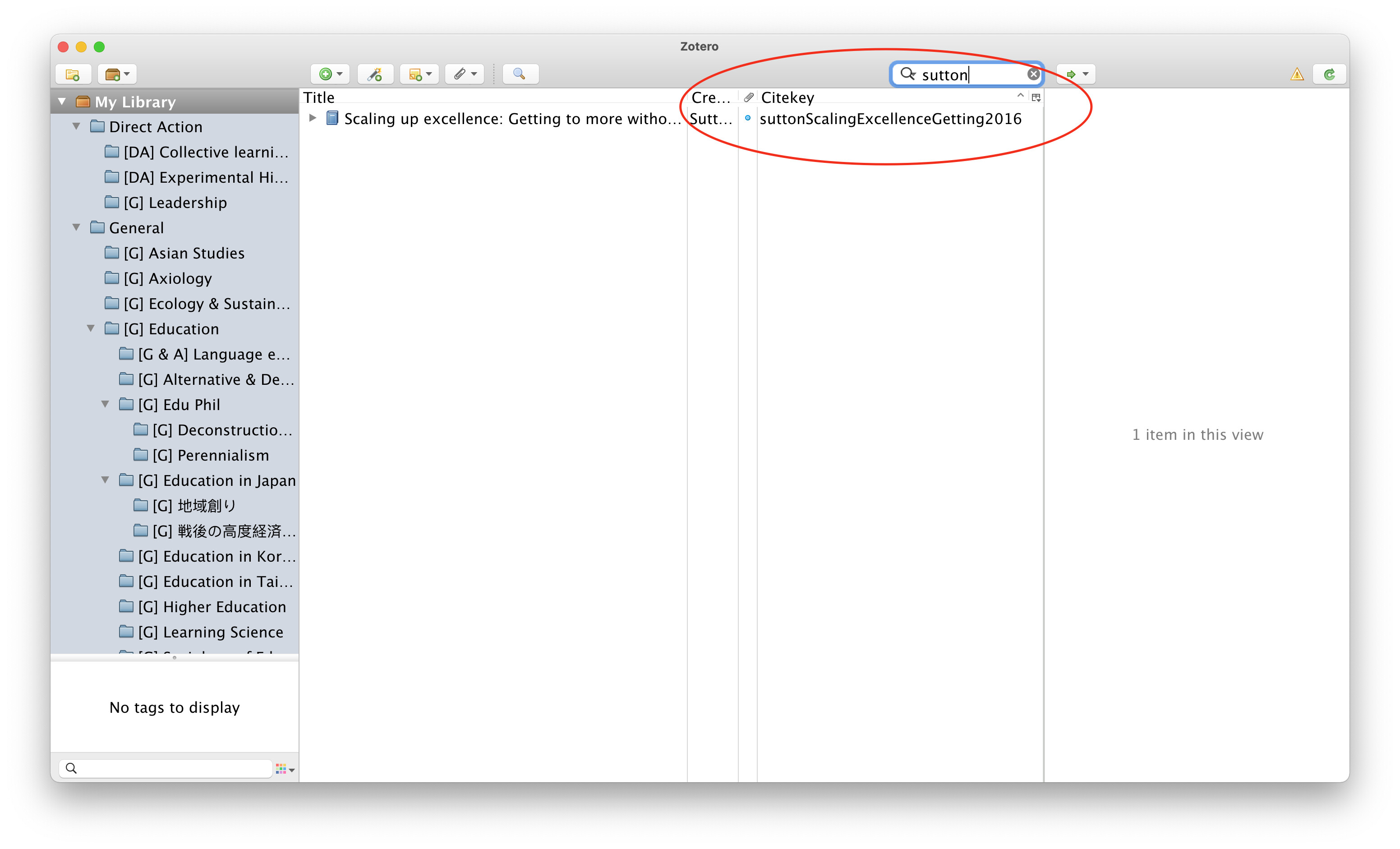
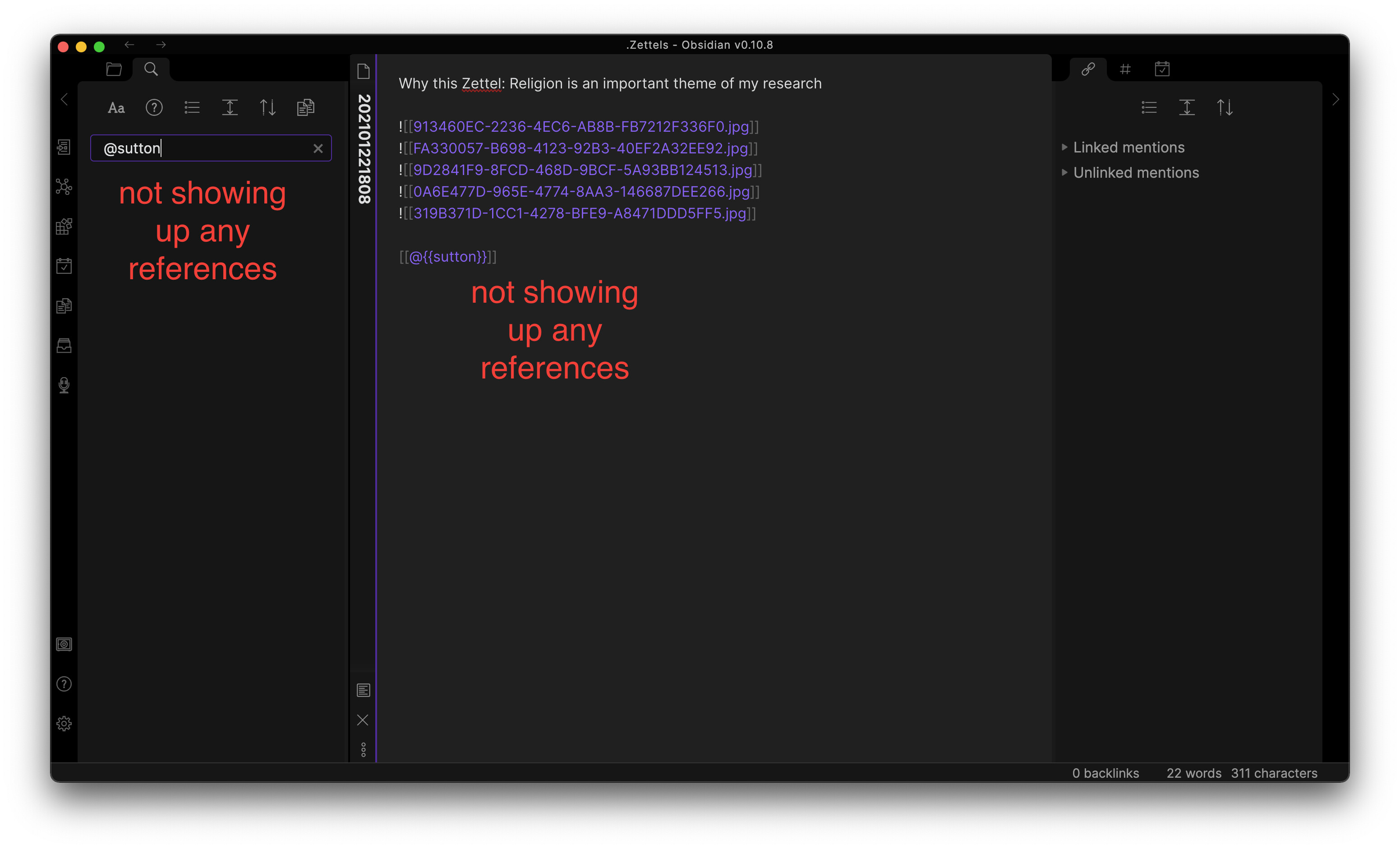
Please take a look at the screenshots:

I think the plugin currently isn’t supposed to show references; it just makes inserting them easier. E.g., if you press the hot key, do you see the reference list? Can you insert/create a literature note?
@adleryang I think there are several things you have to be aware of:
- The
{}brackets are only for templating in the settings, so@{{citekey}}translates to@citekeyin your notes, e.g.@suttonScalingExcellenceGetting2016for the title of a literature note or[[@suttonScalingExcellenceGetting2016]]for a link to it. That means you don’t have to use{}in your note content itself. - When you want to open or create a literature note, you can use the default hotkey
Cmd + Shift + O. Entering a link to a literature note can be done withCmd + Shift + E. - If you want to enter citations in the Pandoc style, you can configure the Markdown citation templates in the settings and e.g. define
[@{{citekey}}]there to enter Pandoc citations in the text with a hotkey you defined in the general hotkey settings panel. A reference could then look like[@suttonScalingExcellenceGetting2016]. - In your example you didn’t use the full citekey. Maybe there is another one called
suttononly?
If you want to see where in your notes you are referencing a certain source from the literature note, you can add the following query to the “Literature note content template” in the settings:
```query
"@{{citekey}}" file:(-"@{{citekey}}")
```
This would show you all notes you’ve used a specific citekey in, except the literature note itself.
3 Likes
Thanks @phlind for your swift response!
I tried the hotkeys but none of them works – They don’t respond at all so I have nothing to screenshot with but the native search box.
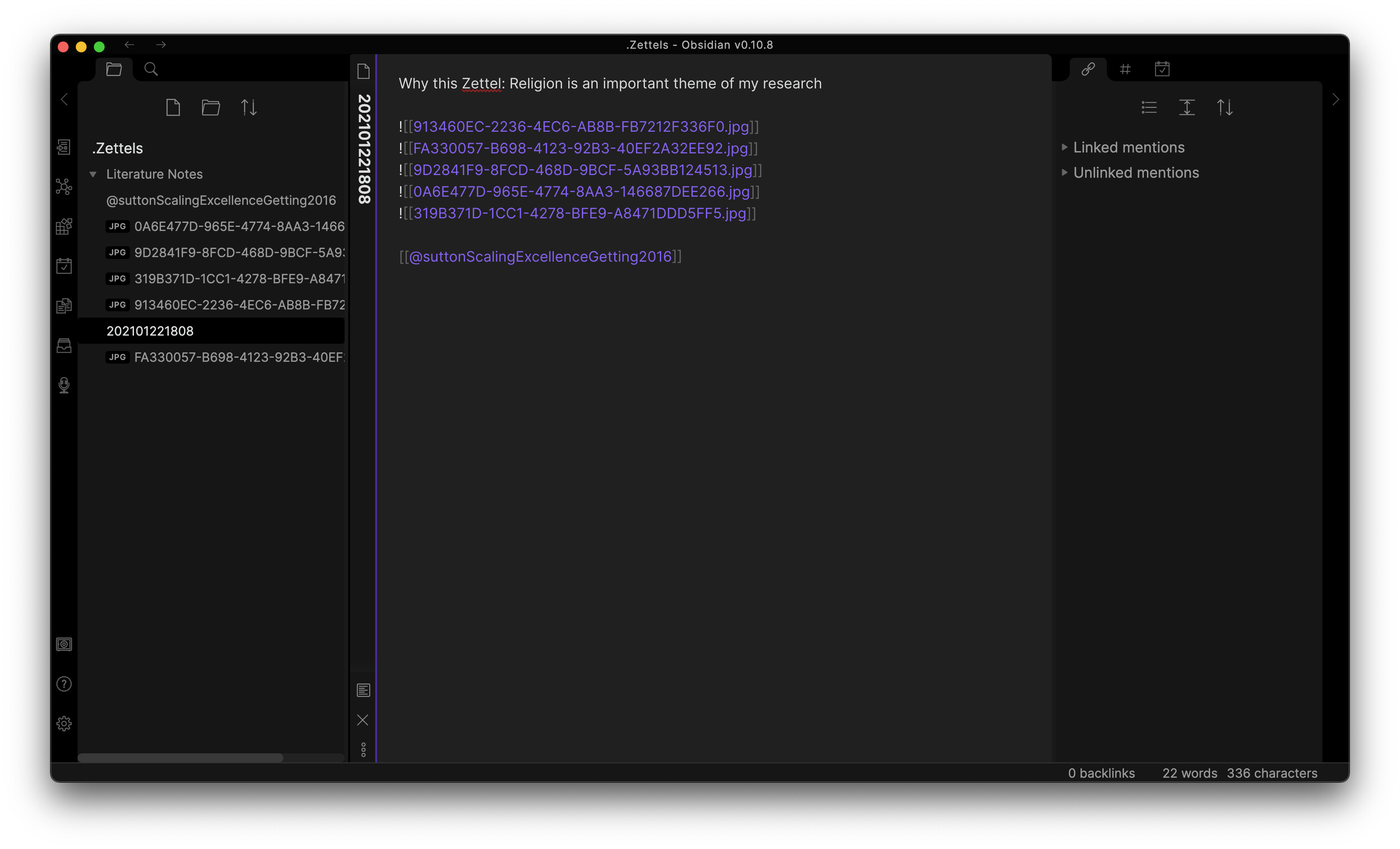
When I put [@suttonScalingExcellenceGetting2016] into my note, instead of redirecting to my Zotero entry, it creates a new empty note (as shown in the screenshot below):

Thanks for clarifying, @atiz!
No, I don’t see anything similar to the screenshots in the threads above. No reference list, not autocomplete option, etc.
Here’s an example of what I mean: When I type in the [[]] brackets, a list for autocomplete shows up. I’m expecting that since Zotero is already imported, I should see the Citekey in my autocomplete list when I start typing “sutton.” Unfortunately, it’s not the case.
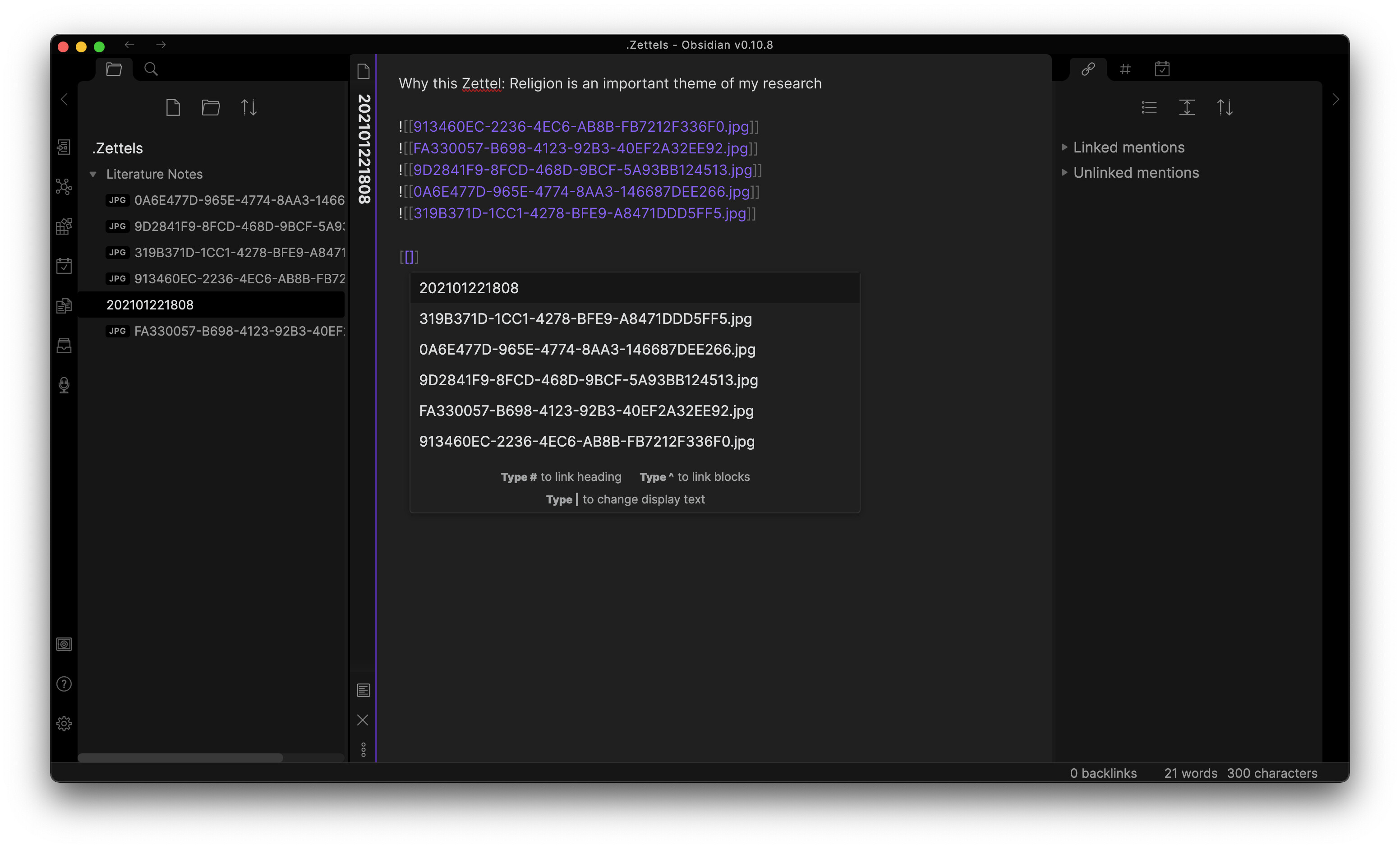
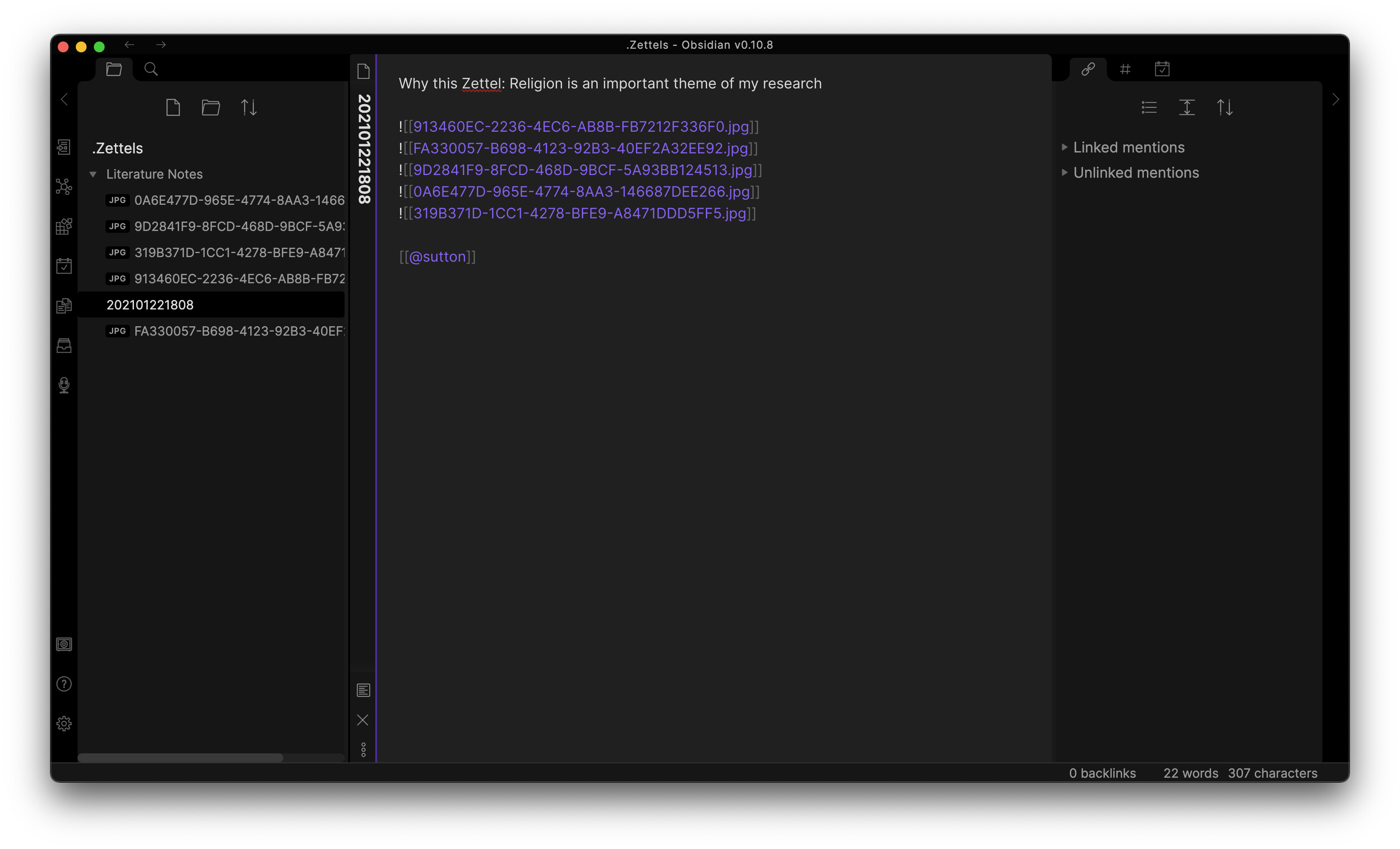
That’s not exactly how it’s supposed to be. When you center [[ the autocomplete will show you all notes you have. But just importing references doesn’t mean that you already have literature notes. You first have to create them by the hotkey. You can go into the Obsidian settings and under “Hotkeys” filter for “Citations”. There you can see or redefine the hotkeys. If they still don’t work after you redefined them, maybe you have to open the developer console with Alt + Cmd + I and see if there is an error when you press them, so @jgauthier can look at it.
Also the links to the literature note don’t send you to Zotero, they send you to the literature note. You have to put {{zoteroSelectURI}} in the template, in order to add the link to Zotero into the literature notes automatically.
I’m not sure if all those other files, the image files etc., are in your “Litertaure notes” folder. I think this folder should only contain literature notes. Maybe that’s the problem.
After setting the hotkey, now it works!!! Thanks a lot!!!
P.S. I don’t have two forum accounts. I just registered to this forum a hour ago and changed my username. 
P.S.2. My other files are not in the “Literature Notes” folder. My attempt was to show that it was empty.
1 Like
@phlind, using the embedded search tool with the citekey is super smart I really like this and added it to my template. Thanks.
1 Like
Thank you very much for creating this incredibly useful plugin, including the pandoc-style markdown citation much appreciated!
In the plugin settings, in Literature note content template, I’ve tried to make a template inspired by the mdNotes batch export template, shown in this post: Zotero best practices - #118 by PR-C
However, I’ve experienced some issues using the template included below, perhaps because I’ve close-to-zero experience with this stuff 
- some fields (e.g. page or page range) do not show while these contain data in Zotero.
- links to attached file are not imported/shown
- abstract is not imported
- note lists and content are not imported
Could you please guide me (towards sources) to make a fully functional template. Also, I’m open to alternative templates as this is a first version I’ve drafted just now.
Wishing you a pleasent sunday!
{{title}}
{{containerTitle}}
[[{{authorString}}]]
Metadata
Item Type: {{itemType}}
Author(s): {{author}}
Proceeding Title: {{proceedingsTitle}}
Date: {{date}}
Date added: {{dateAdded}}
URL: {{url}}
DOI: {{DOI}}
Cite key: [[{{citekey}}]]
Topics: {{collections}}
Tags: {{tags}} #zotero, #literature-notes, #reference
{{related}}
Attachments:
[Link to pdf]({{file}}
- {{pdfAttachments}}
- {{localLibrary}}
- {{cloudLibrary}}
Abstract
{{abstractNote}}
Notes and Highlights
{{notes}}
{{noteContent}}
3 Likes
@Opi You are using Zotero API…
The possible variables for the citations plugin templates can be found in the plugin settings:
- Abstract = {{abstract}} (not: {{abstractNote}} like in Zotero!)
- you can’t import your Zotero notes, as far as I know…
- pdf attachment is not {{pdfAttachments}} as in Zotero, but {{entry.files.[0]}} (this has been mentioned further up in this thread…)
@alltagsverstand Thank you for the quick reply, this is much appreciated!
TL;DR (Especially) if I interpreted your message correctly, I’ll take more time and be more thorough in my attempt to understand and fix future issues.
Based on the …, I feel like I should apologize for the lack of effort invested in understanding this plugin and perhaps APIs in general. Although I’ve read the thread, looked at the mdNotes guide and citations plugin documentation, I’ll take more time and be more thorough in my attempt to understand and fix future issues.
No problem, wasn’t meant in such a way! I don’t think it is important to have an understanding of APIs in general - you should just be aware that variables can differ among different applications!
1 Like
Hi everyone,
I am wondering if the plugin has the functionality where it watches the CSL-JSON/Bibtex file for changes and automatically updates the reference list? As far as I know, this doesn’t work without a restart/refresh of the loaded library so I can’t immediately pull a reference that was added to Zotero. It’d be nice if it’d automatically refresh/watch the file every few seconds.
1 Like
I have the same question here.