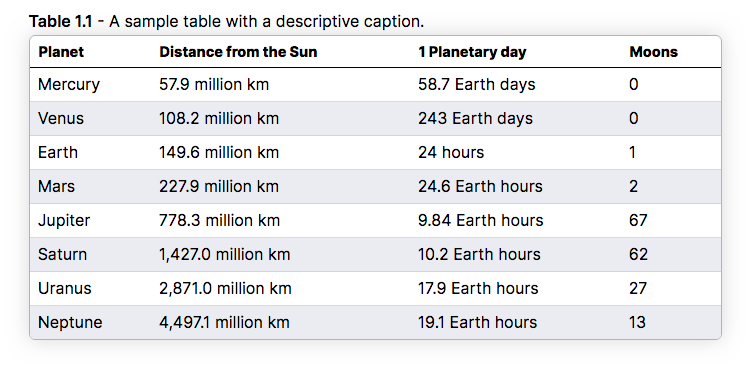
Rounded modes can be quite annoying to fine tune but that was not the case for the Latex one. I literally just copied the White red rounded parts of the code to the academia class. The updated Latex like code looks like this:
    /* --------------------------------------------   */
    /* Latex table-layout:                            */
    /* --------------------------------------------   */
    .academia table {
    	border-collapse: collapse;
    	border-spacing: 0;
    	width: auto;
    	/*max-width: 100%;*/
    	border-top: 2.27px solid black;
    	border-bottom: 2.27px solid black;
    	overflow-x: auto;
    	box-shadow: 0 0 20px rgba(0, 0, 0, 0.15);
    }
    .academia th,
    .academia td {
    	border: 0 none;
    	padding: 0.51rem;
    	line-height: 1.1;
    }
    .academia table > tbody > tr:first-child > td,
    .academia table > tbody > tr:first-child > th {
    	border-top: 1.36px solid black;
    }
    .academia table > tbody > tr:last-child > td,
    .academia table > tbody > tr:last-child > th {
    	border-bottom: 1.36px solid black;
    }
    .academia thead th {
        background-color: white !important;
        font-weight: 700;
        padding: 8px 9px 8px 9px;
        font-size: 0.9em;
    }
    .academia tr:nth-child(even) {
          background-color: #ebecf1 ;
    }
    .academia tbody tr:hover td {
    	background-color: #f5f1da;
    }
    /* --------------------------------------------   */
    .academia-rounded table {
        border-collapse: separate;
        border: solid #b3b3b3 1px;
        border-radius: 6px;
        border-spacing: 0px;
    }
    .academia-rounded table > tbody > tr > td {
    	border-bottom: 1px solid #ccccccbb;
    }
    .academia-rounded table > tbody > tr:last-child > td {
    	border-bottom: thin #ccccccbb;
    }
    .academia-rounded table th:first-of-type{
    	border-top-left-radius: 6px;
    }
    .academia-rounded table th:last-of-type{
    	border-top-right-radius: 6px;
    }
    .academia-rounded table tr:last-child td:first-child {
        border-bottom-left-radius: 5px;
    }
    .academia-rounded table tr:last-child td:last-child {
        border-bottom-right-radius: 5px;
    }
    /* --------------------------------------------   */
The rounded class is stackable so this is the front matter:
---
cssclass: academia, academia-rounded
---
And you should have it with rounded edges: